
How to Back Up Your YouTube Channel (2026 Guide)
Somewhere in Google’s servers, every upload you ever published is one wrong click from being gone. A hacked account, a policy strike, a support mistake, and a channel with six years of work can vanish in an afternoon. The difference between rebuilding and starting over is a backup you made last month.
Backing up your YouTube channel is easier than most creators expect, because YouTube and Google already built the tools. This guide shows how to back up your YouTube channel in 2026 with Google Takeout, with the Studio download button, and with yt-dlp for your own uploads, plus what each method actually saves.
The short answer: how to back up your YouTube channel
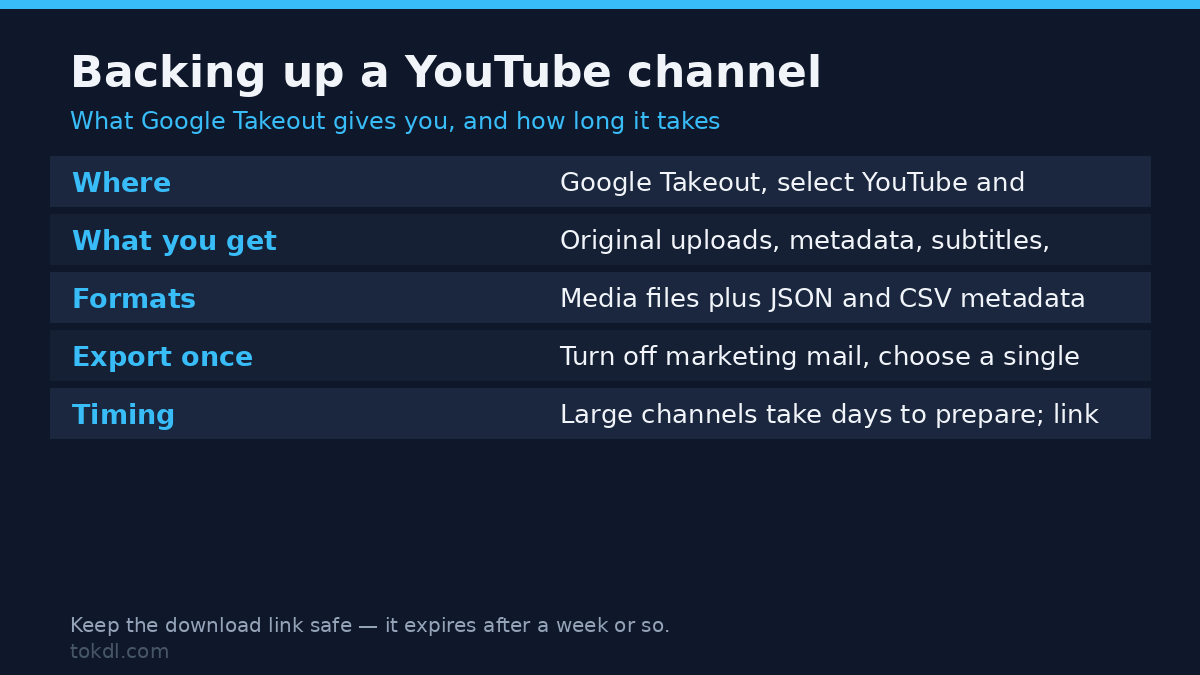
Google Takeout exports everything, including your videos, in one archive. YouTube Studio lets you download each of your own uploads individually at the original quality. yt-dlp can mirror your entire channel in a single command. Takeout is the safest full backup; Studio is the simplest for a few videos.
What a YouTube backup actually includes
To back up your YouTube channel properly, you need more than the video files. It includes your uploads, your playlists, your comments, your subscriptions, and your channel settings. Takeout is the only method that gets the non-video parts, and that matters more than it sounds. Your playlists alone can take years to rebuild.
You also need to decide where the backup lives. A second Google account, an external drive, or a NAS are all reasonable. The one bad place is the same account you are backing up. If the account dies, the backup dies with it.
Method 1: Google Takeout — the official full export
Takeout is Google’s data-export service, and it covers every product you use, not just YouTube. You choose the services, pick a delivery method, and Google assembles the archive. Start at Google Takeout and sign in with the account that owns the channel.
Set up the export
Open Takeout, click Deselect all, and turn on YouTube and YouTube Music. Each service has an arrow you can expand to choose the formats. For YouTube, keep the default settings unless you have a reason to change them.
Pick an export frequency and a destination. A one-time export is fine for most people; a yearly export keeps the backup current. Google emails you when the archive is ready.
Wait for the archive
Small channels get their archive within hours. Large channels with many videos can take days. Google does not stream the files; it emails you a link when everything is ready. You then download the zip files and store them somewhere safe.
Method 2: YouTube Studio — download your own uploads
For a handful of videos, Studio is faster than Takeout. Sign in to YouTube Studio, open Content, and every upload is listed. Open a video and look for the Download option. It gives you the original file, not a re-encoded copy.
The catch is scale. Studio has no select-all-and-download button. You download one video at a time, which is fine for a few files and painful for a channel with hundreds.
Method 3: yt-dlp — mirror your own channel
yt-dlp is the open-source downloader that outlived every website, and it works on your own channel too. Because you own the uploads, you can ask it to mirror the whole channel in one command. The full yt-dlp tutorial covers the basics, and the pattern for a channel is simple: point it at your channel URL and let it walk through the video list.
You can use it with your account login so private and unlisted uploads are included. Store the output on a drive with room, because an archive of everything can get large. A basic channel mirror looks like this:
yt-dlp --write-thumbnail --write-description --write-comments n --output "%(upload_date)s - %(title)s.%(ext)s" n "https://www.youtube.com/@yourchannel/videos"Add --cookies-from-browser when the channel has private or members-only uploads, and drop the comment flag if the archive only needs video. The command saves each file with the upload date in the name, which keeps the backup in order.
What the tools in this space actually do, and their limits
Takeout is the only complete backup, but its video quality can be a surprise. For videos uploaded in high resolution, the exported file is usually the original or close to it. For some videos, the exported copy is a lower resolution than what you uploaded. YouTube does not promise original-quality export for every file, so check the exported file before you delete anything.
Studio downloads are closer to the original because you are grabbing the file you own. The limitation is purely manual labor. yt-dlp sits between the two: flexible, fast, and scriptable, but it needs the right command and enough storage.
No tool can back up your YouTube channel from outside your own account. Anyone offering to back up or archive someone else’s channel is either selling something YouTube forbids or asking for access it should never have.
Rights and responsible use
A backup of your own channel is your business. You uploaded the videos, and keeping a copy for yourself is a normal part of owning that work. What you cannot do is treat the backup as a license for anything else.
Your videos may include music, clips, or footage that belongs to other people. The backup preserves what you uploaded; it does not change who owns those elements. Re-uploading, selling, or reusing someone else’s content from your archive is governed by their rights and by the platform’s rules. YouTube’s Terms of Service define what the platform permits. Saving a copy gives you no new rights to anything in it.
Troubleshooting common backup problems
The Takeout email never arrives
Check spam, then check the export status page. Google sometimes splits large archives into multiple zip files and sends the links over several emails. If nothing arrives after a few days, create a new export and choose a smaller set of services.
The exported videos are lower quality than the originals
This happens with some uploads in Takeout. Open one exported file and compare its resolution with the Studio original. If the quality is wrong for the videos you care about, use Studio or yt-dlp for those files instead.
The archive is too large for the destination
Takeout splits files, but a huge channel can still produce a lot of data over time. Download in batches, or point the export at a service with room. For video-only backups, yt-dlp with a quality filter can skip resolutions you do not need, and compressing video without losing quality helps when storage is tight.
Studio does not show a Download button
The button appears on videos you uploaded, not on videos in your library from someone else. If it is missing for your own upload, check that you are in the right channel account and that the video is not in a restricted state.
yt-dlp skips private videos
Private and unlisted uploads need your login. Without it, yt-dlp can only see what the public page shows. Add your cookies or authenticate before the run, and only for your own channel.
The download stops halfway through a long channel
Large mirrors can be interrupted by a network drop or a laptop going to sleep. Run the command again and it resumes, because yt-dlp skips files that already exist. Add --download-archive archive.txt to make that resume reliable even when filenames change.
Frequently asked questions
How do I back up my YouTube channel completely?
Google Takeout is the complete method. It exports your videos, playlists, comments, and settings in one archive. Choose YouTube in Takeout, wait for the email, and store the files somewhere separate from your account.
Does Google Takeout include my videos at original quality?
Usually, but not in every case. Takeout exports the file Google has for each video, and for some uploads that is a lower resolution than the original. Check one file before deleting anything, and use Studio for the videos that matter most.
Can I download my own videos from YouTube Studio?
Yes. Open Content, pick your video, and use the Download option. It returns the original file, one video at a time.
How long does a Takeout export take?
From a few hours to several days, depending on channel size. Google emails the link when it is ready. Large channels may receive multiple archive files.
Will backing up my channel get me banned?
No. Exporting your own data with the official tools is allowed and normal. Third-party services that ask for your password to save your channel are the actual risk, because they misuse account access.
Can I back up someone else’s channel?
Not through these methods. Takeout and Studio only work for your own account, and archiving another creator’s content without permission is not something the platform permits. Ask the creator for the files if you need them.
Where should I store the backup?
Somewhere you control and that is not the same Google account. An external drive, a second account, or a NAS all work. The point of a backup is that it survives the original.
Which method should you use?
One-time full safety net: Google Takeout, once now and yearly after that. A few videos you cannot afford to lose: Studio downloads. An entire channel with hundreds of uploads: yt-dlp pointed at your own channel. The three are not rivals.
Whatever you choose, back up your YouTube channel on a schedule, not after a scare. Most creators run Takeout for the complete archive and one of the other two for the videos they actually want in original quality.