
Compress Video Without Losing Quality: The 2026 Guide
A friend sent me a 4.2 GB video of her daughter’s recital and asked why it wouldn’t upload anywhere. Twelve minutes of footage. Four gigabytes. Her phone had shot it at a bitrate meant for a cinema screen, and every platform she tried either rejected it or spent an hour crushing it into mush.
We got it to 340 MB in about eight minutes. Same visual quality on any screen she’d realistically watch it on. That’s the whole promise of learning to compress video without losing quality — and it has almost nothing to do with the tools people usually reach for.
Why your files are so much bigger than they need to be
Phones and cameras record for editing, not for sharing. They use conservative settings that preserve every bit of detail so you have room to color-grade later. Almost nobody does that. Most footage goes straight from the camera to a chat app, and all that extra data does nothing except slow the upload.
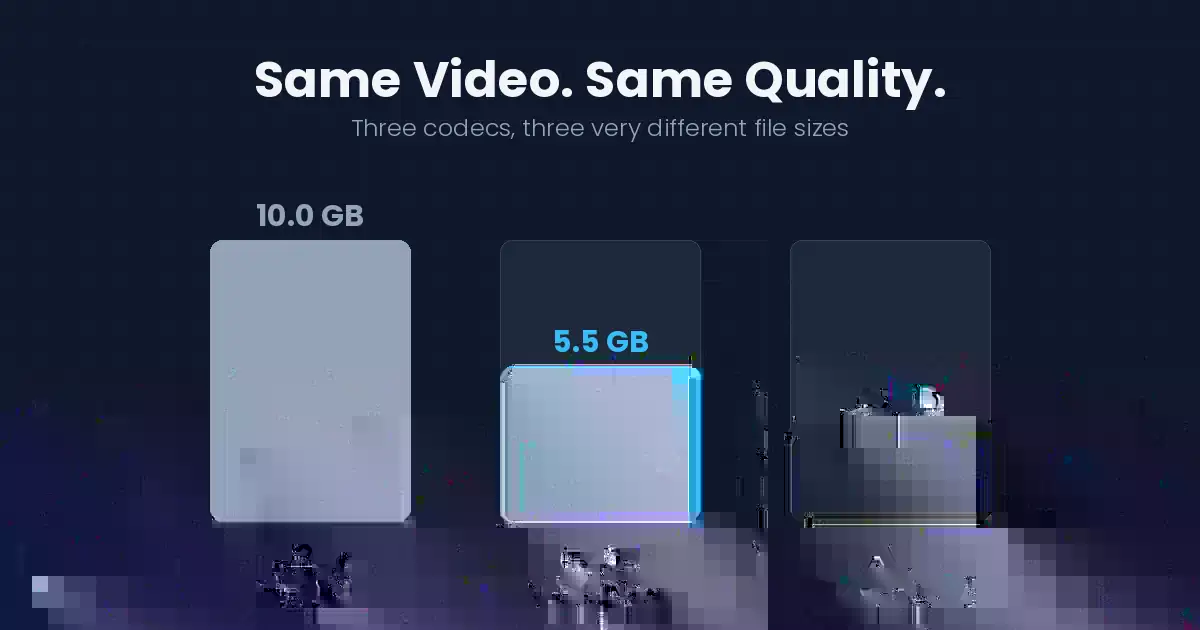
Then there’s the codec. If your file is old, or came off a cheap camera, it’s probably H.264 — a standard finalized in 2003 that still plays on literally everything but compresses like it’s 2003. H.265 compresses roughly 50% better than H.264 at the same visual quality, and AV1 compresses another 30-50% better than H.265 on top of that.
Which means the same video, at the same quality, can be three different sizes depending on nothing but the codec you pick.
Pick the codec first, everything else second
This is the decision that actually moves the number. Here’s how the three that matter compare:
| Codec | Roughly the same video | Plays on | Best for |
|---|---|---|---|
| H.264 | 10 GB | Everything, everywhere | When it absolutely must play |
| H.265 (HEVC) | ~5.5 GB | Most devices from ~2016 on | Storage and archives |
| AV1 | ~3.5 GB | Hardware from 2022 on | Web delivery, long-term storage |
Those figures come from comparisons scored with VMAF, Netflix’s perceptual quality metric, where all three files were tuned to look equivalent — not from three arbitrary quality settings, which is how most codec comparisons get inflated.
Three practical notes before you jump straight to AV1.
AV1 encodes slowly. Painfully so without hardware support. You need a reasonably modern GPU — RTX 40-series, Intel Arc, or AMD RX 7000 and up — or software-only AV1 becomes impractical. On an older laptop, a ten-minute clip can tie up your machine for an hour.
H.265 has a licensing mess behind it. Doesn’t affect you personally, but the fragmented patent situation is widely credited with slowing its adoption on the web, which is why some browsers and platforms still handle it awkwardly.
H.264 is never the wrong answer when the only thing that matters is that the file opens. Sending something to a relative with a 2015 tablet? H.264. Every time.
The CRF dial does the rest
Once the codec is chosen, one setting controls almost everything else: CRF, or Constant Rate Factor.
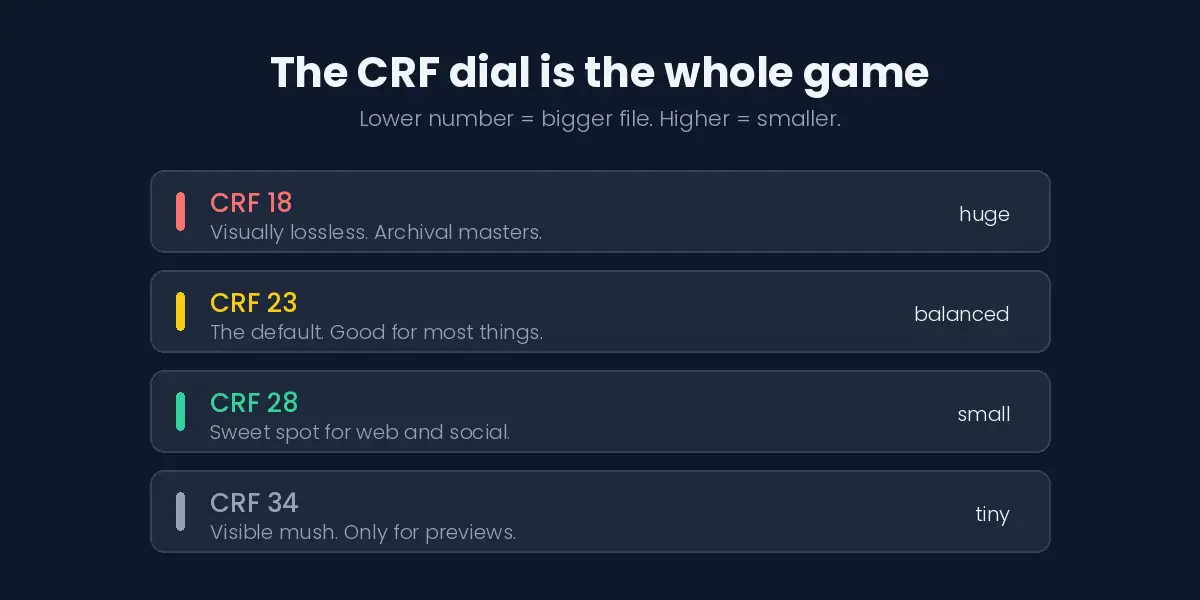
It’s a quality target, not a size target. You tell the encoder how good the output should look, and it spends whatever bits that takes — more on complex scenes, fewer on simple ones. Lower number means higher quality and a bigger file.
For H.264, CRF 23 is the default and CRF 28 is where most people should actually be for anything headed to the web. That single step typically halves the file, and on a phone screen you will not see the difference. Below 18 you’re storing data your eyes can’t resolve. Above 32 the artifacts start showing in gradients and dark scenes.
One catch worth knowing: CRF numbers aren’t interchangeable across codecs. CRF 28 in H.265 is roughly equivalent to CRF 23 in H.264, not to CRF 28. Carrying the same number across codecs is the most common mistake people make.
Resolution: the setting everyone forgets
Here’s the free win.
Ask where the video is actually going to be watched. If the answer is “on a phone, in a chat app,” then 4K is pure waste — you’re storing four times the pixels of 1080p for a screen that can’t display them. Downscaling 4K to 1080p before you compress cuts the file dramatically and costs you nothing anyone will notice.
Frame rate is the same story. Footage shot at 60 fps that’s just people talking looks fine at 30. That’s another meaningful chunk gone.
Resolution and frame rate together often save more than any codec change — and they take one click.
What to actually use
HandBrake is free, open source, runs on Windows, Mac, and Linux, and its presets are genuinely good. “Fast 1080p30” handles most of what people need without touching a single advanced setting. Start here.
FFmpeg if you’re comfortable in a terminal. Total control, scriptable, no interface to fight. ffmpeg -i input.mp4 -c:v libx265 -crf 28 -c:a aac -b:a 128k output.mp4 covers a huge share of real jobs.
Your phone, for the simplest cases. Both iOS and Android will re-encode on export at a lower resolution if you pick one — no app needed.
Browser-based compressors are fine for a one-off small file. Be aware that most of them upload your video to someone else’s server. For anything private, use something that runs locally. And on the download side of the same workflow — grabbing the video before you compress it — our roundup of the best video downloader apps covers the tools that stay trustworthy.
Don’t forget the audio
People obsess over video bitrate and leave audio at whatever the camera recorded — often uncompressed, sometimes hundreds of megabytes on a long clip.
AAC at 128 kbps is transparent for speech and fine for most music. At 96 kbps, speech is still perfectly clear. On a talking-head video that’s occasionally a bigger saving than anything you did to the picture.
The mistake that ruins files
Compression is lossy and permanent. Every re-encode throws away data the previous one already thinned out, and it never comes back.
So: keep your original. Compress a copy. If the result looks wrong, go back to the master and try different settings — never re-compress the compressed version. Stack three or four generations of that and you get the smeared, blocky look that screams “downloaded from a group chat.”
This is also why the source matters. A video that was already squeezed by a platform has little left to give. You can shrink it further, but you’ll see it happen.
Frequently Asked Questions
Can you compress a video with genuinely zero quality loss?
Only by switching containers or using a lossless codec, which barely shrinks anything. What’s achievable is visually lossless — data removed that your eyes can’t detect at normal viewing distance. That’s what CRF 18-20 gives you.
Why did my file get bigger after compressing?
You re-encoded at a higher quality setting than the source, or converted from an efficient codec back to H.264. Check what the original actually was before converting it.
Is MP4 or MKV better for smaller files?
Neither. Those are containers — they hold the video, they don’t compress it. The codec inside determines size. MKV just supports more codecs and multiple audio tracks.
How long should compression take?
With hardware acceleration, faster than real-time for H.264 and H.265. Software AV1 can run several times slower than the video’s duration. If it’s crawling, that’s usually why.
Will compressing hurt quality on a TV?
Bigger screens are less forgiving. For TV viewing, drop CRF by 2-3 points from your phone settings and keep the resolution native.
What about videos I’ve saved from social platforms?
They arrive already compressed by the platform, so there’s less headroom. Anything you pull from Telegram or save from WhatsApp statuses has been re-encoded at least once before it reached you. Our guides on saving your own TikToks cleanly and cross-posting between platforms cover why keeping the original master matters so much. And when you need a tiny looping clip rather than a full video, our video to GIF converter guide shows the size levers for GIFs specifically.
What this means for you
Most oversized files are oversized for one of three reasons: the wrong codec, a resolution nobody needs, or audio nobody thought about. Fix those three and the tools barely matter.
For that recital video, the whole fix was H.265, CRF 28, downscaled to 1080p, audio at 128 kbps. Four gigabytes to 340 megabytes, and on the phone where it actually got watched, indistinguishable.
Open HandBrake, load your biggest file, and try the same. Ten minutes, and you’ll never fight an upload limit again.
[…] Shrink those big downloads so they fit anywhere […]
[…] material, treat them like any other source clip: keep the good ones, and use a tool that lets you compress video without losing quality to shrink your library without killing playback […]
[…] covered the quality-versus-size trade-off in far more depth in our guide to compressing video without losing quality, including how to measure whether you actually lost […]
[…] it to MP3 in one step. If you would rather handle quality and compression yourself, our article on compressing video without losing quality explains the settings that […]
[…] HandBrake always re-encodes. It is brilliant for compressing a video for a specific device, and our guide to compressing video without losing quality explains how to use it well. For a pure MKV-to-MP4 remux, however, HandBrake is the wrong tool — […]
[…] can always re-encode a download later to shrink it; there’s a guide on compressing video without losing visible quality that covers the codec settings. Most people never need to, though, because 720p from Dailymotion is […]
[…] Compress your saved videos so they fit anywhere […]
[…] Compress videos so they transfer to your TV faster […]
[…] rather than raising the bitrate blindly. For long or storage-heavy libraries, the settings in our guide to compressing video without losing quality explain the trade-offs in more […]
[…] at a lower resolution, or compress the finished file with free desktop tools. Our guide to compressing video without losing quality covers the settings that […]
[…] For video-only backups, yt-dlp with a quality filter can skip resolutions you do not need, and compressing video without losing quality helps when storage is […]
[…] re-encode at a lower bitrate or run the result through a compression pass, and our guide to compressing video without losing quality shows the settings that keep it […]
[…] the bitrate before you blame the resolution. When you must shrink a file for storage, our guide to smaller video files explains the encoder settings that cut data without obvious damage. If you want the full trade-off, […]
[…] so it costs time, a little quality, and file size; export once from the original and check our video compression guide when the result feels […]
[…] the quality decision is made before you start. Begin from the highest-resolution copy you own, then compress the result if the file still has to […]
[…] to MP4, then adjust the quality slider. Its default presets re-encode, which is slower but can shrink video without losing quality if you pick a sensible bitrate. Rewrapping in VLC never shrinks anything; it only changes the […]
[…] by about a quarter, watch a motion-heavy scene, and repeat until the softness becomes visible. Compressing a video without visible loss is easiest on calm […]
[…] same quality, and many cameras raise the bitrate automatically at 60. If size is the real problem, compressing video without quality loss is the fix, or deliver at […]
[…] not divisible by 2” errors I have seen in the wild. If the file still has to be smaller, the CRF and scaling trade-offs are worth understanding before you lower the number […]
[…] and motion all push the target up or down. And when a file has to shrink rather than be planned, compressing without visible quality loss is the next […]
[…] which is why published H264 vs H265 comparisons disagree with each other so much, and why the compression trade-offs are worth reading before you trust a […]
[…] the bitrate calculation walkthrough works the same formula from the other direction, and the compression guide covers what you lose when you push […]
[…] editor. Exporting at maximum quality also keeps the file large, so if size becomes a problem, compress the export afterwards rather than lowering the watermark […]
[…] File size is the other difference. A platform recording is compressed and stored in the cloud, while a local capture is a large file that you’ll probably want to compress before you share it. […]
[…] the quality side of this there’s the compression guide, and for predicting a size from a known bitrate, the bitrate math post. This one is narrower: the […]
[…] the file by 81 percent and costs only 0.023 SSIM and 4.9 dB. The same arithmetic sits behind every compress a video without losing quality […]