
Download Snapchat Memories: The Complete 2026 Export Guide
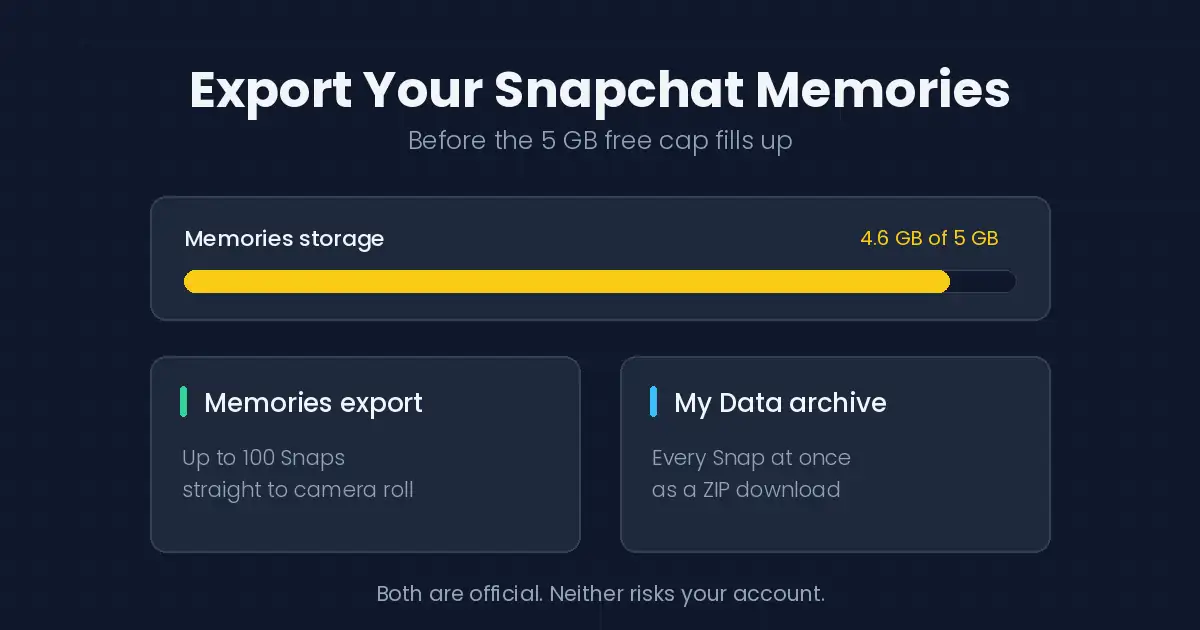
I got the notification on a Tuesday: my Memories were at 4.6 GB of 5. Eight years of Snaps — my brother’s wedding, a road trip through Utah, my dog as a puppy — sitting one bad decision away from a paywall or a purge. I’d never once stopped to download Snapchat Memories to anywhere I actually controlled.
If you’ve hit that same warning, you’re in the right place. And if you haven’t yet, you will.
Here’s the part that surprises people: Snapchat gives you two completely free, completely official ways to pull every Snap you own onto your own hard drive. No app to install. No password to hand a stranger. I’ll walk through both, plus the metadata trap that ruins most people’s export, and the honest answer to the question that brought a lot of you here — whether third-party Snapchat downloaders are worth it.
First, understand what you actually own
Memories live on Snapchat’s servers, not your phone. That’s the whole problem in one sentence.
You saved those Snaps thinking you were keeping them. What you were really doing was renting cloud space from a company that has since decided free storage tops out at 5 GB. Past that, you either pay monthly or start deleting. Snaps in your Memories tab feel permanent right up until the moment they aren’t.
The fix isn’t complicated. It’s just something almost nobody does until a notification forces them.
Method 1: Export Snaps straight to your camera roll
Best for grabbing a handful of specific Memories without waiting on anything.
Swipe up from the Camera screen to open Memories. Press and hold any Snap, then tap Export, then Download. It lands in your camera roll within seconds.
For a batch, tap the selector icon at the top of the Memories screen and choose up to 100 Snaps at once, then export the whole set together. That cap of 100 is a hard limit per batch, which is fine for a weekend’s worth of Snaps and painful for eight years of them.
Which is why there’s a second method.
Method 2: Request your full archive through My Data
This is the one for people with hundreds or thousands of Memories. It pulls everything in a single request.
Log in at accounts.snapchat.com — or open the app, go to Settings, and tap My Data. Under “Select data to include,” toggle Export your Memories on, pick your date range (choose All Time unless you have a reason not to), confirm your email, and submit.
Snapchat prepares the archive and emails you when it’s ready. That usually takes under a day, though it depends on how much you’re asking for. When the link arrives, hit See exports and download the ZIP.
Now the part where people get stuck: the ZIP doesn’t hand you a folder of photos. Extract it, then open index.html in your browser. You’ll get a local page with a navigation bar — click Memories, and from there you can download individual Snaps or the whole set.
Do this on a computer. Snapchat’s own support says the same, and they’re right — unzipping a multi-gigabyte archive on a phone is a bad time.
The metadata trap nobody warns you about
This is the detail I wish someone had told me before my first export.
When you download Snapchat Memories through the archive, the photos and videos come out stripped of their original dates and locations. That information isn’t gone — Snapchat keeps it in separate JSON files inside the archive — but your photo app can’t read JSON. So every Snap you took in 2019 lands in your library timestamped as today.
Import 3,000 Memories without thinking about this and you get a camera roll where your entire life happened on a Tuesday afternoon in August.
If chronology matters to you — and for family footage, it really does — sort the files into dated folders before importing, or use a tool that reads memories_history.json and writes the original dates back into the files. The batch export in Method 1 sidesteps this entirely, since those Snaps go to your camera roll with dates intact. That’s a genuine argument for using Method 1 for the Memories you actually care about, even though it’s slower.
Check the export before you delete anything
People clear their Memories the moment the download finishes. Don’t.
Open the archive and spot-check it first. Count the folders — a large export often arrives split across a primary folder plus extras numbered -1, -2, and so on, and it’s easy to grab one and assume you have everything. Open a few files from different years to confirm they actually play. Check that videos came through as video and not as broken thumbnails.
Then, and only then, start freeing up space. Deleted Snaps don’t come back, and they won’t appear in a future export either. I’d give it a week on your drive before you touch anything on Snapchat’s side.
What about third-party Snapchat downloaders?

Let’s be direct, because this is where people get burned.
Snapchat’s Terms of Service prohibit unauthorized third-party apps and plugins outright. This isn’t a gray area or a rule nobody enforces — it’s stated plainly in their support documentation, and the enforcement is automated.
Here’s what happens when you’re caught. First offense: your account gets locked temporarily. Repeat it, and the lock becomes permanent. Snapchat can also ban the device itself, meaning a fresh account on the same phone won’t get you back in. And you only get one appeal — if it’s denied, that’s the end of it.
There’s a second problem that has nothing to do with bans. Unauthorized apps work by taking your actual username and password and logging in as you. Legitimate integrations use Snap Kit, which never sees your credentials. So the moment you type your Snapchat login into a third-party tool, you’ve handed a stranger full access to your account — and by extension, to conversations with everyone on your friends list.
Weigh that against what you’re getting. Both official methods above are free, take minutes, and give you the original files at full quality. There’s no capability you’re missing out on. For other platforms where third-party tools are the right call, our roundup of the best video downloader apps separates the safe tools from the adware — the same permission and update checks apply everywhere.
Saving other people’s Snaps: the honest answer
Some of you came here wanting to save someone else’s Story, so let’s address it rather than pretend otherwise.
Snapchat was built around content that disappears. That’s not a bug to route around — it’s the entire premise people agreed to when they posted. Screenshots trigger notifications precisely because the platform treats saving someone’s Snap as something they should know about.
Content other people post belongs to them. Saving it without their knowledge, and especially redistributing it, is a problem regardless of what tool makes it technically possible. If you want a friend’s Snap, ask them to send it to you. It takes ten seconds and nobody’s account gets locked.
This guide covers your own content. That’s a deliberate limit, not an oversight. The same principle applies across platforms — our guide to saving Instagram videos draws the same line, and so does the one on backing up your own Facebook videos. If you’re worried about disappearing content on other apps, the guides for saving WhatsApp status videos and downloading Telegram media cover the ephemeral-content problem from the same angle.
Set it up so you never need this again
Two minutes now saves you the whole export dance later.
Open Settings, scroll to Memories, tap Save To… and pick Memories & Camera Roll. From that point on, every Snap you save goes to both places at once. Snapchat’s cloud becomes a convenience rather than the only copy.
Then get those files somewhere durable — cloud storage, an external drive, whatever already holds your photos. A camera roll on a phone that can be lost, stolen, or dropped in a lake is not a backup. It’s a single point of failure with a nicer interface.
And put a reminder in your calendar. Once a year is enough. The export takes twenty minutes and the alternative is finding out the hard way that a policy changed while you weren’t paying attention.
Frequently Asked Questions
How long does the My Data export take?
Usually under 24 hours. Large archives with years of video take longer. Snapchat emails you when the download link is ready.
Can I export Memories without the app?
Yes. The My Data request works entirely from accounts.snapchat.com in a browser, which is the better route for large archives anyway.
Will exporting delete my Memories from Snapchat?
No. Exporting copies your data; it doesn’t remove anything. If you’re clearing space, you delete Snaps separately after confirming your download worked.
What quality do exported Memories come out in?
The original quality they were saved at. There’s no re-compression on export, so what you get matches what Snapchat stored.
Why are my exported Snaps all dated today?
Because the dates live in separate JSON files that photo apps can’t read. See the metadata section above — this is normal, and it’s fixable.
Can I recover Snaps I already deleted?
No. Deleted Memories are gone and don’t appear in a My Data export. This is exactly why exporting before you delete matters.
Does My Eyes Only content come through in the export?
No. Content locked behind My Eyes Only stays encrypted with your passcode and isn’t included. Move anything you want backed up out of it first.
What this means for you
That 5 GB cap isn’t a crisis. It’s a reminder that Memories were never really yours — they were always sitting on someone else’s server, subject to someone else’s pricing decisions.
Twenty minutes with My Data, and eight years of Snaps live on a drive you control, where no policy change can touch them. For the clips that actually matter — the wedding, the dog, the trip you’ll never repeat — that’s the difference between a memory you keep and one you just used to have.
Go request the export. You’ll have it by tomorrow. And when a saved Snap is worth sharing as a loop, our video to GIF converter guide turns it into a lightweight GIF in under a minute.