
MP3 to MP4: Turn an Audio File Into a Video That Uploads (2026)
TikTok rejects an MP3 upload. So does Instagram Reels, and so does a Facebook video post. The audio isn’t the problem: those upload forms expect a video file, and an MP3 has no picture track for the player to draw.
An MP3 to MP4 conversion fixes that by pairing the track with one still image and holding that image on screen for the length of the audio. The sound is untouched. The finished MP3 to MP4 file opens in any player, uploads as a normal video, and behaves like one everywhere.
A good MP3 to MP4 conversion takes one command, or about four clicks in an editor. The part nobody warns you about is the ending: in my own tests the file finished more than a second after the audio did, with a frozen frame hanging on screen, and the option named “shortest” was the thing that failed to prevent it.
What MP3 to MP4 Conversion Actually Does
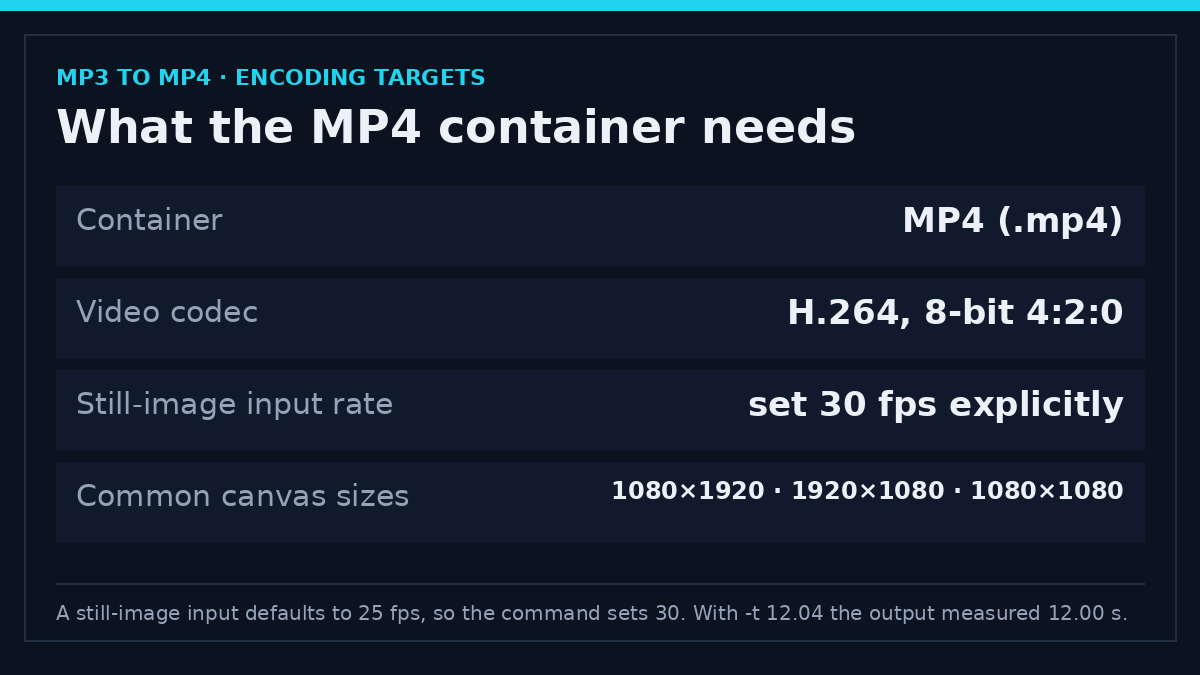
MP4 is a container, not a codec. It’s a box that holds a video track, an audio track, and the timestamps that keep the two aligned. An MP3 already contains the second part. An MP3 to MP4 converter’s job is to add the first part and write both into the box.
The usual video track is a single JPEG or PNG encoded as H.264 at 30 frames per second. Every frame is identical, so the encoder spends almost nothing on everything after the first one. That’s why these files stay small: the audio is nearly all of the bytes.
Nothing here improves the sound. A 128 kbps MP3 re-encoded to AAC is still a lossy file, and it loses a little more in the second pass. An MP3 to MP4 conversion is about the container and the upload.
| Layer | What to aim for | Why |
|---|---|---|
| Container | MP4 (.mp4) | Accepted by phones, browsers and most upload forms |
| Video codec | H.264, 8-bit 4:2:0 | Hardware decoding works even on old phones |
| Frame size | 1280×720, 1080×1920, or 1080×1080 | Even numbers, in the shape the platform expects |
| Audio codec | AAC, 192 kbps stereo | MP4’s default companion, decoded everywhere |
| Duration | Exactly the audio’s length | No frozen tail, no cut-off ending |
Before You Start: What You Need
Four things stand between you and a finished MP3 to MP4 file: the audio, one image at least as large as the frame you want, FFmpeg, and the audio’s true duration. The last item matters more than it sounds, and the file name doesn’t tell you it.
FFmpeg is packaged for macOS, Windows and Linux, and installs through the usual package manager on each. Everything below runs in a terminal and needs no account. If you’d rather not use a terminal at all, skip to the editor method and do the MP3 to MP4 job there. Otherwise the first step is to ask the file how long it really is.
ffprobe -v error -show_entries format=duration -of default=noprint_wrappers=1 track.mp3The answer is a decimal number of seconds, and it’s the number you’ll feed back into the encode. A track that shows 3:58 in a player often measures 238.31 seconds here, because players round and files do not.
Artwork is the other common gap in an MP3 to MP4 conversion. If the MP3 has embedded cover art, pull it out instead of hunting for a picture:
ffmpeg -i track.mp3 -an -c:v copy cover.jpgMany MP3s carry no artwork, and FFmpeg then answers “Output file does not contain any stream” rather than writing a file. In that case use any image you own at the right size. A phone photo works; it just needs to be larger than the output frame so it isn’t upscaled.
Method 1: Convert MP3 to MP4 With FFmpeg
The whole MP3 to MP4 job fits in one command. A looped still image for the picture, H.264 for the codec, AAC for the sound, and an explicit duration so the picture stops when the audio does.
ffmpeg -loop 1 -framerate 30 -i cover.jpg -i track.mp3
  -c:v libx264 -tune stillimage -pix_fmt yuv420p
  -c:a aac -b:a 192k -t 238.31 -movflags +faststart out.mp4
Four flags carry the weight. -loop 1 keeps the single image coming, -tune stillimage tells x264 it’s looking at identical frames and lets it spend almost nothing on them, -t sets the length in seconds, and -movflags +faststart puts the index at the front of the file so playback can begin before the transfer finishes.
Every option here is documented in FFmpeg’s documentation, which is worth keeping open the first time you run one of these commands. It also lists the defaults, and the still-image input rate is 25 fps rather than the 30 most platforms expect, which is why the command sets it explicitly.
One setting in that command deserves a note. -b:a 192k is a safe default for stereo music and generous for speech, so leave it alone unless the file has to fit a size cap. The codec comparison covers where AAC beats MP3 and where it makes no difference.
Leave out -t and the file usually overshoots. That isn’t a guess: a 12.04-second MP3 with -shortest but no -t produced a 13.07-second video in my test, roughly a second of frozen frame after the music ended. With -t 12.04 the output measured exactly 12.00 seconds.
Most artwork is square, and squashing it into a 16:9 frame looks wrong. Scale it to fit, then pad the edges with a solid colour:
ffmpeg -loop 1 -framerate 30 -i cover.jpg -i track.mp3
  -vf "scale=1280:720:force_original_aspect_ratio=decrease,pad=1280:720:(ow-iw)/2:(oh-ih)/2:color=black"
  -c:v libx264 -tune stillimage -pix_fmt yuv420p
  -c:a aac -b:a 192k -t 238.31 -movflags +faststart wide.mp4
For a vertical MP3 to MP4 upload, replace 1280:720 in both places with 1080:1920. The arithmetic is the same, and the image lands in the middle with bars above and below it. The aspect ratio guide explains which shape each platform actually displays.
If a frozen cover feels too static, FFmpeg can draw a live waveform across the bottom of the frame. It works, but the encoder now has real motion to compress and the MP3 to MP4 file grows accordingly:
ffmpeg -loop 1 -framerate 30 -i cover.jpg -i track.mp3
  -filter_complex "[0:v]scale=1280:720:force_original_aspect_ratio=decrease,pad=1280:720:(ow-iw)/2:(oh-ih)/2:color=black,setsar=1[bg];[1:a]showwaves=s=1280x180:mode=cline:colors=0x38bdf8[w];[bg][w]overlay=0:H-220:shortest=1[v]"
  -map "[v]" -map 1:a -c:v libx264 -pix_fmt yuv420p
  -c:a aac -b:a 192k -t 238.31 -movflags +faststart waves.mp4
Method 2: Do It in a Video Editor
A free editor performs the same task with more clicks and less precision. DaVinci Resolve, CapCut’s desktop app and iMovie all have a still-image-plus-audio path, and so do the built-in editors on Windows and on iPhone.
Order matters. Create the project at the target resolution and frame rate before importing anything, because resizing a finished timeline is the step that produces stretched artwork. Then work in this sequence:
- New project at 1080×1920, 1920×1080 or 1080×1080, at 30 fps.
- Import the image and the audio file.
- Drop the image on the timeline, then drag its tail out until it reaches the end of the audio. Stills default to about five seconds in most editors, and the export will honour that default if you let it.
- Place the audio on its own track underneath, starting at zero.
- Export H.264 in an MP4 container with AAC audio. Choose a quality setting rather than a bitrate, unless the platform you are uploading to publishes a bitrate target.
Check the timeline length against the audio before you render. Fixing a five-second MP3 to MP4 video after you’ve uploaded it costs more than looking at the counter once.
What These Tools Do, and What They Cannot Do
A converter can’t add motion that isn’t in the file, can’t restore detail an MP3 already threw away, and can’t stop the platform from re-encoding what you upload. Treat the MP3 to MP4 output as a delivery format, not an upgrade. Most platforms publish the container and codec they prefer, and YouTube’s upload settings are a useful reference for what that usually looks like.
Encoding identical frames is cheap, so a one-minute still-image video is mostly the time it takes to read and write the audio. Noise reduction, waveform drawing or a blurred background all change that budget, and the cheapness is exactly why no special hardware is needed.
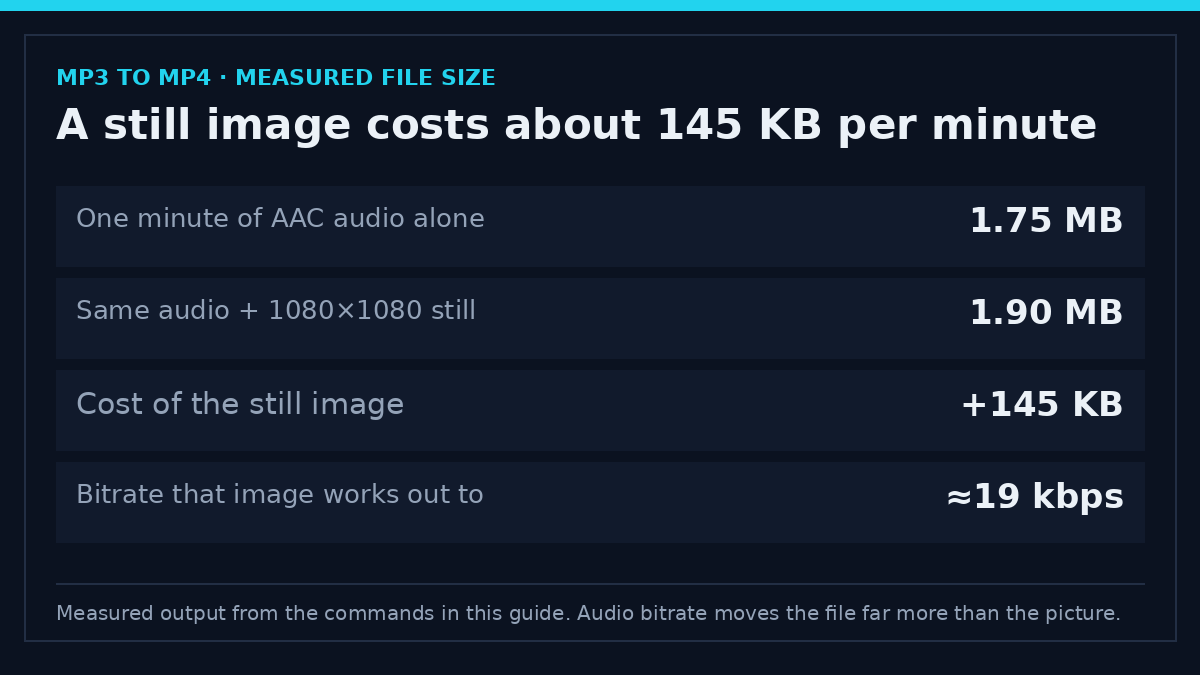
The size of the result surprises people in the other direction. A one-minute stereo track encoded to AAC here came to 1.75 MB. The same audio inside an MP3 to MP4 file with a 1080×1080 still image came to 1.90 MB, so the picture cost about 145 KB, or roughly 19 kbps. Dropping the audio to 128 kbps saves far more than anything you do to the image.
Browser-based converters are the other category worth naming. They upload your file to a server you don’t control, keep it for an unstated period, and often cap the duration unless you pay. For an unreleased track that’s a confidentiality decision rather than a convenience one, and a local MP3 to MP4 command does the same work without the upload.
Rights and Responsible Use
The recording belongs to whoever made it. Turning your own voice memo, your own podcast episode or your own composition into a video is yours to do. Turning somebody else’s track into an MP4 doesn’t make it yours, and a container isn’t a licence.
Personal reference and publication are different acts. A file kept on your own drive raises no question of distribution. A file posted publicly hands the platform permission to host and show it, and exposes you to a claim if the audio isn’t yours. TikTok’s Terms of Service spell out what you may post and what you grant when you do.
Converting or saving something grants no rights to it, and no tool can tell you whether a particular track is cleared for your use. If the audio came from a commercial release, a friend’s project or a client, get the permission in writing before the upload rather than after the claim.
Troubleshooting: Six Failure States
The video runs past the audio
-shortest on its own doesn’t stop a looped still image cleanly; it produced about a second of extra frozen frame in my test. Set the duration with -t using the value ffprobe reported, then confirm the output duration with a second probe.
The picture is stretched
Scaling a square image straight to 1280:720 distorts it, and a player that honours the display aspect ratio will show the damage. Use force_original_aspect_ratio=decrease with a pad filter, or crop deliberately and accept the loss at the edges.
It plays on the laptop but not on the phone
Two usual causes: high-bit-depth or 4:2:2 pixels inherited from a high-quality source image, and MP3 audio copied into an MP4. Keep the video at 8-bit 4:2:0 and encode the audio as AAC.
The first frame is black
A PNG with an alpha channel loses that channel on the way to 4:2:0, so transparent areas turn black. Flatten the image onto a solid colour before encoding, or export a JPEG from the editor instead.
FFmpeg says the output file does not contain any stream
That’s the cover-art extraction step telling you the MP3 has no embedded picture, so there’s nothing to copy out. Supply your own image rather than trying to pull one from the file.
The upload is rejected for length or size
Both limits belong to the platform, and both change without notice. Read the current help page for the account type you’re posting from, then shorten the audio or lower the bitrate instead of guessing at a ceiling.
Frequently Asked Questions
Do I need FFmpeg to convert MP3 to MP4?
No. A free video editor does the same job in about four clicks. FFmpeg wins on exact duration and repeatability, not on being the only route.
Does converting to MP4 improve the audio quality?
No. The audio is already lossy, and the second encode adds a small further loss. An MP3 to MP4 conversion changes the container, and the platform re-encodes again after you upload.
Can I use a photo from my phone as the cover image?
Yes, and it’s usually the best choice. Use one at least as large as the output frame, and scale it with the aspect-ratio-preserving filter so nothing is stretched.
Will a still-image video be huge?
No. Identical frames compress to almost nothing. In a test here, a minute of audio grew by about 145 KB when the still image was added.
Can I upload the MP3 straight to TikTok or Instagram?
No. Their upload forms take video files, and an MP3 has no picture track to show. An MP3 to MP4 conversion exists to satisfy that requirement, not to change the sound. If you’re building the file for a specific feed, check TikTok’s upload specs before you pick a frame size.
What if the track is longer than the platform allows?
Split it into parts at a musically sensible point, or use a shorter excerpt. A fade out at the cut sounds better than a hard stop in the middle of a phrase.
Does this work with WAV, M4A and FLAC files?
Yes. Swap the input file and let FFmpeg decode it; the rest of the command stays the same. A lossless source is the one case where the AAC encode is the first lossy step rather than the second.
Can I put a title on the still image?
Yes, with a drawtext filter or a text layer in an editor. Keep the text away from the bottom of a vertical frame, where the platform’s own interface usually covers the picture.
Which Method Should You Use?
Use FFmpeg when you have more than one file, when the duration has to be exact, or when you’ll do this again next week. The MP3 to MP4 command doesn’t care whether the audio runs for three minutes or three hours.
Use an editor when the cover needs a title card, a fade, or two images alternating, and when you would rather look at the result than read a log. Both routes produce the same kind of file, and neither is more legitimate than the other.
Skip both if the service you’re uploading to accepts your audio as audio. A few still do, and an MP3 to MP4 conversion you didn’t need is a re-encode you didn’t have to make.