
Video Aspect Ratio Explained: 16:9 vs 9:16 vs 1:1 vs 4:5 (2026 Guide)
A 1920×1080 clip and a 1080×1920 clip contain the same number of pixels. One fills a television screen; the other fills a phone held upright. The video aspect ratio you pick decides which of those two worlds your footage ever reaches.
Post a horizontal clip to a vertical feed and the app has three unflattering options: black bars, a blurred echo of the footage, or a hard crop that removes your edges. Most people meet aspect ratio for the first time through one of those three surprises.
The good news is that this is one of the easiest video specs to get right, because the destination tells you the answer in advance. YouTube, TikTok, Shorts and Reels all document the frame shape they want, and your phone already records in most of them.
Video Aspect Ratio: The Short Answer
Choose 16:9 for YouTube, television and anything watched on a wide screen. Choose 9:16 for TikTok, YouTube Shorts, Instagram Reels and Stories. Choose 4:5 for Instagram feed posts, and 1:1 when the post must read as a square in the grid. When a video will live in one place, set the frame to that place and stop second-guessing.
The rule is simpler than the numbers: match the destination. No amount of sharpness rescues footage that a platform shows as a postage stamp.
What Aspect Ratio Means in Pixels
Aspect ratio is the width of the frame divided by its height, written as two numbers with a colon. 16:9 means the frame is 16 units wide for every 9 units tall, which is why 1920×1080, 1280×720 and 3840×2160 all count as the same shape.
The same pixel count can sit in any shape. A 1920×1080 frame and a 1080×1920 frame are both about 2.07 megapixels, yet one reads as landscape and the other as portrait. Comparing video aspect ratio options means comparing shapes, not amounts of data.
Aspect ratio is one of three numbers that define how a video looks; resolution and frame rate are the other two. Resolution decides how many pixels the frame holds, and frame rate decides how often it refreshes. The resolution and bitrate guide and the frame rate guide cover those two, and both interact with the shape you choose here.
Ratio also collides with resolution the moment you convert. Cropping a 1920×1080 frame into a vertical 9:16 strip leaves you roughly 608 pixels wide, which deletes about two thirds of the original picture. That loss is not a tool failure; it is geometry.
The Ratios That Matter in 2026
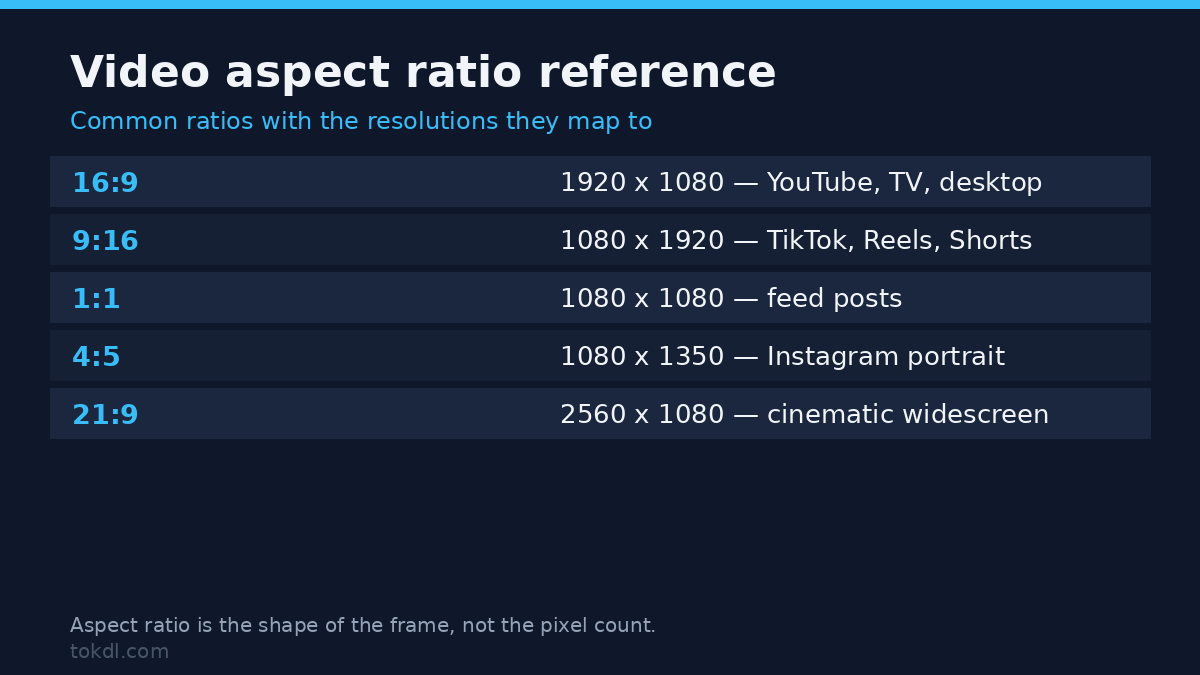
Five shapes cover almost every upload people make today. The table shows what each one is for.
| Ratio | Common resolution | Home turf | Notes |
|---|---|---|---|
| 16:9 | 1920×1080 or 3840×2160 | YouTube, TV, desktop players | The web-wide widescreen default; the safe general choice |
| 9:16 | 1080×1920 | TikTok, Shorts, Reels, Stories | Native vertical shape of short-form feeds |
| 4:5 | 1080×1350 | Instagram feed posts | Taller than square; fills the feed without going fullscreen |
| 1:1 | 1080×1080 | Legacy Instagram feed, ads | Square; neutral but small on modern feeds |
| 4:3 | 1440×1080 | Older cameras, retro footage | Pre-widescreen standard; letterboxes on YouTube |
Platforms move, so treat the table as a map rather than a law. Instagram’s feed has favored taller frames over time, and a platform that crops one way this year may preview another way next year. When you need current specs, YouTube’s own guidance is a reliable starting point, and YouTube’s Help page on aspect ratios lists what its player accepts.
Set the Ratio Before You Shoot
The cheapest fix costs nothing: record in the shape you will publish. Hold a phone sideways and its camera shoots 16:9; hold it upright and the same sensor shoots 9:16. You choose the ratio the moment you choose how to hold the phone.
Short-form apps make this even easier, because their in-app cameras are locked to the shape their feeds want. Shoot inside TikTok, Reels or Shorts and the frame is correct before you press record. Editors can rescue a mismatch later, but they cannot give back what the wrong shape discarded.
If one video must serve both orientations, plan the composition instead of the conversion. Keep faces and captions inside the central band of the frame that survives both crops, and leave the outer edges expendable.
Method 1: Crop Footage to the Ratio You Need
Cropping trims the frame to the target shape and keeps every remaining pixel sharp. Open the clip in an editor you already have: in CapCut on a phone, select the clip, open the Crop or Edit menu, choose the ratio preset, and drag the frame until the important part sits inside it. Clipchamp and iMovie offer the same idea under slightly different menus.
Export at the platform’s full resolution, meaning 1080×1920 for vertical short-form and 1920×1080 for YouTube. Cropping to the right shape and then stretching a smaller canvas to fill the screen is where the softness comes from.
The cost is honest: turning a wide shot into a vertical strip removes about two thirds of the picture. Center the subject, or accept that the edges will not survive.
Method 2: Pad the Frame Instead of Cropping
Padding keeps the whole picture and fills the leftover space with black bars, a solid color, or a blurred copy of the footage stretched behind it. Nothing is deleted, and nothing is sharpened either; the video simply occupies a smaller window inside the frame.
Blurred backgrounds are the current fashion because they look less empty than black, but the footage still floats as an island on most screens. Choose padding when the entire frame matters, such as slides, gameplay overlays, or clips with captions near the edges.
The one-line version, for anyone comfortable with ffmpeg, does the whole job in a single pass. It scales the video down to fit inside a 1080×1920 canvas and pads the remaining space with black:
ffmpeg -i input.mp4 -vf "scale=1080:1920:force_original_aspect_ratio=decrease:flags=lanczos,pad=1080:1920:(ow-iw)/2:(oh-ih)/2:color=black" -c:a copy output.mp4Change color=black to another value and the bars change with it. Run the same command with a 1920×1080 canvas and a vertical clip fits a horizontal frame instead.
What Reframing Tools Actually Do, and Their Limits
A category of tools called reframers, auto-crop or smart-crop promises to convert one ratio to another automatically. What they actually do is pan across your frame over time, following faces or motion and exporting a moving window of the original.
That can look polished on talking heads and vlogs. On wide group shots, landscapes, or footage with captions at the edges, the automatic window drifts onto empty space or severs heads mid-shot. Treat any reframe as a starting point and watch the whole export once before you ship it.
No tool of any kind adds picture that was never recorded. A tall 4K export built from a small horizontal source is still a small source stretched or windowed, and no AI preset changes that arithmetic.
Rights and Responsible Use
Changing a video’s shape changes nothing about who owns it. The clip belongs to the person who recorded it, and a cropped copy is still a copy: reframing someone else’s video to fit your feed does not make it yours, and reposting it distributes their work either way.
Personal reference is not the same as redistribution or commercial use. Saving a clip or reshaping it grants no right to publish it, and the rules of the platform you upload to still apply. Work from your own footage, licensed material, or clips you have permission to repost. If the destination is YouTube, YouTube’s Terms of Service state what may not be uploaded there.
Troubleshooting: Aspect Ratio Problems and Their Causes
Your YouTube upload shows black bars on the sides or at the top and bottom. The file itself contains those bars, usually baked in by an earlier padding step. Crop the active picture to the edge of the canvas and export at a true 16:9, or accept bars that live inside the pixels.
TikTok displays your horizontal clip as a small strip in the middle of the screen. The app fits the full frame without cropping it, so a 16:9 video inside a 9:16 player is small by design. Crop the footage to 9:16 in an editor, or reshoot it upright.
Faces or captions are cut off at the edges after you convert to vertical. Cropping removed the sides of the frame. Reframe with the subject centered, pick a less aggressive shape such as 4:5 where the platform allows it, or switch to padding.
The vertical video looks softer than the original. The converter scaled a small source upward to fill the canvas, and scaling up invents pixels. Keep the source resolution at or above the export resolution, and pad rather than stretch when the shapes do not match.
The video looks right on a phone but wrong on a television or in a desktop player. Vertical footage inside a horizontal player gets bars or blur on both sides; that is the player fitting your file, not a fault in it. Deliver 16:9 when the audience is watching on a wide screen.
Instagram keeps cropping your video’s thumbnail in the grid. The feed shows a square preview of the cover frame, so side content disappears from the grid even when the full video plays correctly. Keep key content near the center, or set a cover frame that reads well as a square.
Frequently Asked Questions
Which video aspect ratio should I use?
Match the destination: 16:9 for YouTube and widescreen, 9:16 for TikTok, Shorts, Reels and Stories, and 4:5 or 1:1 for Instagram feed posts. When one video must go several places, deliver the preferred shape of the most important platform rather than hunting for a universal frame.
What aspect ratio should I upload to YouTube?
16:9, at 1920×1080 or 3840×2160. YouTube plays other ratios, but 16:9 fills the player edge to edge and matches how most people watch.
What aspect ratio are TikTok, Shorts and Reels videos?
9:16, the shape of a phone held upright, at 1080×1920. All three short-form feeds are built around that vertical frame.
Does changing the aspect ratio reduce video quality?
Cropping removes pixels but keeps the remaining image sharp, while padding keeps every pixel and shows the video smaller. Quality visibly drops only when a small source gets stretched or scaled up to fill a larger frame.
Why does my video have black bars?
Because the file’s ratio and the player’s ratio do not match, or because an earlier edit baked bars into the file. Crop the video to the player’s ratio and the bars disappear.
Can I turn a horizontal video into a vertical one without cropping?
Only by padding, which leaves the footage small inside a taller frame, or by reframing, which pans across the original. A full-frame vertical version of a horizontal source does not exist, because the missing top and bottom were never recorded.
Is 16:9 or 9:16 better?
Neither is better; each fits a different screen. 16:9 suits televisions, monitors and YouTube, while 9:16 suits phones and short-form feeds. Choose by where people will watch, not by which shape looks newer.
The Decision: Match the Ratio to the Destination
Decide where the video will be watched, then set the frame to that place before you record. For a wide screen, shoot and export 16:9. For a phone feed, shoot 9:16 and keep the subject centered. For an Instagram feed post, 4:5 earns more screen than a square.
The video aspect ratio is a delivery decision, not a quality contest. Convert a copy when you must, keep the original master untouched, and let the destination’s own shape have the last word.
Set the frame once, on purpose, and the black bars stop showing up in your reviews.
[…] A target ratio. Deciding on 9:16, 1:1 or 16:9 before you drag the handles stops you cropping the same clip twice. Here is which aspect ratio fits which platform. […]
[…] the project ratio first, then match the aspect ratio of every […]
[…] sized for a 1080p frame will look small if you later scale the project up to 4K. Land on the final video aspect ratio before you type. Knowing how to add text to a video starts with knowing the frame it’ll sit […]
[…] health bar. If the base clip needs re-framing first, crop the frame before you add the overlay, and match the aspect ratio so the inset sits cleanly instead of […]
[…] the sources disagree, fix that first. Matching aspect ratios explains the arithmetic, and you can crop to match when one clip is a different shape. Convert […]
[…] your clip is also going to Reels or Shorts, the video aspect ratio guide covers the vertical crop. The thumbnail stays 16:9 either […]
[…] as a 32:9 super-ultrawide export or a phone clip cropped taller than 9:16. If your editor offers a set of preset ratios, 16:9, 1:1, 4:5 and 9:16 are all […]
[…] canvas so edges never come inside the frame. If you’re cropping into another shape first, get the aspect ratio right before you […]