
GIF Compression: Make a GIF Smaller Without Wrecking It (2026)
A four-second clip that fits in a 511 KB MP4 came out at 731 KB when I converted it to GIF at 56% of its pixels and 40% of its frame rate. Nothing broke. The format simply spends its bytes somewhere else.
GIF compression is awkward because the format is a stack of indexed-color images from an earlier era. Every frame carries its own 256-color palette, and the only size trick built into the container is transparency: pixels that didn’t change can be left see-through so the next frame paints over them. There’s no motion prediction anywhere, which is why GIF compression stays a last resort for anything longer than a few seconds.
That one fact reorders the usual advice on GIF compression. Most guides open with color count and dithering, which is where the smallest gains sit. Compression gets easy once you cut pixels and frames first.
GIF Compression: The Short Answer
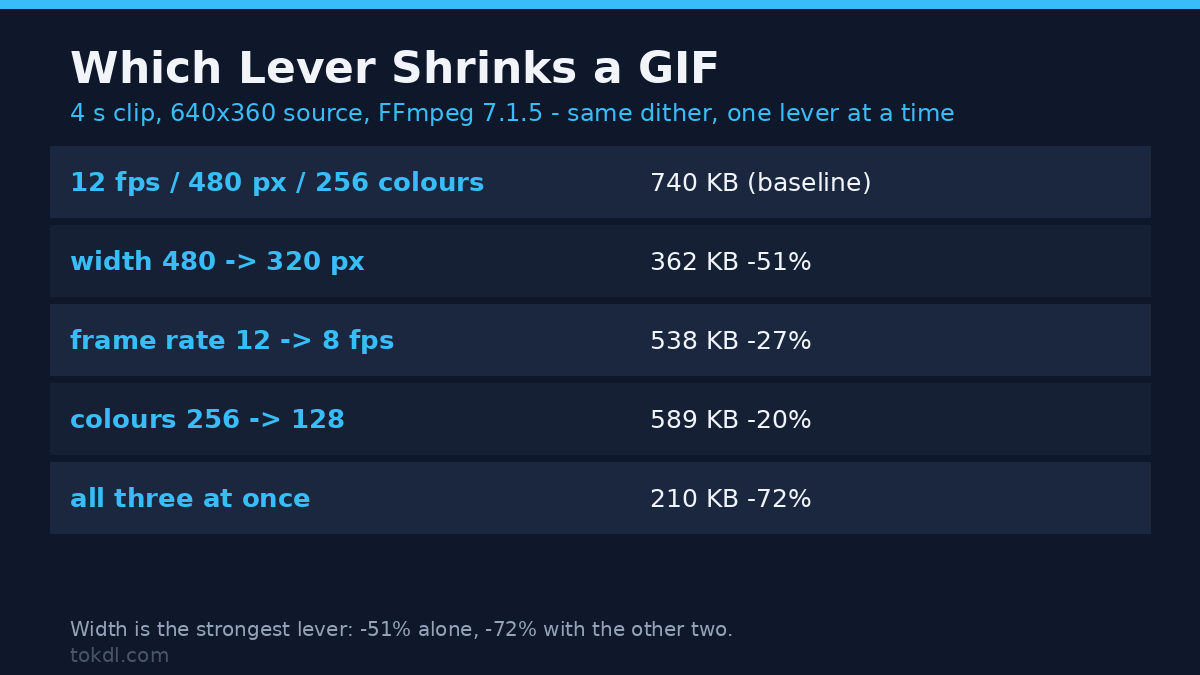
Cut the width, then the frame rate, then the colors. Those three levers control GIF compression in that order, and the first two almost always deliver more than the third.
Halving the width cuts the pixel count to about a quarter, and every frame gets cheaper at the same time, so it’s the first move in any GIF compression pass. Halving the frame rate halves the number of frames. Together they can take a multi-megabyte GIF under a megabyte before you touch the palette at all, and that’s the part of GIF compression that pays.
Color reduction and dithering come last, because they change how the image looks rather than how much data it holds.
What You Need Before You Start
Two command-line tools cover nearly everything: FFmpeg and gifsicle. Both are free, both run on macOS, Linux and Windows, and both install from the usual package managers. A terminal is the only other requirement.
You also want the original video, not just the GIF, whenever it still exists. Re-encoding from the source avoids stacking a second round of color loss on the first, and that single rule does more for GIF compression than any optimizer flag. If the GIF is all you have left, skip to Method 2.
Look at what you’re starting from before changing anything:
ffprobe -v error -select_streams v:0 -show_entries stream=width,height,nb_frames,r_frame_rate -of default=nw=1 input.gifWrite down the width and the frame count. Every GIF compression decision after this one depends on those two numbers, and guessing them is how people end up compressing three times for no reason.
Method 1: FFmpeg and a Two-Pass Palette
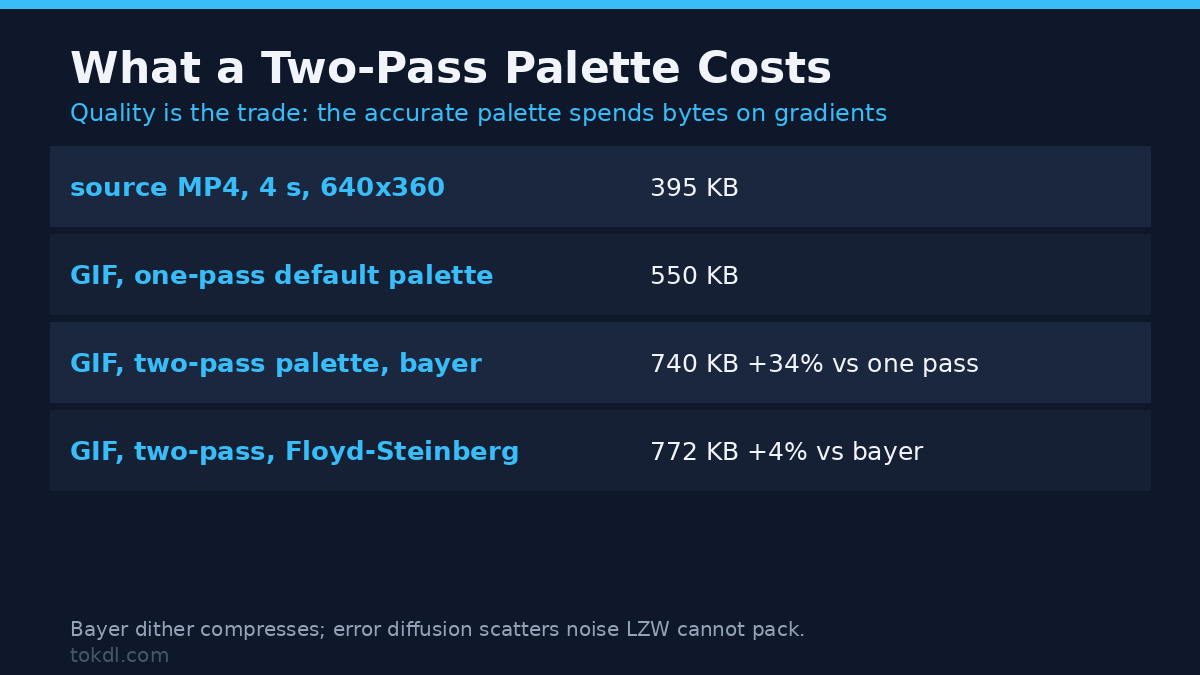
A two-pass encode reads the clip once to build a palette from its actual colors, then reads it again to paint every frame with that palette. The result looks far better than FFmpeg’s default GIF palette, which is a fixed set chosen without looking at your footage. It’s also where most GIF compression guides start, which is backwards. Both filters are standard, and the FFmpeg filter reference lists every option they take.
Step 1. Generate the palette. The stats_mode=diff setting ignores pixels that never change, so the palette describes movement rather than a static background.
ffmpeg -i clip.mp4 -vf "fps=12,scale=480:-1:flags=lanczos,palettegen=stats_mode=diff" palette.pngStep 2. Apply it. Bayer dithering with diff_mode=rectangle keeps the output smaller than error diffusion, because ordered patterns compress and scattered noise doesn’t.
ffmpeg -i clip.mp4 -i palette.png -filter_complex "[0:v]fps=12,scale=480:-1:flags=lanczos[v];[v][1:v]paletteuse=dither=bayer:bayer_scale=5:diff_mode=rectangle" -loop 0 out.gifStep 3. If the file is still over the limit, change the numbers in both commands together: 8 fps, 320 pixels wide, a 128-color palette. Both passes must match, or the palette won’t describe the frames being painted.
ffmpeg -i clip.mp4 -vf "fps=8,scale=320:-1:flags=lanczos,palettegen=max_colors=128:stats_mode=diff" p128.png
ffmpeg -i clip.mp4 -i p128.png -filter_complex "[0:v]fps=8,scale=320:-1:flags=lanczos[v];[v][1:v]paletteuse=dither=bayer:bayer_scale=4:diff_mode=rectangle" -loop 0 small.gif
Here is the part the tutorials leave out. On my test clip, the color-accurate two-pass GIF was 43% larger than a lazy single-pass encode of the same footage: 731 KB against 510 KB. That’s the trade at the heart of GIF compression: a palette that describes the footage costs bytes. The better palette spent bytes on gradients the generic one had flattened.
Dithering moved it again. Floyd-Steinberg produced 766 KB where bayer produced 731 KB, because error diffusion scatters noise that LZW has no way to compress. Attractive dithering is expensive dithering.
Then the boring settings won. Dropping to 8 fps at 320 pixels landed at 249 KB, less than half the single-pass file, with the texture of the original still readable. Resolution and frame rate did in one step what palette tuning couldn’t do in three.
Method 2: Gifsicle and Lossy GIF Compression
GIF compression on a finished file is a different problem from encoding one, because the color data is already gone. Gifsicle edits the file in front of it instead of re-encoding frames, so it can’t recover that color. It can remove plenty of data the original encoder left behind, and it keeps the timing intact.
Step 1. Optimize losslessly. This pass rewrites the LZW stream and turns unchanged pixels transparent, with no visible change to the image. The gifsicle documentation explains what each optimization level does before you trust it with a file you care about.
gifsicle -O3 input.gif -o step1.gifOn the same 731 KB test file that returned 702 KB, a saving of about 4%. Modest, and free. It’s worth running before anything lossy, because it also normalizes the frame disposal method that trips up players later.
Step 2. Add lossy compression, stepping the value up rather than jumping to the maximum. Thirty is usually invisible; go higher until artifacts appear in skies or skin tones, then back off one step.
gifsicle -O3 --lossy=60 step1.gif -o step2.gifThat took the test file to 686 KB. Adding a 128-color palette in the same command reached 580 KB:
gifsicle -O3 --lossy=100 --colors 128 step1.gif -o step3.gifStep 3. Resize when the numbers still don’t fit. It’s the same lever as Method 1, applied after the fact, and it’s still the strongest lever GIF compression has.
gifsicle -O3 --lossy=80 --resize-width 320 step1.gif -o small.gifResult: 357 KB. Every combination above is a trade, and the resize is the only one that changes what the viewer can see at a glance.
Re-Export Beats Re-Compression
GIF compression can’t undo a bad export: every GIF is already a lossy copy of something. Compressing the copy again discards data you’ll never get back, so the best place to fix size is the export dialog that created it.
Most editors and recorders expose the same three levers of GIF compression: frame rate, dimensions, palette size. Set them there and export once, at the size you need. Two export attempts at 12 fps cost less quality than one export followed by two compression passes.
There’s also the option people forget. If the place you’re posting accepts video, a five-second H.264 MP4 at 480 pixels wide is usually a fraction of the GIF’s size, keeps full color, and loops cleanly. What you give up is inline autoplay on the surfaces that animate .gif files but treat video as a click-to-play attachment.
If you’re still at the stage of turning footage into a GIF, those export settings matter more than anything you do afterward. GIF compression starts at the export dialog, not the optimizer, and our video to GIF walkthrough covers that step in detail.
What GIF Compression Tools Can and Cannot Do
Across the whole category, GIF compression tools do four things: repack the LZW stream, rebuild the palette, resize frames, and drop frames. There’s nothing else to do, because the format offers nothing else.
None of them restore quality. A lossless optimizer can’t shrink a file below the entropy its pixels contain, and a lossy one trades fidelity for bytes at a rate you don’t control precisely, whatever the slider is labelled.
No tool adds inter-frame prediction to GIF, because the container has nowhere to store it. That’s why the same footage in MP4 stays smaller than any GIF setting can reach, and why the comparison in our guide to compressing video comes out so lopsided.
Results also depend on content far more than product pages admit, and that’s the hardest part of GIF compression to promise anything about. A flat-color screencast can drop to 64 colors with no visible change. A sunset over water will band at 256, because the format has no way to describe a smooth gradient.
Rights and Responsible Use
A GIF is a copy of footage, and the footage belongs to whoever shot or commissioned it. Compressing one doesn’t change that ownership, and a smaller file isn’t a more permissible file.
Private and public use are different things. Keeping a clip for reference, study or a message to a friend sits in one category. Reposting it to a channel, a meme account or a client deck sits in another, and the second needs the rights holder’s permission even when the file is tiny.
Saving or re-encoding something grants no licence to it. When the source is someone else’s work, file size is the second question; the first is whether you may use the material at all. Uploading it to a chat platform adds that platform’s rules on top, and Discord’s Terms of Service show how hosting terms treat content you post.
If the clip is your own, keep the original export somewhere. The GIF is the disposable copy, and the day a platform raises its limit you’ll want the version that still has all 16 million colors in it.
When the Output Is Still Too Big
The GIF is bigger than the video it came from
That’s normal, not a bug. GIF stores each frame largely in full, so a 30-second clip at 12 fps is 360 separate images rather than 360 predictions of one image. Cut the frame rate to 8 and the width to 320 before trying anything else.
Gradients break into visible steps
The palette is too small for the content, or stats_mode=full is wasting entries on pixels that never move, which is the most common GIF compression dead end. Regenerate with max_colors=256 and stats_mode=diff, and check the frame you care about, not the first frame.
The file grows after a second compression pass
You’re re-dithering a dithered image, and the new noise pattern costs more than the removed color saves. Go back to the original video, or stop at gifsicle -O3 and accept the small lossless gain. Generation loss compounds, and it’s the reason GIF compression should never run twice on the same file.
Frames flicker or leave trails
The disposal method disagrees with how the frames were optimized: a frame is cleared when it should be painted over, or painted over when it should be cleared. Run gifsicle -O3 on the file, which sets disposal and transparency to match the frame data.
It loops once and stops, or doesn’t loop at all
The loop flag lives in an extension block that some encoders omit and some upload pipelines strip. FFmpeg needs -loop 0, and gifsicle needs –loopcount=0 to force infinite repetition. Check the file locally before blaming the host.
Uploading fails before compression even starts
Some destinations reject on dimensions or pixel count rather than bytes, so a tiny file at 2000 pixels wide can still bounce. No GIF compression setting fixes that. If a hard byte cap is the problem, our notes on upload size limits cover the arithmetic that tells you the target before you export.
Frequently Asked Questions
Does GIF compression reduce quality?
Lossless optimization doesn’t; lossy settings do. gifsicle -O3 only repacks existing data and leaves every pixel identical. Anything that lowers the frame rate, the dimensions or the color count is trading fidelity for bytes, and the loss is permanent once saved.
What is the fastest way to make a GIF smaller?
Halve the width. Pixel count falls with the square of the change, so 480 pixels to 240 removes about 75% of the data per frame in a single step, and it’s the one GIF compression move that never looks wrong at chat-app sizes.
Why is my GIF bigger than the MP4 it came from?
Because GIF has no inter-frame prediction. H.264 describes most frames as small changes from the previous one, while GIF stores each frame as a separate image. The gap widens as resolution and frame rate increase.
Can I compress a GIF on a phone?
Not with these tools, which need a desktop terminal. Phone apps that advertise GIF compression mostly resize and re-encode without showing you which setting did what, so the result is hard to predict. Export smaller from the app that made the GIF instead.
Does compressing a GIF remove transparency?
Only if the palette runs out of room for it. gifsicle -O3 preserves the single transparent index the format allows, but aggressive –colors values can drop it and leave a black or white background where the transparency was.
Is animated WebP smaller than GIF?
Usually, for the same frames and dimensions, because WebP carries real inter-frame compression. Browser support is fine; chat apps and forums are inconsistent, and some will flatten an animated WebP to a still image.
How small can a GIF get before it looks bad?
It depends on content, not on a number. Flat graphics and screen recordings hold up at 64 colors and 8 fps. Photographic footage with movement needs 256 colors, and even then the banding shows in skies and shadows.
Which GIF Compression Method Should You Use?
You’ve got the original video and a hard limit to hit. Method 1, size-first variant: 8 fps, 320 pixels, 128 colors. Adjust the width first and leave the palette alone until the file fits.
You’ve got the original video and only a vague goal of “smaller”. Method 1 at the source’s own frame rate, 480 pixels wide, full 256-color palette. Color accuracy is the reason to use two passes at all.
You’ve got nothing but the GIF. Method 2, in order: -O3, then –lossy stepped up in tens, then –resize-width, then –colors. Stop as soon as it fits.
The destination plays video without complaint. Don’t make a GIF. Export an MP4 loop at the same dimensions and get better color, a smaller file, and no palette to worry about.