
Video File Too Large to Upload? How to Fit Any Upload Size Limit
You’ve watched the upload bar crawl to ninety-something percent and stop. The message is always the same one: the video is too large. So you re-export with a lower quality preset, try again, and it’s still too large, because the export dialog never asked the question that matters here. What’s the upload size limit on the other end?
The fix is duller than most guides admit. Every upload size limit converts into three moves: measure the cap, turn it into a video bitrate, enforce that bitrate as a ceiling instead of a hope. Done twice, it takes about a minute.
I measured four ways to hit the same upload size limit on one clip, an 8 MiB cap. One fit while quietly throwing away a quarter of the video. Another missed by more than three times.
For the quality side of this there’s the compression guide, and for predicting a size from a known bitrate, the bitrate math post. This one is narrower: the upload size limit on the other end is fixed, and you have to land under it.
The upload size limits worth memorising
A handful of figures cover most complaints. They move around, so treat the shape of the table as the useful part and check the current number when a platform matters.
| Where you’re sending it | Upload size limit | What happens at the cap |
|---|---|---|
| Gmail attachment | 25 MB | Gmail swaps the file for a Drive link (Google’s help page) |
| WhatsApp, video via the media picker | about 16 MB | As a document the same file rides 2 GB, but loses the inline preview |
| Discord, free account | 20 MB | Doubled from 10 MB in August 2026; Nitro Basic is 50 MB, Nitro is 500 MB |
| YouTube | 256 GB or 12 hours | Whichever is less (YouTube’s limits page) |
Look at the spread. YouTube’s ceiling is so far above a normal export that it never constrains you, while WhatsApp’s 16 MB kills a thirty-second phone clip at default settings. The tighter the upload size limit, the less slack you have to absorb a bad guess.
The upload size limit on email is smaller than the number says
Mail attachments travel base64-encoded, and that inflates them. I measured it on a delivered file instead of trusting the textbook figure: a 8,371,997-byte mp4 came out of base64 at 11,309,542 bytes, a factor of 1.35. A 25 MB upload size limit is therefore about 18 MB of actual file. If your 21 MB video gets bounced, that’s not a mystery, and a smaller audio track won’t rescue it.
Why the obvious fixes don’t work
The test clip is 18 seconds of 1280×720 at 25 fps, 450 frames: flat colour with a moving box, a moving test pattern, then the same pattern with synthetic grain, stored losslessly with FFV1 so the sizes come from the encoder and not from a source that was already squeezed. Every method targets the same upload size limit, 8 MiB, which with a 128 kbps audio track leaves the video about (8,388,608 x 8 – 128,000 x 18) / 18 / 1000 = 3,600 kbps.
Asking for the bitrate doesn’t get you the bitrate
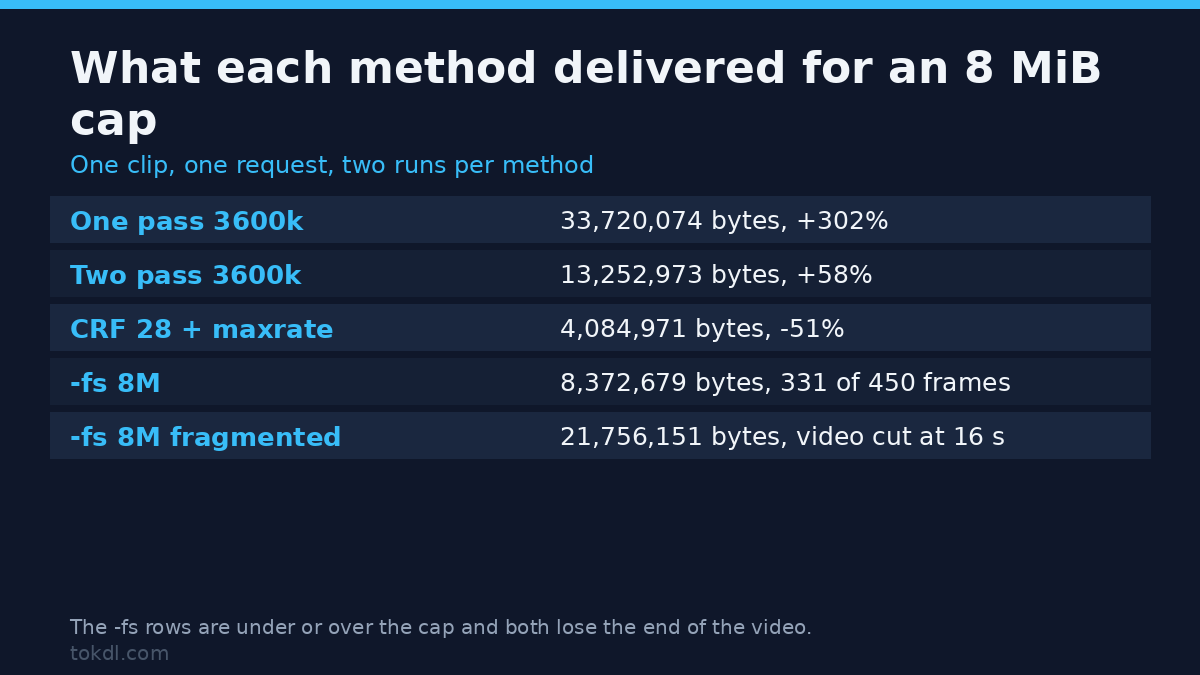
ffmpeg -i input.mkv -c:v libx264 -preset medium -b:v 3600k -c:a aac -b:a 128k -movflags +faststart out-one-pass.mp4Delivered: 33,720,074 bytes, roughly four times the budget, from a command that named the upload size limit down to the kilobit. Two runs, identical to the byte. In single pass mode -b:v is a target the rate controller aims at, and on a short clip with a hard scene in it there’s not enough future to average against, so the encoder spends early and never pays it back. A bitrate target isn’t a ceiling, and you can’t see the gap until the file is written.
Two pass lands closer and still misses
ffmpeg -i input.mkv -c:v libx264 -preset medium -b:v 3600k -pass 1 -passlogfile ffpass -an -f null -
ffmpeg -i input.mkv -c:v libx264 -preset medium -b:v 3600k -pass 2 -passlogfile ffpass -c:a aac -b:a 128k -movflags +faststart out-two-pass.mp4
Delivered: 13,252,973 bytes with all 450 frames intact, byte-identical across two runs. That’s a 60% improvement on one pass and still 58% over the upload size limit. The analysis pass gets the average closer to the target. It doesn’t clamp the peak, and a platform that measures the finished file can’t tell the difference between 58% over and 300% over.
The flag that shrinks the file by cutting it
FFmpeg has a flag that looks purpose-built for this job. The -fs option stops writing once the output crosses the upload size limit you hand it, which is exactly what it does, and that’s the problem.
ffmpeg -i input.mkv -c:v libx264 -preset medium -crf 23 -c:a aac -b:a 128k -fs 8M out-fs8.mp4The output came back at 8,372,679 bytes, comfortably under the 8 MiB upload size limit requested, with exit code 0 and no warning at all. The video stream inside is 13.24 seconds long, 331 frames out of the 450 I fed in, while the audio runs to 17.45 seconds. So the last 119 frames aren’t there, and for four seconds you get a frozen picture with the sound still going. Two more runs gave 8,370,652 and 8,369,961 bytes, also 331 frames. -fs is a way of cutting the video short, not a compressor.
It isn’t precise about the number either: -fs 4M produced 4,431,789 bytes, 5.7% over 4 MiB, while the byte count (-fs 4194304) gave 4,427,105 bytes and the same 311 frames. The check runs as data is written, so the result lands near the limit on either side.
Fragmented output ignores the upload size limit entirely
ffmpeg -i input.mkv -c:v libx264 -preset medium -crf 23 -c:a aac -b:a 128k -fs 8M -movflags +frag_keyframe+empty_moov+default_base_moof out-frag.mp4Limit requested: 8 MiB. File delivered: 21,756,151 bytes, byte-identical across two runs, with a 16-second video stream against 18.08 seconds of audio. The upload size limit was ignored and the clip was still truncated, which is the worst pair of outcomes at once: too big to upload and missing its ending. Fragmented mp4 is the right choice for streaming and for crash-safe recording, so keep the two ideas apart.
The recipe that lands under any upload size limit
Four steps, and the order matters more than any single flag.
Step 1: turn the upload size limit into a video bitrate
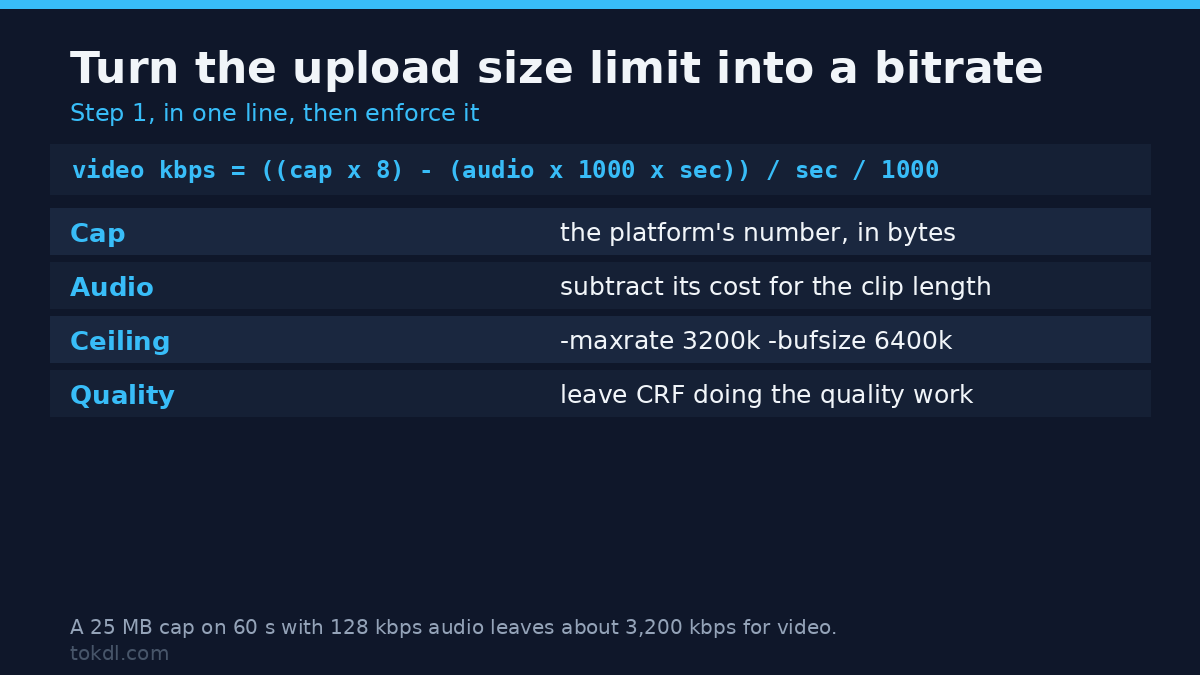
video kbps = ((cap_bytes x 8) - (audio_kbps x 1000 x seconds)) / seconds / 1000Subtract the audio first, because it’s a fixed cost you can’t negotiate with. For a 25 MB upload size limit on a 60-second clip with 128 kbps audio: ((25,000,000 x 8) – (128,000 x 60)) / 60 / 1000 = roughly 3,200 kbps. If that lands under about 800 kbps for 1080p, stop and do Step 2 properly, because the resolution is wrong and no rate-control setting will save the picture.
Step 2: spend the limit on resolution before bitrate
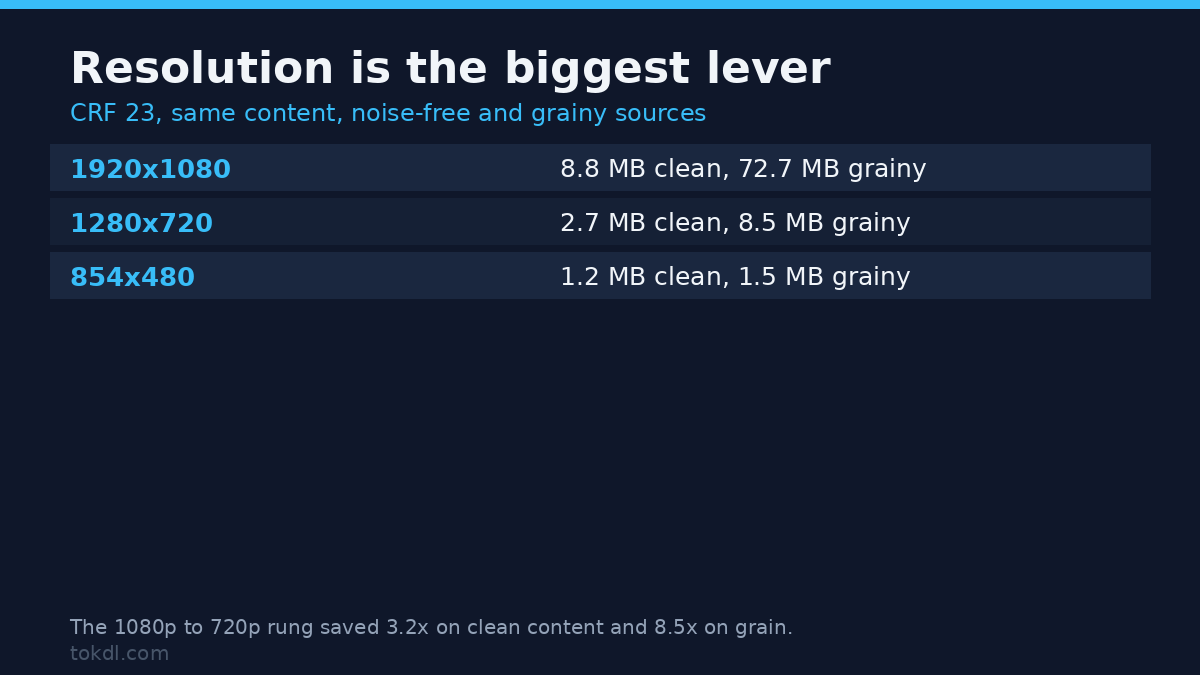
Resolution is the biggest lever you have against a tight upload size limit, and it’s the one people reach for last. Same clip, CRF 23, three frame sizes, once on the noisy version and once on a noise-free version of the same content:
| Frame size at CRF 23 | Noise-free clip | Noisy clip |
|---|---|---|
| 1920×1080 | 8,833,229 bytes | 72,694,931 bytes |
| 1280×720 | 2,730,100 bytes | 8,538,540 bytes |
| 854×480 | 1,152,151 bytes | 1,530,829 bytes |
Read the two columns side by side, because they tell different stories. On the clean clip 1080p to 720p is a 3.2x saving. On the noisy clip the same rung is 8.5x, and the grain alone cost 8.2x at the top rung: 8.8 MB against 72.7 MB for identical content. Grain is high-frequency detail and downscaling averages it away, so a lot of what you pay for in phone footage is noise you never wanted. If you’re starting from a 4K master, the 4K to 1080p downscale walkthrough covers the scaling side properly.
One more figure worth keeping: 60 seconds of the noisy 1080p clip at CRF 23 came out at 147,689,405 bytes. That’s 148 MB a minute, about six times Gmail’s whole allowance. Film a minute of grainy 1080p and you’re in change-the-resolution territory, not tune-the-bitrate territory.
Step 3: enforce the ceiling
ffmpeg -i input.mkv -c:v libx264 -preset medium -crf 28 -maxrate 3600k -bufsize 7200k -c:a aac -b:a 128k -movflags +faststart out-capped.mp4Delivered: 4,084,971 bytes with all 450 frames intact. That’s 51% under the 8 MiB budget, and it’s under because this content at CRF 28 didn’t need the space the ceiling allowed. That’s the behaviour you want from an upload size limit: a limit, not a quota. Set -maxrate to your computed number, -bufsize to twice it, and let CRF handle quality. CRF against average bitrate is the longer version of that trade-off if the quality side interests you. All five methods, same clip, same 8 MiB request:
| Method | Delivered | Video intact? |
|---|---|---|
One pass, -b:v 3600k |
33,720,074 bytes (+302%) | Yes, 450 frames |
Two pass, -b:v 3600k |
13,252,973 bytes (+58%) | Yes, 450 frames |
-crf 28 -maxrate 3600k -bufsize 7200k |
4,084,971 bytes (-51%) | Yes, 450 frames |
-crf 23 -fs 8M |
8,372,679 bytes (-0.2%) | No, 331 of 450 frames |
-crf 23 -fs 8M, fragmented |
21,756,151 bytes (+159%) | No, 16 s video against 18.08 s audio |
Two rows are usable for a hard upload size limit, and both are the ones that constrain the encoder instead of asking it politely.
Step 4: check the file against the limit before you upload
ffprobe -v error -show_entries stream=codec_type,duration,nb_frames -of json out-capped.mp4Look past the size and check that the streams still end together. On the truncated file that output reads 13.240000 for the video and 17.450000 for the audio. When the two differ by more than a frame or two, you cut the clip rather than compressed it, and no player warns you. Add -count_frames with -select_streams v:0 to compare frames against the source, which is how the 331-against-450 figure came out.
Common mistakes
Obsessing over the audio bitrate. It’s the easiest dial to turn and the least valuable. On the same clip at CRF 28, dropping audio from 192 kbps to 48 kbps shrank the file from 4,323,903 to 4,089,533 bytes. That’s 0.8 MB a minute against a video stream of roughly 4 MB in the same window. Go to the video or the frame size instead.
Re-encoding an already-compressed file. Every pass through a lossy encoder adds artefacts, and the next pass spends bits repairing the damage. For a smaller version of something you already compressed, go back to the original export. One well-aimed pass beats three hopeful ones.
Trimming when you should compress, or the reverse. Cutting a 3-minute clip to 90 seconds is a 50% saving with no quality cost, and when the shorter version still fits, that’s a better trade than any encoder setting. A 20-second clip that’s too large can’t be fixed by trimming, and if the cut has to land on a clean frame boundary, splitting a video into parts covers that separately.
Trusting a file size without checking the duration. That’s the -fs trap. A file that fits the upload size limit and decodes cleanly can still be missing its last third.
Frequently asked questions
Why does my 21 MB video get rejected by a 25 MB upload size limit? The attachment is base64-encoded on its way out and that adds about a third, as measured above. Keep the file under about 18 MB for a 25 MB limit, or send larger clips as a link.
Is two pass worth it if it still overshoots? Yes, when you can’t use a ceiling, and it costs closer to one and a half passes than two, because the analysis pass is cheap. But if the upload size limit is hard, -maxrate with a CRF is simpler and safer, so reach for it first.
Should I use HEVC or AV1 to fit more into the same cap? Both buy real savings at the same quality, and both cost compatibility and encode time. For an upload the platform re-encodes anyway, H.264 at a sensible resolution is the safe choice, and the ceiling rule holds either way.
What to remember
Convert the upload size limit into a bitrate, cut the resolution before the bitrate, enforce the number you computed with -maxrate and -bufsize instead of asking for it with -b:v, and check the size and the stream durations before you upload. Skip that last check and you’ll eventually ship a file that fits the cap and ends four seconds early, which your audience notices and your file manager never mentions.
One caveat: the sizes are exact and reproducible to within a fraction of a percent, the timings aren’t, because this machine reports 64 CPUs while its container quota is 2. Run any timing comparison twice before believing it.
[…] for frame. If a platform is fighting you over size, that’s the trade to know; our guide to fitting an upload size limit covers the cap […]