

MOV to MP4: How to Convert MOV Files on Any Device (2026 Guide)
Your footage plays perfectly on the phone or camera that recorded it, then refuses to open on somebody else’s laptop. That is the MOV problem in one line: a container Apple devices produce by default, and a format plenty of other programs handle only reluctantly.
Converting MOV to MP4 is usually a short job, and a fair number of people hunting for a converter do not need one at all, because their editing app already exports MP4. This guide covers the cases where a real conversion is required, the methods that work on Windows, Mac, iPhone and Android, and the limits worth knowing before you hand a file to any tool.
MOV to MP4: the short answer
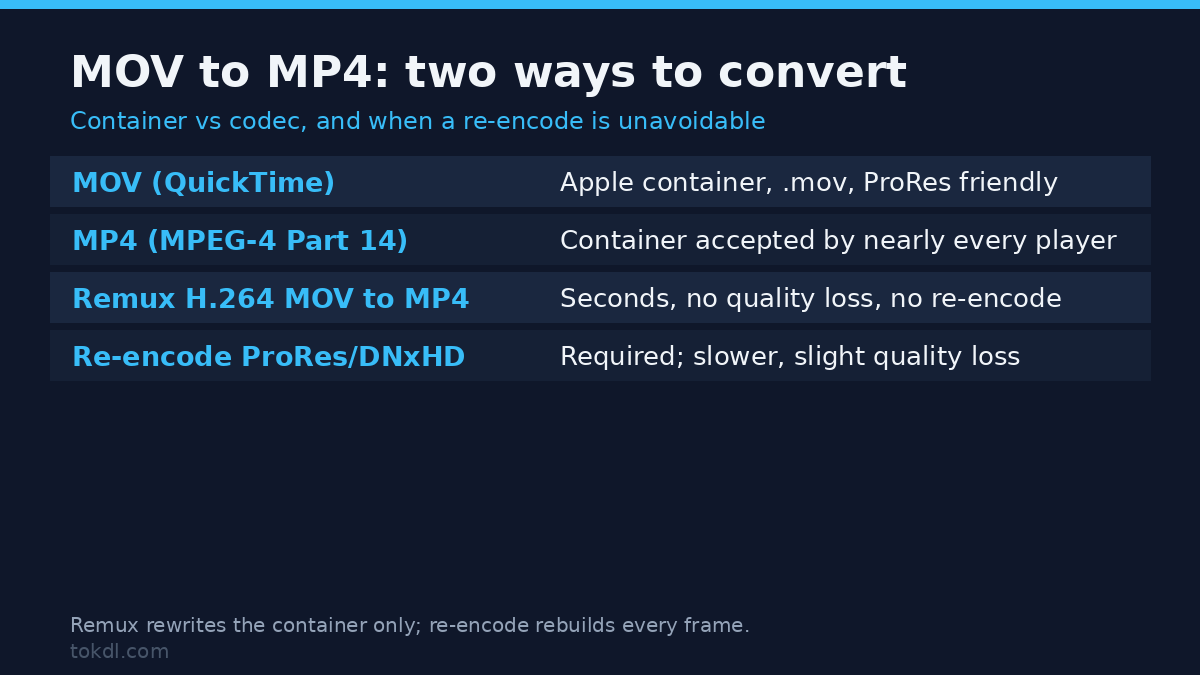
MOV and MP4 are containers, not codecs. Both can hold the same H.264 video and AAC audio, so most MOV files can be repackaged as MP4 without re-encoding and without any loss of quality. That version of the job takes seconds, because nothing is re-compressed. Only the wrapper changes.
When the MOV holds a codec that MP4 players dislike, such as ProRes or an older Cinepak stream, a true re-encode is unavoidable and it takes far longer. A good tool tells you which of the two operations it is about to perform. If it stays silent, assume the slow one.
The distinction matters because it decides everything downstream: how long the job takes, whether the picture changes, and how large the result is. Repackaging leaves the image bit-for-bit identical. Re-encoding does not.
What you need before you start
Three things, and none of them cost money: a converter or player that reads MOV and writes MP4, enough free disk space for the output, and a copy of the original you intend to keep. Converting is not the moment to delete your source file.
Space matters more than people expect. Re-encoding writes a temporary file before the finished MP4 appears, so keep at least double the original size free while the job runs. On a phone with a nearly full drive, that is the usual reason a conversion dies halfway through.
Method 1: Convert with a free desktop tool
VLC and HandBrake are the two most common free desktop options, and both read MOV and write MP4. VLC is quicker for a single file.
- Open VLC, then choose Media and Convert / Save.
- Add your MOV file with Add, then press Convert / Save.
- Under Profile, pick Video – H.264 + MP3 (MP4).
- Choose a destination with Browse and make sure the name ends in .mp4.
- Press Start. A short rewrap finishes in well under a minute.
HandBrake is the better choice when you also want a smaller file. Load the MOV as the source, set Format to MP4, then adjust the quality slider. Its default presets re-encode, which is slower but can shrink video without losing quality if you pick a sensible bitrate. Rewrapping in VLC never shrinks anything; it only changes the wrapper.
For batch work, a command-line encoder such as FFmpeg is worth the learning curve, and FFmpeg’s documentation covers every option. The single command form for a lossless rewrap is short enough to keep in a note. HandBrake’s own site, HandBrake’s official site, lists the presets if you would rather click than type.
Method 2: Export MP4 from the app that made the file
If you recorded the video yourself, the cleanest conversion is often no conversion at all. Most apps that produce MOV files can also export MP4, and doing it there avoids a second file and a second pass of processing.
On an iPhone, open Settings, then Photos, and set Transfer to Mac or PC to Automatic. Apple documents this option as converting video to a more compatible format when you copy it off the device. Leave it on Keep Originals if you would rather preserve the MOV for editing on a Mac later.
On a Mac, Photos and iMovie both offer share and export options that produce H.264 files, which nearly every player reads. On Android and Windows, check the camera or editor you used first; the export dialog usually lists MP4 next to the default container. Screen recorders and video editors on every platform tend to offer MP4 as a save option, even when they capture to MOV.
What converters in this space actually do, and where they fall short
A MOV to MP4 converter does one of two things. It rewraps the existing streams into a new container, or it decodes them and encodes fresh ones.
Rewrapping is fast and lossless, and the same logic applies when you rewrap an MKV file or any other container that already holds compatible codecs. Re-encoding is slow, and every pass costs a little quality. A file that has already been compressed once should be rewrapped whenever it can be.
The limits are consistent across the category. Browser converters upload your file to a server you do not control, which is a genuine problem for private or client footage. Free tiers cap file size or push you into a queue at busy times.
Many tools quietly drop metadata such as the creation date and GPS coordinates, which may be exactly what you want or exactly what you did not. And they cannot add detail the original never had.
Rights and responsible use
Changing a file’s format does not change who owns it. If you recorded the footage, or you have permission to use it, converting your own MOV to MP4 is an ordinary workflow step. If somebody else created it, a new container gives you no new rights over it.
Keep personal use and distribution separate in your own mind. Storing a copy for yourself is one thing. Uploading it, monetising it or reposting it as your own is another, and a conversion does not move that line.
Some tools also strip or rewrite metadata, so check what a file carries before you share it. When you are unsure what applies, the terms attached to the platform or app your file came from are the place to look, for example Apple’s official support.
Troubleshooting MOV conversion problems
The MP4 plays but has no sound
The tool copied an audio codec that MP4 players reject, or dropped the audio track entirely. Re-run the conversion and set the audio codec to AAC explicitly. PCM tracks and some proprietary audio are the usual culprits inside MOV files.
The output is 0 bytes or the job fails at the end
In most cases the cause is disk space, or a source file that is still being written by a camera or a sync app. Free up room, then confirm the MOV plays start to finish before you convert it again.
The video comes out sideways
Phone footage often carries a rotation flag rather than rotated pixels. Some re-encoders discard the flag, so the video plays upright on one device and sideways on another. Rotate it manually in the tool’s settings and export.
The MP4 is larger than the MOV was
The tool re-encoded at a higher bitrate than the source used. Lower the quality setting, or use a passthrough option when the codecs are already compatible. A rewrap should barely change the size.
Subtitles or extra audio tracks vanish
A MOV can carry several audio and subtitle tracks, and MP4 supports them too, but simple converters keep only the first of each. Choose a tool that lists the tracks and lets you select them if this matters to you. If you would rather have the text baked into the picture, the subtitles guide covers that job separately.
An online converter refuses the file
Free services cap file size, and some do not accept high-bitrate or ProRes footage at all. That is a limit of the service rather than a problem with your file. A desktop tool removes both ceilings.
Frequently asked questions
Is MOV to MP4 conversion lossless?
Often yes, when the MOV already uses MP4-friendly codecs. If the video and audio inside are H.264 and AAC, the file can be rewrapped with no re-encoding and no quality loss. Anything else needs a re-encode, which is not lossless.
Will converting reduce my video’s quality?
Not if the tool only rewraps the streams. Quality drops only during a re-encode, and even then it is usually hard to see at a sensible bitrate. Converting the same file twice is what people should avoid.
Can I convert a MOV file on my phone?
Yes. VLC runs on Android and iPhone and includes the same convert option. For a single clip a phone app is fine; for a batch, a desktop tool is easier to control.
Why is the MP4 bigger than the file I started with?
Because the tool re-encoded at a higher bitrate. Choose a lower quality preset, or rewrap instead. Growth in size is a sign of re-encoding, not of improved quality.
Does converting remove metadata like the recording date?
Frequently, yes. Many converters discard creation time, camera model and location data. If you want to keep that information, check the tool’s options; if you want it gone, the conversion may already do the job.
Is an online converter safe to use?
Only if you accept that your file leaves your device and sits on someone else’s server. For anything private or client-owned, a local tool is the safer default.
How long should the conversion take?
Seconds when the file is only rewrapped, and roughly real time to several times real time for a re-encode. A ten-minute clip that takes an hour usually means a slow preset or an old machine.
Which method should you use?
One file that just needs to open somewhere else: VLC’s convert option is the fastest path, and it leaves the picture untouched. Want a smaller file as well: HandBrake earns its extra minutes.
Recorded it yourself: change the phone’s transfer setting or use the app’s own export, because that route adds no second generation of processing. A sensitive or client file is better off with a local tool than a browser upload, however convenient the upload button looks.
Match the method to the job, keep your original, and the format stops being a problem.