
Repair Corrupted Video: Fix Damaged MP4 Files (2026)
The camera showed REC for forty minutes. You plug the card into a laptop and find a 3.8 GB file that no player will open, no thumbnail, no duration, just a generic error. That gap between what the recorder promised and what the computer can read is where nearly every corrupted video story begins.
Here is the part most guides bury: you can usually repair corrupted video without touching the footage itself. What went missing is the index, a small block of metadata that tells a player where each frame lives. Without it, a file packed with good pictures looks like noise. Rebuild the index and the clip often plays again, unchanged, frame for frame.
This guide covers the two free tools worth trying, and the diagnostics that tell you which one to reach for. It also names the cases where nothing will bring the file back.
The Short Answer: Most Corrupted Files Are Missing an Index
MP4 and MOV files are built from two parts. One holds the actual video and audio data, written continuously as you record. The other is the index, a table describing codec, frame sizes and playback order. A recorder writes that table when you stop cleanly, which is why the last moment of a session matters so much.
Pull the battery, force-quit the app, yank the card mid-write, or let the power die, and the table is never written. The video data is sitting on the card in perfect order. Nothing can find it.
The symptoms of a missing index are consistent. The file size looks right, the player opens a black window, and the duration reads 0:00. Command-line tools report a missing index atom. It’s the good news case, and it’s by far the most common one.
Real corruption looks different. A failing card writes a block of garbage into the middle of a clip, a transfer is cut short, or a region gets overwritten. Here the data itself is damaged and the pixels under it are gone. The two problems need different tools, so identify yours before downloading anything.
Before You Start: Copy the File and Check Three Things
Every repair attempt should run against a duplicate. Copy the broken file to a computer, keep the card untouched, and never let a tool write over the original. Recovery shops need an untouched source if software fails, and a botched write can destroy the only copy.
You also want free space on the drive. A repair output can be as large as the source file, and a re-encode can be larger still.
A single command tells you which problem you have. FFmpeg’s probing tool reads a file and prints what it can identify, without changing anything:
ffprobe -v error -show_format -show_streams -of compact broken.mp4Read the result the way a technician reads a scan. If it fails immediately and mentions a missing index atom, the frames are fine and you need a rebuild. If it lists a video stream, a codec and a plausible duration, the index survived and the damage sits inside the stream instead.
Two further checks are worth thirty seconds. Compare the file size with what the recording should weigh, and open another clip from the same card. A file of a few kilobytes holds nothing to recover, and several broken files from one card point at the card itself.
Method 1: Repair Corrupted Video With FFmpeg
FFmpeg is free, runs on Windows, macOS and Linux, and does the whole job from a terminal. It isn’t a consumer app and it won’t guess for you, which is exactly why it works when the polished tools give up. Full details of every flag live in FFmpeg’s official documentation.
Step one is a remux, the fastest and least destructive option. It moves the existing streams into a fresh container without re-encoding, so quality is untouched and the whole thing takes seconds:
ffmpeg -i broken.mp4 -c copy remuxed.mp4When the index is readable but partly wrong, that command either fails or produces a file that jumps around. Step two tells FFmpeg to keep going anyway, and to rebuild timestamps when they’re missing or absurd, which is the usual reason a file reports a duration of 0:00:
ffmpeg -err_detect ignore_err -fflags +genpts -i broken.mp4 -c copy salvaged.mp4Step three is the strongest free option and the last one to try. It decodes every frame that can still be read and writes a brand-new, clean file:
ffmpeg -err_detect ignore_err -i broken.mp4 -c:v libx264 -crf 18 -c:a aac repaired.mp4Frames inside a damaged section don’t come back. Expect a frozen or blocky instant where the break happened, then normal footage on both sides. That trade is usually worth taking, because the alternative is nothing.
Sometimes only one track is broken. If the audio is fine and the picture is dead, or the reverse, pull out the stream that works instead of fighting the whole container:
ffmpeg -i broken.mp4 -map 0:a -c copy audio-only.m4aSwap 0:a for 0:v to keep the video instead. One limit is worth stating plainly: FFmpeg can’t invent an index that was never written. For that case, there’s a different tool. If you want the wider set of everyday commands in one place, start with everyday FFmpeg commands.
Method 2: Rebuild a Broken Index With untrunc
untrunc rebuilds a missing index by copying the structure from a healthy file. You give it two inputs: a working clip from the same device, and the broken file.
The critical requirement is the reference file. It has to come from the same phone or camera, recorded through the same app at the same resolution and frame rate, ideally the clip recorded just before or just after the broken one. A reference from a different device or a different app usually produces an error or a file that plays badly.
untrunc reference.mp4 broken.mp4The output lands next to the original with a suffix marking it as repaired. The original project has been unmaintained for years, and the working version today is the community fork, untrunc on GitHub. It arrives as a package on most Linux distributions and builds from source on macOS. It’s a command-line tool too, which surprises people who expect a window and a progress bar.
It’s the method that saves files the other tools abandon, and its weakness is easy to state. If you have only one clip and it’s the broken one, untrunc has nothing to copy from.
What Repair Tools Can and Can’t Do
The commercial tools in this space, desktop apps and upload-a-file web services, mostly wrap one of the two methods above. None of them performs magic, and a few honest expectations save money.
| Route | Fixes | Cost | Where it stops |
|---|---|---|---|
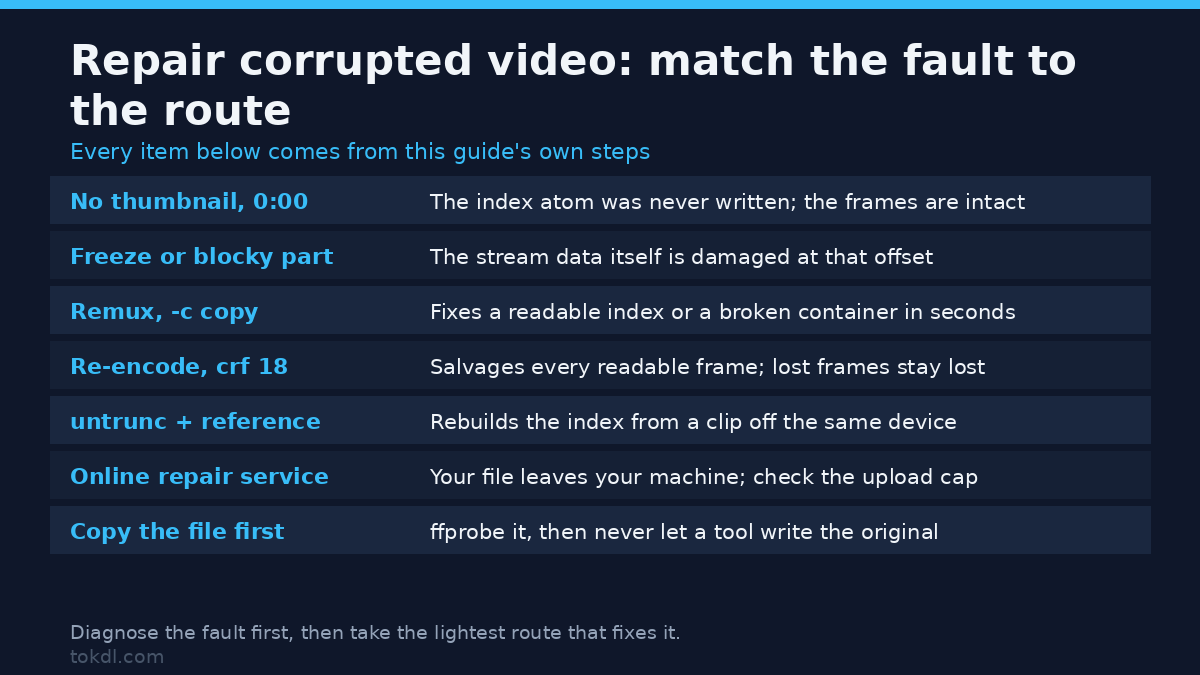
| Remux with FFmpeg | Readable index, wrong or broken container | Seconds, no quality loss | Can’t rebuild a missing index |
| Re-encode with FFmpeg | Damaged sections inside the stream | Time, one generation of quality | Lost frames stay lost |
| untrunc | Missing index | Minutes, needs a reference clip | No reference, no repair |
| Online repair service | Both, wrapped in a web form | Your file leaves your machine | Upload caps, preview limits |
Uploading is the part worth thinking about. A service that repairs your file has to receive the whole file, which means a private recording leaves your computer and sits on someone else’s storage. Retention policies are often vague, and the footage may be personal, medical, legal or a client’s unreleased product. If you wouldn’t email it to a stranger, don’t upload it to one.
Two more patterns are common enough to name. Free tiers frequently cap the file size or return only a short preview until you pay, which is a business model rather than a trick, but check the limit before waiting through a long upload. And be wary of anyone quoting a recovery price before running a diagnosis. The software that fixes most of these files is free and takes minutes.
What no tool does, at any price, is recreate frames that were never written, repair a card with failing memory, or handle encrypted and protected media. Repair tools rebuild container structure. They don’t decrypt anything, and they don’t restore data that was overwritten.
Rights and Responsible Use
A recording belongs to whoever made it. Repairing a copy of a file doesn’t create authorship and grants no new rights over what is inside it. A clip your phone captured is yours to fix; a clip somebody else captured is theirs, and having a working copy of it doesn’t change that.
Personal use and redistribution are separate questions. Fixing footage of your own event and republishing a stranger’s video aren’t the same act, even when both start with the same file. Where footage belongs to a client or an employer, repair it with their permission, hand over the working copy, and delete your own working files afterwards. That detail is usually written into the contract already.
A repair service gets no ownership of your footage, but ask what it stores and for how long before you hand anything over. Keep the untouched original too: it’s your fallback if a repair fails, and if ownership ever matters, that file is the record. The U.S. Copyright Office explains how ownership of a recording works.
Troubleshooting: When the Repair Fails
The tool reports a missing index atom
The index was never written to the file, so the data has no map. FFmpeg can’t help here and no amount of re-encoding will. Rebuild the index with untrunc and a reference clip from the same device, or accept the loss if no reference exists.
The repaired file plays, then freezes at one point
That freeze is bitstream damage at a specific offset. Decoding stops where the broken bytes begin, and the frames underneath are gone for good. Re-running with error tolerance gets you everything after the break; the gap itself can’t be filled from anywhere.
Picture is perfect but the audio is silent
One stream’s index survived and the other did not. Nothing in a container-wide repair will fix that, but you can save what works by extracting the healthy track with a stream map and remuxing it against a re-encoded video track.
The duration reads 0:00, or some absurd number
Timestamps are missing or corrupted rather than the frames. Regenerating them during a remux usually normalizes the file. When it doesn’t, a full re-encode writes fresh timestamps from scratch.
Only one player will open the file
Some players are far more tolerant of a bad index than others, and it’s a useful diagnostic rather than a solution. If a permissive player handles the file while everything else refuses it, the data is largely intact. Remux or re-encode it to produce something standard. A file that plays in one player is a salvage job, not a lost cause.
The output is enormous and won’t upload anywhere
A lossless or high-bitrate setting in a repair tool produced a file several times the original size. Re-run with a normal quality target and a standard preset, or remux instead of re-encoding. For a related waste of space, the same producers should look at remuxing MKV into MP4 rather than converting it twice.
One more failure state doesn’t belong in the software column at all. If several files from the same card are broken, stop using the card and copy everything off it with a card reader. Repeated failures from one device point at failing hardware, and no repair tool will help the next clip that breaks.
If the file that won’t cooperate is a container mismatch rather than damage, converting WebM files to MP4 is a different and much easier job. And if the video plays but the sound slowly drifts out of step, fixing audio that drifts is its own procedure.
Frequently Asked Questions About Corrupted Video
Can I repair corrupted video for free?
Yes, in the most common case. A missing index is repaired with untrunc and a reference clip, and stream damage is salvaged with FFmpeg. Both are free, both run locally, and neither sends your footage anywhere.
Why does my MP4 say the index atom was not found?
The recording ended without writing its index. That happens when a battery dies, an app crashes, or a card is removed mid-write, and it means the video data is usually present but unmapped. A reference clip from the same device lets you rebuild the map.
Will a repair tool bring back my missing frames?
No, a repair tool can’t bring back frames that were never written. Repair restores structure, not pictures. If frames were lost to overwritten data, no tool can invent them. Everything outside the damaged region comes back at full quality, which is normally most of the clip.
Does renaming the file extension fix a corrupted video?
No, renaming the extension doesn’t repair anything inside the file. The extension is only a label that tells your system which player to open, and changing it can’t rewrite a missing index or damaged data. It’s still a fair thing to check when a file has simply been mislabelled.
Can I repair a corrupted video on my phone?
Sometimes, and only for the easier problems. Phone apps mostly re-encode, which can rescue a file whose data is intact, but rebuilding a missing index needs a reference file and a desktop tool. Move the footage to a computer for anything serious.
Is it safe to upload my video to an online repair service?
Only if you accept that the file leaves your control. Uploaded footage lands on a server you don’t manage, under a retention policy you may not be able to verify. Local tools handle most repairs, so reserve uploading for footage that genuinely justifies the risk.
Does copying the file to another drive fix it?
No, but copying is still the right first move. A copy can’t rebuild an index or repair damaged bytes, and on a failing card the copy may be incomplete. Do it anyway, then work on the copy and leave the original untouched.
Which Repair Route Should You Use?
Start with the diagnosis, because it decides everything else. A file with a readable index and a broken stream needs FFmpeg. A file with no index needs untrunc and a reference clip. Getting that backwards wastes the one thing you can’t get back, which is time on a card that might be failing.
Every route here aims at the same thing: to repair corrupted video without ever writing to the only copy you still have. Keep the original safe until a repaired file plays from start to finish, then archive both.
If the index is missing and you have another clip from the same device, run untrunc first. It preserves the original quality, takes minutes, and succeeds more often than people expect. If the index is missing and you have no reference, no free tool will rebuild it. At that point the choice is between a paid service, an upload you’re comfortable with, and accepting the loss.
If the index survived, reach for FFmpeg and move down the list of commands in order, stopping as soon as one produces a playable file. When only one track is damaged, extract the healthy one. When several files from the same card are broken, stop treating it as a software problem and protect what you still have.
Two habits prevent most of this. Stop the recording with the software’s own stop control and wait for it to finish writing before you power anything down. And keep one short healthy clip from each device you depend on. It’s the difference between a five-minute rebuild and a permanent loss.