
WebM to MP4: Convert WebM Files on Any Device (2026 Guide)
Somewhere on your drive sits a WebM file that refuses to play. It opens fine in a browser, then fails on your phone, your smart TV, and the video editor you just installed. WebM is a format of the web, and most of your devices were never built for it.
The practical fix is a WebM to MP4 conversion, and it costs nothing when you use VLC or HandBrake. Both programs are free, both run offline, and both produce files that phones, televisions, and editors accept. This guide walks through each one, and it also tells you when to skip the conversion altogether.
One honest warning before the how-to: converting never repairs a damaged file and never adds detail that was not recorded in the first place. If the source is broken or blurry, every MP4 made from it inherits exactly that.
The Fastest Way to Convert WebM to MP4
Open the file in VLC, open the Media menu, choose Convert / Save, pick an H.264 MP4 profile, choose where the new file goes, and press Start. The output plays on devices that rejected the original. The whole job takes about a minute of your attention the first time.
Before you do even that, ask whether the conversion is needed. If the file plays everywhere you actually use it, nothing is broken. And if only one app complains, check whether a newer version of that app reads WebM before you convert anything.
Why WebM Files Refuse to Play (and When to Leave Them Alone)
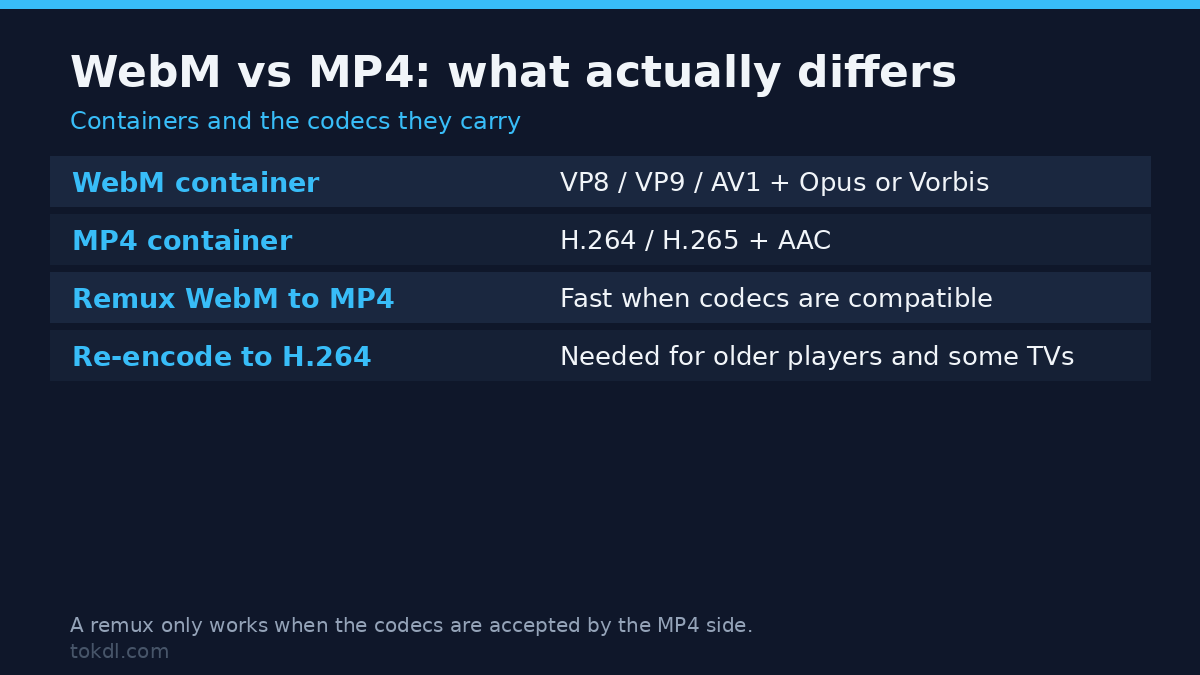
WebM is an open container format that Google designed for the web. It usually holds VP8, VP9, or AV1 video with Vorbis or Opus audio, codecs chosen because they compress well and stream cheaply. Browsers decode them natively, which is why screen recorders and web tools hand you WebM without asking.
MP4 is the compatibility default almost everywhere else. Phones, televisions, and set-top boxes expect H.264 video with AAC audio, and their hardware decoders rarely look beyond that pair. Support for VP9 or AV1 inside an MP4 box exists on newer devices, but you cannot rely on it.
That is why this conversion is a re-encode rather than a quick container swap. The software must decode VP9 or VP8 and encode H.264, and move the audio to AAC, which takes minutes and costs one generation of quality. A remux shortcut works for some formats, as our MKV to MP4 guide explains, but not here: changing the box does not help when the device cannot decode what is inside.
So when should you skip the job? If the target device already plays WebM, converting wastes time and quality. Android galleries, Chrome, Firefox, and most Linux players handle the format, while Windows Media Player does not and Apple devices depend on the app and the system version. Convert the file a specific device rejects, not every WebM you own.
Check the source app as well. If the WebM came from a recorder or an export tool, its settings may offer MP4 directly, which avoids the extra step and keeps the original quality.
Method 1: Convert WebM to MP4 with VLC
VLC is a free, open-source media player with a converter built in, and it runs on Windows, macOS, and Linux. If you have played an odd video file in the last decade, you probably already have it; if not, it comes from VLC’s official download page.
Open VLC and press Ctrl+R (Cmd+R on a Mac), or open the Media menu and choose Convert / Save. Click Add, select the WebM file, then click the Convert / Save button at the bottom of the window.
In the Profile dropdown, choose the entry that names H.264 and MP4, for example Video for H.264 + MP3 (MP4); labels vary slightly between VLC releases, but every current build ships one. Next to Destination file, choose the output folder and type a name ending in .mp4. Press Start and let it run.
VLC gives little feedback while it converts, so allow a long file several minutes and then check the destination folder. One trade-off: this preset writes the audio as MP3, which plays on virtually every device, though a few editors prefer AAC and will ask for the next method instead.
Method 2: HandBrake When You Care About the Output
HandBrake is a free transcoder built for this exact job, and its standard presets write H.264 video with AAC audio inside an MP4, the combination devices expect. It suits people who convert often, convert batches, or care about file size. Grab it from the HandBrake website.
Open HandBrake, click Open Source, and select your WebM file. Pick a preset that matches the footage, Fast 1080p30 for most modern clips, and check that the Format dropdown reads MP4. Recent versions choose MP4 automatically for the built-in presets.
The quality control lives in the Video tab. Its RF slider uses lower numbers for better quality and larger files: 20 matches most sources closely, and 18 is the safer choice for footage you plan to edit later.
For several files, open each one and click Add to Queue, then press Start Encode once. HandBrake shows a progress bar and a time estimate while it works.
Prefer the command line? The same conversion with ffmpeg is a single line, and it is the tool of choice for scripts and servers:
ffmpeg -i input.webm -c:v libx264 -crf 20 -preset medium -c:a aac output.mp4ffmpeg is free, open source, and available through every major package manager. The flags mean the same things they mean in HandBrake: libx264 for H.264 video, CRF 20 for quality, and AAC for the audio.
What Online Converters Actually Do, and Their Limits
Hundreds of websites offer instant WebM conversion in the browser, and they share one trait: the whole file leaves your computer. The upload, the re-encode, and the download happen on their servers, which matters when the footage is private or work-related.
| Tool | Audio in the MP4 | Runs offline | Best for |
|---|---|---|---|
| VLC | MP3 | Yes | One-off conversions using a player you already have |
| HandBrake | AAC | Yes | Quality control, queues, footage destined for an editor |
| ffmpeg | AAC | Yes | Repeated jobs, scripts, and servers |
| Browser converter sites | Varies | No | Only clips you are comfortable uploading |
Their practical limits are size caps, length limits, queues on free tiers, and files deleted after a few hours. Some also hand back a remuxed MP4 that still contains VP9 video, which is why the result occasionally fails on the same TV that rejected the original WebM. Desktop tools dodge all of those limits.
Whatever tool you pick, remember what conversion cannot do: it will not sharpen soft footage, steady a shaky recording, or rescue a file corrupted mid-save. If the source has problems, fix the source first, then convert.
Rights and Responsible Use
Conversion changes the format, never the ownership. The rights that applied to the WebM file apply unchanged to the MP4 you make from it: converting your own recording leaves you free to do what you like with it, while converting someone else’s video grants no right to share, sell, or re-upload it.
If the file came from a streamer, a creator, or a platform’s own download feature, treat your copy as personal reference. Redistribution or commercial use of footage you did not create needs the owner’s permission, and no format change alters that.
WebM itself is an open, royalty-free format, and its documentation lives on the WebM project’s official page if you want the technical details. That openness does not change the rules above; it only means the format is free for anyone to create and convert.
Troubleshooting a Stubborn WebM Conversion
The converted file has no sound. The profile dropped the Vorbis or Opus track, or the recording itself has no audio. Re-run with AAC audio in HandBrake or the ffmpeg command above, and if it stays silent, check the source under Tools, Codec Information in VLC.
The MP4 still will not play on my TV. The file may still carry VP9 because a converter only remuxed it, or the TV dislikes the audio track. Convert with a HandBrake preset that writes H.264 and AAC, then confirm both codecs in VLC’s Codec Information window.
Conversion crawls and the CPU pegs. Decoding VP9 or AV1 and encoding H.264 is heavy work, and long videos on older machines take a while. Choose a faster preset, HandBrake’s Speed dropdown or ffmpeg’s -preset veryfast, and let a long file run.
The output is bigger than the original. That is normal: VP9 and AV1 compress more efficiently than H.264, so the same quality usually needs more bytes in MP4. Raise the RF or CRF to 23 or 24 when size matters more than perfection, and if the file still feels huge, our video compression guide walks through the size levers.
The conversion fails halfway or freezes. The source is damaged, usually from an interrupted recording or a transfer that never finished. No honest converter repairs that; re-record or re-obtain the file, then convert the healthy copy.
An online converter rejected the file as too large. Browser tools cap size and length to control their server costs. The file is not the problem; VLC or HandBrake will convert it locally with no upload and no size limit.
Frequently Asked Questions
How do I convert WebM to MP4 for free?
Open the file in VLC and use Convert / Save, or load it in HandBrake. Both programs are free, open source, and run offline with no account and no upload.
Does converting WebM to MP4 lose quality?
Yes, a small amount, because the video is re-encoded into H.264. Each generation of re-encoding compresses again. At RF 18 to 20 the loss is hard to spot on a phone or a TV, but it is real, so convert from the original file rather than from a copy that was already converted.
Why did my file come out as WebM in the first place?
An app chose a web-friendly format when it created the file. Browser tab recorders, media capture inside web pages, and several screen tools export WebM because browsers play it without plugins. If recording is how you got the file, our screen recording guide covers capture settings that avoid some of this.
Can I just rename the file from .webm to .mp4?
No, renaming changes nothing inside the file. Players read the codec data, not the extension, so a renamed WebM still holds VP9 or VP8 and still fails on the same devices. Only a real re-encode fixes compatibility.
Is WebM lower quality than MP4?
No, quality comes from the codec settings, not the extension. VP9 and AV1 usually beat H.264 at the same bitrate, which is why web platforms favor them. WebM’s problem is compatibility, not quality.
Do online converters upload my video to their servers?
Yes, the entire file is uploaded and converted there. Treat a browser converter like any stranger’s server: acceptable for a clip you do not care about, unwise for private footage. Desktop tools keep the file on your own machine.
Can I convert several WebM files at once?
Yes, HandBrake’s queue handles whole batches. Add each file, click Add to Queue, and start the encode once. The ffmpeg command above also loops cleanly for anyone who scripts.
Which Conversion Method Should You Use?
If you have one file and VLC is already installed, VLC is enough. When you care about quality or need batches, HandBrake earns the extra clicks, and the ffmpeg line belongs in scripts and on servers.
And if no device actually rejects the file, skip the conversion altogether. You keep the original, you lose no quality, and you spend the time watching the video instead of transcoding it.
[…] the file that won’t cooperate is a container mismatch rather than damage, converting WebM files to MP4 is a different and much easier job. And if the video plays but the sound slowly drifts out of step, […]
[…] Converting WebM files to MP4 is the usual fix when a download has to leave the web and open somewhere else, and the browser support matrix is listed in MDN’s container formats overview. […]