
Video Scopes Explained: How to Read a Waveform and Vectorscope (2026)
Most vectorscopes print a line at roughly 11 o’clock, a little past 123 degrees, and it exists to mark one thing: where a normally lit face should land. Push that trace two degrees toward yellow and no viewer will name the fault. They will just say the shot looks slightly ill, and they will be right.
That’s the argument for video scopes. Your eyes adapt within seconds and stop noticing. A laptop panel renders black at whatever gray it feels like, and a phone held in daylight hides everything below 20 IRE. A waveform never adapts.
Below is the order to read the video scopes that matter, what each one is bad at, and six ways they’ll mislead you. The steps work in Resolve, Premiere and Final Cut, with FFmpeg commands for the parts worth scripting.
What Video Scopes Actually Measure
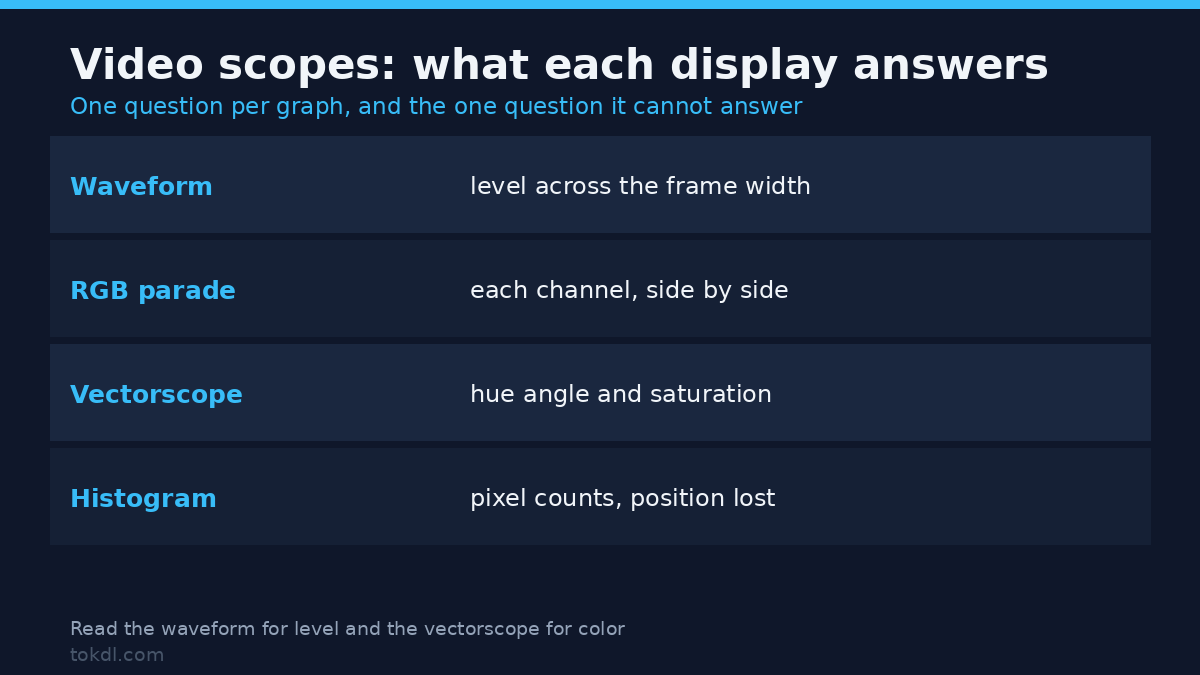
In video scopes, a waveform plots luminance across the width of the frame. The horizontal axis matches the image, so a bright window on the left produces a spike on the left. The vertical axis is level, with 0 at the bottom and 100 IRE at the top.
A vectorscope plots color. Hue becomes an angle around the circle and saturation becomes distance from the center. A neutral frame collapses into a dot in the middle, and an oversaturated one pushes outward toward the ring.
A histogram throws position away. It counts how many pixels sit at each level and stacks them into bars. Good for exposure, useless for finding where in the frame the problem is.
Learn two of them and the guessing stops. Waveform for level, vectorscope for color. That’s the whole idea behind video scopes.
Before You Trust a Reading
Video scopes measure the signal on the timeline, not the picture on your monitor. That single distinction explains most arguments about whether a shot’s really clipping.
Three settings decide whether the numbers mean anything, and a careless setup makes every video scopes reading a lie. Check them once per project.
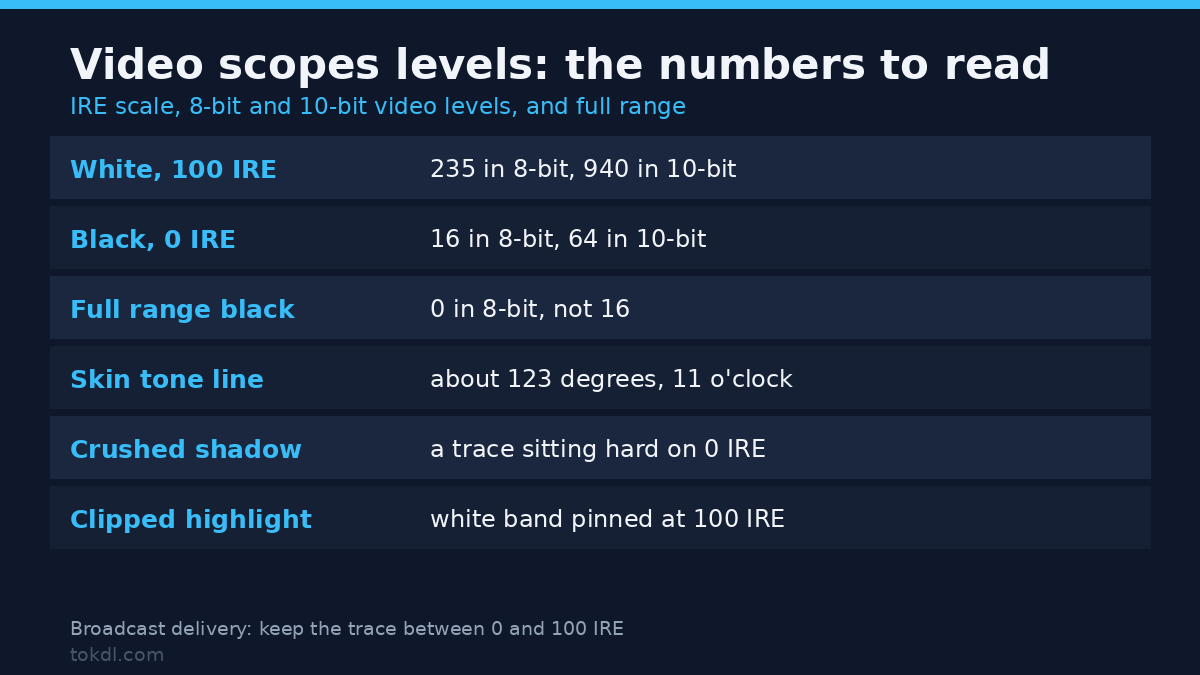
- Level range. Most video scopes can read video levels or full range. In 8-bit video levels, black sits at 16 and white at 235; in 10-bit, 64 and 940. A scope set to full range reads that black as zero, and you will spend an hour fixing a problem you invented.
- Viewer transform. Switch off creative LUTs and display transforms while you judge exposure. Grade through them afterward, not while measuring.
- Playback resolution. Half resolution is fine for level. It hides single-pixel clipping and grain, so go to full before the final pass.
If the numbers still look wrong after those three, revisit them before you touch a slider. Every failure state further down assumes the reading itself is sound.
Reading the Waveform, Step by Step
On any set of video scopes the waveform answers one question first: is anything pinned? A flat band of white across the top of the trace is detail you no longer have.
- Find the white point. Look at the brightest part of the trace. On a broadcast delivery it should stop at 100 IRE, and the shadow end should stop at 0. In 8-bit video levels, that’s the 235 and 16 marks.
- Recover the headroom. If highlights are pinned, pull exposure until the top of the trace separates. If they were already clipped in camera, there’s nothing to pull back, and pretending otherwise produces a muddy frame.
- Set the black point. A trace with nothing below 10 IRE reads as milky. A trace sitting hard on 0 has crushed shadows. Aim for a small foot of information at the bottom.
- Compare shots. Flip between two angles of the same scene. If the tops and bottoms don’t land in similar places, the cut will pump even though each shot looked fine on its own.
Switch to the RGB parade when color enters the question; it’s the cheapest video scopes check you’ll run. It splits the waveform into red, green and blue side by side, so a cast appears as one channel sitting higher than the others. Neutral gray has all three at the same height. That’s the fastest check in the toolkit.
FFmpeg produces the same numbers video scopes do, without a GUI. The signalstats filter reports YMIN, YAVG and YMAX, which is enough to catch a clipped master before it ships.
ffmpeg -i input.mp4 -vf "signalstats,metadata=print:key=lavfi.signalstats.YMAX" -f null -Swap YMAX for YMIN or YAVG to read the other two. The filter reference lists every key the filter exposes, including per-channel values.
Reading the Vectorscope
Freeze on a face and look at where the mass lands. The skin tone line sits near 11 o’clock, and a balanced face straddles it rather than sitting above or below.
Distance from the center is saturation, and that’s where beginners overshoot with video scopes. A trace pressed against the outer ring is clipping chroma. A dot stuck near the middle means the frame has almost no color at all.
Hue errors are easier to catch here than on any waveform. If the whole mass rotates toward green, the white balance or tint is off. Correct it with temperature and tint, not with saturation; turning saturation down to hide a cast only produces a duller version of the same problem.
Two caveats about video scopes and skin. Warm practical light pushes skin legitimately, and a face lit by a window at golden hour is supposed to sit off the line. The scope also reads the whole frame, so a green wall or a red shirt can dominate the mass and make a neutral face look cast. Isolate the face with a window or a crop before you trust the reading.
What Video Scopes Can’t Tell You
Video scopes can’t tell you whether the shot is any good. A frame can sit inside every legal limit and still be flat, badly lit, or boring. Scopes measure the signal, and taste isn’t in the signal.
They can’t see a wrong color range tag. A master tagged full range but delivered as limited reads correctly in your editor and looks washed out in a browser. That failure is a metadata change rather than a grade, and it has its own fix in this guide to color range mismatch.
They can’t see banding in motion. A gradient can pass every check at frame 400 and still show steps on playback, especially after an 8-bit export with dithering switched off.
They can’t see the platform’s transcode. Your scopes measure the master. Every delivery service re-encodes it at its own bitrate, and some apply their own tone mapping, so a version that looks different online was changed after your scopes were correct.
They say nothing about audio. A legal picture paired with a clipped mix still fails QC.
Rights and Responsible Use
Footage belongs to whoever made it. A scope reading tells you what the signal is doing; it says nothing about whether you may change that signal and publish the result, and the second question carries the consequences.
Grading footage you shot, footage a client hired you to grade, or stock you licensed is ordinary work. Grading a copy of someone else’s film or a screener you were sent, then presenting the result as your own, is not, and a clean waveform changes nothing about that. Private study and commercial redistribution are different uses with different rules.
Having a file, being able to open it, or receiving it from someone grants no rights to it. If you can’t establish who owns a clip, don’t publish a version of it. FFmpeg, which produces the commands above, ships under the LGPL with optional GPL components, and its legal page sets out what that means if you redistribute a build.
Troubleshooting
The scopes say the master is legal and the export looks crushed
This is nearly always a color range tag rather than a grade. Check the tag before re-encoding, because retagging costs seconds and a re-encode costs quality.
The waveform shows clipping you can’t see on screen
Your viewer is applying a display transform, or the panel has high peak brightness. Judge the trace, not the monitor, and re-check on a second display before delivery.
The vectorscope shows a cast on a shot that looks neutral
A large colored object is dominating the mass. Isolate a face or a gray card with a window and read the trace again before changing anything.
Two scopes in the same app disagree
On one video scopes panel a graph is reading video levels while the other reads full range, or one reads luma and the other RGB. Set both to the same range and compare again.
A clean 10-bit grade bands after export
The export is 8-bit with dithering off, or 4:2:0 chroma is quantizing the gradient. Export 10-bit where the platform accepts it, or enable light dither.
Everything measured fine and the upload still looks different
The delivery service re-encoded and possibly tone mapped it. Deliver inside spec and expect a small shift; chasing it with a second grade usually makes the master worse.
Frequently Asked Questions
What are video scopes used for?
Video scopes measure the video signal so you can judge exposure and color without trusting your eyes. A waveform reports level, a vectorscope reports hue and saturation, and a histogram reports how pixels are distributed across the range.
What’s the difference between a waveform and a histogram?
The waveform keeps horizontal position and the histogram discards it. A waveform tells you that a highlight is blowing out on the left of the frame; a histogram only tells you that some pixels are blowing out somewhere.
What IRE should a video sit at?
For broadcast delivery, keep the trace between 0 and 100 IRE. In 8-bit video levels that’s 16 to 235, the narrow range defined by the BT.709 standard. Web delivery tolerates more, but a highlight pinned at the top has no detail left to recover.
Why does my vectorscope show green when the frame looks neutral?
A green object is pulling the mass, or the white balance is genuinely off. Isolate a face or gray card and read the trace again before you touch temperature.
Can I grade on a laptop screen using scopes?
Yes, with limits. Scopes make exposure decisions reliable on an uncalibrated panel. Color decisions still need a calibrated display or a second reference point.
What’s an RGB parade?
It’s a waveform split into three channels, shown side by side. Matching the tops and bottoms of all three is the quickest way to confirm a neutral.
Do I need paid software to read video levels?
No. The free build of DaVinci Resolve includes video scopes, and FFmpeg ships waveform, vectorscope and signalstats filters for scripted checks.
Are scopes useful for HDR video?
Yes, but the scale changes. HDR scopes read in nits rather than IRE, so the 0 to 100 ceiling doesn’t apply and the targets come from the delivery standard instead.
Which Scope Should You Open First?
Start with the waveform. Exposure mistakes ruin more footage than color mistakes, and they’re the ones a bright screen hides. Read the parade next when the scene has more than one light source, then the vectorscope to confirm skin and neutrals.
Skip the histogram unless you’re checking a gradient or a green screen for uniformity. It answers a narrower question than the other two, and it tempts you into chasing a shape that means very little.
Video scopes don’t make a shot look good. They stop you shipping a shot that’s technically broken, which is a different and more useful job. Learn the three readings, set your level range once, and the guesswork goes away.