

Video Looks Washed Out After Export? Fix the Color Range (2026)
A five-second clip leaves the editor looking correct and lands in a browser looking washed out. Blacks that touched true black on the timeline now sit around 6% grey, and the whole frame reads as if someone pulled the contrast down.
Nothing is broken. Your video looks washed out because the file and the player disagree about which numbers count as black and which count as white. That disagreement has a name, color range, and it explains most exports that look worse than the timeline they came from.
What almost no guide mentions: the repair is usually a two-minute retag rather than a re-encode, and applying the wrong one makes a washed out picture worse.
What a washed out export actually is
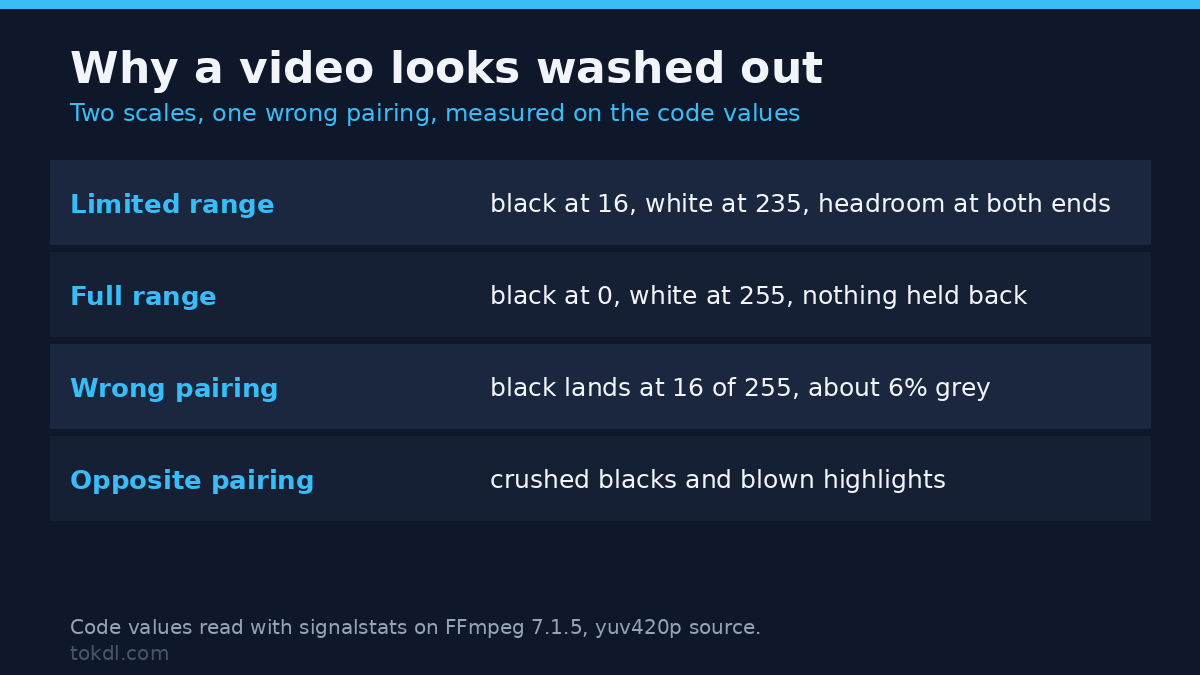
Eight-bit video stores luma on one of two scales. Limited range, also called TV range, puts black at 16 and white at 235, leaving headroom at both ends. Full range, or PC range, uses the whole 0 to 255 span. Chroma has its own pair of numbers, 16 to 240, but the logic is identical.
Now imagine a file whose values sit between 16 and 235, played by something that spreads 0 to 255 across the screen. Black lands at 16 out of 255, roughly 6% grey on any decent monitor. White stops at 235 and looks slightly dim. Contrast collapses, every color reads diluted, and the footage looks washed out beside the timeline.
Reverse the mismatch and you get the opposite failure: crushed blacks, blown highlights, a picture that looks harsh instead of flat. Same root cause, different direction.
H.264 and HEVC streams can carry a flag telling the decoder which scale was used. The flag is optional. When it’s missing, or when a tool ignores it, decoders assume limited range and the picture is at the mercy of that assumption.
Check the file before you touch a washed out export
You’ll need ffmpeg and a file. ffprobe ships with it, and nothing here requires an account or an upload.
Ask the file what it says about itself.
ffprobe -v error -select_streams v:0 -show_entries stream=codec_name,pix_fmt,color_range,color_space,color_transfer,color_primaries -of default=noprint_wrappers=1 input.mp4Read three lines. color_range=tv means limited, pc means full, and unknown means every player will guess. pix_fmt tells you the bit depth and chroma layout, so yuv420p is the ordinary 8-bit delivery format.
The primaries, transfer and matrix lines describe color, not range. bt709 across all three is the SDR standard for HD delivery and the value you want to see on a finished file.
Then measure real code values instead of trusting the label, because a washed out picture and a mistagged file look identical in a player. Crop a patch of black in a corner and print the minimum luma inside it.
ffprobe -v error -f lavfi -i "movie=input.mp4,crop=200:200:20:600,signalstats" -show_entries frame_tags=lavfi.signalstats.YMIN -of csv=p=0A result near 16 means the file is limited range. Near 0 means the data is full range, whatever the flag claims. Run the same crop over a white area with YMAX and you’ll see 235 or 255, which confirms the reading.
Method 1: fix the range at export
When the timeline looks right and the export doesn’t, the error enters at export and that’s the cheapest place to correct it. Editors put the control in different panels: sometimes a project-level color management setting, sometimes a video range toggle in the export dialog. The target for standard SDR delivery is limited range, tagged bt709, 4:2:0 chroma.
Don’t judge a washed out export by eye in the preview window. Build a test clip with a known black area and a known white area, push it through the same export settings, then measure it with the command above. If a video looks washed out after every export from one project, the chain is at fault rather than the player.
ffmpeg -f lavfi -i color=c=black:s=1920x1080:d=5 -vf "drawbox=x=0:y=0:w=960:h=540:c=white:t=fill" -c:v libx264 -crf 18 -color_range pc -colorspace bt709 test-pattern.mp4Feed that pattern through your editor. A black patch that comes back at 16 and a white patch at 235 means the export chain is honest and you can stop worrying about it. Black at 0 means the export writes full-range data into a stream that will be read as limited, and every player will crush it.
Method 2: retag or convert the file you already have
These are two different operations, and mixing them up is how people turn a washed out file into a damaged one. One relabels the numbers. The other rewrites them.
Retag: change the label, not the pixels
ffmpeg -i input.mp4 -c copy -bsf:v h264_metadata=video_full_range_flag=0 output.mp4For HEVC, swap in hevc_metadata. This finishes in seconds, copies the encoded frames untouched, and only rewrites the flag so players stop expanding levels that were never expanded. Quality is bit-identical.
Use it only when the probe shows a label the data doesn’t match, never on a file that merely looks washed out. Applied to a correct file, it shifts the interpretation in the wrong direction and the picture gets worse rather than better.
Convert: change the values, then label them
ffmpeg -i input.mp4 -vf "scale=in_range=pc:out_range=tv,format=yuv420p" -c:v libx264 -crf 18 -preset slow -colorspace bt709 -color_range tv -x264-params colorprim=bt709:transfer=bt709:colormatrix=bt709 output.mp4in_range states what the source contains and out_range sets where the output must land; the scale filter options handle luma and the chroma remap in a single pass. The trailing options write the metadata, and which ones land isn’t obvious. Measured on FFmpeg 7.1.5, -colorspace and -color_range write their tags while -color_primaries and -color_trc write nothing at all, so the output still reports color_transfer=unknown and color_primaries=unknown. The -x264-params line above writes all three; a setparams filter does the same.
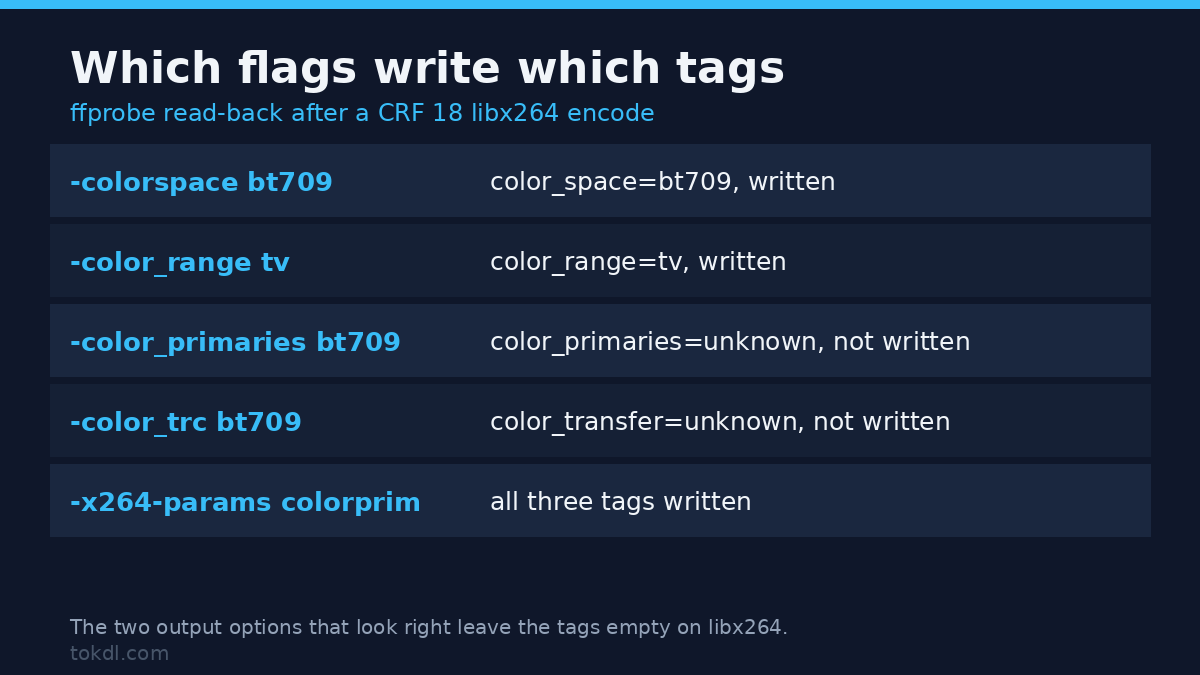
The cost is a full re-encode, which means another generation of lossy compression. CRF 18 keeps that loss small without inflating the file, as the H.264 encoding guide explains. Nothing recovers detail that was clipped before the file was written.
Why a video looks washed out in one player and fine in another
Players don’t share one policy. Some honor the range flag, some ignore it and assume limited range, and browsers differ from desktop applications running on the same machine. That single fact explains most “it looked fine at home” reports.
There’s a related trap worth knowing. Comparing a still exported from the timeline with the finished MP4 compares two display paths, not two files, so a washed out video sits beside a punchy still. A PNG frame is full range by definition and nearly every image viewer shows it that way, so the still will look punchier than the video beside it even when the video is perfect.
I checked this while testing the commands above: pulling raw 8-bit frames out of a full-range file and a limited-range file returned identical values, because extraction normalizes levels on the way out. Measurement only tells the truth inside the filter chain, which is why the probe uses signalstats instead of a saved image.
Judge the export where your audience watches it, because a washed out result in a browser tab is the verdict that matters for anything headed to a website.
What these tools can and can’t fix
A range change remaps values that already exist, which is why it can rescue a washed out export. It can’t restore detail lost to clipping, it can’t rescue a grade you never finished, and it can’t compensate for a bitrate too low to hold the picture.
Three problems that look similar but aren’t: HDR footage on an SDR display needs tone mapping, not a flag, as covered in tone mapping an HDR clip. Log footage needs a camera-specific transform, explained in converting log footage. Banding across a smooth gradient is a bit-depth issue, treated in bit depth and banding. Reaching for a range fix on any of those burns an afternoon.
Upload-and-fix websites sit in the same space with a hidden cost: they re-encode at settings you can’t see, often discard metadata, and sometimes downscale. If you use one, measure the returned file before publishing it.
Rights and responsible use
The footage you’re correcting belongs to whoever recorded it. Adjusting levels or retagging a stream doesn’t transfer any right to publish, sell or hand the file on, because a re-encode is still a copy of someone else’s work.
Personal reference and public distribution are different acts. Watching a clip on your own machine is one thing; putting it in a video you publish, a client delivery or an advertisement is another, and it needs the owner’s permission. When the file came from a client, the brief usually names the codec and range, so follow it instead of guessing.
The software carries its own terms as well. FFmpeg’s licensing and legal notes are published on its official legal page.
Troubleshooting: five exports that still look wrong
Blacks turn grey only after upload
The platform re-encoded your file and its player now treats the result as full range, so a clean master arrives washed out. Deliver limited-range bt709, then download the processed version and measure it before changing anything in your project.
Everything goes crushed after a retag
The file was already correct and the label moved the wrong way, so a healthy file turned washed out. Restore the original and retag only when the probe shows data that contradicts the flag.
Skin tones shift while the greys stay neutral
That’s a primaries or transfer mismatch, not a range problem. Check color_primaries and color_trc, since a file tagged with the wrong matrix looks wrong in the midtones even when black and white are exact.
An HDR clip looks flat on a laptop
The display can’t map the wider dynamic range, so the picture is scaled down or shown with no mapping at all. A range flag won’t help; the file needs a tone-mapped SDR version instead.
Stills look right and the video looks flat
You’re comparing a full-range image with a limited-range video. Judge the video in a player, or measure it, and leave the export alone.
Frequently asked questions
What does it mean when a video looks washed out?
A video looks washed out when the file’s levels and the player’s assumption disagree. In the usual case the code values sit between 16 and 235 while the player spreads 0 to 255 across the display, so nothing ever reaches true black.
Is a washed out video damaged?
No. The pixels are intact and only the interpretation is off, which is why a tag change with no re-encode can repair it in seconds.
Can I fix it without re-encoding?
Yes, when the flag is the only thing that’s wrong. A bitstream filter rewrites the flag and leaves the encoded frames untouched, so a washed out export comes back correct with identical quality.
Does converting to limited range lose quality?
A little, once. The remap is arithmetic, but saving the result means encoding again, and every encode is lossy.
Why does one file look fine on my phone and flat on my laptop?
The two players treat the flag differently. One expands 16 to 235 across the display range, the other passes values through unchanged, and the second one shows you grey blacks.
Which range should I export for a website?
Limited range, bt709 primaries and transfer, 4:2:0 chroma. That combination is what browsers and platform transcoders expect from standard SDR H.264.
Do I need to fix chroma as well?
The same conversion covers it. The scale filter remaps luma and chroma together, which is why converting through it beats editing one plane by hand.
Which fix should you use?
| Situation | Do this |
|---|---|
| Timeline correct, export flat | Correct the export settings and re-export |
| Flag contradicts the measured values | Retag with a copy, in seconds, losslessly |
| Data is genuinely full range and must ship as limited | Convert with the scale filter and accept one re-encode |
| Wrong in one application only | Change nothing, the file is fine |
| HDR, log or banded footage | A different problem with a different fix |
One case deserves its own line. If a video looks washed out in exactly one application and correct everywhere else, the file is fine and the player is wrong, so nothing should be changed.
Everything else comes down to measuring before acting: a washed out video is almost never damaged, only mislabelled. A probe report and one sampled black patch settle in ten seconds what an hour of guesswork won’t.