
Batch Convert Video Files: The Complete, Easy FFmpeg Guide
You come back from a shoot with forty clips, or a folder of screen recordings waits to become MP4s before anything goes up. Doing them one at a time is an evening of clicking. The fix is a loop that will batch convert video files in one pass, and that’s where the trouble starts, because I’ve had a batch report success while writing empty files, and I’ve watched an eight-job run look fastest of all while wrecking half its own output.
Everything below comes from eight 1280×720 clips of ten seconds each, 4.7 MB apiece, encoded with FFmpeg 7.1.5 on a container that advertises 64 CPUs and is allowed 2. What you’ll learn: how to batch convert video files in a folder with one loop, when a whole folder can be remuxed instead of re-encoded, which parallel setting earns its keep and which one breaks the encodes, and the check that catches the failures an exit code keeps quiet about.
Batch convert video files with one shell loop
A batch is a for loop. If you want to batch convert video files, the command you already use for a single file goes inside it, and the shell hands over every name in the folder:
for f in clips/*.mov; do
  ffmpeg -nostdin -y -hide_banner -v error -i "$f"
    -c:v libx264 -preset veryfast -crf 23 -threads 1 -c:a aac -b:a 128k
    "out/$(basename "${f%%.mov}").mp4"
done
Four of those flags carry more weight than their length suggests, and they’re what let you batch convert video files unattended. -nostdin stops FFmpeg from reading the terminal, which matters the moment the loop is fed from a file list instead of a glob. -v error keeps progress noise out of the log so a real failure isn’t buried in it. -y overwrites without a prompt. And -threads 1 keeps each job to a small thread pool, which is the flag that decides whether a parallel batch survives. There’s a measured reason for that one further down.
The naming matters as much as the flags, and it’s the part people get wrong the first time they batch convert video files. $(basename "${f%%.mov}") drops the folder and the extension, so clips/IMG_2231.mov lands as out/IMG_2231.mp4. If your clips are named with a different case, match it: *.mov won’t catch IMG_2231.MOV on a case-sensitive system.
One more thing about the glob: if the outputs land in the folder you’re reading, the next run picks up your conversions as input. Keep them somewhere else, or match the source extension exactly, or the second time you batch convert video files you’ll be re-encoding your own results.
Remux the folder first, re-encode only when you must
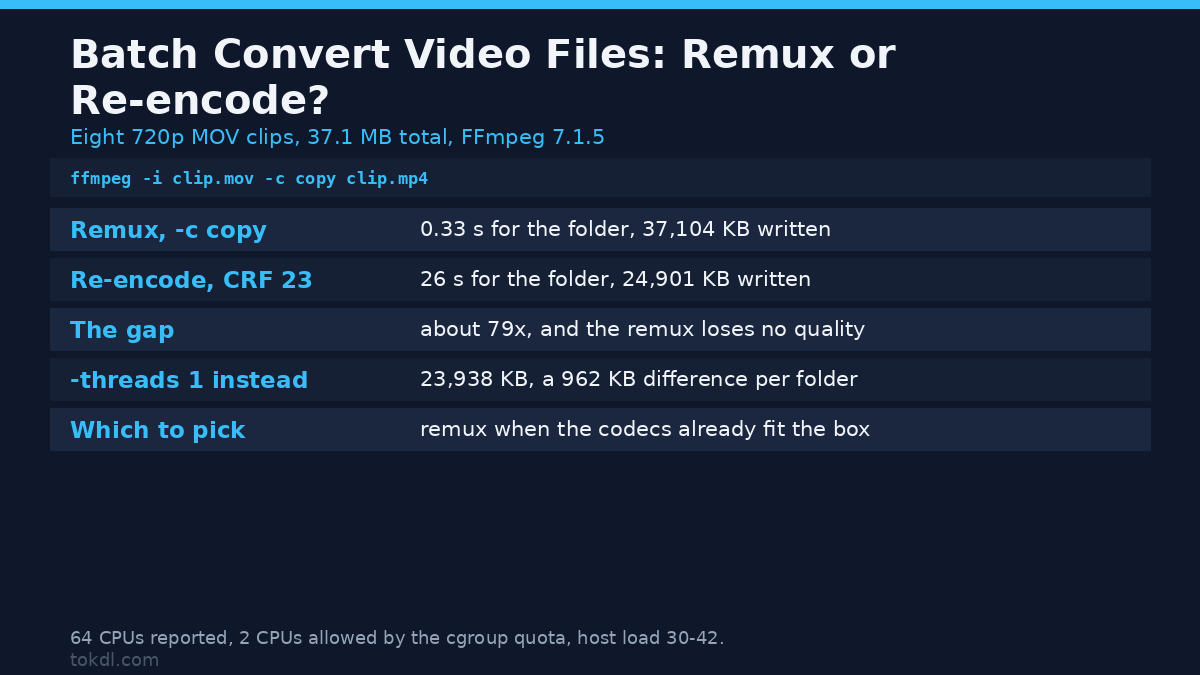
A container change is not an encode. Before you batch convert video files with an encoder, check what’s inside them. When your MOV files already hold H.264 video and AAC audio, an MP4 is a different box around the same streams, and -c copy moves them without touching a pixel. Same eight clips, both paths, best of three runs:
| What the batch does | Flag | Wall time, 8 clips | Output written |
|---|---|---|---|
| Remux, no re-encode | -c copy |
0.33 s | 37,104 KB, the source size |
| Re-encode, H.264 CRF 23 | -c:v libx264 |
26 s | 24,901 KB |
That’s the decision in one row. Remuxing is the cheapest way to batch convert video files, and it’s the one to try first: 37 MB of already-compatible files took about a third of a second, where re-encoding the same folder took 26 seconds and spent a generation of quality. When the codecs inside don’t fit the container you want, or the file has to shrink before an upload, the re-encode earns its wall time. The remux method is the deeper read on stream copy, the CRF and bitrate guide covers what the quality setting costs, and the upload limit guide is the one to read if size, not format, is the problem.
Before you compare two batches of your own, note that the thread setting changes the output. My default-thread runs wrote 24,901 KB every time and the -threads 1 runs wrote 23,938 KB every time, from the same input at the same CRF. A single file shows it plainly: 3,187,675 bytes against 3,064,468. The gap repeated exactly across runs, so it’s not noise, and libx264 isn’t cheating you either. It splits work differently, which shifts a few rate-control decisions. That’s worth knowing before you batch convert video files twice and compare the folders byte for byte.
Batch convert video files in parallel, up to your real core count
One loop runs one job at a time. With cores to spare you can batch convert video files several at a time, and xargs does the bookkeeping. Here’s the form I settled on, with the file list coming from find so spaces in filenames survive:
find clips -maxdepth 1 -name "*.mov" -print0 | xargs -0 -P2 -I{} sh -c
  'ffmpeg -nostdin -y -hide_banner -v error -i "$1"
   -c:v libx264 -preset veryfast -crf 23 -threads 1 -c:a aac -b:a 128k
   "out/$(basename "$1" .mov).mp4"' _ {}
The trailing _ {} is load-bearing: it hands the filename to the inner shell as $1, which keeps the quoting intact for names with spaces in them. The xargs manual page documents the replacement rules.
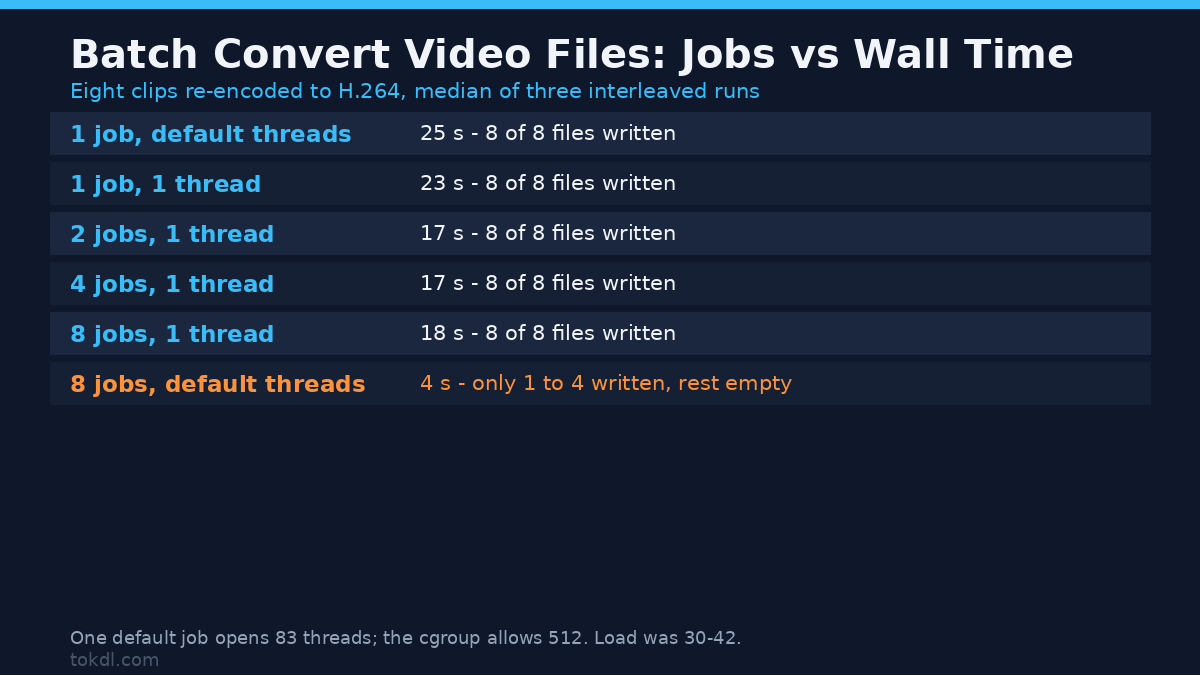
Eight clips, six ways to batch convert video files, three runs each, all interleaved so the host’s load average hits every configuration the same way. The figures below are medians, and the load sat between 30 and 42 throughout, which is why a single run here can swing 20%:
| Jobs at once | Threads per job | Median wall time | Files written |
|---|---|---|---|
| 1, plain loop | default | 25 s | 8 of 8 |
| 1, plain loop | 1 | 23 s | 8 of 8 |
| 2 | 1 | 17 s | 8 of 8 |
| 4 | 1 | 17 s | 8 of 8 |
| 8 | 1 | 18 s | 8 of 8 |
| 8 | default | 4 s | 1 to 4 of 8 |
Read the last row twice. It finished fastest and produced the least. In nine runs of that setting, between four and seven of the eight files came out at zero bytes, and xargs exited 123 every time. The log says why:
[vost#0:0/libx264] Terminating thread with return code -22 (Invalid argument)
[vost#0:0/libx264] Could not open encoder before EOF
[out#0/mp4] Nothing was written into output file, because at least one of
its streams received no packets.
The cause sits in the gap between what the container advertises and what it’s allowed to use. FFmpeg reads 64 CPUs from the host and sizes its thread pool for them: I counted a single default job opening 83 threads. Eight of those want 664 threads, and this container’s cgroup allows 512 processes in total, so thread creation starts failing, libx264 can’t open its encoder, and the batch carries on to the next file with a shrug. If you batch convert video files on a machine like this one, you only find out when you open an output.
The numbers line up with the limit almost exactly. With -threads 1 on the output side, one job opens 25 threads, so eight jobs need 200 and the batch stays clean at 18 seconds. Put the same flag before -i instead, where it only limits the decoder, and a job still opens 67 threads: at eight jobs that’s 536 against the 512 cap, and I measured two of eight files coming out empty. Same flag, wrong position, broken batch.
So the rule if you want to batch convert video files in bulk: as many jobs as you’ve got cores, one small thread pool per job. Two jobs was the sweet spot on this two-core box, four bought nothing, and eight only looked better because it was writing nothing. Run the batch once, check the wall time, and stop when adding jobs stops helping.
Check the count, not the exit code
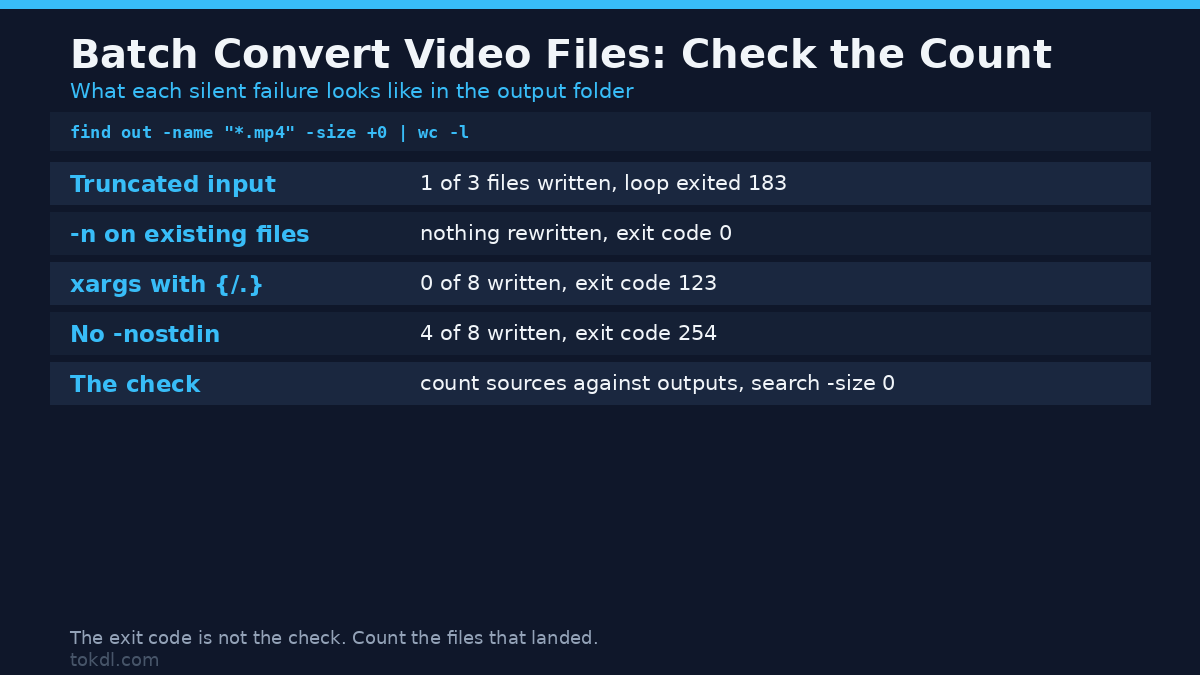
It’s the check I run every time I batch convert video files, because a batch that wrote nothing can still exit clean. Compare what went in with what came out:
printf "sources: "; find clips -maxdepth 1 -name "*.mov" | wc -l
printf "written: "; find out -name "*.mp4" -size +0 | wc -l
printf "empty:   "; find out -name "*.mp4" -size 0 | wc -l
Three numbers, and they have to agree. I put two damaged files beside a good one, a truncated MOV and a zero-byte file, and ran the batch: sources 3, written 1, empty 0. Nothing warned me. The loop returned the exit code of its last command, 183, and only the count showed the damage. That’s the case an empty-file search misses on its own, because FFmpeg failed before it ever opened an output.
The other silent one lives in the overwrite flag. With -n instead of -y, FFmpeg refuses to touch an existing output, logs already exists. Exiting., and returns 0. I ran a batch, changed the CRF, and ran it again: same sizes, same timestamps, a clean exit code, and not one file re-encoded. Clear the folder before you batch convert video files again after a settings change, or you’ll ship yesterday’s files with today’s command.
Then spot-check one output after you batch convert video files, because a file that exists can still be wrong:
ffprobe -v error -show_entries stream=codec_name -of csv=p=0 out/IMG_2231.mp4That prints the codec names it found, so two streams and a matching codec mean the job landed. The FFmpeg documentation is the reference for every flag used here, and the everyday FFmpeg commands post has more probes like this one.
Common mistakes when you batch convert video files
- Feeding the loop from
$(ls). Word splitting breaks every name with a space or a bracket in it. Three test files produced exactly one output that way. Thefind -print0 | xargs -0form wrote all three. - Leaving
-nostdinoff. FFmpeg then reads the loop’s own input list. Four of my eight files converted before the list ran dry, and the run exited 254. - Putting
-threads 1before-i. That’s the decoder’s option. The encoder still opens its own pool, and the batch breaks at eight jobs. - Trusting the exit code. Damaged inputs leave the loop running and the folder short.
- Expecting
xargsto understand{/.}. That’s GNU parallel. GNU xargs 4.10.0 leaves it literal, so every job tries to write into a directory named{/.}, and the batch ends with zero files and exit 123. - Writing outputs into the folder you’re reading from. The next run converts your conversions.
FAQ
Can I batch convert video files on Windows or macOS?
The loop and the find pipeline are POSIX shell, so they run as printed in WSL or Git Bash on Windows and in Terminal on macOS, as long as FFmpeg is on the PATH. If you’d rather click than type, any converter with a queue does the same job, though you lose the thread control that keeps a big batch stable. Every number here came from a Linux box.
Does batch conversion reduce quality?
Only the encode step does. When you batch convert video files with -c copy, the container is rewritten and the streams are left alone, which is why my eight-clip remux finished in a third of a second and wrote the same 37,104 KB it read. Re-encode, and every file loses a generation, whether you batch convert video files or run them one at a time.
How many jobs should I run at once?
Start with two and watch the wall time. Two jobs cut my batch from 25 seconds to 17, and four jobs at the same thread setting bought nothing on a box with two usable cores. Stop adding jobs when the time stops dropping, and keep an eye on memory if the files are large.
Can I batch convert video files to audio only?
Yes, and it’s quicker, because there’s no picture to process. Swap the video options for -vn -c:a aac -b:a 128k and the same loop pulls the audio track out of every file in the folder.
Conclusion
Batching is a loop with a check on the end of it. To batch convert video files without surprises, remux when the codecs already fit the container, re-encode when they don’t, keep each job’s thread pool small, run as many jobs as you’ve got cores, and count the outputs before you delete the source folder. On this machine the folder went from 25 seconds to 17 with two jobs, and the only run that looked faster than that was the one writing empty files. Whatever you do, read the count before you trust the command.