
Constant Quality vs Average Bitrate: Which Encoding Mode Should You Use?
What each mode asks the encoder to choose
You export the same twenty minute clip twice, change one dropdown, and the files land at 700 MB and 3 GB. Nothing about the footage changed. The setting you touched is rate control, and it decides whether your file size or your picture quality gets to move. Get it wrong and you’ll either blow a 2 GB upload cap or hand the platform a file whose noisy scenes look like wet sand.
Every encoder offers the same pair of options. Constant quality and average bitrate trade opposite variables: one fixes the picture and lets the size float, the other fixes the size and lets the picture float. I encoded one deliberately awkward clip in both modes on this machine (FFmpeg 7.1.5, libx264, preset medium) and read the delivered files back, so the numbers below are measured rather than remembered. If you’re still choosing a bitrate number, start with our guide to video bitrate and the walkthrough on how to calculate video bitrate. This article is about which mode you hand that number to.
Constant quality is the mode where you name a level and walk away. The encoder looks at each frame and spends whatever it takes to reach that level: almost nothing on a locked off shot, plenty on confetti and grain. FFmpeg calls the knob CRF, HandBrake calls it RF, hardware encoders call it CQ. The scale is rough but useful: CRF 0 is lossless, 18 looks clean, 23 is the default, and past 28 the softness shows on detailed footage. Quality stays constant, size is an outcome, and no scene gets starved because an earlier one was expensive.
Average bitrate turns it around. You name an average, the encoder spreads that budget across the file, and quality becomes the variable. It’s the mode for hard limits: a streaming ladder, a portal that rejects anything over 25 MB, a spec quoted in megabits.
| Mode | You choose | Encoder chooses | File size | Noisy scenes |
|---|---|---|---|---|
| Constant quality (CRF, CQ, RF) | A quality level | Bits per frame | An outcome, not a setting | Get the bits they need |
| Average bitrate (ABR, VBR) | An average bitrate | Quality per frame | A target the encoder aims at | Starved first, and it shows |
Constant quality in practice: the size is an outcome
To make the difference visible I built an 18 second clip with three 6 second scenes: flat colour with a small box tracking across it (easy), a moving test pattern (medium), and the same pattern with noise added (hard). It’s synthetic on purpose, and noise is the worst case for any encoder, so treat it as a stress test, not a sample of your footage. Every encode used a fixed 2 second GOP.
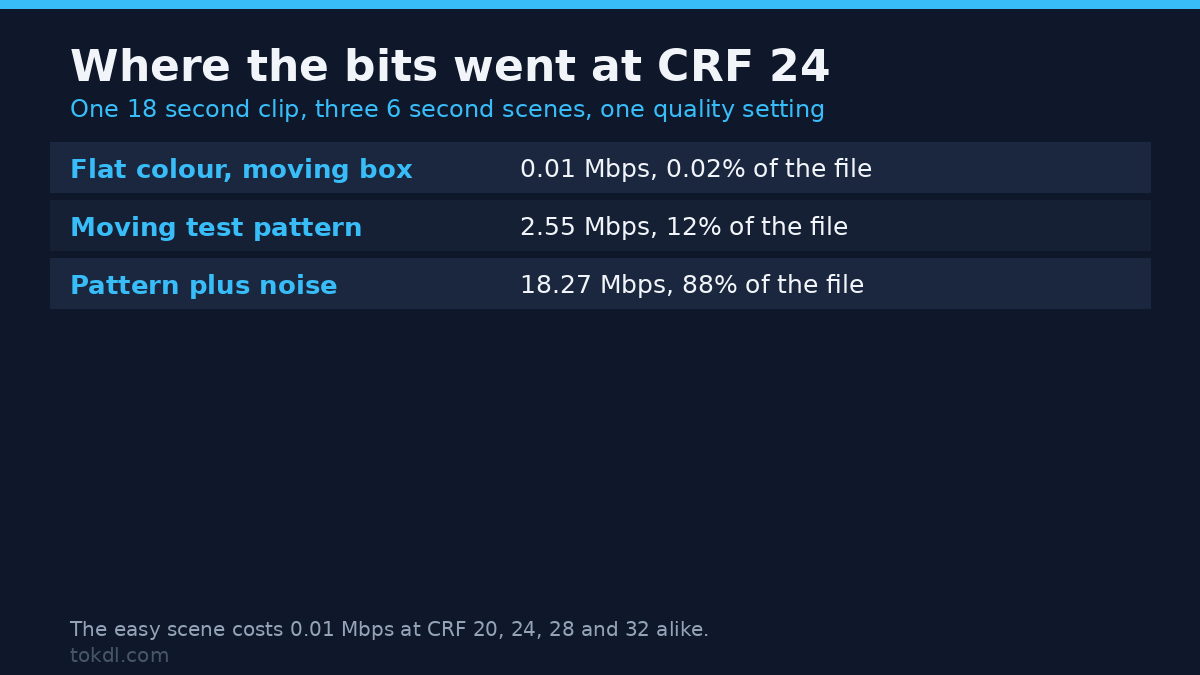
At CRF 24 the file averages 6.95 Mbps, and the bits land like this:
| Scene at CRF 24 | Bits it used | Share of the file |
|---|---|---|
| Flat colour, small moving box | 0.01 Mbps | 0.02% |
| Moving pattern | 2.55 Mbps | 12% |
| Moving pattern plus noise | 18.27 Mbps | 88% |
One noisy scene took 88% of a 15.6 MB file. The easy scene cost 0.01 Mbps, and here’s the part that surprises people: it cost the same 0.01 Mbps at every quality level I tested, from CRF 20 down to CRF 32. A constant quality encoder doesn’t spend bits it doesn’t need, so a locked off shot never gets cheaper when you lower the setting. It’s already free.
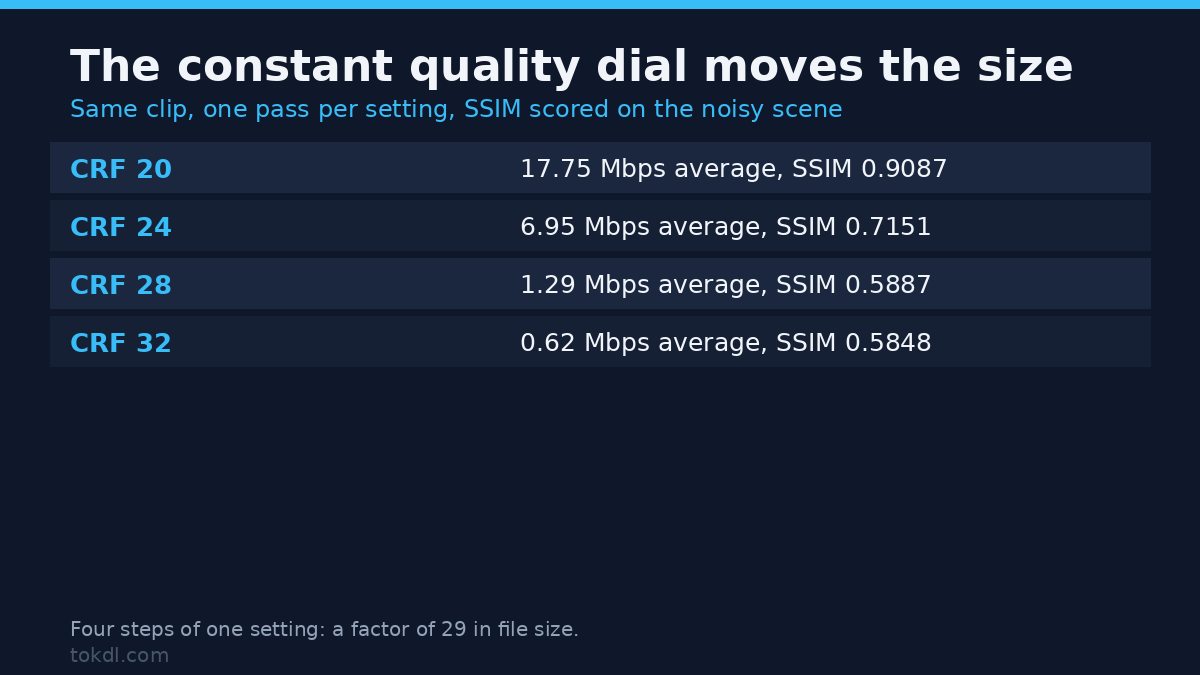
Now the sweep. Same clip, four quality levels, one pass each:
| Constant quality setting | File size | Average | SSIM, pattern | SSIM, noisy scene |
|---|---|---|---|---|
| CRF 20 | 39.9 MB | 17.75 Mbps | 0.9973 | 0.9087 |
| CRF 24 | 15.6 MB | 6.95 Mbps | 0.9939 | 0.7151 |
| CRF 28 | 2.91 MB | 1.29 Mbps | 0.9853 | 0.5887 |
| CRF 32 | 1.39 MB | 0.62 Mbps | 0.9775 | 0.5848 |
Four steps of a quality dial moved the average bitrate by a factor of 29, and the noisy scene alone moved by a factor of 51, from 49.57 Mbps at CRF 20 down to 0.97 Mbps at CRF 32. The pattern scene barely budged. That’s the catch with constant quality: you can’t predict the file size from the setting alone, because the setting has no idea what’s in your footage. You can predict it once you’ve encoded that kind of footage and looked. Encode one representative minute, note the size, and multiply. The encode is also repeatable: CRF 24 run twice gave byte identical files, 15,630,310 bytes each.
Average bitrate in practice: a target is not a ceiling
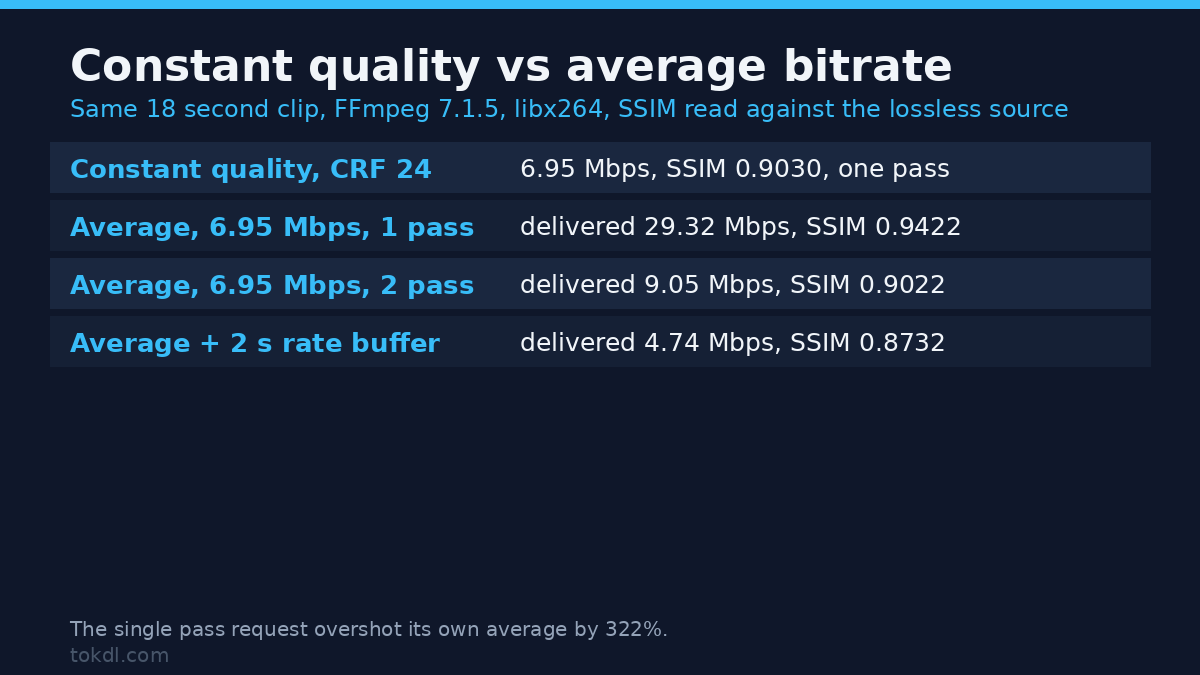
I asked for the same average bitrate as the constant quality CRF 24 file above, 6.95 Mbps, in three different ways. Here’s what the delivered files contain:
| How the average was requested | Asked for | Delivered | Off by | SSIM |
|---|---|---|---|---|
| Single pass, bitrate only | 6.95 Mbps | 29.32 Mbps | +322% | 0.9422 |
| Two pass, bitrate only | 6.95 Mbps | 9.05 Mbps | +30% | 0.9022 |
| Single pass plus a 2 second rate buffer | 6.95 Mbps | 4.74 Mbps | -32% | 0.8732 |
| Constant quality, CRF 24 (for scale) | A quality level | 6.95 Mbps | n/a | 0.9030 |
The single pass file came out more than four times the size I asked for. That isn’t exotic: when complexity varies wildly inside a short clip, the rate control spends early and pays the bits back later, and 18 seconds isn’t enough room to finish the repayment. A second-by-second read shows the shape: 0.01 Mbps for the first six seconds, around 12 Mbps for the pattern, then 200 and 134 Mbps as the noisy scene lands, and 6.8 and 2.4 Mbps in the last two seconds as the encoder scrambles to recover. Stretch the same request over 54 seconds of the same content and the overshoot drops to +75%, so the mechanism is time, not magic. A control run with default GOP handling overshot too, at 27.17 Mbps.
Two lessons land at once. An average bitrate with no rate buffer is a wish, not a limit. And two pass encoding helps without guaranteeing much: it closed most of the gap, and its file was 30% larger than requested while scoring the same 0.90 SSIM as the CRF 24 file it was meant to match. On this clip, constant quality reached that quality in one pass and with 30% fewer bits.
So if you need a file that won’t exceed a number, reach for a rate buffer instead. Adding a maximum rate and a buffer to the same single pass request cut the file to 4.74 Mbps, under the target, because a 2 second buffer can’t bank bits the quiet scenes would have earned. Set the buffer generously when you want the average to hold, and lean on the ceiling when the ceiling is the point.
How to set each mode in FFmpeg
Three recipes cover almost everything. Run them as printed; each produced the files measured above.
Constant quality, one pass
ffmpeg -i input.mp4 -c:v libx264 -crf 20 -preset slow -pix_fmt yuv420p out.mp4Raise the CRF to shrink the file, lower it to protect detail. The preset changes how hard the encoder thinks, not the quality target, so it moves size and speed together: slower presets usually buy a smaller file at the same CRF. The FFmpeg H.264 encoding guide documents the same knobs if you want the reference next to the recipe.
A hard average, in two passes
ffmpeg -y -i input.mp4 -c:v libx264 -b:v 7M -preset slow -pass 1 -passlogfile passlog -an -f null -
ffmpeg -y -i input.mp4 -c:v libx264 -b:v 7M -preset slow -pass 2 -passlogfile passlog -pix_fmt yuv420p out.mp4
Pass one writes no video file, only a stats log, and pass two does the real encode, so the cost is nearer one and a half passes than two: on this 18 second clip pass one took 6.2 seconds and pass two 12.0. Delete the passlog files when you’re done. If you forget to name the encoder in the first command, pass two dies with Could not open encoder before EOF, which is what happened here while building this article: the first pass had quietly used a different encoder and left no usable stats. Name -c:v libx264 in both commands.
Constant quality with a ceiling
ffmpeg -i input.mp4 -c:v libx264 -crf 24 -maxrate 2M -bufsize 4M -pix_fmt yuv420p out.mp4This is the mode for anything that has to fit a limit without being punished scene by scene. The constant quality level decides quality, and the rate pair stops a noisy stretch from blowing up the file: the clip that came out at 6.95 Mbps uncapped landed at 1.32 Mbps with the ceiling, and its noisy scene dropped from 18.27 to 2.04 Mbps.
The combination that does nothing
Adding a bitrate to a CRF command looks like a sensible cap. It’s ignored. CRF 24 with -b:v 400k produced 15,630,310 bytes, the same file as CRF 24 alone, and a 12 Mbps request produced the same bytes again. For a ceiling, use -maxrate and -bufsize.
One cross-tool warning: CRF scales are per encoder, so a number that looks right in one is wrong in another. H.265 reaches roughly the same quality at a higher CRF value, which is why a “CRF 28” export can look soft in H.264 and fine in H.265. Our comparison of H.264 and H.265 covers where those scales sit.
Common mistakes
Expecting a constant quality export to hit a size. It won’t, and it isn’t meant to. When an upload limit is the constraint, put the footage through the two pass recipe and let the encoder work to the number.
Using a single pass average as a delivery guarantee. A short clip with mixed complexity can overshoot by hundreds of percent. Two pass gets closer, a rate buffer gives you a ceiling, and only the pair gives you both.
Reading pass one’s output as a result. The first pass writes stats, not video, so its speed says nothing about the final encode. Judge a two pass run by the file pass two writes.
Competing on the preset instead of the quality. Same CRF, slower preset, smaller file, and a longer export. That’s a real gain, but it won’t rescue footage whose bitrate problem is grain and noise in the first place.
FAQ
Is two pass better than constant quality?
It’s better at one job: hitting a target size. On the clip I measured, the two pass file scored the same SSIM as the constant quality file while being 30% larger, so it bought nothing but a number. When a spec quotes a bitrate and you have to match it, use two pass. When nobody is checking file size, constant quality is the shorter road to the same picture.
What CRF should I use?
Start the constant quality scale at 23 for H.264 and 20 for footage with fine detail, then encode a representative minute and check the size. Lower values suit archival masters, where storage is the constraint rather than the upload.
Why did my file get bigger at the same quality setting?
Because the footage changed, not the setting. Grain, noise, foliage and confetti all force a constant quality encoder to spend more bits, and no quality level promises a fixed size.
Does a constant quality encode still respect a bitrate if I add one?
No. The quality setting wins and the bitrate is ignored, byte for byte in my test: CRF 24 with a 400 kbps request produced the same 15,630,310 byte file as CRF 24 on its own.
The short version
Constant quality means quality is fixed and size floats. Average bitrate means size is targeted and quality floats. Measured on one awkward clip, a single pass average request overshot its own target four times over, for the plain reason that a short clip doesn’t give the rate control enough time to balance its spending, while constant quality delivered the same measured quality as a two pass average file using 30% fewer bits. When size is your problem, set a ceiling with -maxrate and -bufsize and check the delivered file. When quality is your problem, pick a CRF, keep the preset consistent, and let the file land where it lands.
Every number here was measured on this machine: FFmpeg 7.1.5 on Debian, libx264, preset medium, a fixed 2 second GOP, and SSIM read against a lossless FFV1 reference. The container advertises 64 CPUs while its cgroup quota is 2, on a shared host near load 48, so the two timing figures are indicative while the sizes and SSIM scores aren’t.