
Cinematic Bars: An Easy, Proven Letterbox for Any Clip
You’ve seen the look: the picture sits in a wide window with black above and below, and somehow it feels like a film instead of a phone clip. Then you try it yourself and the result is a small picture floating in the middle, or bars that are thicker on one side, or subtitles that sit in the black instead of on the picture. Cinematic bars are simple in principle, a crop and a pad, yet almost every step has a trap that exits quietly with a broken file. This piece is about adding them; if your file already has bars you want gone, that’s the reverse job.
I measured the whole cinematic bars chain on FFmpeg 7.1.5 with a 1080p test clip, read the delivered pixels back, and repeated every encode twice. What follows is what the numbers said, including one result that contradicts the usual advice about bitrate.
What you’ll learn
- The bar height for each cinematic ratio, without guessing
- The exact crop and pad command, and the one number that has to be even
- What value the black rows carry, and why legal-range black is a choice
- What cinematic bars cost in file size at equal quality and at equal bitrate
- Why subtitles land in the bar, and the margin value that fixes it
What cinematic bars are
A frame has one shape. If the picture you want to show is wider than the frame, the only honest options are to cut the picture or to letterbox it. Cinematic bars are the second option: you trim the picture to the target ratio, then fill the leftover height with black so the file keeps its standard 1920×1080 or 3840×2160 shape. The player sees a normal 16:9 file; the audience sees a 2.39:1 picture inside it.
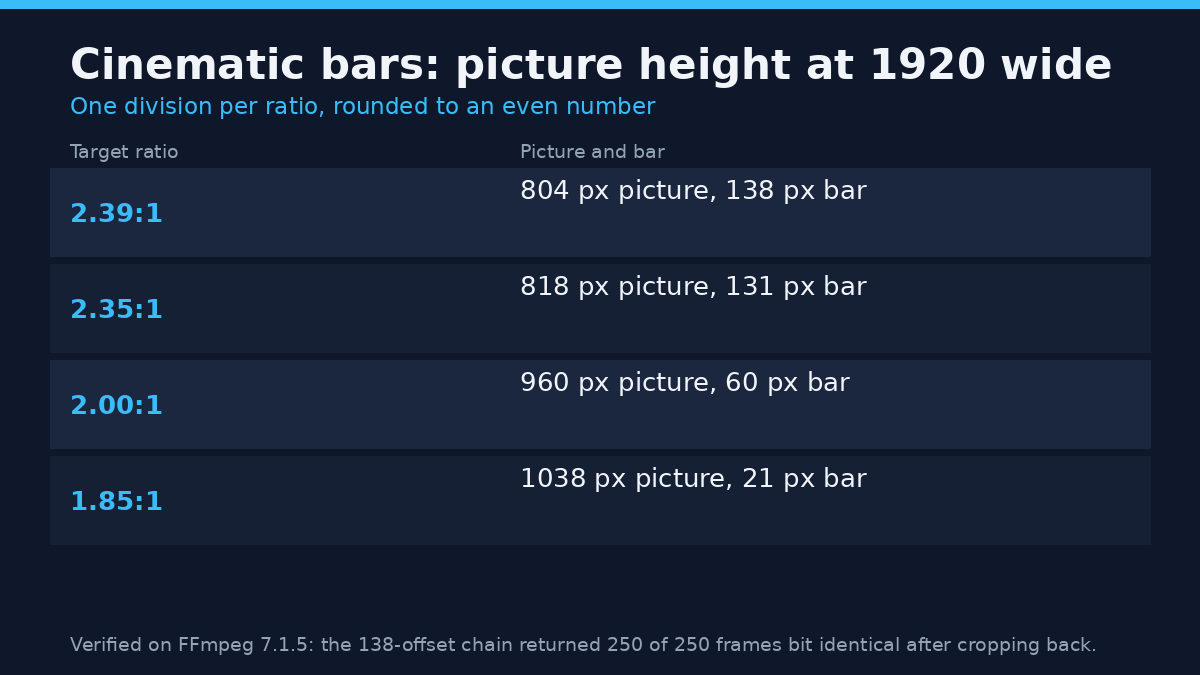
The maths is one division. Take the frame width, divide by the ratio, round down to an even number, and split the difference from 1080 in two. Here is what that gives at 1920 wide:
| Target ratio | Picture height | Bar per side | Looks like |
|---|---|---|---|
| 1.85:1 | 1038 px | 21 px | Flat widescreen, barely visible |
| 2.00:1 | 960 px | 60 px | Streaming drama |
| 2.35:1 | 818 px | 131 px | Classic anamorphic |
| 2.39:1 | 804 px | 138 px | Modern scope |
| 2.40:1 | 800 px | 140 px | Same look, slightly wider |
Two things in that table decide whether your command works. The picture height has to be even, and the bar per side has to be a whole number, which is why 2.39:1 resolves to 804 and not to the 803.35 the division produces. Get a cinematic bars offset wrong and the file still encodes, which is the dangerous part.
Method 1: add cinematic bars in FFmpeg
One chain does the whole job. Crop to the picture height, then pad back to the frame height with an offset that centres it:
ffmpeg -i input.mp4 -vf "crop=1920:804:0:138,pad=1920:1080:0:138:black" -c:v libx264 -crf 20 -preset medium -c:a copy output.mp4Getting cinematic bars right comes down to two numbers, both 138 here: the crop starts at row 138, and the pad puts the picture back at row 138. If they disagree, the picture sits off-centre. I cropped a 10 second clip, padded it, cropped the result again frame by frame and compared hashes: 250 of 250 frames came back byte identical in order. Padding doesn’t resample, shift or soften a pixel; it writes rows around what’s already there.
For another ratio, swap both numbers together. 2.35:1 uses 818 and 131. 2.00:1 uses 960 and 60. The offset is always half the total bar, rounded down.
What the command can’t do
It can’t stream copy. Filtering and stream copying cannot be combined, and FFmpeg says so: with -c:v copy on the same chain the command exits with code 218 and the message Filtering and streamcopy cannot be used together. Your video gets re-encoded, which is normal for cinematic bars, so plan the quality settings. Audio can still be copied.
Method 2: cinematic bars in an editor
Editors hide the arithmetic behind cinematic bars presets, each in its own way. In CapCut and Premiere Pro the usual route is a letterbox overlay or a crop with a matching mask, applied to an adjustment layer so it covers every clip. In DaVinci Resolve the clean route is to set the timeline to the delivery resolution, then use an output blanking value in the project settings, which is the same crop and pad under a friendlier name.
Whichever you pick, verify by reading the delivered frame. Proxy and preview modes render a smaller image, so uneven bars look perfect until export.
What the black rows contain
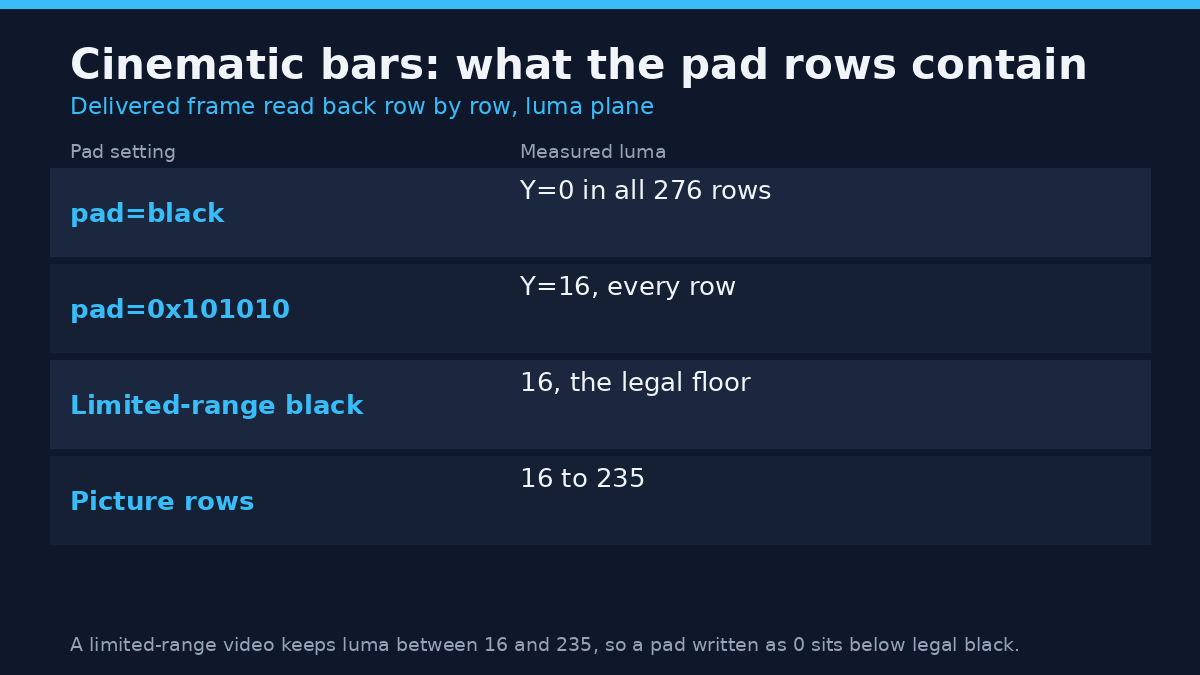
This surprises people who check exports with a scope. The pad filter’s black keyword writes luma 0. I read every row of the delivered frame: all 276 cinematic bars rows measured 0, with a maximum of 0 across the full row width. In a limited-range video, legal black is 16, so the bars sit below the legal floor while the picture around them lives between 16 and 235.
Most players show both as black, so nobody notices. If the file is headed for broadcast, a TV pipeline, or a range-checking QC pass, it matters. Write the pads at legal black instead:
ffmpeg -i input.mp4 -vf "crop=1920:804:0:138,pad=1920:1080:0:138:color=0x101010" -c:v libx264 -crf 20 -preset medium output.mp4That version measured exactly 16 in the bar rows, every row, with the picture untouched. The same logic applies to a pillarbox: an old 4:3 clip inside a 16:9 frame needs 1440×1080 of picture and 240 pixels on each side, while 3:2 footage needs 1620 and 150. I padded a 4:3 test clip and read the columns back: both 240-pixel sides were pure black, the middle was the picture.
What cinematic bars cost in bitrate
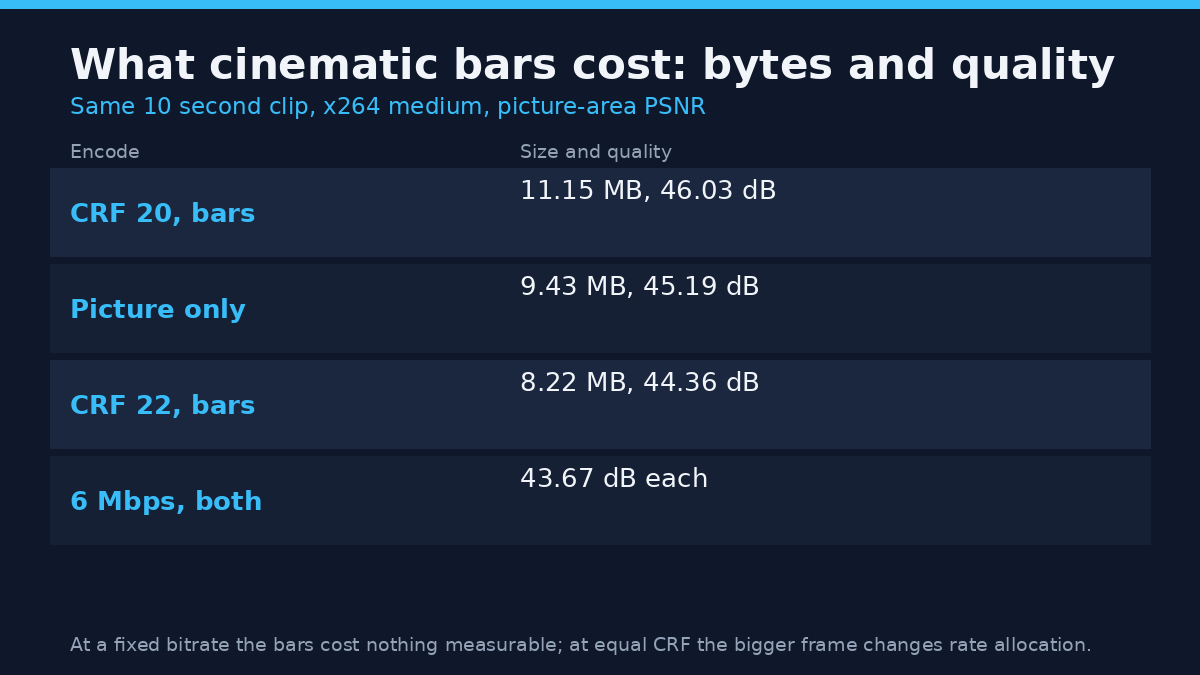
The common claim is that cinematic bars waste bits. I tested it three ways on the same 10 second clip, at CRF 20 with the medium preset:
| Encode | Frame | File size | Picture-area PSNR |
|---|---|---|---|
| Full 16:9, no bars | 1920×1080 | 12,774,108 bytes | not comparable |
| Picture only | 1920×804 | 9,431,578 bytes | 45.19 dB |
| Cinematic bars at CRF 20 | 1920×1080 | 11,148,007 bytes | 46.03 dB |
At equal CRF the letterboxed file is 18% bigger and 0.84 dB better in the picture area. That isn’t a free lunch. Constant rate factor targets quality per frame, and a frame that is a quarter flat black gives the encoder different room, so it spends more on the picture. Comparing two encodes at equal CRF tells you about rate control, not about quality.
At a fixed bitrate the picture comes out the same. Capped at 6 Mbit/s, the picture-only file measured 43.668 dB and the letterboxed file 43.665 dB, with sizes within 0.5% of each other. Flat black costs almost nothing to encode. The honest summary: cinematic bars cost you the picture area you cropped, not the bitrate you spend on the bars. If you want the same file size as a picture-only export, drop the CRF about one step, since CRF 22 gave 8,223,794 bytes and 44.36 dB.
Subtitles land in the bar area
Burn subtitles onto a file with cinematic bars and they don’t sit where you expect. The renderer positions text against the frame, not against the picture inside it. On a 1080p frame with 138-pixel bars, the default single line landed on rows 848 to 1039, crossing the boundary at row 942 so the bottom half of the text sat in the black bar.
The fix is a margin, but the units are script units, not pixels. libass renders an SRT at a script height of 288 regardless of frame size, so each unit is about 3.75 pixels at 1080p. I swept the value and measured where the text landed:
| MarginV | Text rows | Clear of the bar |
|---|---|---|
| 0 | 885 to 1076 | No, deep in the bar |
| 10 (default) | 848 to 1039 | No, straddles it |
| 20 | 810 to 1001 | No |
| 30 | 773 to 964 | No, 23 px short |
| 40 | 735 to 926 | Yes, 15 px of clearance |
So MarginV=40 is the first value that keeps a default-size line inside the picture. Bigger fonts and two-line captions need more, roughly 40 units plus the extra line height. On a 4K frame the margin scales with the frame, so the number stays the same.
Common mistakes
- Using an odd picture height. I asked for 803 and FFmpeg rounded the crop to 802 without complaint. The delivered file had a 138-row top bar and a 140-row bottom bar, so the picture sat two rows off centre, and the exit code was 0. Round down to an even height and set the offset from the bar total, not from the ratio.
- Padding to an odd total height. A pad to 1079 exits with code 234, prints
Could not open encoder before EOF, and writes a zero-byte file. Check the output size after every render, because zero-byte files are the quietest failure in this workflow. - Scaling instead of cropping. Scale the whole letterboxed frame down and pad again and the bars double. Mine went from 138 rows to 240 rows per side and the picture shrank to 600 rows, still at exit code 0. Crop to the picture, then pad, in that order.
- Adding cinematic bars to a file that already has them. A 2.39:1 download already contains bars. Crop to the picture area first, or you’ll stack a second set.
- Expecting a stream copy. Any filter forces a re-encode, and
-c:v copyrefuses at exit code 218. Budget the encode time. - Checking the preview instead of the export. Proxy mode renders a smaller frame, so uneven bars hide until delivery.
Frequently asked questions
Do cinematic bars make a video look more professional?
They change the shape, not the photography. A wide frame with dead space looks worse than a tight 16:9 shot, so crop with intent: keep the subject’s eyes on the upper third and check that nothing important sits in the rows you’re cutting. If the crop removes a hand or a caption, the bars aren’t the answer.
What’s the difference between letterboxing and pillarboxing?
Letterboxing adds bars above and below to fit a wider picture into a narrower frame. Pillarboxing adds bars at the sides to fit a narrower picture, such as 4:3, into a wider frame. Both keep the standard resolution and use the same pad filter.
Should I export at 2.39:1 or keep 16:9 with bars?
Keep 16:9 with cinematic bars for anything going to a platform. YouTube, Instagram and most players expect a standard frame, and a genuinely 2.39:1 file often gets padded again by the player, which gives you bars on a bar. Native 2.39:1 makes sense for festivals and direct delivery.
Will the bars survive a platform re-encode?
Usually yes, because they’re part of the picture, not metadata. The risk is a platform that auto-crops or reframes, as some mobile uploads do. Check the published version rather than assuming.
The short version
Cinematic bars are a crop to an even picture height followed by a pad back to the frame, with matching offsets. Use 804 and 138 for 2.39:1 at 1080p, keep both numbers even, and write the pads as 0x101010 if the file needs legal-range black. The cinematic bars themselves cost almost nothing at a fixed bitrate, so spend your attention on the crop and the subtitle margin, which is where the real defects show up. And read one exported frame back before you upload, because every failure in this chain exits with code 0 and a file that looks fine until someone measures it.
If you’re fixing an export with bars baked in, the reverse operation has its own traps; see how to remove black bars from a video. For the crop, crop a video covers the framing decisions, and horizontal to vertical video covers the other direction. The FFmpeg pad filter documentation lists every colour and offset option, and the subtitles filter documents the force_style parameters used above.