
Remove Black Bars From Video: Crop Them Without Cutting the Picture
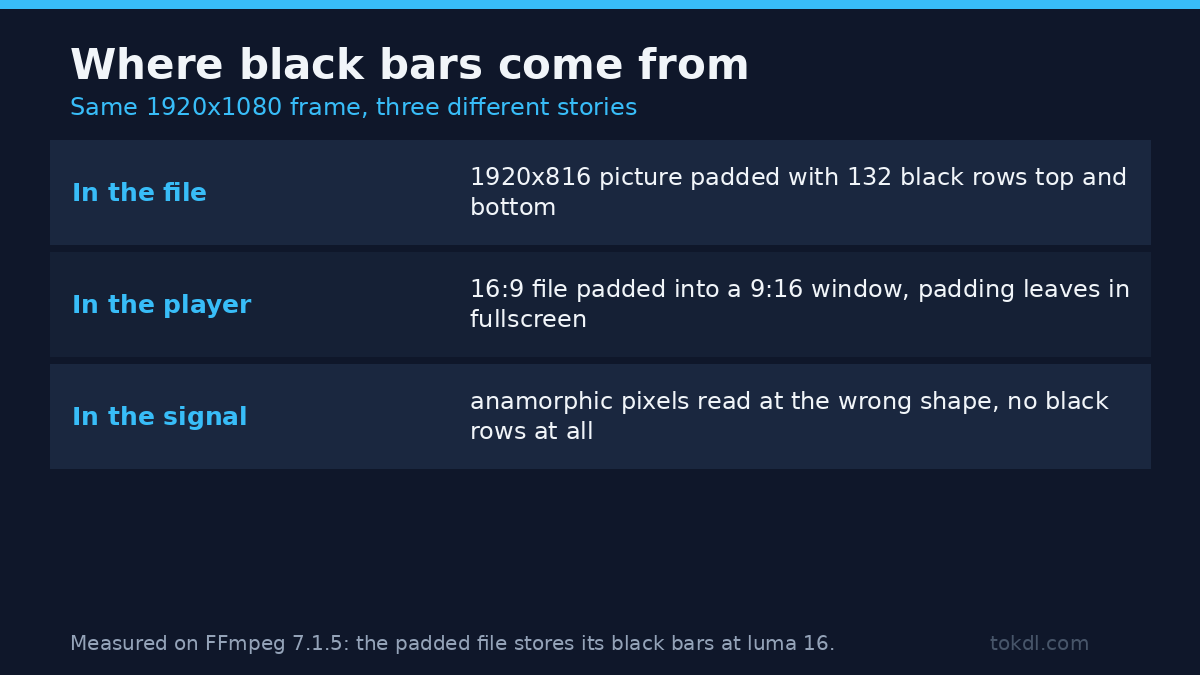
You open a clip and there they are: 132 rows of black at the top, 132 at the bottom, and a picture squeezed into the middle. Nothing’s broken. The black bars are baked into the file, inside a 1920×1080 frame that was never 16:9 to begin with.
The usual advice is to crop them and move on. I ran that advice against seven test clips, and the defaults got three of them wrong. FFmpeg’s detector shaved 8 rows off a clean 1080p file, ignored a set of grey black bars entirely, and on a clip that opens with a fade it reported a crop 640 pixels narrower than the picture. None of those errors is loud. All of them survive a quick glance.
Here’s the workflow I’d use, with the measurements behind each flag. Everything below ran on FFmpeg 7.1.5 with libx264, on files I built and probed myself.
What you’ll learn
How to tell whether the black bars live in the file or in the player, how to measure their depth instead of eyeballing it, and what the crop costs in bytes. The two cropdetect defaults below are behind nearly every bad automatic crop.
Are the black bars in the file or in the player?
That distinction decides whether you’ve got any work to do. A player pads the frame when the file’s aspect ratio doesn’t match the window, and that padding vanishes the moment you go fullscreen on a screen with the right shape. Black bars that stay put in fullscreen, on a phone, and in a different app are in the pixels.
There’s a direct test. Decode the top two rows and ask what luma they hold:
ffmpeg -hide_banner -i in.mp4 -vf "crop=1920:2:0:0,signalstats,metadata=print" -frames:v 1 -f null -On a file with baked bars it returns lavfi.signalstats.YMIN=16 and YMAX=16. Sixteen is the black floor of limited-range video, so the whole strip is flat black. On a clean 1920×1080 file the same probe gave YMIN=41 to YMAX=210, because there’s real picture at the top edge. One catch that cost me a run: metadata=print logs at info level, so adding -v error prints nothing and looks like a failed test.
That 16 isn’t 0. Limited-range video stores black at 16 and white at 235, and plenty of confusion about black bars comes from reading a tool that already rescaled to full range: read through format=gray, the same bars came back as 0. Container metadata is no help either. My padded file reports sample_aspect_ratio=1:1 and display_aspect_ratio=16:9, honest about the frame and silent about the picture. If the bars came from an anamorphic source instead, the numbers look different and so does the fix, which is why that case sits in this guide to pixel aspect ratio.
Measure the black bars with cropdetect
FFmpeg ships a detector for exactly this. Point it at the file, throw the video away, and read the last line of the log:
ffmpeg -hide_banner -i in.mp4 -vf cropdetect=limit=24:round=2 -f null -Each analysed frame prints a line ending in a crop expression. On a 2.35:1 clip padded into 1080p the line reads crop=1920:816:0:132: keep 1920 by 816 pixels starting at x=0, y=132. The same line carries the raw box it measured, x1:0 x2:1919 y1:132 y2:947, before rounding. That raw box is the part worth trusting.
Default 1: round=16 shaves clean files
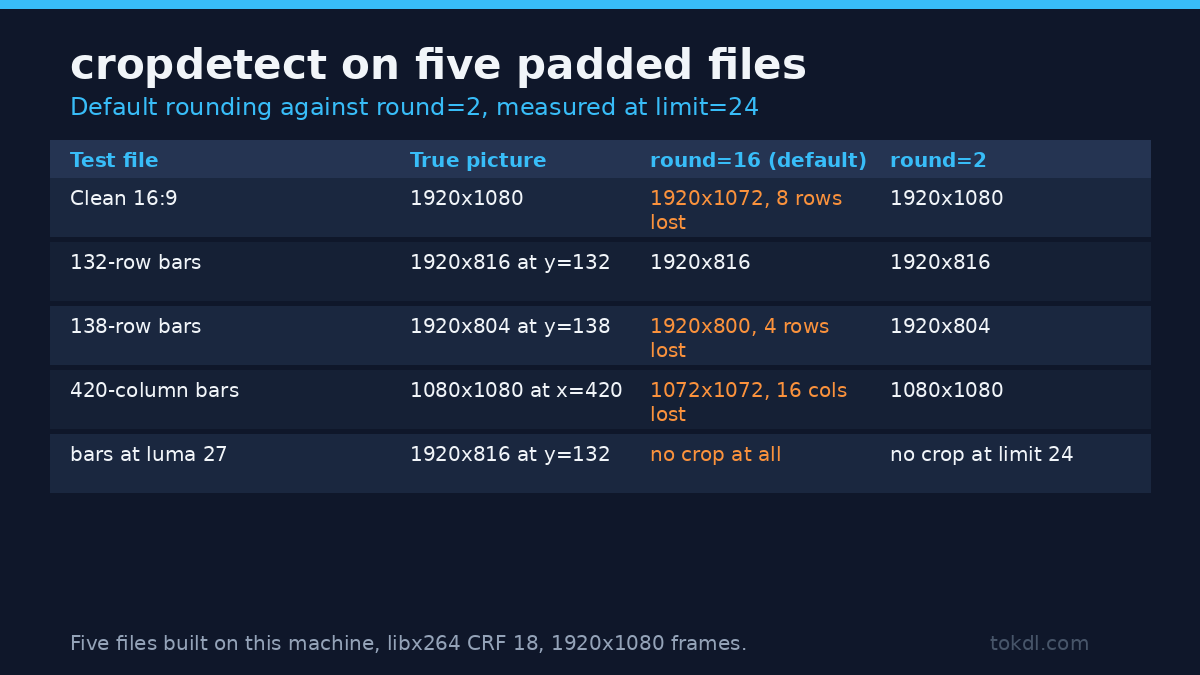
round snaps the detected size to a multiple, 16 by default, because old codecs wanted those sizes. A clean 1920×1080 file isn’t a multiple of 16 in height, so the detector rounds 1080 down to 1072 and reports crop=1920:1072:0:4. Follow that and you remove 4 rows of picture from the top and 4 from the bottom of a file with no black bars in it at all.
I cropped a clean file with the detector’s own default answer and compared the first output row against the source. It matched source row 4, with a mean absolute difference of 0.065 levels against 2.55 for row 0. Eight rows of real picture, gone, exactly as the arithmetic predicted.
A pillarboxed file loses the same way in both directions. A 1080×1080 picture inside a 1920×1080 frame carries 420-pixel black bars on each side; the default answer was 1072x1072:424:4, which cuts 8 pixels off each side of the picture and calls it cropping. With round=2 you get 1080x1080:420:0, which is correct.
Default 2: limit=24 ignores black bars that aren’t fully black
limit is the luma threshold below which a row counts as black, and 24 is generous enough for properly encoded bars. It isn’t generous enough for bars lifted somewhere along the way. I padded a clip with a near-black colour that landed at luma 27, and at the default limit the detector reported the full frame: no crop, nothing to fix. Raising the limit to 32 produced crop=1920:816:0:132, the true answer.
So the threshold has to sit above your bars and below your darkest real picture. My clean clip’s darkest top row measured 41, so a limit of 32 splits the two cases cleanly. If your footage has a night scene touching 20, no single limit separates black bars from content, and you should crop to a number you measured by hand.
Read the last line, not the first
On a clip that fades in from black, the first frame is entirely black, and a black frame gives the detector nothing to hold on to. My fade test printed crop=1280:816:640:132 for the opening frames, then 1600:816:320:132, and settled on the correct 1920:816:0:132 by the fourth line. Taking the first answer would’ve cut 640 columns off the picture.
Wait for the log to finish and read the last line, or skip the fade with select=gte(n,30) in front of the filter. Act on a value the detector repeated for most of the clip, not one it produced once.
What cropdetect said about the black bars on five files
| Test file (1920×1080 frame) | True picture | Default: limit=24 round=16 | limit=24 round=2 |
|---|---|---|---|
| Clean 16:9, no bars | 1920×1080 at 0,0 | 1920×1072 at 0,4 (8 rows lost) | 1920×1080 at 0,0 |
| 2.35:1 picture, 132-row bars | 1920×816 at 0,132 | 1920×816 at 0,132 | 1920×816 at 0,132 |
| 804-row picture, 138-row bars | 1920×804 at 0,138 | 1920×800 at 0,140 (4 rows lost) | 1920×804 at 0,138 |
| Square picture, 420-column bars | 1080×1080 at 420,0 | 1072×1072 at 424,4 (16 columns lost) | 1080×1080 at 420,0 |
| 132-row bars at luma 27 | 1920×816 at 0,132 | no crop (full frame) | no crop at 24, correct at 32 |
The pattern: the default is right only when the bar depth is a multiple of 16 and the black bars are properly black. That’s a real case, not the common one.
Crop the file
Once you’ve got four numbers you trust, the filter takes them as width, height, x, y:
ffmpeg -i in.mp4 -vf "crop=1920:816:0:132" -c:v libx264 -crf 18 -pix_fmt yuv420p out.mp4This is a filter, so the video gets decoded and encoded again. There’s no version that copies the stream: when I asked for -c:v copy alongside the crop, FFmpeg exited with code 218 and the message Filtergraph 'crop=1920:816:0:132' was specified, but codec copy was selected. Filtering and streamcopy cannot be used together. No output file appeared. A tutorial showing a crop with copy either never ran it or quietly dropped one of the two.
Keep both dimensions even. When I asked for 1919×815, FFmpeg delivered 1918×814 with exit code 0 and nothing in the log to warn me, because 4:2:0 chroma is stored in pairs. Use -2 or a plain even number, then re-probe the output instead of trusting what you typed.
What cropping the black bars costs
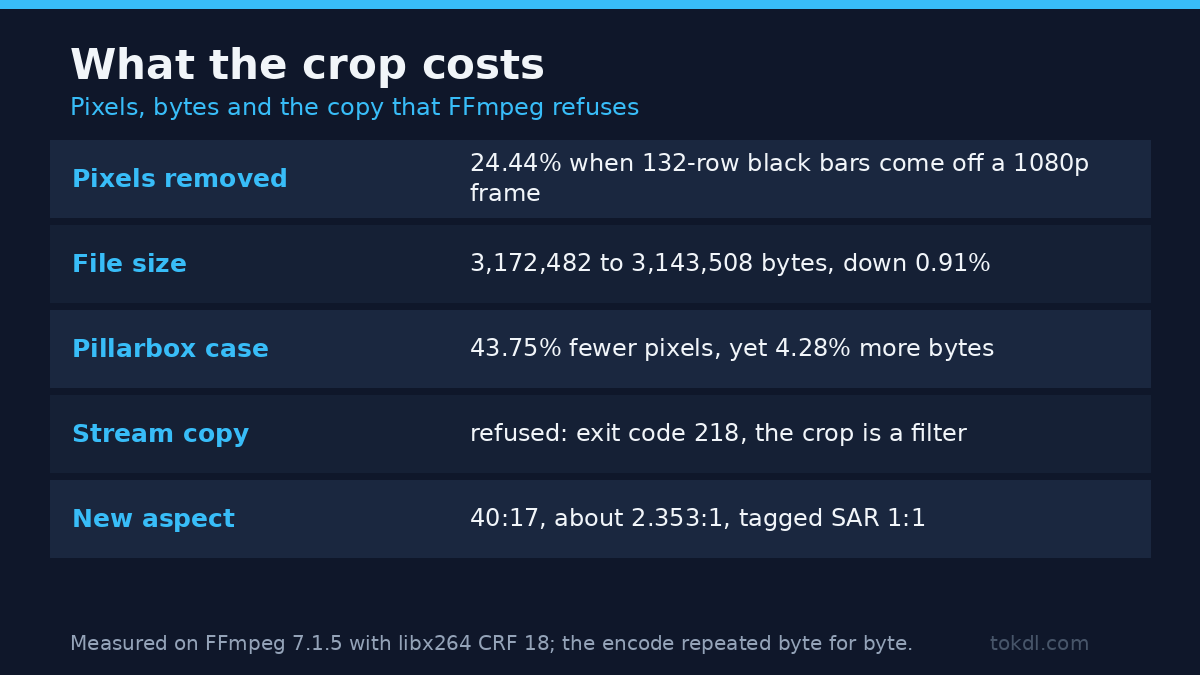
Cutting 132-row bars off a 1080p file removes 24.44% of its pixels, and here’s the part nobody mentions: it saved 0.91% of the file size. The 3,172,482-byte source became 3,143,508 bytes, and a repeat encode produced a byte-identical file, so that figure isn’t noise. Flat black rows cost almost nothing to encode, which is why black bars are nearly free and removing them barely moves the byte count.
The pillarbox case goes the other way. Cutting a 1080×1080 picture out of a 1920×1080 frame removes 43.75% of the pixels and made the file 4.28% bigger, from 2,364,183 to 2,465,386 bytes, because the encoder no longer gets to spend almost nothing on 420 columns of black per side.
| Measure | 1920×1080 to 1920×816 | 1920×1080 to 1080×1080 |
|---|---|---|
| Pixels removed | 24.44% | 43.75% |
| File size change | -0.91% (3,172,482 to 3,143,508 bytes) | +4.28% (2,364,183 to 2,465,386 bytes) |
| Display aspect after crop | 40:17, about 2.353:1 | 1:1 |
| Stream copy possible | No, the crop is a filter | No |
So crop for the picture, never for the file size. If a smaller upload is the goal, the levers are in this guide to video bitrate, not a crop. One consequence worth planning for: a 1920×816 file is 2.35:1, and a 16:9 player pads it again with its own black bars, which is correct behaviour and not something you can crop away. The arithmetic explains the usual few-row error too, since 1920 divided by 2.39 is 803.3, so a true 2.39:1 frame is about 803 rows tall while 816 rows is closer to 2.35:1.
Doing it in an editor instead
The same four numbers work in any editor that shows a crop rectangle in pixels. In Resolve and Premiere some panels express the crop as a percentage of frame height, so a 132-row bar at 1080p is 12.2% per side, not 24.4% in total; set 24.4% on each side and you’ll cut another 132 rows of picture. A padded DVD source is a different job, since its 720×480 frame carries non-square pixels and the bars are part of the 4:3 or 16:9 signalling, covered in this walkthrough of DVD format conversion. For a plain social-media trim, the steps in this crop guide are the better start, and this explanation of video aspect ratio covers why the frame has the shape it has.
Common mistakes
- Cropping before you check. Plenty of files people crop carry no black bars at all, and the default answer will happily remove 8 rows to prove it.
- Trusting round=16. It exists for legacy encoders. On a 1080p file it always shaves the height.
- Reading the first cropdetect line. On a fade, the first lines describe the darkness, not the picture.
- Leaving limit at 24 for lifted bars. Black bars at luma 27 sail through, and the detector calls the file clean.
- Requesting odd dimensions. 1919×815 becomes 1918×814 with no warning.
- Expecting the file to shrink. Removing a quarter of the pixels saved under 1% of the bytes. Crop for framing, encode for size.
FAQ
Why do black bars appear after I upload a horizontal clip?
Because the player pads a 16:9 file into a square or vertical window, or because the file already carries them. The top-row probe separates the two cases in one command.
Can I remove black bars without re-encoding?
Not with a crop. The filter changes the frame size, so FFmpeg refuses -c:v copy and exits with code 218. You dodge a re-encode only when changing a flag, as a SAR change does.
Does cropping the black bars improve quality?
Not measurably. It removes black pixels that cost almost nothing and adds a generation of loss. What it does improve is framing on a fixed-aspect destination.
How do I know the crop won’t cut the picture?
Compare the first output row against the source row the crop claims to start on. My 1920×800 crop started at row 140 when the picture began at 138, and the first output row matched row 140: two rows eaten by rounding. The row-strip probe above, pointed at the output, is the whole test.
The short version
Prove the black bars are in the file with a two-row luma probe, measure their depth with cropdetect and round=2, raise limit until your bars sit below it and your picture above it, read the last line of the log rather than the first, and crop to even dimensions. Then check the output size instead of assuming it, because the encoder adjusts odd numbers without telling you.
The job takes about a minute per file once the numbers are known, and the failure mode of doing it carelessly is invisible: a file that looks right on a phone and is missing four rows at the top. That’s worth one extra probe. The options are documented in the FFmpeg filter reference, and the naming of the three bar types sits in this letterboxing overview.