

How to Crop a Video: Remove Unwanted Edges on Any Device (2026 Guide)
Halfway through editing a clip, the frame turns out to be the wrong shape. A screen recording carries a strip of browser tabs across the top, and a phone clip of a stage performance has an audience member’s head wedged into the corner. The footage is fine. The framing is not.
Cropping fixes that in a couple of minutes, and it is the fastest way to move horizontal footage into a vertical feed without letterboxing it into a blurry stripe. This guide covers how to crop a video on a phone, on a desktop, and from the command line, and where each route quietly falls over.
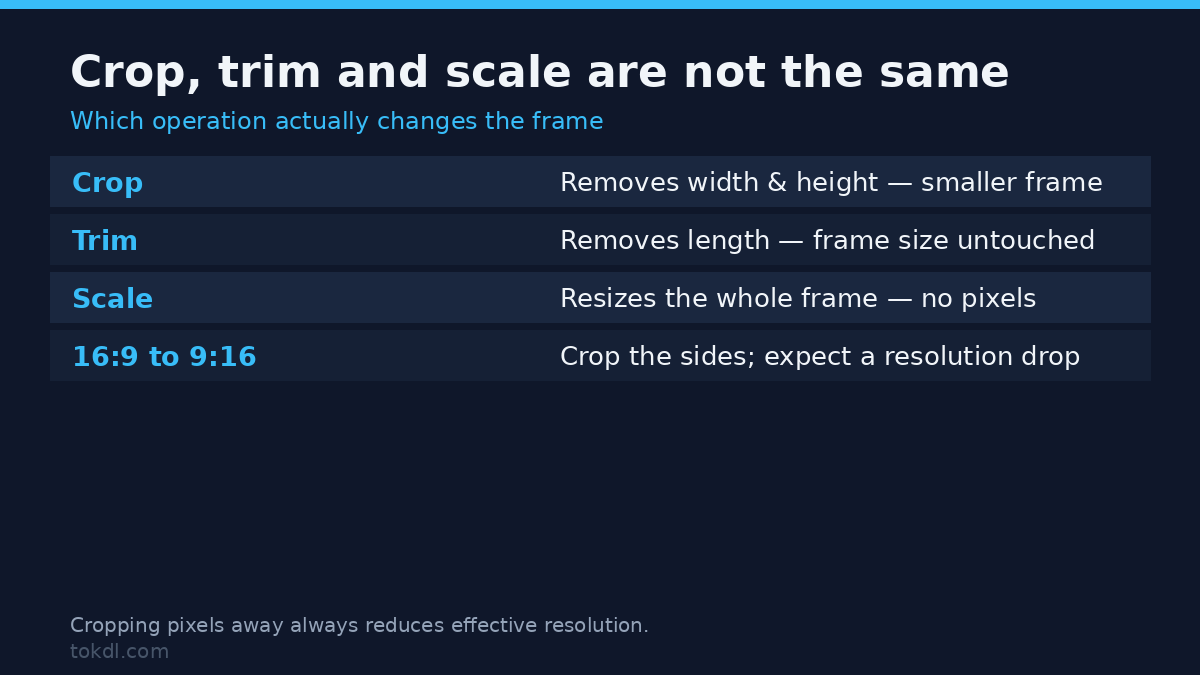
One distinction saves time up front: cropping and trimming are different edits. Trimming removes seconds from the timeline. Cropping removes pixels from the frame.
What Cropping a Video Actually Does
Cropping means choosing a smaller rectangle inside the original frame and discarding everything outside it. The pixels that remain are stretched to fill the output, so a crop trades field of view for resolution. Cut a 1080p frame down to two-thirds of its width and the remaining pixels are enlarged to cover the same display area.
That is why the crop itself takes seconds while the quality decision is made before you start. Begin from the highest-resolution copy you own, then compress the result if the file still has to travel.
Before You Crop: What You Actually Need
Three things decide whether a crop looks clean or soft, and all three are settled in under a minute. None of them requires paid software, and the first is the one you cannot fix after the fact.
- The original file, not a shared copy. A clip that has already passed through a chat app has been compressed once. Cropping it again enlarges the artefacts instead of the detail.
- A target ratio. Deciding on 9:16, 1:1 or 16:9 before you drag the handles stops you cropping the same clip twice. Here is which aspect ratio fits which platform.
- Enough pixels. A 1280×720 source cropped to a square leaves roughly 720×720. That is comfortable on a phone and thin on a television.
How to Crop a Video in the Phone’s Built-in Editor
No third-party app is required on either platform. The built-in photo editors ship with a crop tool that handles video as well as stills.
iPhone. Open the clip in Photos, tap Edit, then tap the crop and rotate icon at the bottom of the screen. Drag the corners to frame the shot, or use the ratio button to snap to Square, 9:16 or 16:9. Tap Done to keep the change.
Photos treats the edit as non-destructive, so Revert restores the full frame whenever you want it back. To produce a separate cropped file, share the edited clip afterwards.
Android. Google Photos opens video in the same editor as photos, and its Crop tool usually sits beside the trim and rotate controls. Samsung’s Gallery offers an equivalent video editor behind the pencil icon. If a phone’s editor only offers trim, an editor such as CapCut adds free-form cropping and a project-wide ratio.
Expect the output to shrink. Cropping on a phone re-encodes a smaller frame, so a 1080p clip cropped to vertical may export at 1080×1920 from the original height or less, depending on how much you cut.
Free Desktop Cropping: iMovie and Clipchamp
The desktop route gives you a preview large enough to place the crop precisely, which matters when the subject drifts across the frame. Learning how to crop a video on Windows or Mac rarely requires paid software.
Windows. Clipchamp is bundled with Windows 11 and includes a Crop tool plus aspect-ratio presets for each project. Add the clip, open the Crop tab, drag the handles or type exact coordinates, then export. Windows Photos can trim a clip, but for a precise crop Clipchamp is the better starting point.
Mac. iMovie does this well and costs nothing. Drag the clip into a project, select it, then click the crop button above the viewer.
From there, choose Fit or Crop to Fill and adjust the visible area. Crop to Fill removes the edges so the clip fills the project frame, which is usually the whole reason the tool was opened. Share, then File, exports the result.
For heavier work, a free editor such as DaVinci Resolve supports keyframed crops. With keyframes, the visible area can follow a moving subject instead of staying fixed.
Precise Crops with ffmpeg
Command-line cropping is the one method that gives repeatable, exact numbers. It is also the fastest route when dozens of clips need identical treatment, because one line can be looped over a whole folder.
ffmpeg -i input.mp4 -vf "crop=1080:1080:420:0" -c:a copy output.mp4The four values after crop= are width, height, x-offset and y-offset, in pixels. In that example, a 1920×1080 source keeps a 1080×1080 square starting 420 pixels in from the left edge, which centres it. To centre any crop, set x to (iw-ow)/2 and y to (ih-oh)/2.
Cropping cannot be done with a stream copy, so the video is re-encoded no matter what. Quote a quality target instead of leaving it to the defaults:
ffmpeg -i input.mp4 -vf "crop=1080:1080:(iw-1080)/2:(ih-1080)/2" -c:v libx264 -crf 18 -preset medium -c:a copy output.mp4CRF 18 is visually close to the source for most footage, and lower numbers mean larger files and higher quality. The full list of options lives in the FFmpeg filter documentation.
What Cropping Tools Actually Do, and Their Limits
Most editors wrap the same operation, but the wrappers behave differently, and those differences cause most of the frustration people hit. Four of them matter more than the rest.
- Fixed versus free-form ratios. Preset ratios keep you inside standard delivery frames. Free-form cropping is better for removing an object or an unwanted border.
- Crop versus zoom. Zooming in on a timeline crops the picture but leaves the full frame behind the cut. Exporting from a zoom is not the same as exporting a cropped frame.
- Browser editors. Upload-and-crop websites work without installing anything, but they add a file-size ceiling, a processing queue and a copy of your video on someone else’s server. For a private home recording, that last point is the one worth weighing.
- Hardware encoders. Phone and desktop exports often use a fast hardware encoder that produces a slightly softer file at the same setting. When sharpness matters, a software encoder such as x264 usually wins.
Rights and Responsible Use
Everything here assumes the footage is yours, or that you have permission to re-frame it: your own recordings, your own uploads, or work a client or collaborator has cleared for you. A clip belongs to whoever made it, and a tighter frame does not change that. Cropping out a creator’s on-screen credit changes the picture, not the ownership.
Private reference and public posting are different acts. Keeping a cropped segment to study how a scene was lit is one thing. Reposting that segment on your own account, or using it inside anything commercial, is redistribution of someone else’s work.
That normally needs a licence, and where a platform hosts the original clip, its own terms of service set the rules for reuse. Writing to the creator is faster than it sounds, and permission is worth more than a slightly better crop.
Troubleshooting: Why Your Crop Went Wrong
Most crop problems trace back to one of six causes. Here is what each one looks like and how to fix it.
- The export looks soft. The crop came from a compressed or low-resolution copy, and the remaining pixels were enlarged. Crop from the original and keep the sharpest source you own.
- Black bars appear instead of a crop. The project ratio was set to 9:16 while the clip stayed 16:9, so the editor padded the frame. Switch the clip from Fit to Crop to Fill, or scale it to fill and then reposition.
- Audio drifts out of sync. Some editors resample audio on export. Keep the audio sample rate at 48 kHz to match the source, or copy the audio stream unchanged.
- The crop tool is greyed out. The editor cannot decode the file, often because the footage uses a codec it does not support or because it is a protected stream. Convert the file first, or open it in a tool that handles the format.
- The file got bigger after cropping. Re-encoding at a high bitrate can outweigh the pixels you removed. Lower the CRF or the bitrate target rather than assuming a smaller frame means a smaller file.
- The crop is off-centre. Free-form dragging rarely lands on round numbers. Set the offset explicitly, or centre it with (iw-ow)/2 and (ih-oh)/2 on the command line.
Frequently Asked Questions
How to crop a video on a phone?
Open the clip in the built-in editor and use its crop tool. On iPhone that is Photos, and on most Android phones it is Google Photos or the gallery app; both crop video without extra software.
Does cropping a video reduce quality?
Yes. A crop costs quality because the pixels that remain are enlarged. The loss is invisible when the crop is small and the source is high-resolution, and obvious when you crop a heavily compressed file.
Can I crop a video without re-encoding it?
No, not cleanly. Changing the frame size means decoding and re-encoding the video stream, and only the audio track can be copied untouched.
What is the difference between cropping and trimming?
Trimming changes when the video starts and ends, while cropping changes what is visible inside the frame. Most editors put both tools in the same panel, which is why they get mixed up.
Why does my cropped video look blurry?
The source was too small for the crop you asked for. A 1280×720 clip cropped to half its width leaves 640×720, which softens noticeably on a screen larger than a phone.
Can I crop a video for free?
Yes. The built-in phone editor, iMovie, Clipchamp and ffmpeg all crop without a licence fee, which covers every method in this guide except optional paid editors.
Will cropping a horizontal video make it vertical?
Only if you choose a vertical frame. Cropping a 16:9 clip to 9:16 discards the sides and gives you a vertical video, though the resolution drops to whatever the original height allowed.
Which Method Should You Use?
Use the phone’s own editor for a quick single crop, especially when the clip never leaves the phone. Reach for iMovie or Clipchamp when you need a large preview, exact placement, or several clips cropped the same way. Choose ffmpeg when the job repeats: the same crop across dozens of files, or a pipeline you want to run again next month.
If the frame is already right and only the length is wrong, that is a trim, not a crop. If the picture is sideways rather than badly framed, the fix is rotation. Cropping is for one job only: changing what the viewer sees inside the frame.
[…] looks broken, or zoom in a few percent so the empty edge never enters the visible frame, which is a crop whether you asked for one or not. Every stabilizer picks the second option, which is why the result […]
[…] option gets forgotten: if the sensitive detail sits at the edge of the frame, cropping the frame removes the pixels instead of obscuring them, and it costs nothing extra. If you only need part of […]
[…] more detail if your source has letterboxing or a stray edge. Cropping the frame first makes the overlay coordinates predictable, because W and H then refer to the picture you care […]
[…] dock; in gameplay the top-left usually holds a health bar. If the base clip needs re-framing first, crop the frame before you add the overlay, and match the aspect ratio so the inset sits cleanly instead of […]
[…] the sources disagree, fix that first. Matching aspect ratios explains the arithmetic, and you can crop to match when one clip is a different shape. Convert variable frame rate footage to a constant rate before […]
[…] which is the honest price. That’s also the argument for shooting wider than you need, and the crop guide covers the same […]