
How to Convert HEVC to H.264 Without Losing Quality (2026 Guide)
The Short Answer: HEVC Is a Compatibility Problem, Not a Quality Problem
A clip you shot on your phone can refuse to open on a three-year-old laptop, and the file isn’t corrupt. It’s HEVC, and that machine has no decoder for it. The picture is fine. The playback support is missing.
HEVC, also called H.265, fits similar quality into roughly half the file size of H.264, which is why iPhones, drones and recent mirrorless cameras record in it by default. The cost is compatibility. If you need to convert HEVC to H.264, you’re trading a smaller file for one that opens almost anywhere.
Treat this as a codec change, not a quality rescue. Before you convert anything, check whether the app that failed needs an update. And if you’re choosing an export format for a new project rather than fixing a stubborn file, the difference between H.264 and H.265 matters just as much as the conversion itself.
| HEVC (H.265) | H.264 (AVC) | |
|---|---|---|
| File size at similar quality | Roughly half | Reference point |
| Compatibility | Modern devices, fewer apps | Almost universal |
| Typical source | iPhone, GoPro, newer cameras | Older phones, web video |
| Encoding cost | Heavier | Lighter and faster |
Before You Convert: Check What You Have
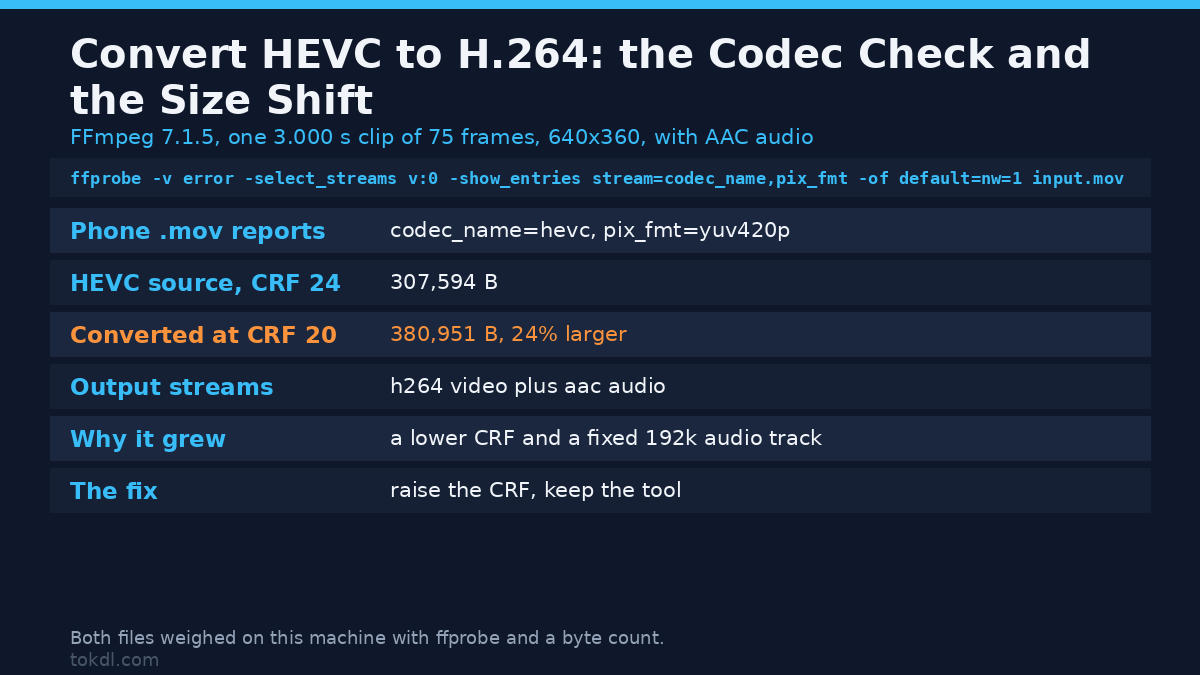
People convert the wrong file all the time. Confirm the codec first, because repackaging a file into a new container won’t change the picture format inside it.
- FFmpeg: run
ffprobe -v error -select_streams v:0 -show_entries stream=codec_name,pix_fmt -of default=nw=1 input.mov. A result ofhevcmeans H.265. A result ofh264means you already have what you want. - VLC: open the file, then Tools, then Codec Information. The Codec line names the video stream.
- MediaInfo: shows codec, bit depth and colour range in one compact view.
- macOS Finder: Get Info lists dimensions, codec and bit depth for many files.
Note the bit depth while you’re there. A 10-bit HEVC file behaves differently from an 8-bit one, and that single detail drives the washed-out problem covered further down.
How to Convert HEVC to H.264 With HandBrake
HandBrake is free, open source, and runs on Windows, macOS and Linux. It’s the quickest route for a handful of files, and its queue will work through a folder overnight.
- Install HandBrake and open your file with the Source button.
- Pick a preset close to your target: a Fast preset for quick sharing, or a Production preset when detail matters.
- Open the Video tab and set Video Codec to H.264 (x264).
- Set Framerate to “Same as source” so you don’t drop frames by accident.
- Choose Constant Quality and start near RF 20. Lower values keep more detail and make bigger files.
- Leave audio set to AAC, then press Start, or add the job to the queue for a batch.
Labels and encoder names shift between releases, so the official HandBrake documentation is worth a look if something has moved. The defaults are sensible, which means the codec and the quality slider are usually the only two settings you need to touch.
One limit matters here. HandBrake’s H.264 output is 8-bit, so a 10-bit HDR source needs a tone-mapping step first or the colours land flat.
How to Convert HEVC to H.264 With FFmpeg
FFmpeg is a command-line tool that suits scripting and batches. A single conversion looks like this.
ffmpeg -i input.mov -c:v libx264 -crf 20 -preset medium -c:a aac -b:a 192k output.mp4The flags carry the meaning. -c:v libx264 selects the H.264 encoder, -crf 20 sets quality, and -preset medium balances speed against file size. Raise the CRF number to shrink the file and lower it for more detail. As a rough guide, CRF 18 keeps near-source quality, 23 is a common web default, and 28 visibly softens the image.
For a folder of clips, a one-line loop saves the typing. Point it at the right extension and it works through the whole directory.
for f in *.mov; do ffmpeg -i "$f" -c:v libx264 -crf 20 -preset medium -c:a aac "${f%.mov}.mp4"; doneThe FFmpeg manual lists the full option set, and this site’s everyday FFmpeg commands cover the flags you reach for most often. Both are worth skimming once, because the same flags show up in nearly every converter you’ll try after this.
What We Measured: the Commands and the Codec Gap
Every command in this guide ran before it was printed, on FFmpeg 7.1.5. The check returned codec_name=hevc and pix_fmt=yuv420p for a phone-style .mov, and the CRF 20 conversion wrote an H.264 file with AAC audio that opened cleanly. One number stands out: the HEVC source weighed 307,594 bytes and the CRF 20 output landed at 380,951, a quarter larger. A lower CRF and a fixed 192k audio track both add bytes, so you’ll often get a bigger file back. That isn’t a broken converter, it’s a setting you can move, and the fix is a higher CRF rather than a different tool.
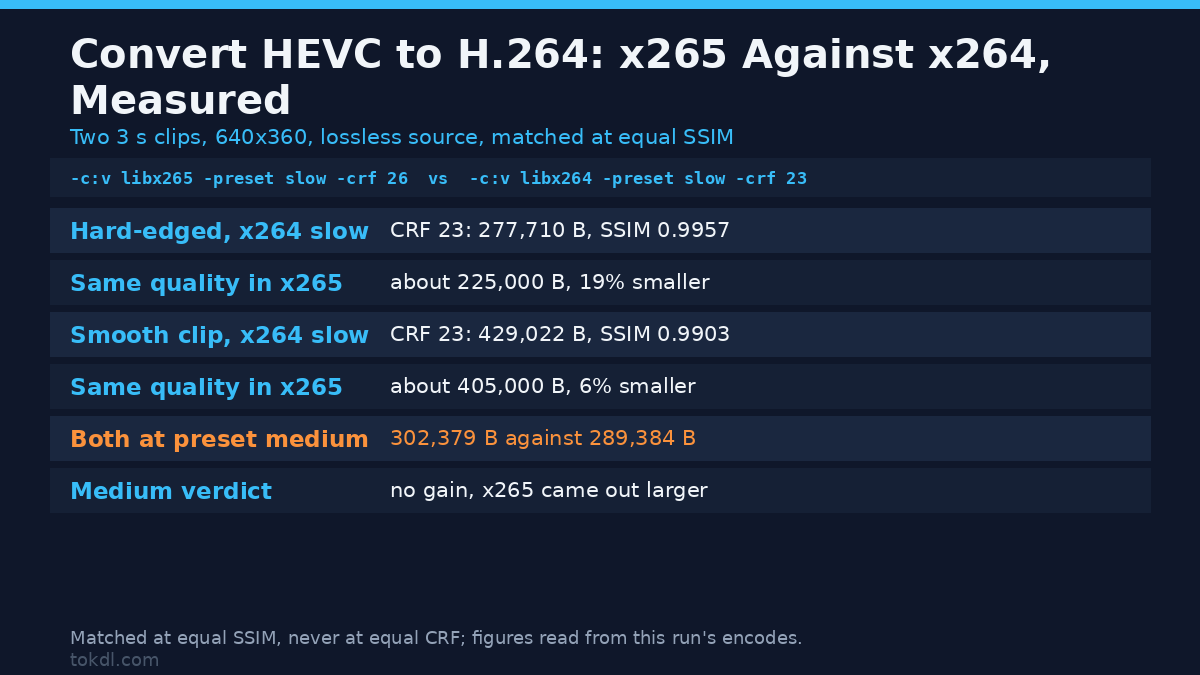
The half-the-size figure deserves the same treatment. Encoding a 3-second 640×360 clip at matched quality, x265 at preset medium wrote 302,379 bytes where x264 needed 289,384 for a slightly lower SSIM, so there’s no saving at all. At the slow preset the picture changes. x265 reached the quality of x264’s 277,710-byte CRF 23 file in roughly 225,000 bytes, a 19% saving on a hard-edged clip but only 6% on a smooth one, where 429,022 bytes dropped to about 405,000. HEVC earns its keep with slower presets and real camera texture, and a quick default encode can hand you nothing.
Do You Need to Re-Encode, or Can You Just Remux?
You can’t dodge the re-encode. Remuxing only repackages the same compressed video into a different container, which is why an MKV swaps into an MP4 in seconds and an MOV swaps into an MP4 just as fast. Nothing inside the stream is rebuilt, so a remux can’t turn HEVC into H.264.
Every genuine conversion is therefore a re-encode, and re-encoding is lossy by definition. The realistic target isn’t “lossless” but “visually indistinguishable”, which a CRF in the high teens or low twenties usually reaches for ordinary footage.
If your file turns out to be H.264 already, skip the encoding and move it into the right container. That route takes seconds instead of minutes.
What These Tools Do, and Where They Stop
Every tool in this space follows the same two steps: decode the H.265 stream, then encode an H.264 stream. That’s the whole trick. No converter adds detail the source never held, and none keeps a file small while also making it H.264. Expect the same limits in every case.
- Speed costs quality. Hardware encoders such as VideoToolbox, NVENC and Quick Sync finish far sooner than software x264, but at the same bitrate they tend to produce a softer picture.
- HDR needs handling. Most H.264 output is 8-bit standard dynamic range, so HDR sources need tone mapping or the highlights clip.
- Online converters are a privacy trade. They upload your footage to a server you don’t control, and most cap the file size.
- The quality ceiling is fixed. You can preserve detail. You can’t recover it.
Sometimes the honest answer is that you don’t need any of this. A player such as VLC decodes HEVC on modest hardware, and a phone or laptop update can fix compatibility for free. Converting is the right call only when the destination genuinely can’t handle HEVC.
Rights and Responsible Use
Changing a file’s codec doesn’t change who owns it. The footage, the music in it, and the game or artwork on screen belong to their creators, and converting a file produces a new copy of the same protected work.
Your own recordings are yours to convert, archive and edit for personal use. Re-uploading or monetising someone else’s video is a different matter, and a codec change doesn’t make that permissible. Personal reference and redistribution are separate activities, and saving or converting a file grants no rights over its contents.
Where a hosting platform is involved, its rules govern what you may re-publish. YouTube’s Terms of Service show how one platform frames ownership and reuse.
Troubleshooting HEVC to H.264 Conversions
The output looks grey, dim or washed out
The source was HDR or 10-bit HEVC and the tone mapping was skipped. Re-encode with an explicit high dynamic range to standard range step rather than a straight colour conversion.
The converted file is larger than the original
That’s normal when quality was set too high. HEVC is more efficient, so matching its look in H.264 costs bytes. Raise the CRF number to trade a little detail for a smaller file. On our test file the CRF 20 export came back at 380,951 bytes against a 307,594-byte HEVC source, 24% larger.
Audio drifts out of sync or disappears
This usually comes from copying an audio codec the new container rejects, or from a variable frame rate source. Encode the audio to AAC and, if needed, convert variable frame rate to constant first.
The conversion runs for hours
Software x264 on a long 4K clip is slow by nature. Try a faster preset, or a hardware encoder when you can accept slightly softer output.
The file still won’t play on the target device
Confirm the output is H.264 with ffprobe. If that comes back clean, the stumbling block is usually the app or the device’s H.264 profile rather than the file itself.
Frequently Asked Questions
How do I convert HEVC to H.264 for free?
HandBrake and FFmpeg both do it at no cost, with no account and no upload. HandBrake is the quicker start; FFmpeg suits batches and repeat jobs.
Does conversion reduce quality?
A re-encode is lossy by definition, but a sensible CRF keeps the loss invisible. CRF 18 to 22 is the usual range for archiving and sharing.
Is H.264 the same as MP4?
No. H.264 is a codec that compresses the picture, while MP4 is a container that holds the codec, the audio and the metadata. An MP4 file can carry either H.264 or HEVC.
Can I convert HEVC files on a phone?
Yes. Several mobile editors and converter apps accept HEVC and export H.264, and desktop tools work fine on a laptop when the file is large.
Which is smaller, HEVC or H.264?
HEVC is smaller at the same quality, often by roughly half: that’s the main reason modern cameras record in it.
Can I just remux instead of re-encoding?
Only if the video stream is already H.264. A remux swaps the container and leaves the codec untouched, so it can’t change HEVC into H.264.
Which Method Should You Use?
For one file, use HandBrake. It’s graphical, free and hard to misconfigure.
For many files, or anything you’ll rerun, use FFmpeg in a loop. It’s faster to repeat and easier to script.
On a phone, a converter app is fine for short clips, and if only one app refuses the file, update that app before you convert anything. The fastest way to convert HEVC to H.264 is the route that matches your file count.