
H264 vs H265: Which Codec Should You Export With? (2026 Guide)
Somebody sends over a 4K clip, you export a version for a client, and the file lands at twice the size you expected. Or your phone records in HEVC by default and one of your devices refuses to open the result. Both problems sit on the same decision, and it’s the one people ask me about most: H264 vs H265.
I’ve encoded the same footage with both codecs more times than I can count, at every quality setting from 18 to 28, usually while trying to squeeze a file under an upload limit. The honest answer is that neither codec wins outright, and if you want the one-line version of H264 vs H265, that’s it. What follows is the comparison I’d want in front of me before an export list gets built, including the bitrates behind it, the file sizes they produce and the two flags that decide whether the result plays anywhere.
What you’ll take away
- What separates H264 vs H265, and where the “50% smaller” claim comes from.
- How to check which codec your file already uses, in one command.
- FFmpeg settings for each one, including the tag that stops QuickTime showing a black screen.
- A table you can use to predict file size before you export twice.
- The situations where H265 costs you more than it saves.
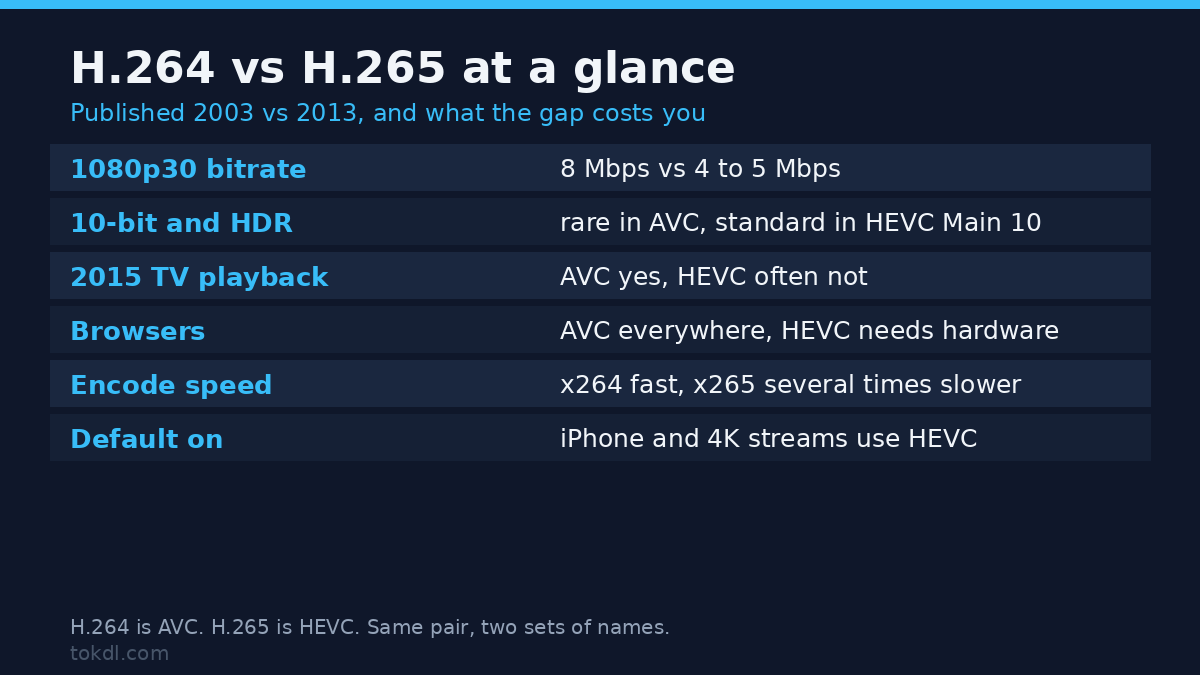
H264 vs H265 in one table
The table below is H264 vs H265 laid out at the points where an export decision turns:
| H264 (AVC) | H265 (HEVC) | |
|---|---|---|
| Standard published | 2003 | 2013 |
| Bitrate for 1080p30 at matched quality | About 8 Mbps | About 4 to 5 Mbps |
| 10-bit and HDR | Supported, rare in practice | Main 10 profile, the norm for HDR |
| Plays on a 2015 television | Yes | Often not |
| Browser playback | Everywhere | Hardware dependent |
| Encode speed at a matched preset | Fast, thanks to x264 | Several times slower with x265 |
| Where you meet it by default | Most web video, YouTube uploads | iPhone, recent Android flagships, 4K streaming |
Read the last two rows together and the whole trade-off shows up. H265 buys you a smaller file and charges you in encoding time and in playback compatibility. H264 charges you in storage and pays you back by playing on anything with a screen.
Where the 50% saving comes from
The figure gets quoted everywhere: H265 reaches the same picture quality at half the bitrate. It comes from the comparison published with the standard itself, and it’s real. It’s also a best case, measured on pristine sources at matched quality targets, which is not the material most people feed an encoder.
Two design changes do the heavy lifting. H264 cuts every frame into 16×16 macroblocks, one fixed size across the whole image. H265 uses coding tree units that start at 64×64 and split down to 8×8 only where the picture is busy, so a flat sky costs a handful of large blocks instead of hundreds of small ones. The other change is prediction: H264 offers nine directions for intra prediction inside a frame, H265 offers 35, and its motion model works on a finer grid. On slow pans and handheld footage that difference is where the bitrate goes.
Here’s the fine print nobody quotes. Halving the bitrate of an already compressed file isn’t the codec saving anything, it’s you lowering the quality. A clip that left your phone at 12 Mbps and comes out of a converter at 3 Mbps is 75% smaller, and it also has detail missing that won’t come back. H264 vs H265 only compares fairly when the source is clean and the quality target is matched, which is why published H264 vs H265 comparisons disagree with each other so much, and why the compression trade-offs are worth reading before you trust a bitrate.
Check what your file already uses
Before you convert anything, find out what’s in the container. One command answers it:
ffprobe -v error -select_streams v:0 -show_entries stream=codec_name,profile,width,height,bit_rate -of default=noprint_wrappers=1 input.mp4The output arrives as plain lines, which is why I prefer it to the full ffprobe dump:
codec_name=hevc
profile=Main 10
width=3840
height=2160
bit_rate=24000000
codec_name is the one that decides your afternoon. A value of h264 means AVC, hevc means H265, and vp9 or av1 means the file came from a streaming service and should probably be left alone.
If it already says hevc, converting to H264 makes the file bigger, not smaller. That one line settles most H264 vs H265 arguments before they start. That’s a fine trade when the goal is compatibility, since re-encoding to H264 at a generous bitrate costs you one generation of quality and buys back every device in the house. It’s a terrible trade when the goal was to shrink the file, because you’ll land somewhere near the original size with a softer picture. The convert to MP4 walkthrough covers that decision from the other direction.
How to encode H264 vs H265 with FFmpeg
The two commands below are the ones I use, and the gap between them is the whole H264 vs H265 story in two lines of flags.
H264, the default that never gets argued with
ffmpeg -i input.mov -c:v libx264 -crf 20 -preset medium -pix_fmt yuv420p -movflags +faststart -c:a aac -b:a 160k output.mp4CRF 20 sits in the sweet spot for delivery: close to transparent on normal footage, and far smaller than the 18 that people reach for when they’re nervous. -pix_fmt yuv420p keeps the chroma sampling inside what televisions and phones accept, and -movflags +faststart moves the index to the front so a browser can start playing before the download finishes. The FFmpeg command list has the batch version of this if you’re converting a folder.
H265, when the file size is the whole point
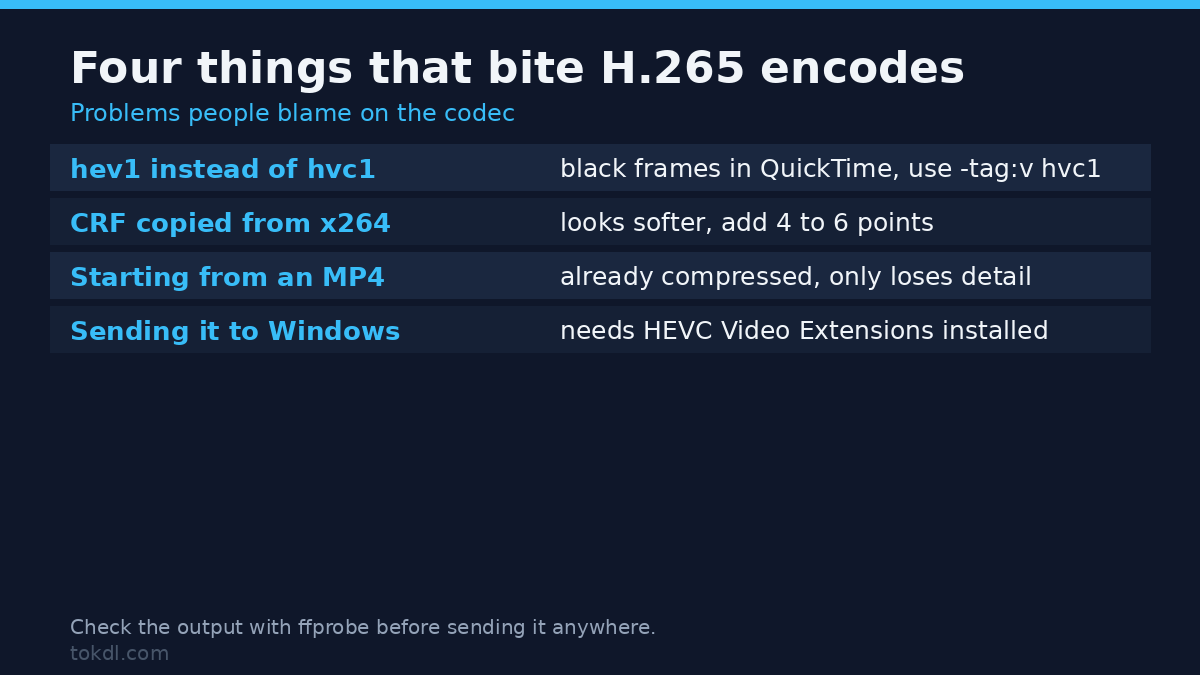
ffmpeg -i input.mov -c:v libx265 -crf 25 -preset medium -tag:v hvc1 -pix_fmt yuv420p -movflags +faststart -c:a aac -b:a 160k output.mp4Three things change, and each one has a reason. The CRF moves from 20 to 25 because x265 at the same number as x264 produces a visibly worse picture, so add four to six points and compare the two files by eye. The preset stays at medium, but be warned that x265 medium takes roughly as long as x264 slow. And -tag:v hvc1 is the flag people miss.
Without it, libx265 labels the stream hev1. QuickTime, Finder previews and a few Apple apps won’t open an hev1 track inside an MP4, and you get a black frame with working audio. Same bytes, different four-character label, and the difference between a file that plays and one that gets reported as broken. If your encode is crawling, swap in -c:v hevc_nvenc, hevc_qsv or hevc_videotoolbox for the GPU on your machine and accept a slightly larger file for a large speed gain.
What H264 vs H265 costs in file size
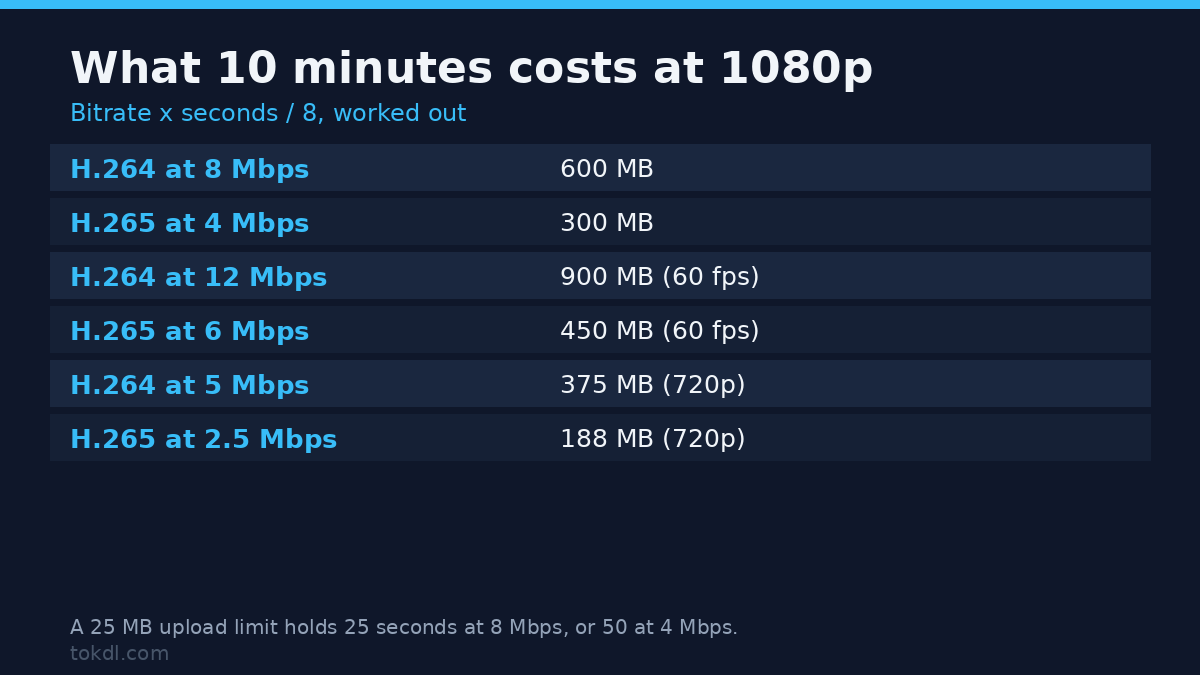
The half of H264 vs H265 that changes your hard drive is arithmetic, and it’s short. Bitrate in megabits per second, multiplied by seconds, divided by eight:
MB = (Mbps x seconds) / 8H264 vs H265 at 1080p, ten minutes long
A ten minute export is 600 seconds, which lands at the sizes below. The H265 bitrates here are half of the H264 ones, since that’s the saving the codec is meant to deliver at matched quality.
| Setting | Bitrate | 10-minute file |
|---|---|---|
| H264, 1080p30 | 8 Mbps | 600 MB |
| H265, 1080p30 | 4 Mbps | 300 MB |
| H264, 1080p60 | 12 Mbps | 900 MB |
| H265, 1080p60 | 6 Mbps | 450 MB |
| H264, 720p30 | 5 Mbps | 375 MB |
| H265, 720p30 | 2.5 Mbps | 188 MB |
The same formula answers the question I get every week, which is why a clip won’t attach to an email or a Discord message. A 25 MB limit at 8 Mbps holds about 25 seconds of video. Drop to H265 at 4 Mbps and it holds 50 seconds. If neither fits the clip you have, the fix is a lower bitrate rather than a different codec, and how bitrate maps to picture quality explains what you give up at each step. The bitrate calculator walkthrough does the same sum for target file sizes.
Which one to pick
Most H264 vs H265 debates are arguments about where the file is going.
Uploading to YouTube. Use H264. Google’s own upload encoding settings still recommend H264 at 8 Mbps for 1080p30, and YouTube re-encodes everything it receives into its own delivery formats, so an HEVC upload doesn’t reach viewers as HEVC. Upload the cleanest H264 file you can afford and let their pipeline do the work.
Sending a file to a client, a relative or a school. Use H264. The playback check on the receiving end is the only check that matters in H264 vs H265, and H265 fails it on plenty of Windows machines, older Android phones and a fair share of televisions.
Archiving footage you shot yourself. Keep the camera original and use H265 for the delivery copy if storage is tight. Never throw away the original to save space, because every later encode is a copy of a copy.
Recording on a phone with limited storage. H265, and the savings are real. An iPhone recording in High Efficiency mode stores roughly half of what Most Compatible mode needs for the same clip.
Mistakes I keep seeing
Treating H264 vs H265 as a quality contest. Both codecs can produce a transparent picture at a sensible bitrate. The contest is about bits, encoding time and where the file has to play, and those three answers rarely point the same way.
Re-encoding an already compressed file. Converting an MP4 that has been through two social platforms to H265 doesn’t recover anything. It adds a third generation of compression artifacts and calls it a saving. Go back to the source recording when one exists.
Copying a CRF number across codecs. CRF 20 with x264 and CRF 20 with x265 are not the same quality. The H265 file usually looks softer, people blame the codec, and the actual fix is one number.
Leaving the stream tagged hev1. Covered above, and it’s the most common reason a perfectly good H265 file gets described as corrupt on a Mac.
Assuming H265 halves the file every time. On a 20 second clip at high bitrate, the savings can be a third or less, because the encoder needs time and data to learn the scene. Short clips are the worst case for H265.
Skipping the Windows codec check. Windows won’t play H265 in its built-in players on every machine. The codec arrives through the HEVC Video Extensions package from the Microsoft Store, free on some devices and paid on others, and a missing package turns a working file into an unplayable one. That’s the part of the H264 vs H265 decision you can’t test on your own machine, so test it on the machine that matters before you send anything.
H264 vs H265: quick answers
Is H264 vs H265 a difference you’d notice on a phone screen?
At high bitrates, no. Both look clean on a 6 inch display. The difference shows up when the bitrate drops: at 2 Mbps a panning shot in H265 holds together while the H264 version smears. On a large television with dark scenes, the gap is easy to spot.
Why won’t my H265 video play on Windows?
Two usual causes. The HEVC Video Extensions package isn’t installed, or the file is tagged hev1 rather than hvc1 and the app is strict about it. Install the package from the Microsoft Store first, then check the tag with ffprobe if the file still refuses.
Should my phone record in H265?
If storage is your constraint, yes. If you edit on an old laptop or share clips with people who use Windows machines, Most Compatible on iPhone and the H264 option on Android cause fewer support tickets. You can change your mind later on both platforms, since it’s a camera setting rather than a one-way conversion.
Can I convert H265 back to H264 without losing quality?
Not without losing a little. Moving the existing H265 stream into a different container is lossless and takes seconds, but changing the codec means decoding and re-encoding, which adds one generation of loss. At CRF 18 with x264 the loss is hard to see, and it buys playback on hardware that refuses HEVC.
The short version
H264 vs H265 comes down to two questions: does the file have to play on hardware you don’t control, and does the size matter enough to pay for it. Answer yes to the first and you’re encoding H264. Answer no to both and H265 gives you the smaller file in exchange for a slower export. Everything else, the CRF offset, the hvc1 tag, the bitrate arithmetic, is detail that only matters once you’ve picked a side.
[…] the older comparison, my H.264 vs H.265 breakdown covers where those two sit. This article is about the third option, the one most editors still […]
[…] And if you are choosing an export format for a new project rather than fixing a stubborn file, the difference between H.264 and H.265 matters just as much as the conversion […]