
Convert Video to MP4: The Fast Way and the Slow Way (2026)
A colleague sent me a 4.1 GB .MOV last spring and asked why it wouldn’t upload to the client’s portal. The portal accepted MP4 only. He’d already spent forty minutes re-exporting it from Premiere at a lower bitrate, and the picture had gone soft in the gradients. I ran one command on the original file. It finished in eleven seconds, produced a 4.1 GB MP4, and the picture was bit-for-bit identical to what he started with.
That gap — eleven seconds versus forty minutes — is the whole point of this guide. Most people who set out to convert video to MP4 do far more work than the job actually needs, and lose quality they never had to lose.
MP4 is a box, not a format
This is the part almost every tutorial skips, and it’s the part that saves you the most time.
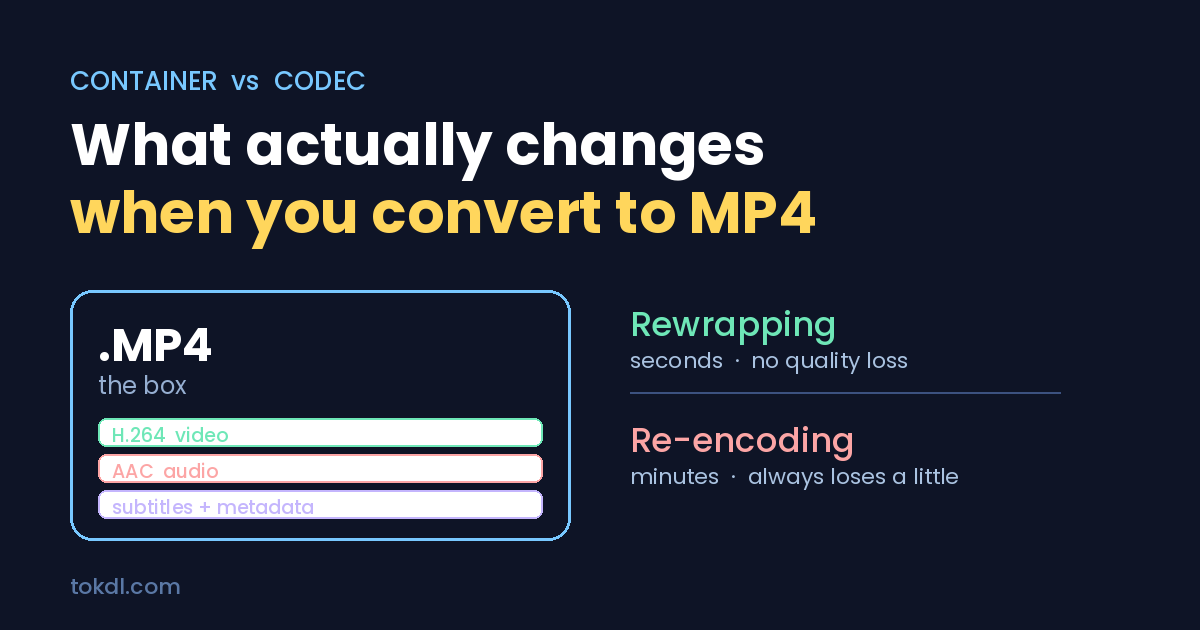
An .mp4 file is a container. Think of it as a labelled box. Inside that box sit separate streams: a video stream, one or more audio streams, sometimes subtitles, plus metadata like duration and rotation. The box itself doesn’t compress anything.
The compression happens in the codec — H.264, H.265, AV1, VP9 for video; AAC, MP3, Opus for audio. The codec is what determines file size and picture quality. The container just holds it all together and tells the player where each stream starts.
So when someone says “convert video to MP4”, there are two completely different operations hiding behind that sentence:
- Rewrapping (remuxing). The streams inside are already MP4-compatible. You lift them out of the old box and drop them into a new one. Nothing is re-compressed. Takes seconds. Zero quality loss.
- Re-encoding (transcoding). The streams aren’t compatible, or you want a smaller file. Every frame gets decoded and compressed again. Takes minutes to hours. Always loses a little.
My colleague’s MOV held H.264 video and AAC audio — both perfectly legal inside an MP4. It only needed rewrapping. Premiere re-encoded it because that’s what an export does.
Check first, convert second
Before you touch anything, find out what’s actually inside the file. VLC does this for free: open the video, then Tools → Codec Information on Windows, or Window → Media Information on Mac. Look at the two codec lines.
If you see H.264 (or AVC) video and AAC audio, you can rewrap. If you see anything else — ProRes, DNxHD, HEVC in an odd profile, PCM audio, AC-3 — you’ll probably need to re-encode at least one of the streams.
ProRes and DNxHD are the two you’ll hit most often, and they’re the reason camera and editing files are so enormous. They’re built for editing, not delivery. Those genuinely have to be re-encoded.
The fast path: rewrap with FFmpeg
One line, and it’s the same line on Windows, Mac and Linux:
ffmpeg -i input.mov -c copy output.mp4The -c copy is doing all the work. It tells FFmpeg to copy the streams across without decoding them. On a modern laptop this runs at somewhere north of 500× realtime — a one-hour video finishes in well under a minute, limited mostly by how fast your disk can read and write.
If it fails, the error usually names the offending stream. A common one is audio: the video is fine but the audio track isn’t MP4-legal. Re-encode just the audio and leave the picture alone:
ffmpeg -i input.mov -c:v copy -c:a aac -b:a 192k output.mp4That still leaves your picture untouched. You’re only re-compressing an audio track, which takes seconds and is inaudible at 192 kbps.
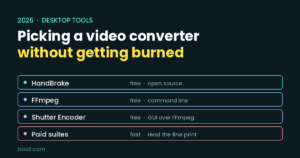
FFmpeg is free and available from ffmpeg.org. If the command line makes you uneasy, Shutter Encoder is a graphical front end that runs the same engine underneath.
The slow path: re-encoding properly
Sometimes you have no choice — ProRes source, or a 4 GB file that has to fit under a 100 MB upload cap. This is where HandBrake earns its keep. It’s free, open source, and it exposes exactly the settings that matter without burying you.
Three settings decide the outcome:
Codec. H.264 plays on everything made in the last fifteen years. H.265 gives you roughly the same picture at 40–50% smaller, but older devices and some web platforms still choke on it. If the file is going somewhere you don’t control, pick H.264 and stop worrying.
Quality (CRF). Ignore bitrate targets. Use constant quality instead, where a lower number means better picture. For H.264, CRF 18 is visually indistinguishable from the source for most footage, CRF 23 is the sensible default, and CRF 28 starts showing up in flat areas like sky and skin. For H.265, subtract about 5 to get the equivalent — CRF 23 in H.265 lands near CRF 18 in H.264.
Preset. This controls how hard the encoder thinks, not how good the output looks. slow gives you a smaller file than fast at identical quality, in exchange for time. medium is a fair trade for most work.
We covered the quality-versus-size trade-off in far more depth in our guide to compressing video without losing quality, including how to measure whether you actually lost anything.
MOV to MP4, specifically
This is the single most common conversion people search for, and it’s usually the easiest.
QuickTime’s .mov and .mp4 are close cousins — both descend from the same base media file format. An iPhone recording is almost always H.264 or HEVC video with AAC audio in a MOV wrapper. For H.264 sources, -c copy works every time.
The exception is footage shot on newer iPhones in HEVC. It’ll rewrap into MP4 fine, but some older Windows machines and a few web tools won’t play HEVC even inside an MP4 container. If your recipient is on unknown hardware, re-encode to H.264. You can also stop the problem at the source: on iOS, Settings → Camera → Formats → Most Compatible records H.264 from the start.
What about the online converters?
They work. For a 30-second clip you need converted right now on a machine you don’t control, they’re fine.
Beyond that I’d think twice. You’re uploading your footage to someone else’s server, waiting on their queue, then downloading it back — for a job that would finish locally in seconds. Most free tiers also cap file size somewhere around 100 MB to 1 GB, and several quietly re-encode at a fixed bitrate whether your file needed it or not. For anything sensitive, or anything over a few hundred megabytes, do it locally.
Four mistakes worth avoiding
Re-encoding a file that’s already H.264. Every re-encode is generational loss. Do it twice and it shows. Check the codec first.
Chasing a bitrate number. “Export at 8 Mbps” is a rule of thumb that’s wrong for both a static talking head and a handheld action shot. Constant quality adapts; a fixed bitrate doesn’t.
Forgetting the rotation flag. Phone video carries a rotation value in its metadata. Some tools apply it, some drop it, and you end up with a sideways video. Play the output before you send it — every time.
Deleting the original. Keep the source until the converted file has been accepted and played by whoever needed it. You can always make an MP4 from a master; you can’t recover detail from a compressed copy.
Frequently asked questions
Does converting to MP4 reduce quality?
Only if you re-encode. A rewrap copies the existing compressed streams into a new container and changes nothing about the picture. Re-encoding always loses something, though at CRF 18 you’d need a side-by-side comparison and good eyes to see it.
Why is my MP4 bigger than the original?
Almost always because you re-encoded at a higher quality setting than the source was compressed at. The encoder can’t recover detail that was already thrown away — it just spends more bits describing the same imperfect picture. Lower the quality setting, or rewrap instead.
MP4 or MKV?
MKV is the more capable container: more codecs, more audio tracks, better subtitle handling. MP4 is the more compatible one. If the file is going onto the open web, into a phone, or through an upload form, MP4 wins on compatibility alone.
Can I convert without installing anything?
VLC has a built-in converter under Media → Convert / Save, and most people already have VLC. It’s slower and fussier than HandBrake, but it’s there.
How long should a conversion take?
A rewrap is seconds regardless of length. A re-encode depends on resolution, preset and your CPU — roughly 0.5× to 3× realtime for 1080p on a mid-range laptop, meaning a ten-minute video takes somewhere between five and thirty minutes. 4K can be several times that.
What this means for you
Check what’s inside the file before you convert it. If the streams are already MP4-compatible — and for most phone footage and most downloads, they are — rewrap and be done in seconds with nothing lost. Save re-encoding for the cases that genuinely need it: incompatible codecs, or a hard size limit you have to hit.
Once your file is in the right container, the next question is usually where it’s going. If the answer is more than one platform, our guide to cross-posting between TikTok, Reels and Shorts covers the format requirements each one actually enforces.
[…] handle poorly. You then need a second tool to convert it, which is exactly the situation our guide to converting video to MP4 was written […]
[…] If a downloaded file will not play on your TV or in your video editor, convert it to H.264 MP4 — our guide to converting video to MP4 covers this in […]
[…] or audio file, the “Save Video” option will not appear. Convert it to MP4 first — our guide to converting video to MP4 covers exactly this — or keep the file in Files and play it […]
[…] bundle adware into downloads, and some are outright scams that redirect you to fake installers. Our guide to converting video to MP4 covers the general conversion workflow and tool recommendations in more […]
[…] downloaded VODs to MP4 if needed (they usually already are) and trim dead air; our guide to converting video to MP4 covers cleanup and compression for […]
[…] You need it repackaged or re-encoded into MP4. For that job, desktop tools are the answer, and our guide to converting video to MP4 walks through the remux-versus-re-encode decision in […]
[…] a file that will not play on your TV or in your editor — the fix is a local conversion, and our guide to converting video to MP4 covers the remux-versus-re-encode decision that keeps 100% quality when possible. And if your use […]
[…] the MP4-to-MP3 conversion side specifically, our video conversion guide covers the remux-versus-re-encode mindset in detail — the same principles apply whether you are […]
[…] — a file that will not play on your TV or in your editor — the fix is a local conversion, and our guide to converting video to MP4 covers the remux-versus-re-encode decision that preserves 100% quality when possible. And if you […]
[…] editors. It plays fine in VLC and most modern players; if you need MP4, remux or convert it — our convert video to MP4 guide covers the fastest […]
[…] I convert GIF back to video? Yes — ffmpeg reads GIFs, and our video conversion guide covers the same tool for turning a GIF into an MP4 when you need a proper video […]
[…] recognise. The fix is a quick conversion to MP4, which nearly every device plays without complaint. Our guide to converting video to MP4 shows the fastest way to do it without losing […]
[…] adds up fast. If a file will not play on a specific device, the fix is a local conversion, and our guide to converting video to MP4 covers the remux-versus-re-encode decision that preserves all quality when possible. And if you […]
[…] the video, which can change its size and quality. If that trade-off is new to you, our guide to converting video to MP4 explains it […]
[…] most days. OBS is there when the built-in tools run out of rope, and when you finish, our guides on converting the result to MP4, pulling the audio out, or turning a clip into a GIF cover the next […]
[…] An online remover made my video look worse and the file bigger. The service re-encoded the picture instead of just cleaning tags. Local tools with -c copy keep the original quality, and the mechanics of copying versus re-encoding are covered in our guide on converting a video to MP4. […]
[…] if a clip arrives as WebM or AVI, converting it first removes a whole category of export problems; our MP4 conversion guide covers those […]
[…] all. Some formats, like AVI or MKV, are outside what phone galleries and older desktop apps handle. Convert it to MP4 first, then rotate the converted […]
[…] the file, because you’ll land somewhere near the original size with a softer picture. The convert to MP4 walkthrough covers that decision from the other […]