
Discord Video Upload Size: Fit Any Clip Under the Limit (2026)
Twenty-two seconds of 1080p phone footage is roughly 10 MB. A minute is closer to 60 MB. So the first time you drag a clip into a channel and get File is too large, nothing is broken: the camera recorded at the bitrate it was told to, and the client applied the Discord video upload size to a file that never had a chance.
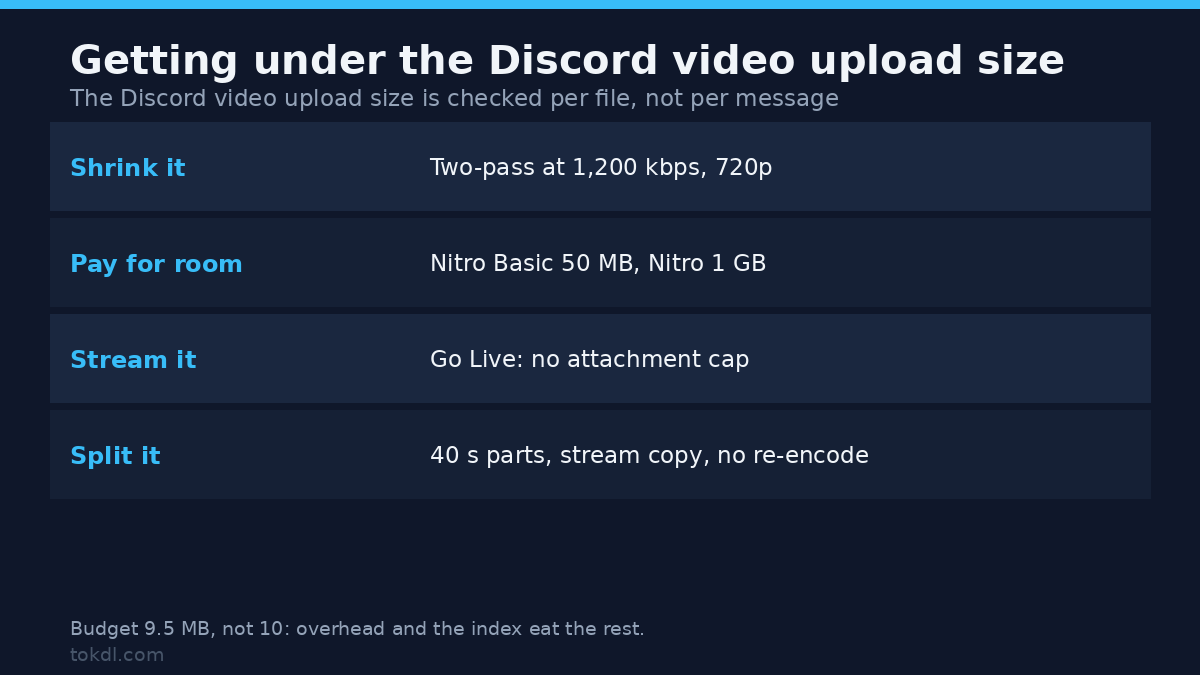
There are three honest ways out, and they aren’t interchangeable. Shrink the file until it fits, pay for a bigger Discord video upload size, or stop sending a file and stream the clip instead. The rest of this page is those three routes, with settings that land inside the Discord video upload size instead of guessing at it.
Discord video upload size: the numbers that matter
The tiers are further apart than most people assume, and none of them are secret. These are the per-file caps, taken from Discord’s plan comparison:
| Account | Maximum attachment |
|---|---|
| Free | 10 MB |
| Nitro Basic | 50 MB |
| Nitro | 1 GB |
| Nitro Classic (legacy plans only) | 50 MB |
The Discord video upload size is checked per file, not per message, so four 8 MB clips in one post all go through. It’s also checked before the transfer starts, which is why an oversized file usually fails instantly instead of after ten minutes of upload bar.
A boosted server lifts the Discord video upload size for every member of it. That’s why the same clip fails in your two-person server and posts cleanly in a large community one.
Before you compress anything
Two questions decide the route, and both of them cost less time than a bad encode. Answer them before you open a terminal.
Does anyone need the original? If the clip is the only copy of something you recorded, don’t re-encode it to fit a chat window. Keep the file and post a link to storage you control. A 10 MB version of a 300 MB master isn’t an archive, it’s a thumbnail.
Does it have to be a file? A 30-second bug report belongs in the channel history where people can scroll back to it. A 40-minute session recording doesn’t, and Discord has a feature aimed at exactly that case.
The commands below assume ffmpeg is installed: winget install ffmpeg on Windows, brew install ffmpeg on macOS, apt install ffmpeg on Debian and Ubuntu. If you would rather not touch a terminal, HandBrake’s RF and preset controls do the same job through a window. Either way, start by reading the file you have:
ffprobe -v error -show_entries format=duration,size,bit_rate -of default=nw=1 clip.mp4Duration in seconds is the one number you can’t skip, because every size calculation against the Discord video upload size starts from it.
Method one: compress to fit with FFmpeg
Budget for 9.5 MB rather than the full 10 MB Discord video upload size. Container overhead, the audio track and the file’s own index all eat into the allowance, and landing at 9.99 MB is a coin flip. The formula:
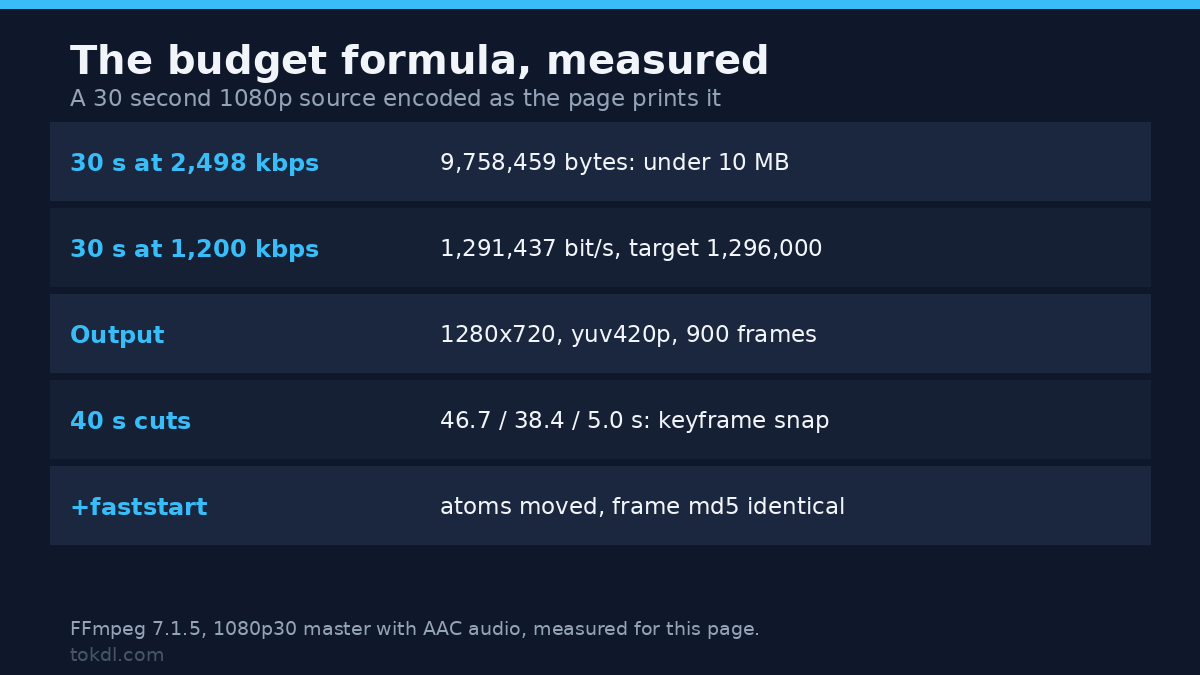
video kbps = (9.5 x 8192 / seconds) - audio kbpsThe 8192 is 1024 kilobytes multiplied by 8 bits. At 96 kbps AAC audio, here is what the budget leaves for video. The 30 second row, run as printed, delivered 9,758,459 bytes: under the cap, with little to spare.
| Clip length | Video bitrate | Resolution that survives it |
|---|---|---|
| 20 seconds | 3,795 kbps | 1080p |
| 30 seconds | 2,498 kbps | 1080p |
| 45 seconds | 1,633 kbps | 720p |
| 60 seconds | 1,201 kbps | 720p |
| 120 seconds | 553 kbps | 480p |
| 180 seconds | 336 kbps | 360p, barely |
Two-pass encoding hits that target to within a third of a percent: 1,291,437 bit/s against a 1,296,000 target on a 30 second clip. Constant quality doesn’t, which is why CRF is the wrong tool when the Discord video upload size is a hard wall rather than a preference:
ffmpeg -y -i clip.mov -c:v libx264 -preset slow -b:v 1200k -pass 1 -passlogfile pass -an -f mp4 /dev/null
ffmpeg -i clip.mov -c:v libx264 -preset slow -b:v 1200k -pass 2 -passlogfile pass -c:a aac -b:a 96k -movflags +faststart -vf "scale=-2:720" out.mp4
On Windows, replace /dev/null with NUL. The scale filter keeps the aspect ratio and rounds the width to an even number, which H.264 demands. Then measure the result before uploading:
ffprobe -v error -show_entries format=size -of default=nw=1 out.mp4If it lands at 9.8 MB, drop -b:v by a hundred kilobits and run pass two again. Pass one’s statistics are tied to the bitrate it was given, so for a one-off correction run the single-pass command below instead. When exact size matters less than speed, a quality target with a ceiling works too:
ffmpeg -i clip.mov -c:v libx264 -preset slow -crf 26 -maxrate 1300k -bufsize 2600k -c:a aac -b:a 96k -movflags +faststart out.mp4CRF 26 at 720p is a reasonable compromise for screen recordings and talking heads. It isn’t enough for fast motion, where 720p needs closer to 2,000 kbps before the detail holds.
Method two: use the platform instead of a converter
If the clip is a portfolio piece or something a client needs to review, one month of Nitro costs less than the hour you’d spend getting a 1080p file down to the Discord video upload size of 10 MB, and it keeps the original bytes intact. The Discord video upload size on Nitro Basic, 50 MB, covers most trailers, demos and showreels.
Server boosts are the cheaper version of the same idea for a community. At the higher boost tiers the Discord video upload size rises for everyone in the server, so a clip that fails in your own little server may post without complaint in a larger one that already pays for boosts.
The third official route is Go Live. Open the file in a player, start a screen share, switch audio on before you go live, and stream the clip instead of uploading it, so the Discord video upload size never enters the picture. Free accounts top out at 720p and 30 frames per second in most cases; Nitro raises that to 1080p at 60.
A silent stream is the usual result of skipping the audio toggle, so record ten seconds and check before you invite anyone. If the test clip is mute, stop the stream and restart it with audio enabled.
Method three: split the clip into parts
When the whole recording has to land and compression isn’t acceptable, split the file instead and keep every decoded frame. The segment muxer does it without re-encoding, so quality is untouched and the job takes seconds:
ffmpeg -i long.mp4 -c copy -f segment -segment_time 40 -reset_timestamps 1 part_%02d.mp4Forty seconds at typical phone bitrates lands near 10 MB, which isn’t a coincidence: 40 seconds multiplied by 2 Mbps is exactly 10 MB of data. Cuts snap to keyframes, so a part runs to the next keyframe rather than to the mark: on a 90 second test file a 40 second request produced parts of 46.7, 38.4 and 5.0 seconds. Each one arrives as a separate message that viewers have to click through in order. Good for an archive, awkward for a tutorial.
You can also place the cuts by hand rather than by clock, which is the same operation done as cutting a long file into parts with manual timestamps. Slower, and far more accurate when you know where the good moments are.
What the online compressor pages do
Almost every page promising to shrink a video to the Discord video upload size is a form wrapped around the same x264 encoder you can run locally. The target size it shows is usually estimated from the source bitrate before the file is even read, which is why the download turns out to be 14 MB after the page promised 8.
What those sites can’t do: bring back detail that’s already gone, keep your file private after you hand it to a stranger’s server, or push a 1.2 GB recording through without a paid tier and a queue. Two ffmpeg commands do the same work with no upload, no queue and no third party holding the file.
One limit applies to every tool in this category, including the command line: a clip that was already squeezed can’t be squeezed again for free. Re-encoding a 900 kbps 720p source down to 500 kbps produces mush, and the only real options at that point are a shorter clip or a link to the original.
Rights: whose clip is it?
Everything on this page assumes a file you have the right to send: your own recordings, your own screen captures, clips your own server produced. Someone else’s stream highlight, a clip pulled out of another community, or a recording of a paid broadcast aren’t yours to post, and a small file that clears the Discord video upload size doesn’t change that.
Reposting another creator’s clip to keep your server active is redistribution rather than sharing. Discord’s Terms place responsibility for uploaded content on the account that uploads it, and no amount of re-encoding transfers a right you never held.
Watching something privately is a different act from publishing it to a thousand members. The first is between you and your screen. The second needs the creator’s permission, whether the file is 10 MB or 10 GB.
Troubleshooting: five ways it still goes wrong
Discord says you don’t have permission to attach files
The channel permission called Attach Files is switched off for your role, and the client says nothing about file size because size isn’t the issue. Ask a moderator, or post in a channel that allows attachments. No encoder fixes this one.
The clip posts, but the thumbnail is black and playback never starts
An MP4 with its index at the end of the file forces the player to fetch everything before it can show frame one. The fix is a lossless remux with the index moved to the front:
ffmpeg -i in.mp4 -c copy -movflags +faststart out.mp4The background on MP4 files that buffer before playing explains why this happens, mostly to files that came from editors and download tools. One flag, -movflags +faststart, moves the index without touching a single frame of picture: measured, the atoms went from ftyp, free, mdat, moov to ftyp, moov, free, mdat, the video framemd5 came back identical, and the file grew 8 bytes.
The video plays with no sound
AC-3, E-AC-3 and DTS audio inside an MP4 are common in files from cameras and disc rips, and browsers don’t decode any of them. Copy the video untouched and replace the audio track:
ffmpeg -i in.mp4 -c:v copy -c:a aac -b:a 128k -ac 2 fixed.mp4The upload crawls, then fails at the end
Attachments don’t resume, so a dropped connection means starting over. A VPN, a mobile hotspot or a congested Wi-Fi channel will do it every time at the ninety percent mark. Switch networks, or send a file small enough to finish in one pass: 9 MB completes on links where 200 MB never will.
The compressed file came out bigger than the original
Three causes, in order of frequency: a CRF that is too low, an ultrafast preset that spends bytes carelessly, and upscaling a 720p source to 1080p for no reason. Match the output resolution to the source and keep -preset slow.
Frequently asked questions
What’s the Discord video upload size limit?
The Discord video upload size is 10 MB per file on a free account. Nitro Basic raises it to 50 MB and full Nitro to 1 GB.
Can I upload a 100 MB video for free?
No. Neither compression nor zipping will get 100 MB under a 10 MB cap without destroying the picture, so the real options are Nitro, a boosted server, splitting the file, or posting a link to storage you control.
What length of video fits in 10 MB?
About 60 seconds at 720p fits inside the Discord video upload size, or roughly three minutes at 480p. Motion is the variable: a static screen recording compresses far better than gameplay at the same length.
Does zipping the file get around the limit?
No. Video is already compressed data, so a zip saves a percent or two at best and often finishes larger than the MP4 it wrapped, which gets you no closer to the Discord video upload size. Archiving is for documents, not footage.
Do server boosts raise the limit for everyone in the server?
Yes, from the higher boost tiers onward. That’s why a subscription you don’t have can still solve your problem: post the clip in a server that already carries boosts.
Can I show a long video without uploading it at all?
Yes, through Go Live. Screen sharing streams your player instead of sending a file, so the Discord video upload size doesn’t apply and the full resolution stays local.
Which format should I upload to Discord?
MP4 with H.264 video and AAC audio, 8-bit 4:2:0, faststart enabled. That combination opens in the desktop client, both mobile apps and any browser without a codec surprise.
Which method fits your clip?
Under a minute and it must be a file: two-pass at 720p. The 1,200 kbps budget in the table above is enough for a talking head, a demo or a menu walkthrough.
One to three minutes: decide before you encode. At three minutes the budget leaves 336 kbps, which is fine for a static slide and not much else. Splitting into three parts or streaming it will look better than anything a compressor can do at that Discord video upload size.
Longer than three minutes: split it or stream it. A 40-minute recording can’t be compressed into a 10 MB Discord video upload size in any form a person would watch, and pretending otherwise wastes an afternoon.
Work you care about: Nitro for a month, or a link. Don’t ship a portfolio piece at 480p to save a subscription you can cancel after the review.
The Discord video upload size on a free account hasn’t moved in years and won’t move for your file. Pick the route that preserves the copy worth keeping, and shrink only the one that’s going into a chat window.