
HandBrake Settings Explained: Presets, RF and What to Change (2026)
HandBrake will happily hand you a file larger than the one you gave it. Point it at a 300 MB clip, accept a preset that asks for high quality, and the encode can finish at 480 MB with nothing visibly gained. Nothing is broken. That preset asked the encoder for more bits than your source ever contained.
Most of the HandBrake settings argued about in forums change nothing you can see. Four of them decide the output: the encoder, the quality number, the encoder-preset slider, and the audio encoder. Everything else is either a side effect of the preset you clicked or a filter you probably don’t want switched on.
This guide covers those four HandBrake settings, the presets that quietly resize your footage, and the cases where the honest answer is to remux instead of re-encode.
The short answer: HandBrake settings that hold up
For 1080p footage you intend to keep: H.264, Constant Quality between RF 20 and 23, encoder preset on slow, and audio either passed through or re-encoded to AAC at 160 to 192 kbps. That’s the baseline the numbers below are measured against.
For H.265 the equivalent HandBrake settings sit around RF 24 to 27. The number isn’t a percentage and it doesn’t transfer between encoders, which is the most misunderstood part of the app. Aim lower to keep more detail, higher to save space, and judge the result on a dark scene instead of on the slider position.
| Job | Encoder | Constant Quality | Encoder preset |
|---|---|---|---|
| 1080p camera footage for archive | H.264 (x264) | 20 to 22 | slow |
| 4K phone clip for sharing | H.265 (x265) | 24 to 26 | slow |
| Animation or screen recording | H.265 (x265) | 22 to 24 | slow |
| Playing on an older TV or phone | H.264 (x264) | 22 to 23 | slow |
Read the source before you touch the HandBrake settings
This step gets skipped in most threads, and it decides every setting after it. Load the file and read the Summary pane, or run it through a quick ffprobe check to see the real codec, resolution, frame rate and bitrate.
Two numbers decide whether any of these HandBrake settings will help: the codec’s efficiency and the source bitrate. Re-encoding a 4 Mbps H.264 file into H.264 at a quality target that lands near 4 Mbps gains almost nothing and costs a generation of quality. Re-encoding 4K60 at 60 Mbps down to 1080p30 changes nearly everything.
Write those numbers down: a soft or bloated output makes sense once you know what the encoder started with.
The Video tab: the HandBrake settings that matter most
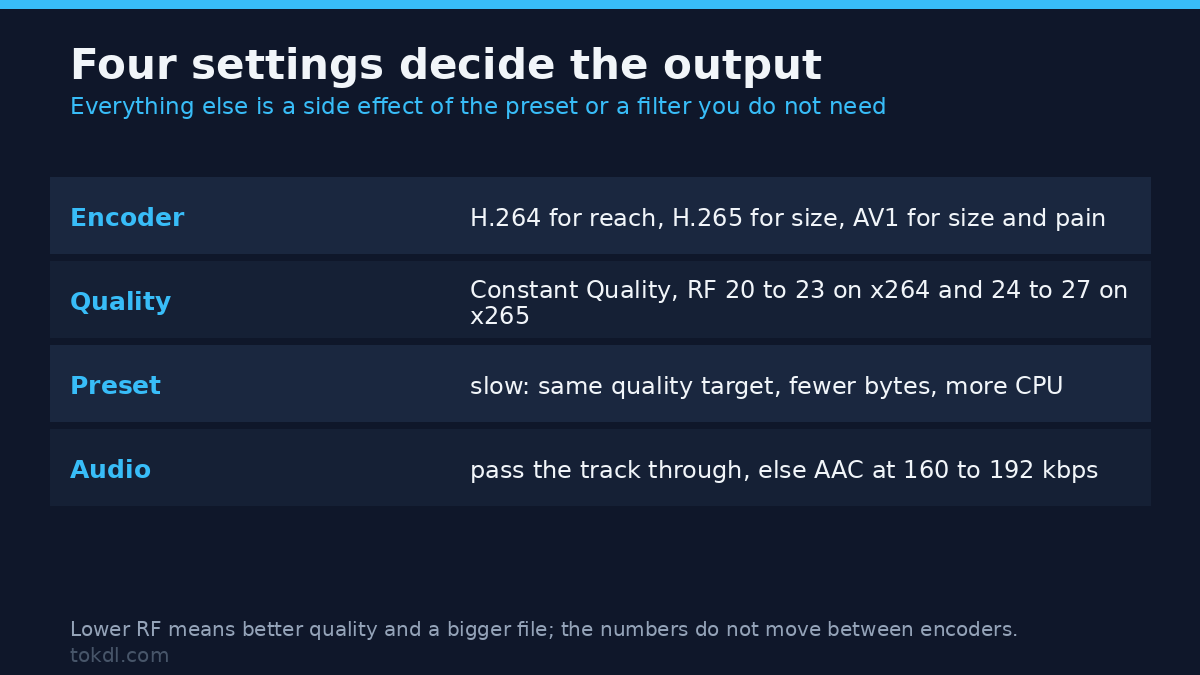
The quality HandBrake settings live on this tab. Read it top to bottom and leave the advanced box at the bottom alone until something specific fails.
Video Encoder. The first of the four HandBrake settings. H.264 plays on nearly everything. H.265 gives smaller files at the same visual quality but costs compatibility and encoding time. AV1 is the smallest of the three and the least supported by players you already own.
Framerate. Peak Framerate keeps the source’s variable timing, which is the safer default for phone and screen recordings. Constant Framerate forces a fixed rate, and you switch to it when an editor or a device stutters on the output.
Quality. Constant Quality is the HandBrake setting that decides file size, and it spends bits where the picture needs them. The scale runs from about 0 to 51, lower is better, and the top end is a smear. Average bitrate with two passes is the alternative, and it only makes sense when a platform hands you a hard number: the quality versus average bitrate trade-off decides which one fits.
Encoder Preset. This is the HandBrake setting people argue about most, and it isn’t a quality slider. At a fixed RF it changes speed, file size and how much detail survives; slower settings spend CPU to reach the same quality in fewer bytes.
Tune, Profile and Level. The last of the HandBrake settings you should touch. Tune matters for animation and for keeping grain. Profile and Level matter when a player refuses the file, and High profile at level 4.1 is the safe pairing for 1080p hardware decoding.
Method 1: a repeatable encode in the graphical app
Six steps, in this order, and each one leaves the HandBrake settings at a value you can save as a preset. The scan usually takes longer than the setup.
1. Scan and choose the title. Load the file, wait for the scan to finish, then pick the title whose runtime matches. A normal video file offers one; a disc image can offer twenty, and only one is the feature.
2. Pick the container. MP4 for device and web playback, MKV when you need several audio or subtitle tracks. Tick Web Optimized for anything that will stream from a browser.
3. Set the Video tab. Encoder, Constant Quality, encoder preset. Change nothing else on the first pass, filters included.
4. Set the Audio tab. Select the track you want, pass it through when the encoder supports it, otherwise re-encode to AAC at 160 to 192 kbps. Keep the source mixdown unless the target device is mono.
5. Decide on subtitles. Add them as a track when the player can read text subtitles. Burn them in only when it can’t, because burning locks them into the picture with no way back.
6. Add to the queue and encode. Compare the file size afterwards, then watch a dark scene at full size. Eyes on a real frame beat any slider reading.
Those HandBrake settings reproduce the short answer above and take about two minutes once the scan is done.
Method 2: the command line, and why it pays for itself
HandBrakeCLI runs the same engine, and every HandBrake setting on those tabs has a flag, which is how twenty files get processed without twenty rounds of clicking.
HandBrakeCLI -i source.mov -o out.mp4 -e x265 -q 24 --encoder-preset slow -E copyThat reads as: x265 encoder, quality 24, encoder preset slow, audio copied rather than re-encoded. Swap in -e x264 -q 21 for the H.264 equivalent. The full flag list sits in the official documentation.
Every job prints the exact command it ran at the top of the log, which is the best record you have when an encode behaves differently from the last twenty.
Wrap the command in a loop only after one file comes out right. A wrong quality value multiplied by two hundred files is an afternoon and a lot of disk gone.
What the presets change, and where HandBrake settings mislead
A preset is a bundle of HandBrake settings, not a single decision. It sets the container, a resolution limit, a framerate cap, the encoder, the quality value, the encoder preset, the audio encoder and bitrate, the mixdown, and sometimes a filter.
That’s why “1080p30” in a preset name is a promise about output size. Feed it 4K60 and it downscales the picture and halves the frame rate, then reports success, because from its point of view you asked for exactly that.
RF values don’t travel between encoders. x264 at RF 20, x265 at RF 20 and an AV1 encoder at RF 20 are three different quality targets, because each encoder defines its own scale. Copying a number from a guide written for another codec is the most common way to end up with a file that’s too big or too soft.
Hardware encoders add a second wrinkle. They’re fast enough to encode in real time, and at the same HandBrake settings they usually land below a slow software encode on efficiency. The hardware versus software encoding comparison explains when that trade is worth making.
Preset labels shift between releases, so check the values on the Video tab after applying one instead of trusting the name.
When to remux instead of re-encode
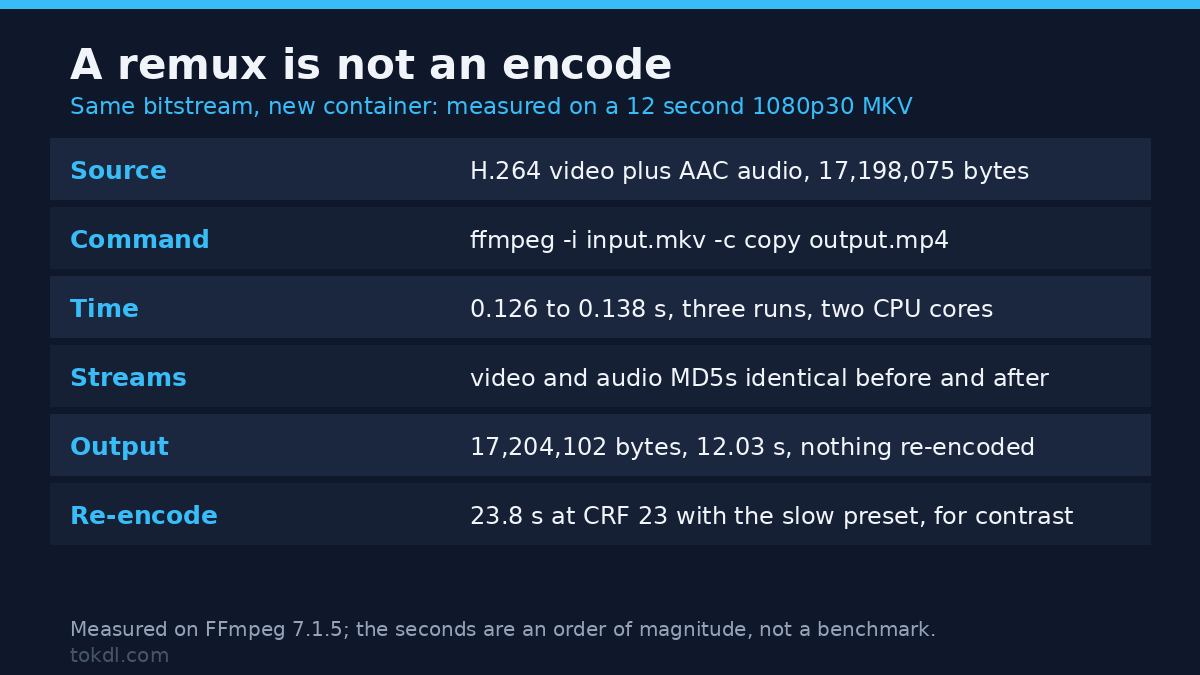
If the only problem is the container, HandBrake settings are the wrong tool. It decodes and re-encodes, which can’t improve a file and always costs something.
Changing MKV to MP4, or fixing a file a TV refuses to open, is a remux: copy the streams, rewrite the box, seconds instead of minutes.
ffmpeg -i input.mkv -c copy output.mp4I ran that exact line on a synthetic 12 second 1080p30 MKV: 17,198,075 bytes in, 17,204,102 out, 0.126 to 0.138 seconds across three runs, and both stream MD5s unchanged (video 5d5b5d1b, audio a8935bd7). The same clip through a CRF 23 slow encode took 23.8 seconds on a two-core container at load average 69, so read those seconds as an order of magnitude. When the container is the only problem, changing HandBrake settings is the wrong move: same bitstream, different box.
If that MP4 plays, you saved an encode and kept the original bitstream intact. If it doesn’t, the codec inside is the problem, and now a re-encode has a reason. The FFmpeg manual documents stream copy and the cases where the streams won’t fit the target container.
Rights and responsible use
HandBrake is a transcoder. It takes a file you can already open and rewrites it, and the rights in that file stay exactly where they were. Encoding your own recording changes its size, not its ownership.
A personal copy for offline viewing is a different act from publishing, sharing or selling. Uploads, commercial use and redistribution need permission from whoever holds the rights, even when the file passed through your own machine.
One limit is built into the app and it’s not an accident: it won’t open copy-protected discs, and it makes no attempt to get around the protection on them. Where the tool refuses, the answer is a legitimate source rather than a workaround. The project’s source and licence state its scope plainly.
Troubleshooting HandBrake settings that break the output
The output is bigger than the source
Your HandBrake settings asked for a higher quality target than the source was encoded at. Raise the RF value, and check whether the preset added a filter such as denoise that costs bits. If the codec is already right and only the container is wrong, remux instead.
Dark scenes broke into blocks
Low-light gradients are where a too-high RF shows first, which is the most common way HandBrake settings surprise people. Drop the RF by two points and check the same scene again. If it’s still blocky, the source was already compressed and no encoder setting will recover detail that isn’t there.
Subtitles vanished from the MP4
Image-based subtitles can’t live in an MP4 track. Choose MKV, or tick burn-in when the picture is the only place they can go. Text subtitles imported from an SRT file travel fine.
Audio is out of sync, or the wrong track came out
Variable frame rate footage and multi-track sources cause most of these. Force Constant Framerate, select the track explicitly instead of relying on automatic selection, and leave start alignment alone unless you have a reason to move it.
HandBrake reports no valid source
Commercial discs carry copy protection and the app doesn’t bypass it, which is a legal boundary rather than a bug. Use a file you recorded or exported yourself. If a disc offers twenty short titles, the feature is the one whose runtime matches.
The file won’t play on a TV or phone
The container or the codec is newer than the device. Set High profile, level 4.1, H.264 and AAC inside MP4, then try again before assuming the encode failed. Older players reject H.265 and AV1 outright.
Frequently asked questions
What are the best HandBrake settings for 1080p?
H.264 at RF 20 to 23 with the encoder preset on slow, and audio at AAC 160 to 192 kbps. Raise the RF toward 26 when the file has to be small, and lower it toward 18 for footage you plan to edit again later.
What RF value should I use with H.265?
Start at RF 24 and stay between 22 and 27. H.265 numbers sit higher than H.264 numbers for the same visual result, so guidance written for x264 will over-compress an x265 encode if you copy it directly.
Does HandBrake reduce video quality?
Yes. Any re-encode is lossy even at a low RF, and the loss compounds if you encode the same file repeatedly. Encode once from the original and keep that file as the master.
How long does an encode take?
Much longer than real time: a slow software encode of 1080p can take several times the clip’s length. The encoder preset is the lever that changes it most, and hardware encoding is the reason people accept a small quality cost for speed.
Can HandBrake convert HDR to SDR?
Recent versions can tone map, but the result depends on the filter and on the source metadata. Check a bright frame in the finished file rather than trusting the preview, which is often showing you something else.
Is HandBrake faster than FFmpeg?
No, they use the same encoders underneath. HandBrake adds a queue and a set of sensible defaults; FFmpeg gives you finer control and easier scripting. Pick by workflow rather than by speed.
Can I encode several files at once?
Yes, through the queue, though each file keeps the settings it was added with. That’s convenient for a folder of similar clips and a trap for a mixed folder, where every file needs its own quality value.
Which HandBrake settings should you use?
Decide from the reason you opened the app, not from the preset list.
Archiving footage you shot: H.264 or H.265 at RF 20 to 22, encoder preset slow, audio copied, MKV. You’re keeping a master, so spend the bytes.
Sending a clip to someone: H.264 at RF 23 to 25, AAC at 160 kbps, MP4 with Web Optimized on. Compatibility beats the last few percent of file size.
Fixing a file that won’t open: neither of the above. Remux first, and re-encode only if the codec itself is the mismatch.
Of all the HandBrake settings, the one worth changing today is the quality number. Leave the presets where they are, set the RF by eye on a single dark scene, and the rest of the app rarely needs touching.