
How to Edit MP4 Metadata: Title, Artist, Tags and Dates
You export a clip, open it in an editor, and the title reads 00042.MP4. The date says nothing useful. Your channel name sits nowhere on the file at all. That isn’t a broken export. It’s empty MP4 metadata, and you can fix it with one command that leaves every frame of the picture untouched.
MP4 metadata is the text a file carries about itself: the title, the artist, the album, the comment, the year it was shot, the copyright line. Most editors hide it behind a Properties dialog. FFmpeg writes it directly, and the trick is that it never re-encodes anything. I ran every command here on FFmpeg 7.1.5 and read each tag back with ffprobe, so the numbers below come from a real file on a real disk.
By the end you’ll know how to read MP4 metadata, how to change it field by field, which fields each container keeps, and the traps that make an edit look successful while the delivered file ignores it.
What you’ll learn
- One command to read every tag inside an MP4
- One command to write or replace those tags without re-encoding
- Which MP4 metadata fields survive in MP4, MKV and MOV, measured on a real clip
- The encoder tag FFmpeg writes behind your back, and how to stop it
- Why a plain remux drags old MP4 metadata into your new file
What MP4 metadata is
An MP4 is a tree of boxes, and the format calls them atoms. The text tags sit in a box named udta, inside meta, inside a list called ilst. Every entry gets a four-byte name, and QuickTime’s names begin with the byte 0xA9, which is the copyright sign. That’s why a hex viewer shows the title atom as xA9nam and the artist atom as xA9ART. The FFmpeg format documentation lists these metadata keys next to every other container option.
I checked the structure at the byte level. On a 458,517-byte test file the ilst block starts at offset 458,100, so the whole tag list fits in the final 377 bytes of the clip. The source carried an ilst block too, but only the automatic encoder entry.
Two levels matter here. Format tags describe the whole file, and those are what a player shows in its info panel. Stream tags sit on a single track, like the language of an audio track. A tag list that looks empty in one tool is often just the stream level going unread.
Keep three things apart. Chapters are their own track. Brand tags such as major_brand are container plumbing, not yours to write. And the private camera strings a phone embeds sit in the same field block, which is why stripping video metadata before you share a clip is a job in its own right.
How to read the MP4 metadata you already have
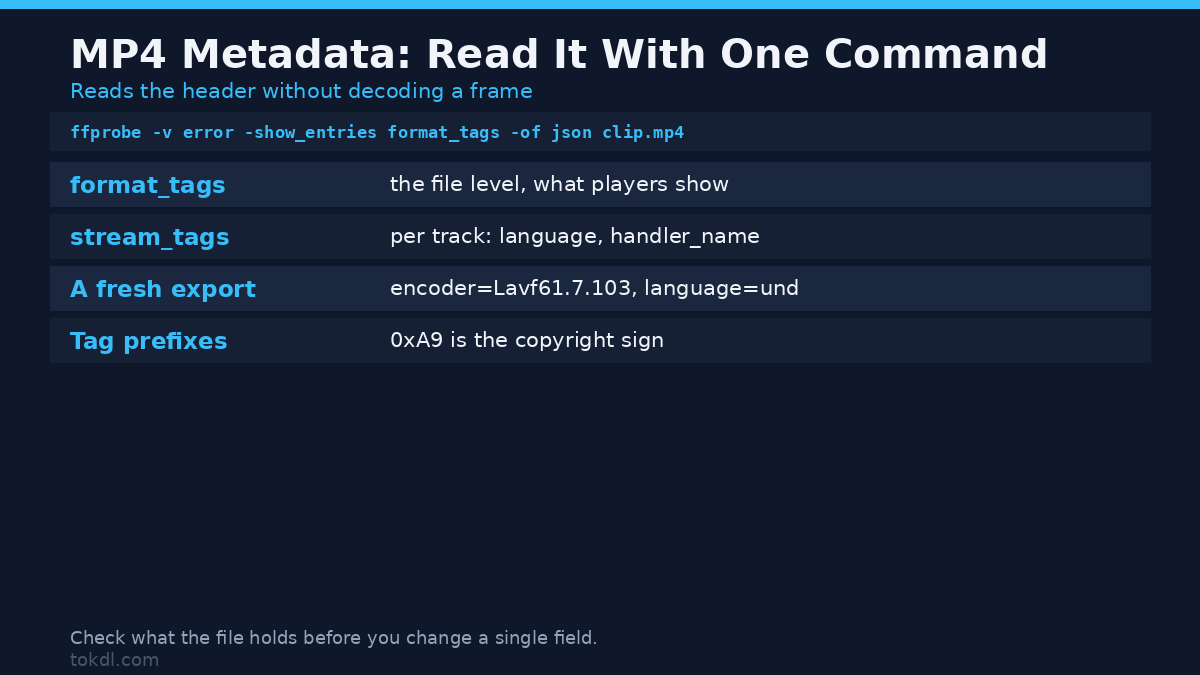
Look before you write. One command prints the file-level tags as JSON, and it reads the header without decoding a frame:
ffprobe -v error -show_entries format_tags -of json clip.mp4Swap format_tags for stream_tags and you get the per-track entries instead. On a fresh encode the format side returned encoder=Lavf61.7.103 plus the brand fields, and the stream side returned a handler_name of VideoHandler and SoundHandler, with the language set to und, short for undetermined. That’s the blank slate you start from, and it explains why a new export looks anonymous.
How to add or edit MP4 metadata
The write follows the same shape every time: an input, a stream copy, and one -metadata flag per field.
ffmpeg -i clip.mp4 -c copy -metadata title="Sunset Timelapse" -metadata artist="Your Channel" -metadata date="2026" clip-tagged.mp4The -c copy is the part that matters. FFmpeg never re-encodes the video or the audio, so the command finishes in a blink and the picture stays byte-identical. Adding ten fields to my 458 KB clip grew the file by 377 bytes. Those bytes are text, and nothing else moved. The everyday FFmpeg command list covers the other flags you’ll reach for around this one.
Write the field names exactly as they appear below. Every MP4 metadata field maps to exactly one atom. They’re lowercase, and a typo gives no error at all: FFmpeg accepts an unknown tag, stores it, and then neither you nor any player ever sees it. The names match the ones ExifTool documents for QuickTime.
| ffmpeg field | MP4 atom | What a player shows |
|---|---|---|
title |
xA9nam |
The clip name in the info panel |
artist |
xA9ART |
The creator or channel name |
album |
xA9alb |
The collection it belongs to |
album_artist |
aART |
The main artist for the collection |
composer |
xA9wrt |
Who wrote the underlying material |
comment |
xA9cmt |
Free text you want on the file |
date |
xA9day |
The year or release date |
genre |
xA9gen |
A single category word |
copyright |
cprt |
The rights line |
track |
trkn |
The position number in a set |
Each atom name in the middle column is one I found in the delivered file, byte for byte. The xA9 prefix is the copyright sign in raw form, and it’s the reason a search for the plain word “title” inside an MP4 finds nothing.
Which MP4 metadata fields survive in which container
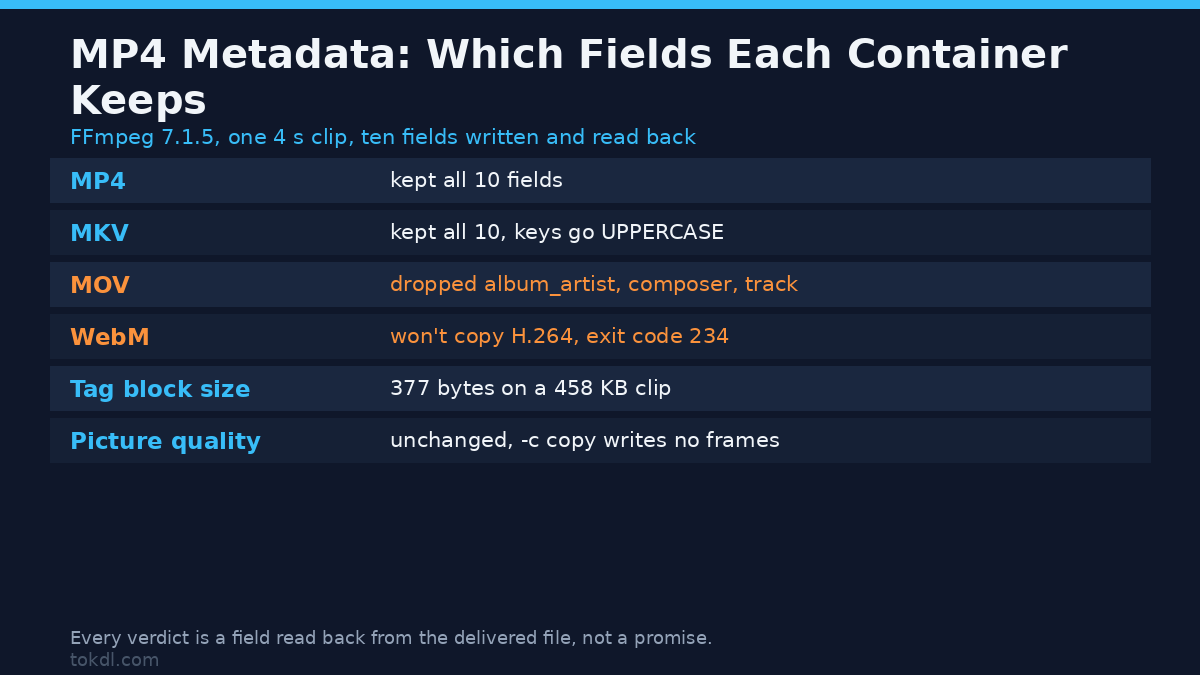
Here’s where an honest test beats a promise. I wrote all ten fields into the same source clip and asked each container to keep them.
| Field | MP4 | MKV | MOV |
|---|---|---|---|
| title | kept | kept | kept |
| artist | kept | kept | kept |
| album | kept | kept | kept |
| comment | kept | kept | kept |
| date | kept | kept | kept |
| genre | kept | kept | kept |
| copyright | kept | kept | kept |
| album_artist | kept | kept | dropped |
| composer | kept | kept | dropped |
| track | kept | kept | dropped |
MP4 kept all ten. MKV kept all ten as well, though it hands the names back in capital letters, so artist reads as ARTIST. A MOV kept seven and quietly discarded album_artist, composer and track. No error, no warning, just a shorter list when you read the file back. MP4 metadata fields don’t all get treated the same way.
WebM deserves its own line, because the easy route doesn’t exist. Copying H.264 video and AAC audio into a WebM container fails outright with exit code 234, since WebM only accepts VP8, VP9 or AV1 video with Vorbis or Opus audio. Any WebM metadata write means a real re-encode first. If the container question is still open, the container comparison covers what each format is for.
Trap one: FFmpeg overwrites your MP4 metadata encoder tag
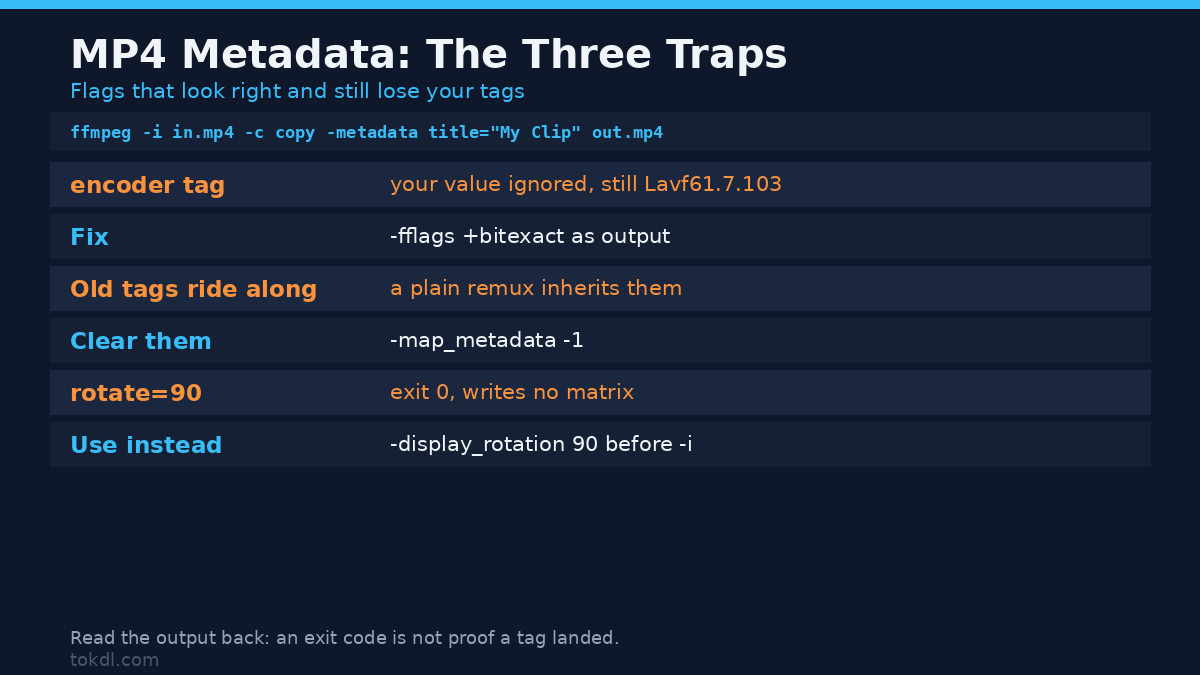
Try to sign your export with -metadata encoder="HandBrake 1.7" and the result lies to you. Read the file back and it still reports encoder=Lavf61.7.103. FFmpeg’s muxer writes its own line, and it wins.
You can’t rename that tag, but you can remove it. Add -fflags +bitexact as an output option, after the input, and the encoder line disappears. I tested the neighbouring variant too, and -flags +bitexact on its own does nothing; the Lavf string came straight back. Placement is the whole difference here.
Trap two: a remux copies the old tags over your new values
This one catches anyone editing a file that already has tags. A plain -c copy remux inherits the source’s metadata, so old MP4 metadata rides into the new file. I confirmed it by remuxing a tagged clip with no flags at all: title and artist came through without me asking. You won’t notice until you read the file back.
The fix is -map_metadata -1, which drops the inherited set. Only the automatic encoder line remained after that flag, and a new tag written after -map_metadata -1 survived. So the clean replacement recipe reads like this:
ffmpeg -i in.mp4 -c copy -map_metadata -1 -metadata title="Fresh Title" out.mp4Read that output back before you delete the original. A successful exit code doesn’t prove which tags landed, and reading the file is the check that does.
Trap three: the rotate=90 trick writes nothing now
Older guides set video rotation with -metadata:s:v:0 rotate=90. On FFmpeg 7.1.5 that command returns exit code 0 and writes no rotation at all; the display matrix comes back empty. The method that works is -display_rotation 90, and it belongs before the input, as an input option. My probe returned a real Display Matrix with a rotation of 90 degrees, which is the value a player reads to turn sideways footage upright. Rotation is its own flavour of MP4 metadata, and it follows the same rule as the rest: check the delivered file, not the exit code.
Stream tags: the MP4 metadata on one track
Field-level tags cover the file. Tracks carry their own, and the flags look almost the same. -metadata:s:a:0 language=eng flipped the audio language from und to eng, and -metadata:s:v:0 handler_name="Main Camera" replaced the default video handler name. Both landed on the right track.
One field breaks the pattern. An audio stream title was dropped by MP4 and kept by MKV, same source, same command, one flag apart. If your clips hold more than one audio track and you care which one a player picks, that’s a different setting, and setting the default audio track explains the disposition flags that decide it.
Common mistakes
- Leaving the value unquoted. A space splits the argument, and the second word gets read as the next option. Quote every value.
- Writing to the file you’re reading. FFmpeg refuses with
Output source.mp4 same as Input #0and exit code 234. Write to a new name, verify it, then replace the original. - Assuming every app will show the tag. The bytes are there, but some players read only title and artist. Confirm with
ffprobe, not one media player’s panel. - Stripping when you meant to edit. Running
-map_metadata -1alone deletes the whole block. It’s a wipe, not an edit.
FAQ
Can I edit MP4 metadata without re-encoding?
Yes. Every command above uses -c copy, which moves the existing streams into the output unchanged. Quality stays identical because no frame is re-encoded, and the job takes under a second.
Does editing MP4 metadata reduce quality?
No. The tags are text inside the container, and my measured cost for ten fields was 377 bytes on a 458 KB file. Quality only drops if you drop -c copy and let FFmpeg re-encode, which is a different job.
How do I remove MP4 metadata instead of editing it?
Add -map_metadata -1 and skip your own -metadata flags. That clears the block, which is what you want before posting a clip that a phone geotagged.
Will my MP4 metadata show up in Windows Explorer or on my phone?
Sometimes. Explorer reads a few fields and ignores the rest, and phone galleries vary by app. If you’re posting to a gallery, test one file first. The objective check is ffprobe.
Can I add MP4 metadata to a WebM file?
Not by copying streams. A WebM won’t accept H.264 and AAC, so the copy fails at exit code 234. Re-encode to VP9 with Opus, then write your tags into that output.
Do accented characters survive?
Yes. A title of Café Ñandú and a comment holding a snowman symbol both came back byte for byte from an MP4. The value is stored as UTF-8, so the quotes around it are the only thing you have to remember.
The short version
Reading MP4 metadata takes one ffprobe command. Writing MP4 metadata takes one ffmpeg command with -c copy and a -metadata flag per field. It’s a text edit, not a video edit. The picture never changes, the size barely moves, and your fields either land in the file or the container drops them without telling you.
The three traps are the whole game. FFmpeg overwrites the encoder tag, so use -fflags +bitexact if you want it gone. A remux inherits old tags, so add -map_metadata -1 when you want a clean slate. And the old rotate=90 trick does nothing on a modern build, so reach for -display_rotation before the input.
Write your title and artist once, read the file back, and you get a library that names itself.