
How to Remove Video Metadata: Strip GPS & Camera Data Before Sharing (2026 Guide)
The clip of your garden that you emailed to a landscaper probably arrived with extra baggage: the GPS coordinates of your house. Phone cameras write location, camera model and timestamps into the file, and direct transfers like email or a shared drive carry it all along. Instagram drops most of that data when it re-encodes; a raw file keeps it.
You may not need this guide if you only upload to social media, because most platforms re-encode your video and drop the location tags. Direct sharing is different. Before you remove video metadata from a clip headed for email or a cloud link, it is worth knowing which files carry it and which are already clean.
The Fastest Way to Remove Video Metadata
On Windows, right-click the file, open Properties, go to the Details tab and choose Remove Properties and Personal Information. Pick Create a copy with all possible properties removed; Windows saves a clean twin beside the original.
On an iPhone or iPad, share the clip from Photos, tap Options at the top of the share sheet and switch Location off. On Android, Google Photos shows Remove location in the three-dot menu whenever the clip carries one.
That is enough for most people, because location is the tag that matters. If you also want the camera model and every other trace gone, the three methods below go deeper.
Before You Start: See What a Video Is Carrying
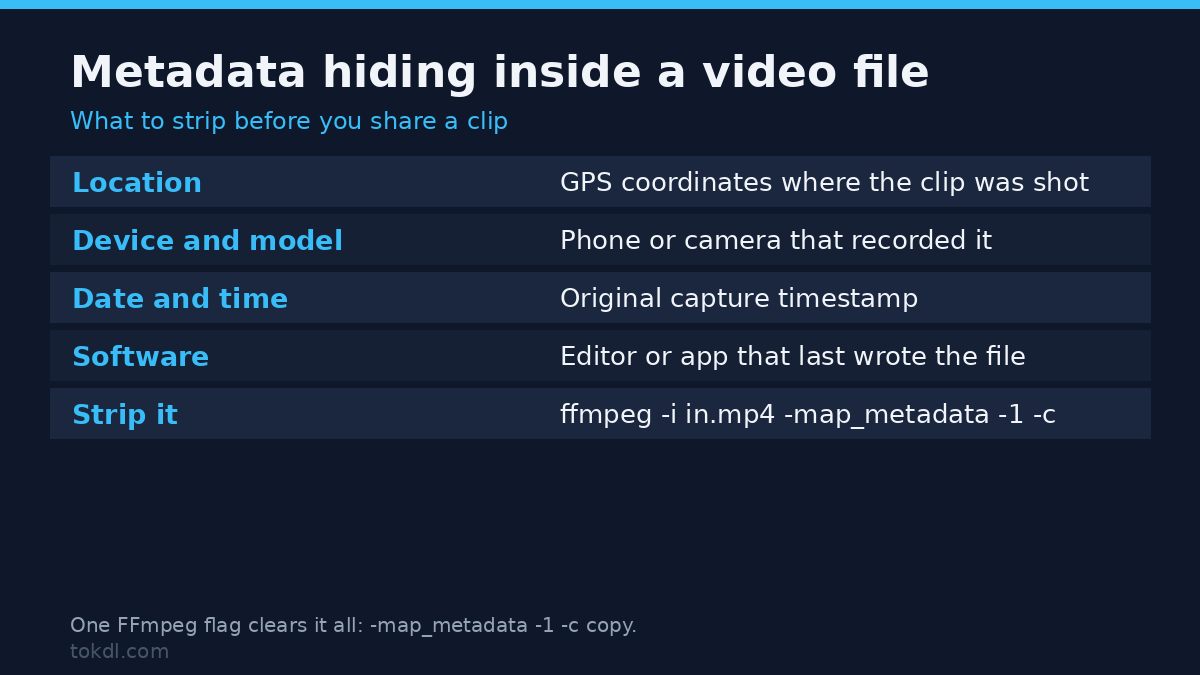
A phone clip usually carries the coordinates where it was recorded, the camera model, and the exact time. It keeps those tags only when the camera app has location permission, which is the default on both iPhone and Android. A screen recording of your desktop carries almost none of this, because it never uses the camera lens.
Checking is quick. On an iPhone, open the video in Photos and swipe up: Location appears when the clip has it. In Google Photos, the three-dot menu leads to Info with the same answer.
On a computer, the surest check is a metadata reader such as ExifTool, which prints every tag a file carries. If you see latitude and longitude lines in the output, the clip is leaking your position.
Method 1: Clean a File on Windows
Windows ships with a cleanup tool that needs no installation. It works from the file’s Properties window, and it handles the MP4 and MOV files that phones produce.
- Right-click the video and choose Properties.
- Open the Details tab and click Remove Properties and Personal Information.
- Select Create a copy with all possible properties removed.
- Share the new file, which sits next to the original with Copy added to its name.
This clears the fields Windows reads and writes, which covers location and camera data on typical clips. Some files keep extra tags deeper in the container that this dialog does not touch. If you need certainty, run the ExifTool command in Method 3.
Method 2: Use the Official Location Controls on iPhone and Android
Both phone platforms treat location as the piece of metadata most people want to remove, so they expose it in the share and info screens. These are the controls the manufacturers themselves provide, which means they stay current with every system update.
On an iPhone or iPad, open the video in Photos, tap the Share button, then tap Options at the top of the sheet and switch Location off. The copy that leaves your phone has no GPS tag, while the original in your library keeps its location.
On Android, open the video in Google Photos and tap the three-dot menu. Choose Remove location when it appears, then confirm; the file in your library now has no GPS tag.
Note what these controls cover. They strip location, which is the tag that exposes where you live and work, but camera model and timestamps can survive. People who need a total wipe should combine this with Method 3.
Method 3: Strip Everything with FFmpeg or ExifTool
Built-in controls can leave tags behind, and that is where the command line earns its keep. FFmpeg and ExifTool are free, run offline, and handle whole folders at once.
For a quick clean with FFmpeg, install it first: brew install ffmpeg on macOS, winget install Gyan.FFmpeg on Windows 10 or 11, or your package manager on Linux. Builds also come from FFmpeg’s official download page. Then open a terminal in the folder that holds the file and run this:
ffmpeg -i input.mp4 -map_metadata -1 -c copy output.mp4Now check output.mp4 and delete input.mp4 once you are sure the copy plays. The flag -map_metadata -1 tells FFmpeg to drop the metadata block, while -c copy copies picture and sound without re-encoding, so quality does not change.
For a deeper clean, ExifTool is the standard tool for reading and writing this data. The command below removes every tag it can find and overwrites the original file:
exiftool -all= -overwrite_original input.mp4Leave off -overwrite_original if you want ExifTool to keep the untouched file as a backup. Its documentation on the ExifTool site explains each tag family in detail.
What Online Metadata Removers Actually Do (and Their Limits)
A whole category of websites offers to clean your video in the browser: upload, wait, download. That flow works, and such tools usually do remove the tags they advertise.
Their limits matter more. You hand a private clip to a server you do not control, which is an odd trade when the goal is privacy. Free tiers cap file size, slow you down with queues and ads, and some services re-encode the video on the way out, which costs quality and can take minutes for a long clip.
Desktop apps in the same category are a safer middle ground because the file never leaves your machine. For anything sensitive, prefer the built-in controls or the command line above, and keep the online route for clips you would not mind posting anyway.
Rights and Responsible Use
Stripping metadata is a privacy edit to your own file, and it changes what a video carries, not who owns it. If you shot the footage, cleaning it before you share is sensible handling of your own material.
If the video belongs to someone else, removing its tags grants you no rights to it. Personal reference is not redistribution, and reusing a clip commercially needs the creator’s permission; a cleaned copy does not make the video yours. Apple’s privacy page explains how location data on its devices is handled, and the same idea applies everywhere: metadata describes a file, while rights describe who made it.
Troubleshooting Metadata That Will Not Leave
I cleaned the file in Windows, but a tag checker still finds GPS. The Remove Properties dialog clears the fields Windows manages, and some containers keep tags deeper in the file. Use the ExifTool command in Method 3 for a complete wipe.
I stripped a clip, edited it, and the location came back. Your editor rebuilt the file from the original, or you edited the wrong copy. Clean the metadata last, on the final exported file.
FFmpeg says the command is not recognized. The program is missing or not on your PATH. Install it, reopen the terminal, and confirm that ffmpeg -version works before you run the command again.
An online remover made my video look worse and the file bigger. The service re-encoded the picture instead of just cleaning tags. Local tools with -c copy keep the original quality, and the mechanics of copying versus re-encoding are covered in our guide on converting a video to MP4.
The location is gone, but the file name still gives me away. Metadata is not the only leak. A clip named Backyard_2026-08.mov or shared from a folder with your address in it reveals plenty, so rename files and folders before sending them.
The Details tab on Windows shows nothing to remove. The file may already be clean, or Windows may not read that container’s tags. Confirm with ExifTool before you assume the worst.
Frequently Asked Questions
Do I need an app to remove video metadata?
No, not for the usual cases. Windows, iPhone and Android all have built-in controls that strip location, and the command-line tools are free if you want a total wipe.
Does removing metadata lower the video’s quality?
No, metadata is separate from the picture. Tag removal does not re-encode the footage, so quality stays identical; only tools that rebuild the video can change it. If a smaller file is your real goal, start with shrinking a video without losing quality.
Why does my phone add location to videos in the first place?
Because the camera app records it by default. Location Services on iPhone and location access on Android are switched on out of the box, so coordinates ride along until you strip them or turn the permission off.
Do social platforms already remove metadata when I post?
Most of the time, yes. Instagram, TikTok and YouTube re-encode uploads and leave location tags behind, so the main risk is direct file sharing rather than posting.
Can someone tell where a video was recorded?
Only if the file still carries the coordinates. A viewer who downloads your raw file can read the GPS tag in seconds, and the methods above remove it; the command-line ones remove it completely.
Is video metadata the same as EXIF?
Not exactly, but close enough. EXIF is the tag standard for photos, while MP4 and MOV files use related containers such as QuickTime atoms, and tools like ExifTool read both.
Do screen recordings carry my location?
Almost never. A screen recording captures your display rather than your camera feed, so no GPS tag is written, and the image itself is the only leak to worry about.
Which Method Should You Use?
For one Windows file, the built-in cleanup is enough. For clips you share from your phone, the share-sheet toggle or the Google Photos option takes seconds and needs no tools. For old libraries, batches, or files that must be spotless, FFmpeg and ExifTool are worth the one-time setup.
Choose the approach that matches how you actually share, then build one habit: remove video metadata from anything you send as a file. The ten-second command now saves a conversation you cannot unsend later.
[…] single frame of picture. Run it before sending footage to anyone outside your own machine, because the fields inside a video file are longer than most people […]
[…] and a device serial inside the container. If location is the worry rather than faces, you need to strip the metadata as a separate […]
[…] to write. And the private camera strings a phone embeds sit in the same field block, which is why stripping video metadata before you share a clip is a job in its own […]