
Frame Rate Conversion: Change FPS Without Judder or Drift (2026)
A phone shoots 29.97 frames per second. The TV spot you’re cutting it into runs at 25. You drop the clip on the timeline, set the sequence to 25, export, and the first cut lands a frame late.
Nobody notices on a laptop. Somebody notices on a broadcast monitor.
Frame rate conversion is the operation that repairs that mismatch, and it fails in three distinct ways: dropped frames that stutter, duplicated frames that judder, and audio that slides out of sync by the end of a long reel. Each failure has its own fix. This guide covers all three, with commands you can run and outputs you can measure.
Short version: resample when the duration must stay identical, retime only when you actually want the clip to run at a different speed.
What frame rate conversion actually changes
A video file carries two separate things: how many frames exist, and what moment in time each frame claims to occupy. Conversion can alter either one. Most broken exports come from altering both at once, by accident. Every frame rate conversion argument comes down to which of the two you’re touching.
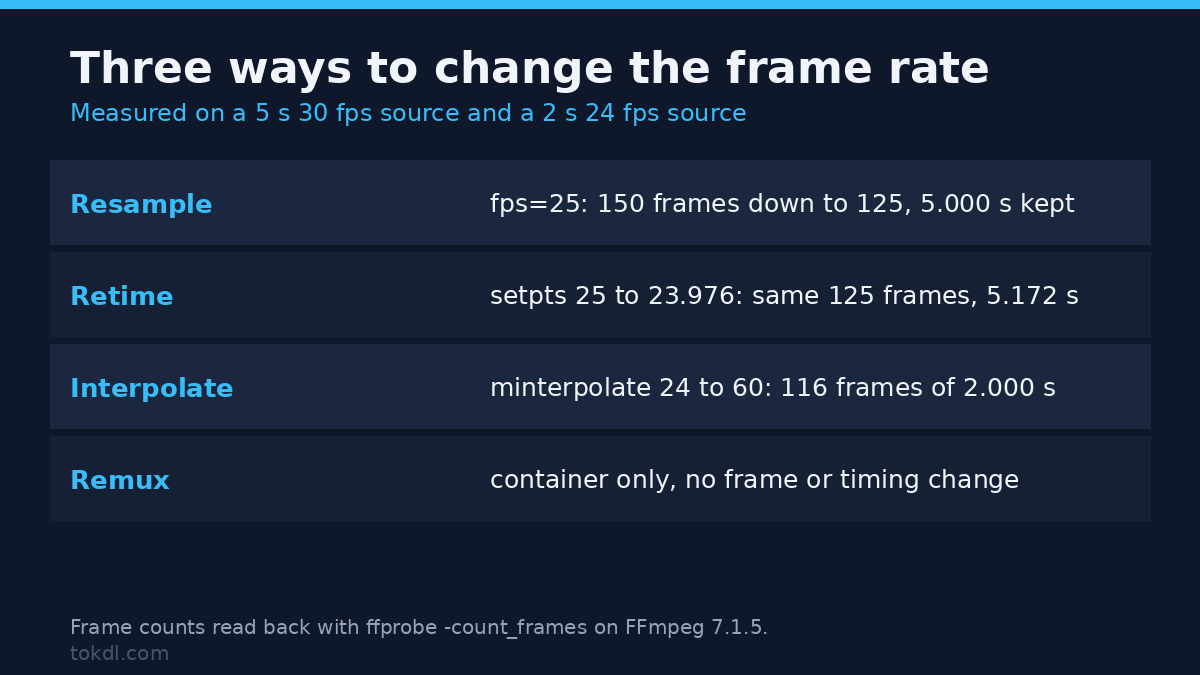
Resampling changes the frame count to hit a target frame rate. Frames are dropped when the target is lower and duplicated when it’s higher. Timestamps stay put, so a 30-second clip remains 30 seconds and the audio needs no treatment at all.
Retiming changes the timestamps themselves. The picture plays faster or slower, the duration moves, and the audio has to be stretched to match or it’ll slide against the image. That’s the only frame rate change that moves the clock.
Interpolation manufactures frames. Rather than repeating a neighbour, the encoder measures motion between two frames and draws the missing one. That’s how a 24 fps clip reaches a 60 fps frame rate without the visible cadence of duplicated frames.
Check the frame rate you actually have first
Run this before converting anything. Two clips that both read as 30 fps in a file manager can be 29.97 and 30.000, and that gap compounds over an hour.
ffprobe -v error -select_streams v:0 -show_entries stream=r_frame_rate,avg_frame_rate,nb_frames,duration -of default=nw=1 input.mp4Read both numbers. r_frame_rate is the nominal rate. avg_frame_rate is what the file delivers on average. When the average sits below the nominal, the file is variable frame rate, which usually means a phone or a screen recorder wrote it. That gap is the first frame rate problem to fix, before any conversion.
Handle that case first, because converting variable rate footage directly scatters duplicated frames in places you can’t predict. The variable frame rate to constant pass is the one to run before any rate change.
| What the file says | Exact value | Where it comes from |
|---|---|---|
| 23.976 | 24000/1001 | Film timed for NTSC |
| 24 | 24/1 | Cinema, true 24p |
| 25 | 25/1 | PAL broadcast, most of Europe |
| 29.97 | 30000/1001 | NTSC broadcast, US television |
| 30 | 30/1 | Phones, screen recordings, web |
| 59.94 | 60000/1001 | US high frame rate broadcast |
Method 1: resample the frame rate with FFmpeg
The fps filter does this job. It drops or duplicates frames to reach the target frame rate and leaves the duration intact.
ffmpeg -i input.mp4 -vf "fps=25" -fps_mode cfr -c:v libx264 -crf 18 -preset medium -c:a copy output.mp4Three flags carry the weight. -vf "fps=25" sets the target. -fps_mode cfr forces a constant output rate instead of letting FFmpeg decide frame by frame, and it replaces the deprecated -vsync flag described in the FFmpeg output options. -c:a copy is safe here because resampling doesn’t move the timestamps.
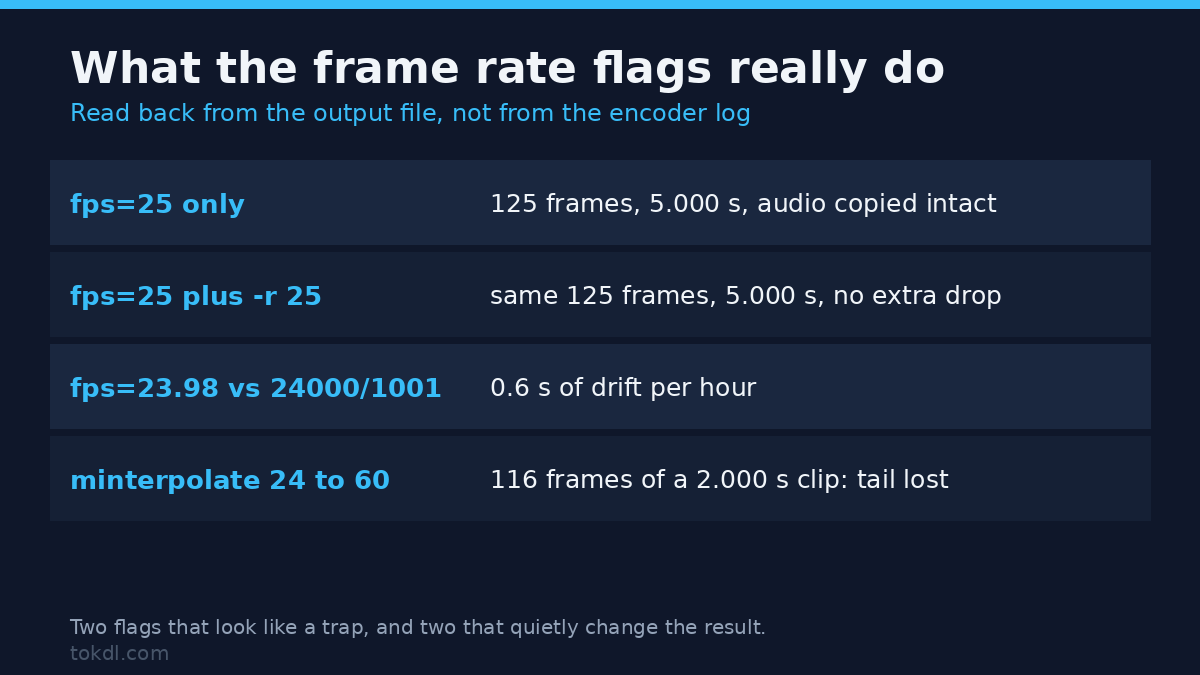
Write fractional rates as fractions. fps=24000/1001 is exact, while fps=23.98 is not, and the rounding shows up as drift on long timelines: measured on this build, the 23.98 form slips about 0.6 seconds behind a true hour of 23.976.
Don’t pair -r 25 with fps=25 out of habit, though the folklore is harsher than the command. A 5-second 30 fps source run through the recipe above came back at 125 frames and 5.000 seconds on FFmpeg 7.1.5, and adding the rate flag to the same command changed neither the frame count nor the duration, so the doubled drop rate you’ll read about elsewhere didn’t reproduce here. Pick one anyway: two mechanisms aimed at one result give you two suspects when the output frame rate is wrong. The filter reference documents the behaviour of each.
Then verify instead of trusting the log:
ffprobe -v error -select_streams v:0 -show_entries stream=avg_frame_rate,duration -of default=nw=1 output.mp4Method 2: set the rate before you shoot or before you export
Every conversion costs something, even a good one. The cheap fix isn’t converting, and in most editors the rate lives in two places that get confused: the clip and the sequence.
In Premiere Pro, Modify > Interpret Footage > Assume Frame Rate tells the app what the clip really is. The sequence setting tells it what to export. Set the two consistently and the export needs no conversion step at all.
In DaVinci Resolve the equivalent is Clip Attributes > Video Frame Rate, with the timeline rate set in project settings. Final Cut Pro handles it through the project format inspector.
On a phone the rate is a capture setting. iPhone exposes it under Settings > Camera > Record Video, Android camera apps offer 30 and 60 in video mode, and mirrorless bodies carry a menu entry for 24, 25, 30, 50 and 60. Choose the delivery rate once, at capture, and the rest of the pipeline stays clean.
Upload targets deserve the same attention. YouTube re-encodes whatever you send and keeps the uploaded frame rate up to 60 fps, so a 24p master stays 24p on the watch page. No platform converts the frame rate on your behalf.
When conversion needs new frames: interpolation
Resampling 24 to 60 gives you the same 24 pictures, each held for two or three frames. The cadence is visible on any slow pan. If you need genuine 60 fps motion from 24 fps material, the frames have to be manufactured.
ffmpeg -i input.mp4 -vf "minterpolate=fps=60:mi_mode=mci:mc_mode=aobmc:vsbmc=1" -c:v libx264 -crf 18 -preset medium output.mp4Expect this to be slow, and expect it to finish early. A 2.000-second 24 fps source sent through it came back with 116 frames covering 1.933 seconds, where plain fps=60 delivered all 120 frames and the full 2.000 seconds on the same clip: the interpolation pass drops the tail. Check the duration afterwards and pad if the last beat matters. A minute of 1080p can take many times longer than a normal encode, and the output still has limits: anything crossing in front of something else warps, and a hard cut between unrelated shots smears for a frame or two.
It suits slow motion and archival footage with gentle movement. It’s a poor rescue for a clip that was shot at the wrong frame rate for the edit, because the artifacts stay in the file from then on. The interpolation settings guide covers the options that keep them under control.
What the tools in this space actually do, and where they fail
Online converters and editor presets mostly perform the same operation as the command above and hand back a re-encoded file. For a single clip that is reasonable. The failures repeat across them.
Most force a constant 30 or 60 fps and quietly round 23.976 up to 24, which shifts a long project by seconds. Many cap output resolution to keep the job quick, so a 4K source returns at 1080p. Almost none report the source’s true frame rate, so you can’t tell whether a conversion dropped frames or duplicated them.
Tools sold as “60 fps conversion” usually mean interpolation, and interpolation is the one operation here that can leave footage looking worse than the original. Ask what the output frame count is, then check the file yourself with ffprobe.
Your rights when you convert a video
Changing a frame rate doesn’t change ownership. If you shot the footage, converting it, publishing it or filing it in your own archive is your decision. If someone else shot it, a rate change is a technical edit to their work, not a new work belonging to you.
Recutting a broadcast or a streamed film to a smoother rate and re-uploading it is redistribution, and it stays redistribution whether the file arrived on a disc, through a download or from a screen recording. Personal reference and public posting are different uses with different requirements, and commercial use needs a licence from the rights holder in nearly every case.
Saving a file grants nothing either. Access is not permission, and the terms you accepted when you obtained the file still apply once it sits on your drive. YouTube’s terms of service describe how uploaded material may be reused, and most platforms use comparable language.
Troubleshooting: where these conversions break
Audio drifts a few seconds by the end
The picture was retimed and the audio wasn’t. Resampling keeps duration, so if the sound slides, the timeline carried a speed change somewhere. Add atempo at the inverse of the ratio, or rerun with fps rather than setpts.
The runtime changed by about 4 percent
You’ve moved between a 25 and a 23.976 frame rate. The ratio is 25 divided by 23.976, or 1.0427, so a 60-second PAL clip becomes 62.6 seconds. That’s arithmetic, not a fault, and it arrives with a pitch drop of roughly three quarters of a semitone unless you correct it.
The file says 30 fps but the motion stutters
Those are duplicated frames from a 24 or 25 fps source. The file honestly plays 30 pictures per second, of which only 24 or 25 are unique. Go back to the source rate, or interpolate if 30 is genuinely required.
Phone footage turns into a scatter of duplicates
The source was variable frame rate. Phone timestamps wander by a few milliseconds per second and the fps filter reads each wobble as a reason to duplicate. Convert to constant rate first, then change the rate.
The output is larger than the input
Any rate change demands a full re-encode, so -c:v copy is off the table and a second generation of loss is unavoidable. Compare CRF values rather than file sizes, and read constant quality encoding before you pick a number. Always encode from the original master.
One player reports a different rate than another
Container metadata and stream metadata can disagree after a copy or a remux. Trust ffprobe on the stream rather than a player’s overlay, and re-encode instead of retagging when the numbers are wrong.
Frame rate conversion: the questions people actually ask
Does frame rate conversion change the speed of a video?
No, not by itself. Resampling drops or repeats frames and leaves duration alone, so a 30-second clip stays 30 seconds and plays at its normal speed.
Can I change the frame rate without re-encoding?
Not without changing how the file plays. Frames and their timestamps have to be rewritten, which means a re-encode, and there’s no copy path for a real frame rate change. Retagging alone changes playback speed instead of the cadence.
Is 23.976 the same as 24 fps?
No. 23.976 is 24000/1001, a rate that exists so film can be timed against NTSC’s 29.97. Over one hour of footage the two differ by about 3.6 seconds.
Does converting to 30 fps make a video smoother?
Usually not. Duplicated frames add no motion information, so 24p converted to 30p looks much the same with a changed cadence. A higher frame rate alone won’t make it smooth; the smoothness comes from interpolation or from capturing at the higher rate.
What should I convert 60 fps gameplay to for YouTube?
Leave it at 60. YouTube plays uploads at the rate they arrived in, up to 60 fps, so a 60 fps capture stays 60 fps for viewers whose screens can show it. Downsampling to 30 discards detail that survives the upload.
Why is my 25 fps clip suddenly longer?
Because it was retimed to 23.976 rather than resampled. The playback ratio is 25 divided by 23.976, so the clip stretches by 4.27 percent and the pitch falls with it.
Can one video hold two different frame rates?
Yes, in principle. Containers can store tracks with independent timing, and some screen recordings carry a rate that shifts by section. Players and editors handle that inconsistently, which is why a constant rate is the safer delivery format.
Which frame rate conversion route fits your clip?
If the source already matches the target and only the container is wrong, a remux is enough. No conversion enters the picture, and no quality is lost.
If duration must stay identical, resample with fps and copy the audio. That covers most delivery work, and it’s the frame rate change worth learning first: a 60 fps game capture going to a 30 fps feed, or a 25 fps source headed to a 30 fps ad platform.
If the clip has to change speed, retime with setpts and pair it with atempo at the inverse ratio. Make the pitch decision deliberately, since a PAL transfer that loses three quarters of a semitone is audible on music and invisible on speech.
If you need real motion at a higher rate, interpolate and inspect the result at full resolution before committing to it. Two seconds of a hand crossing the frame will tell you whether the filter is viable for that shot.
One rule holds across all four: convert from the original file and keep the master. A converted file is a delivery, not an archive.