
How to Fix Variable Frame Rate Video: Convert VFR to CFR
You shoot a clip on your phone, drop it into the editor, and the numbers stop agreeing with each other. The player handles it fine. The timeline doesn’t. The audio slides a second or two ahead of the picture, the export judders in a way the original never did, and the frame rate badge in the corner says something that doesn’t match what you shot. Nine times out of ten the file is a variable frame rate clip and the editor is quietly guessing at a frame rate it can’t find.
I ran into this again while building test clips on this machine, so instead of repeating the usual advice I measured the files: what a variable frame rate recording contains, what each FFmpeg flag does to it, and which conversion keeps the audio in step. Every figure here comes from reading the output back on FFmpeg 7.1.5. If you’re still picking a rate to shoot at, the 24 vs 30 vs 60 fps guide covers that decision. This article is about the file you already have, where the timing is irregular and the editor gets the maths wrong.
What You’ll Learn
- How to confirm a file is variable frame rate in about five seconds, with two commands
- Why the frame count in the file never matches the length of the timeline
- The exact conversion command, and the audio flag that keeps sound bit-identical
- Which flag looks right and does nothing, because it’s the one most guides recommend
- How many frames a wrong target rate quietly duplicates
What a Variable Frame Rate File Is
A constant frame rate file is the simple case: every frame lasts the same amount of time. At 30 fps that’s 33.33 milliseconds per frame, whether anything in the picture moved or not.
A variable frame rate file breaks that promise: each frame lasts however long the recorder held it. Mobile cameras do it to save storage, since a static shot doesn’t need 30 identical frames a second. Screen recorders do it for the same reason. OBS, webcams and phone HEVC clips write variable frame rate streams by default in plenty of configurations, and nothing in the file name warns you.
The container keeps everything in sync, because the timestamps travel with the frames. Trouble starts when a tool assumes constant rate and does the arithmetic: frames divided by rate equals duration. On a variable frame rate clip that arithmetic is wrong.
How to Confirm Your File Is Variable Frame Rate
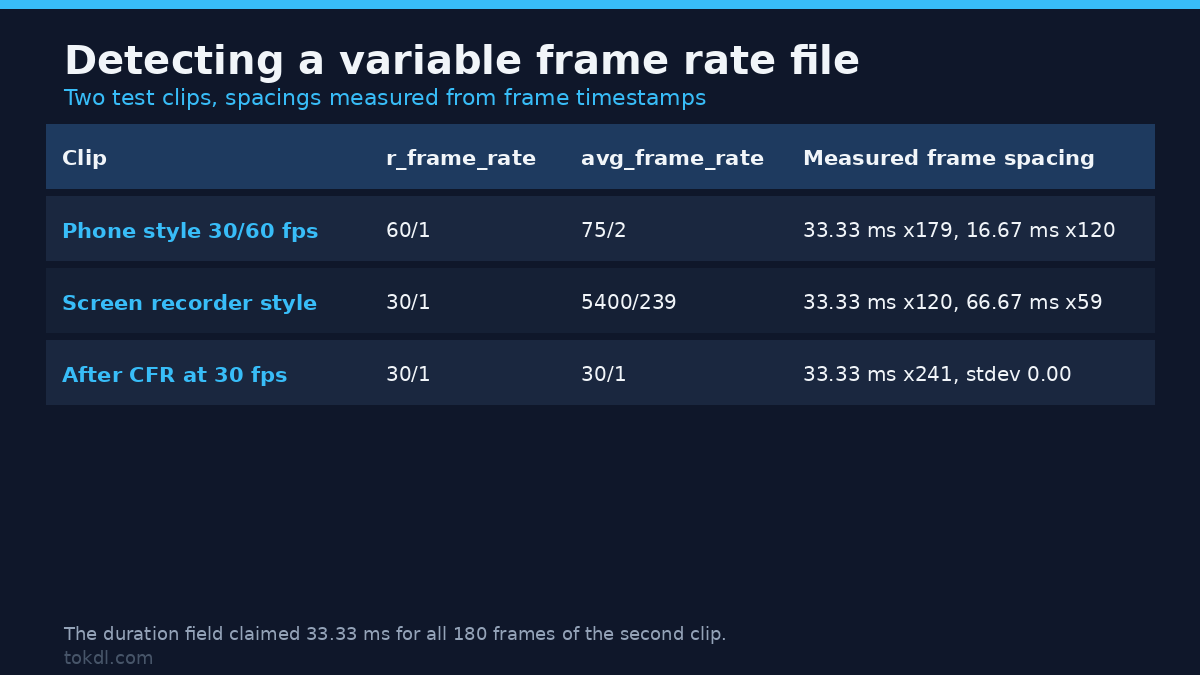
Skip the editor’s badge and ask the file directly. One ffprobe call gives two frame rate numbers, and they only differ when the timing wanders.
ffprobe -v error -select_streams v:0 -show_entries stream=r_frame_rate,avg_frame_rate -of default=nw=1:nk=1 input.mp4On a constant rate file both lines read the same. On a variable frame rate file they don’t: r_frame_rate reports the fastest frame interval anywhere in the stream, while avg_frame_rate reports the honest average. That gap is your diagnosis.
That tells you there’s a problem. To see its shape, measure the gap between frames rather than trusting the per-frame duration field, which is unreliable on exactly these files. Here’s the loop I used.
ffprobe -v error -select_streams v:0 -show_frames -show_entries frame=pts_time,duration_time -of csv=p=0 input.mp4Subtract each timestamp from the next and you have the real frame spacing. I built two test clips from a 1280×720 synthetic source and measured both.
| Clip | r_frame_rate | avg_frame_rate | Measured frame spacing | Verdict |
|---|---|---|---|---|
| Phone style: 2 s at 30 fps, 2 s at 60 fps, 2 s at 30 fps, joined with a stream copy | 60/1 | 75/2 (37.5 fps) | 33.33 ms x179 frames, 16.67 ms x120 frames, standard deviation 8.17 ms | Variable frame rate, 300 frames in 8.000 s |
| Screen recorder style: 30 fps source with every fourth frame removed | 30/1 | 5400/239 (22.59 fps) | 33.33 ms x120 frames, 66.67 ms x59 frames, standard deviation 15.67 ms | Variable frame rate, 180 frames in 7.967 s |
| The phone-style clip after a CFR conversion at 30 fps | 30/1 | 30/1 | 33.33 ms x241 frames, standard deviation 0.00 ms | Constant frame rate |
Two things are worth noticing. The mismatch is the tell: 60 against 37.5, and 30 against 22.59. And the second clip’s duration field reported 33.33 ms for all 180 frames even though the spacing was 66.67 ms for a third of them. Read duration_time alone and that file looks constant. Measure the timestamps.
How to Convert Variable Frame Rate to Constant Frame Rate
The fix is to give the file the constant timing the editor expects: re-encode the video and let FFmpeg duplicate or drop frames so every frame lands on an even grid. The audio rides along untouched.
The Command I Use
ffmpeg -i input.mp4 -fps_mode cfr -r 30 -c:v libx264 -preset veryfast -crf 20 -pix_fmt yuv420p -c:a copy output.mp4Read the parts in order, because three of them are doing work. -fps_mode cfr asks for a constant frame rate output. -r 30 says which rate, and leaving it out is a mistake I’ll come back to. -c:a copy passes the audio through without re-encoding it.
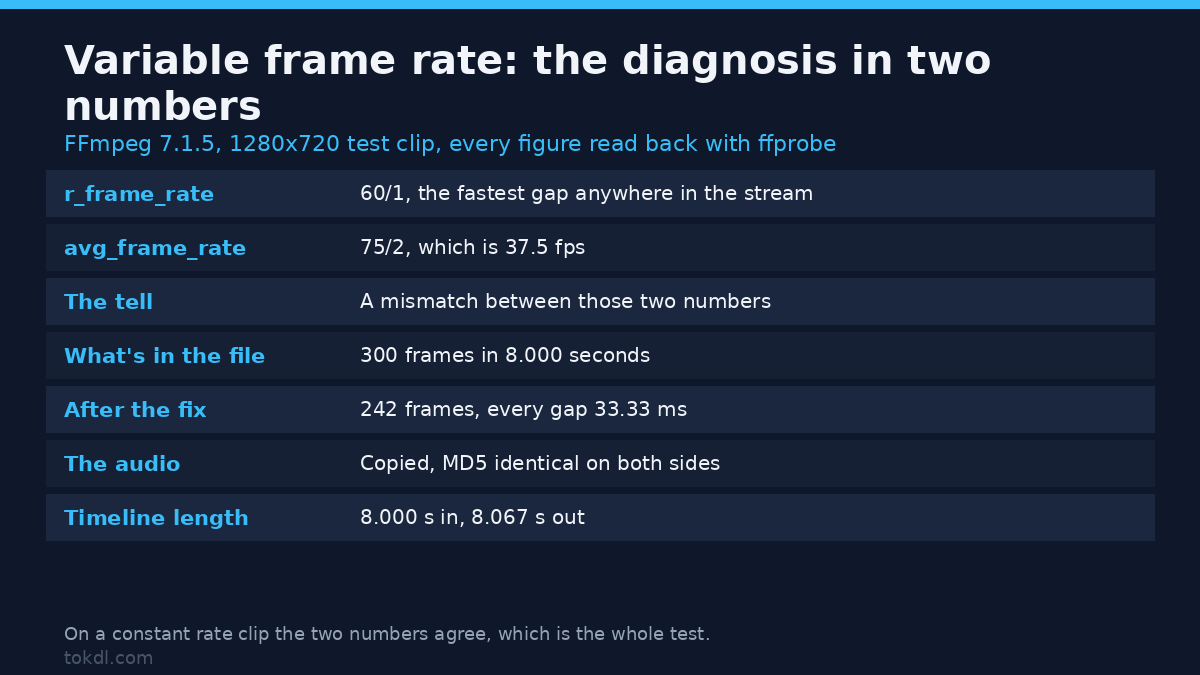
On the phone-style clip, that command took an 8.000 second variable frame rate file with 300 frames and produced 242 frames at a rock-steady 33.33 ms each, reporting r_frame_rate and avg_frame_rate of 30/1 and 30/1. The two numbers finally agree. The output video stream runs 8.067 seconds, two frames longer than the source, because a constant grid can’t end mid-frame. That’s 0.8 percent, and it’s the price of the fix rather than a defect.
Keep the Audio Untouched
This is the part people get wrong. Re-encoding audio to fix a frame rate problem costs a generation of quality and buys nothing, because the frame timing lives in the video stream. With -c:a copy the audio packets are copied byte for byte. I checked: the AAC stream extracted from the source and from the converted file carries the same MD5 hash, 844b258ba5150944eaeb8b35ba24b941.
The audio duration doesn’t change either. Source and output both carry 8.021 seconds. If you were fighting drift, check the tail after conversion: the constant-rate video now ends 46 milliseconds after the audio, well under one frame at 30 fps. Do check it: it’s the one number the conversion moves.
Pick the Target Rate From the Footage, Not From the Badge
The rate you choose decides how many frames get copied and how many get manufactured on a variable frame rate file. I ran the same source through three targets and counted the duplicates by running mpdecimate over each output, which drops a frame when it’s identical to the one before it.
| Target rate | Frames written | Duplicate frames detected | Timeline length | Video-only file size |
|---|---|---|---|---|
| 24 fps | 194 | 0 | 8.083 s | 2.84 MB |
| 30 fps | 242 | 1 | 8.067 s | 3.19 MB |
| 60 fps | 481 | 181 | 8.017 s | 3.32 MB |
181 of those 481 frames at 60 fps were duplicates of the frame before, so more than a third of the file is padding. Dropping to 24 fps is the other extreme: 106 of the source’s 300 frames were thrown away, all of them from the 60 fps burst. Pick the rate your footage mostly ran at, which for phone footage is usually 30 fps.
What Each FFmpeg Flag Does
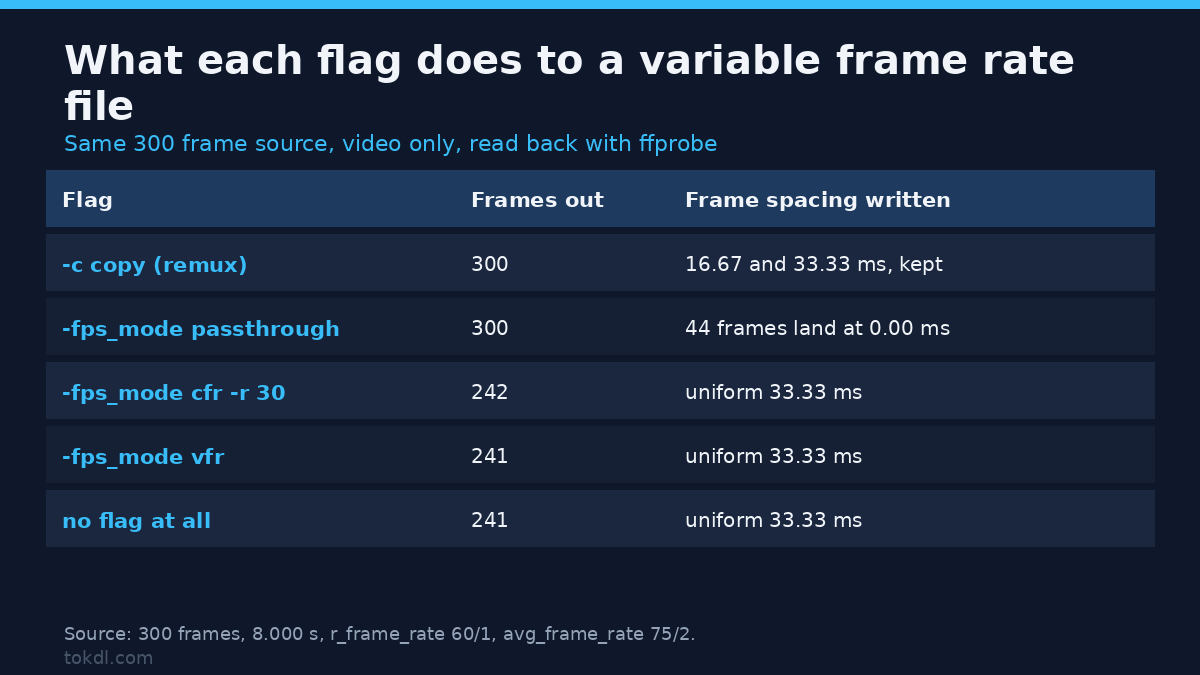
The flag names promise more than they deliver. I ran every option I could find against the same variable frame rate source, video only, and read the frame count and spacing back each time.
| Command | Frames out | Frame spacing | What happened |
|---|---|---|---|
| -c copy (remux only) | 300 | 16.67 and 33.33 ms, unchanged | Variable timing preserved exactly, no re-encode, kept in 0.11 s |
| -fps_mode passthrough | 300 | 5 distinct gaps, 44 frames at 0.00 ms | All frames kept, but the timeline isn’t clean |
| -fps_mode cfr | 242 | uniform 33.33 ms | Constant rate at 30 fps |
| -fps_mode cfr -r 30 | 242 | uniform 33.33 ms | Constant rate at 30 fps, explicit |
| -fps_mode vfr | 241 | uniform 33.33 ms | Still constant rate, not variable |
| no flag at all | 241 | uniform 33.33 ms | Same result as vfr |
| -vsync cfr -r 30 | 242 | uniform 33.33 ms | Deprecated spelling, same output |
Two entries deserve a comment. -fps_mode vfr sounds like the setting that preserves variable timing, and on this build it didn’t: it produced a constant rate file at 30 fps with 241 frames. The setting that carries irregular timing through a re-encode is -fps_mode passthrough, and even that isn’t clean: the encoder stamps frames on a 1/30 second grid that can’t hold a 1/60 second interval. The result is 44 frames sharing a timestamp with the frame before them, and FFmpeg complaining about non-monotonically increasing timestamps on read-back. If you don’t need to change the video, remuxing with -c copy is the only route that keeps the original timing, and it took 0.11 seconds against 2.5 to 2.8 seconds for the constant rate re-encode. That timing comes from a container with a two-core CPU quota (cpu.max at 200000 100000), 64 logical CPUs by nproc and a host load near 38, so treat it as a ratio rather than a benchmark.
Common Mistakes With Variable Frame Rate Files
Trusting the frame rate badge. An editor showing 60 fps for a file whose average is 37.5 fps is reading r_frame_rate, the fastest interval in the stream. That badge is how the arithmetic goes wrong.
Reaching for -fps_mode vfr. Measured above: it wrote a constant 30 fps file on the source I tested. If you wanted the variable timing kept, you wanted passthrough, or a plain remux.
Assuming passthrough is a clean answer. Keeping all 300 frames while 44 of them collide on the same timestamp isn’t a fix, it’s a different problem. Players and editors will still complain.
Converting to 60 fps to be safe. That wrote 481 frames where the source had 300, with 181 duplicates. Bigger file, no extra detail, more work for the encoder on every frame that follows.
Reading duration_time instead of timestamps. The dropped-frame source reported 33.33 ms for every one of its 180 frames while the actual spacing was 66.67 ms for a third of them. The field lies on exactly the files you care about.
Re-encoding audio along the way. Use -c:a copy. The timing problem lives in the video stream, and the audio was never the issue.
Working from the converted file as a master. Keep the original, convert a copy for editing, and export from the right one. It’s the same discipline that applies to proxy files.
Variable Frame Rate FAQ
Does converting to constant frame rate make the file bigger?
It can. On the same 8 second clip, video-only: 2.84 MB at 24 fps, 3.19 MB at 30 fps and 3.32 MB at 60 fps. The 30 fps target costs about 12 percent more than 24 fps for the same picture, and the 60 fps target buys nothing except duplicated frames.
Can I fix variable frame rate without re-encoding?
You can preserve the timing of a variable frame rate file without re-encoding, with a remux: -c copy. You can’t change the timing without re-encoding, because frame rate is a property of the encoded frames. If your editor is happy with the file as it is, a remux is the cheapest possible answer and it took 0.11 seconds here.
Will this fix audio drift?
It fixes the cause. Drift on a variable frame rate clip comes from a tool playing frames at an assumed rate, and 300 frames at 30 fps is 10.0 seconds of timeline for 8.000 seconds of footage, a 2 second error. The dropped-frame clip is worse in proportion: 180 frames at 30 fps is 6.0 seconds against 7.967 seconds of real time. Once the file is constant rate, that assumption becomes true and the drift goes away. If your sync problem survived the conversion it was never a frame rate issue, and the audio sync checklist is the next place to look.
Which programs produce variable frame rate files?
Phone cameras, screen recorders, OBS in several default configurations and most webcam software. If you record your screen with any of the usual tools, test a short clip before a long session, because the fix gets slower as the file grows.
Does the rate I choose change the length of the clip?
Only at the edges. The same 8 second source came out at 8.017, 8.067 and 8.083 seconds across 60, 30 and 24 fps, a spread of 66 milliseconds. A constant grid has to close on a whole frame, so the tail moves; the middle of the timeline doesn’t.
The Short Version
Confirm the problem with two numbers from ffprobe, and treat a mismatch between r_frame_rate and avg_frame_rate as a diagnosis. Measure frame spacing from the timestamps, not from the duration field. Then convert the variable frame rate file with -fps_mode cfr and an explicit -r matched to how the footage was shot, pass the audio through with -c:a copy, and check the last frame or two of the tail afterwards.
Then keep the original: the point is a file your editor can trust, not a new master. The same commands work on any clip, and the FFmpeg documentation covers the full option set, with ffprobe’s own options documented separately.