
Hardware Encoding vs Software Encoding: Which Is Faster, and When?
You hit export on a 10-minute clip and the progress bar promises 38 minutes. Someone tells you to switch on GPU encoding because it’s ten times faster. You do, the file lands in four minutes, and it’s bigger than the last one at the same settings.
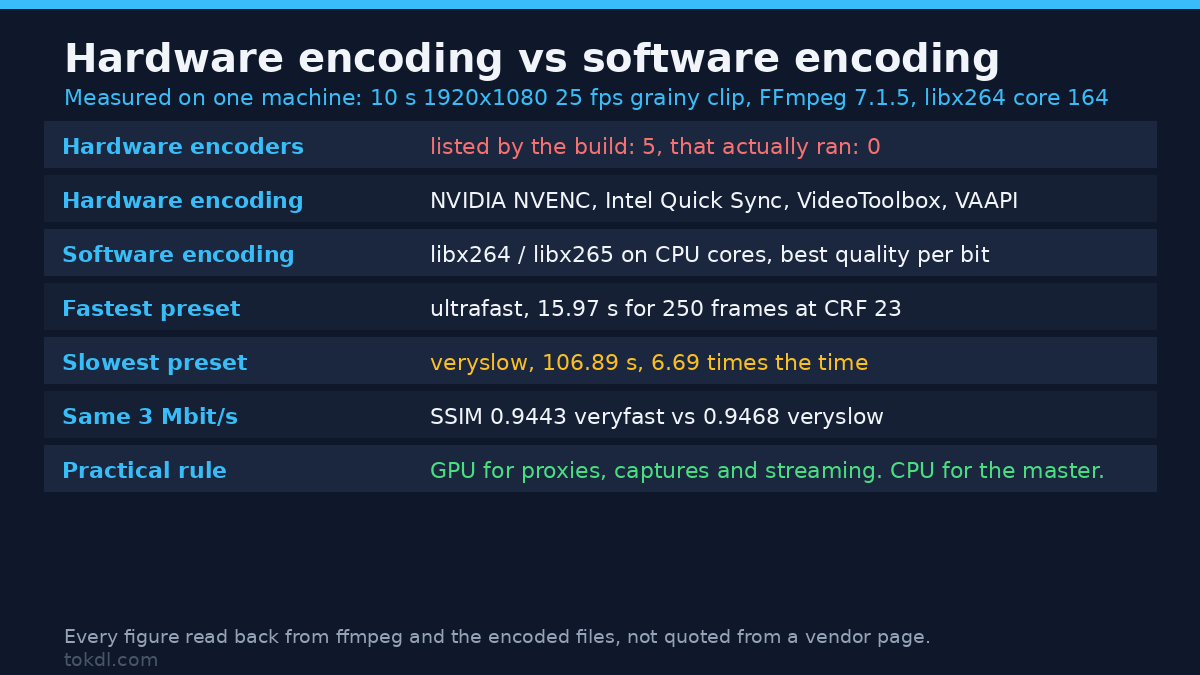
That trade is the whole story of hardware encoding versus software encoding. Software encoding runs on your CPU cores. Hardware encoding runs on a dedicated block inside your GPU or your phone’s chip. Both hand you a file that plays anywhere, and the difference shows up in time, size and quality at a given bitrate. I measured all three on a 1080p clip with FFmpeg 7.1.5, including the part where hardware encoding wasn’t available to measure at all.
What you’ll learn here:
- What hardware encoding is, and which encoders wear the label
- Why an encoder can sit in your tool’s list and still refuse to run
- Measured speed, size and quality for the x264 preset ladder
- When to pick each path, and the mistakes that cost a second export
What hardware encoding is, and why it’s fast
Software encoders are programs. libx264, libx265 and libvpx-vp9 run as ordinary code on your CPU, which means they can try harder when you give them time. A slow preset spends more cycles per frame hunting for a better way to describe the picture, and it hands back a smaller file at the same visual quality. That flexibility is how software encoders keep the quality-per-bit crown.
Hardware encoders are circuits. NVENC on an NVIDIA card, Quick Sync on an Intel chip, VideoToolbox on a Mac, AMF on Radeon, VAAPI and V4L2 on Linux, as FFmpeg’s hardware acceleration overview lays out. The motion search and rate control rules are fixed in silicon. Ask for a search pattern the chip doesn’t implement and you get what it offers, not what you asked for.
So here’s the trade in one sentence: hardware encoding buys time with bits. It doesn’t look worse because it’s lazy. It looks worse at a fixed bitrate because its toolset is smaller and can’t change per clip. It also works in real time by design, which is why a capture card can encode 60 frames a second forever and no software preset can promise that.
An encoder in the list is not an encoder you have
My working machine is a container with no discrete GPU, and its FFmpeg build advertises NVENC, Quick Sync, VAAPI and Vulkan encoders anyway. I asked five of them to encode the test clip at 3 Mbit/s. Not one produced a frame, and each failed in under a second:
$ ffmpeg -hide_banner -i src.mp4 -c:v h264_nvenc -b:v 3M out.mp4
[h264_nvenc @ 0x...] Cannot load libcuda.so.1
[h264_qsv  @ 0x...] Error creating a MFX session: -9.
[h264_vaapi @ 0x...] Function not implemented
The build supports those encoders. The machine has neither the driver nor the device they talk to, so every request dies at the door. This looks different in every tool: some editors grey the option out, some quietly fall back to software, and some crash on export.
Here’s the two-second test that settles it on your own machine. Encode one second of black to a throwaway file. If the command exits 0, the encoder is real.
$ ffmpeg -hide_banner -f lavfi -i color=black:s=1920x1080:r=25 -t 1
    -c:v h264_nvenc -f null -
If that fails, hardware encoding isn’t available to you, and no settings menu will fix it. Driver version, GPU generation and even which cable your monitor happens to use on a desktop with a discrete card have all broken it.
The test setup, so you can judge the numbers
One clip, one machine, everything published. The source is a 10-second 1920×1080 clip at 25 frames per second, so 250 frames, built from a moving test pattern with light grain added and mastered at CRF 12 so there’s a high-quality reference to score against. It runs 123 Mbit/s, which sounds absurd until you remember that grain is the hardest thing you can hand an encoder. A clean animation flatters every encoder; a grainy clip is closer to phone footage.
The machine reports 32 cores and 64 threads, with one catch: it’s a container, and its cgroup quota allows two CPUs’ worth of work on a shared host that was sitting at a load average of 99 while I measured. Your laptop will beat these absolute times. What the data carries is the ratio between settings, because every row ran under identical conditions. FFmpeg 7.1.5, libx264 core 164.
For each encode I recorded wall time, output size, and two scores against the master: SSIM and PSNR, computed with FFmpeg’s own filters. Wall time includes the 0.2 to 0.3 seconds FFmpeg spends starting, which flatters slow presets and penalizes fast ones.
Speed and quality across the x264 preset ladder
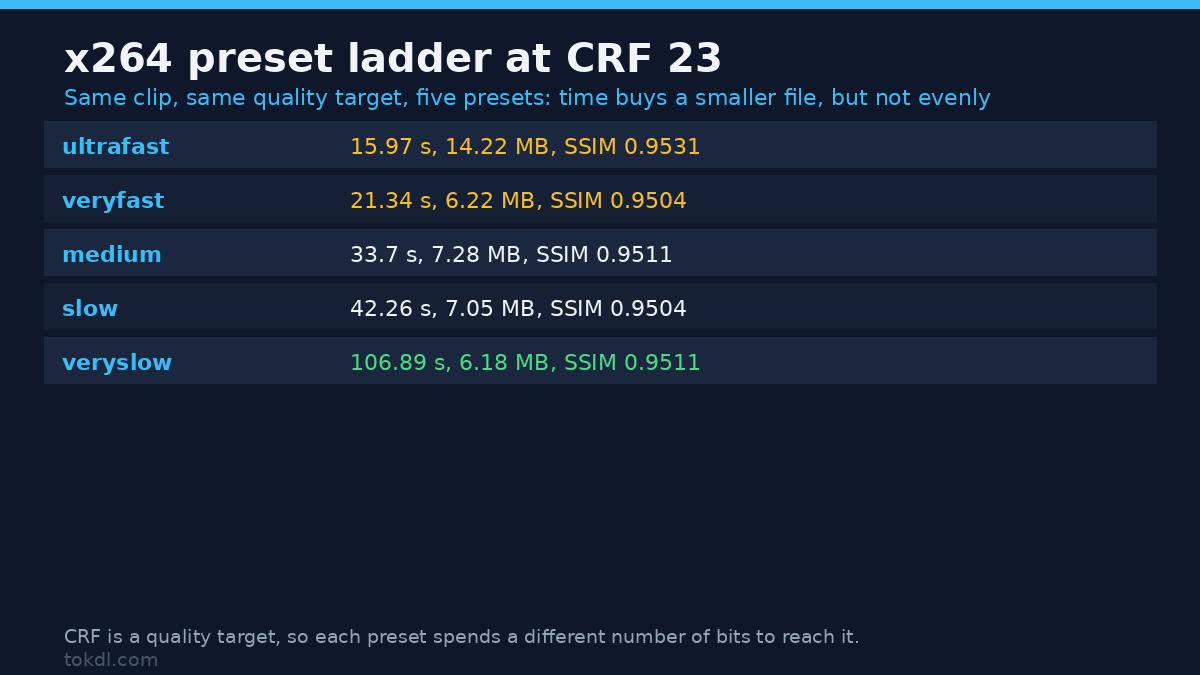
Same clip, same CRF 23, five presets. Everything in this table is software encoding, so no row is capped by silicon. FFmpeg’s own x264 encoding guide documents what each preset turns on, which is where the time goes.
| Preset | Wall time | File size | SSIM vs master | PSNR vs master |
|---|---|---|---|---|
| ultrafast | 16.0 s | 14.22 MB | 0.9531 | 42.40 dB |
| veryfast | 21.3 s | 6.22 MB | 0.9504 | 40.35 dB |
| medium | 33.7 s | 7.28 MB | 0.9511 | 41.26 dB |
| slow | 42.3 s | 7.05 MB | 0.9504 | 41.21 dB |
| veryslow | 106.9 s | 6.18 MB | 0.9511 | 41.12 dB |
Read the extremes first. veryslow needed 106.9 seconds against ultrafast’s 16.0, a factor of 6.7 for the same clip and the same quality target, and it landed at 6.18 MB against ultrafast’s 14.22 MB. That’s the trade in hard numbers, and it’s why archives still run overnight encodes.
Now the awkward part. veryfast finished in 21.3 seconds with a 6.22 MB file. medium took 33.7 seconds and produced 7.28 MB. slow landed at 7.05 MB, and veryslow needed 106.9 seconds to shave another 12 percent off that. Sizes swing between neighbours while every quality score stays inside a band of 0.9504 to 0.9531 SSIM, and ultrafast, the fastest preset of the five, scored highest of all. It spent 14.22 MB doing it, roughly double everything else in the table.
That’s not a bug. CRF is a quality request, not a size limit, and each preset reaches it with different tools. Fast presets lean on coarser motion search and weaker rate control, so on grainy footage they spend a much different number of bits getting to the same nominal quality. The lesson is narrower than “medium is bad”. A fixed-CRF comparison shows how a preset spends bits, never which preset is better.
How far do extra CPU threads take you?
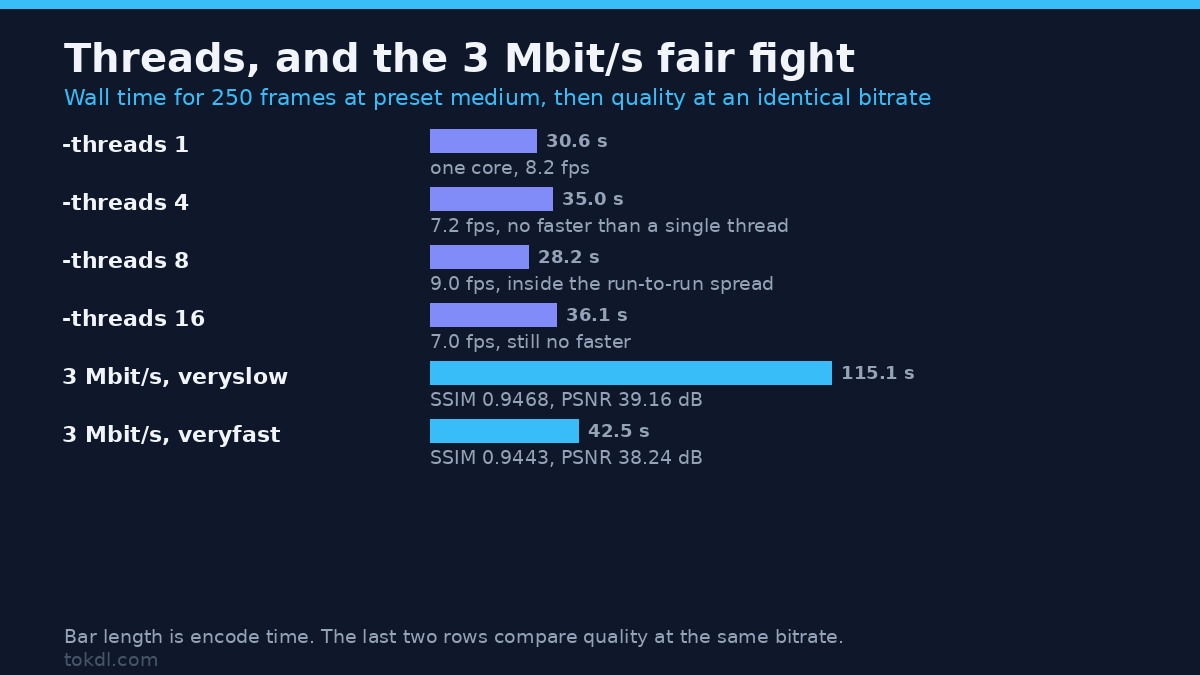
x264 splits frames and streams across threads, so the theory says more cores finish sooner. I pinned the thread count and read x264’s own options banner to confirm it took the setting. Preset medium, CRF 23, same clip.
| -threads | Wall time | Encoder fps | File size |
|---|---|---|---|
| 1 | 30.6 s | 8.2 fps | 7.19 MB |
| 4 | 35.0 s | 7.2 fps | 7.19 MB |
| 8 | 28.2 s | 9.0 fps | 7.19 MB |
| 16 | 36.1 s | 7.0 fps | 7.28 MB |
One thread took 30.6 seconds for the clip. Four took 35.0, eight took 28.2 and sixteen took 36.1, and x264’s banner confirmed it used exactly the number it was handed.
The setting made no reliable difference, and the quote from the setup explains why: two CPUs’ worth of work, however many threads are queued. Extra threads past that limit wait in line and add scheduling overhead. Run the same check pinned to the core count your machine has before you conclude anything about scaling, because single runs on short clips are weak evidence.
Quality at the same bitrate: the fair fight
Now the comparison that means something. Two-pass encoding at a fixed 3 Mbit/s, once with veryfast and once with veryslow. Same bitrate, so any quality gap comes from how well each preset spends its bits, and that gap is exactly what hardware encoding trades away for speed.
| Preset (2-pass, 3 Mbit/s) | Both passes | Delivered bitrate | SSIM | PSNR |
|---|---|---|---|---|
| veryfast | 42.5 s | 3034 kbit/s | 0.9443 | 38.24 dB |
| veryslow | 115.1 s | 2969 kbit/s | 0.9468 | 39.16 dB |
At 3034 kbit/s delivered, veryfast scored 0.9443 SSIM and 38.24 dB PSNR. veryslow delivered 2969 kbit/s, a slightly lower bitrate, and scored 0.9468 SSIM and 39.16 dB, with a file 0.08 MB smaller. It also took 115.1 seconds to veryfast’s 42.5.
That’s the number hardware encoding competes against, and it’s why “GPU encoding is ten times faster with no quality loss” is only half true. The loss is real at a fixed bitrate. Whether you can see it depends on bitrate, resolution and content. Give both paths enough bitrate and they look clean. At 3 Mbit/s for a grainy clip the gap is measurable, and on a platform that re-encodes your upload anyway, that margin is the difference between a clean gradient and a banded sky.
I can’t show you the hardware half of that test here, because nothing on this box will start. Rather than quote a number I couldn’t verify, here’s the version you can run with your own GPU. Keep the bitrate identical on both sides and swap in whichever encoder your card provides.
$ ffmpeg -i src.mp4 -c:v libx264 -preset slow -b:v 3M -pass 1 -passlogfile sw -f null -
$ ffmpeg -i src.mp4 -c:v libx264 -preset slow -b:v 3M -pass 2 -passlogfile sw software.mp4
$ ffmpeg -i src.mp4 -c:v h264_nvenc -b:v 3M -pass 1 -passlogfile hw -f null -
$ ffmpeg -i src.mp4 -c:v h264_nvenc -b:v 3M -pass 2 -passlogfile hw hardware.mp4
$ ffmpeg -hide_banner -i hardware.mp4 -i src.mp4 -lavfi ssim -f null -
Two files, one bitrate, one score each. That’s worth more than any review table, because it uses your GPU, your driver and your footage.
Which one to use, by job
Hardware encoding earns its place in the timeline, just not always at the end of it.
| Job | Use | Why |
|---|---|---|
| Proxies and scratch files for editing | Hardware encoding | Speed is the point, and you delete them after the cut |
| Screen, game and call capture | Hardware encoding | It has to keep up in real time while the CPU does other work |
| Live streaming | Hardware encoding | Software encoding fights your game or your app for CPU |
| Final delivery and masters | Software encoding | Better quality per bit, and you encode once |
| Uploads a platform will re-encode | Software encoding | Their encoder punishes artifacts, so start cleaner than you need to |
If a clip matters, the recipe doesn’t change: software encoding, a slower preset, and a bitrate you chose on purpose rather than one a slider picked.
Four mistakes that cost people a second export
1. Comparing presets at one CRF
As the ladder above shows, that comparison can flip. CRF holds quality roughly steady while size moves, and each preset moves it differently. Pin the bitrate when quality is the question.
2. Timing a clip that’s too short
Encoder startup is a fixed cost of a few hundred milliseconds, and on a 4-second clip at ultrafast it’s most of the measurement. Time a minute of your own footage before you conclude anything.
3. Trusting the menu option
Some editors fall back to software encoding when the hardware encoding path fails, and tell you nothing about it. If you asked for hardware encoding on export, confirm that’s what ran. Watch CPU usage while it works: a hardware encode leaves your cores nearly idle.
4. Never measuring the result
One command tells you what you got, and it’s the same ssim filter used above. Judging an export from a player window at 50% zoom isn’t a quality check.
FAQ
Does hardware encoding always look worse?
At a fixed bitrate, usually yes, though the gap narrows with every GPU generation and disappears at high bitrates on easy content. At a fixed quality target it just makes a bigger file. Grain, fast motion and gradients show the difference first.
Does hardware encoding use the CPU at all?
Yes, for decoding, filtering and muxing. That’s why a heavy filter chain can still cap a hardware encode.
Why does NVENC fail with “Cannot load libcuda.so.1”?
That’s the NVIDIA driver library. Either the driver isn’t installed, the card is too old for that encoder generation, or a headless server has no device configured. A driver install is the fix; no flag is.
Is hardware encoding the same as GPU acceleration?
In conversation, mostly. Strictly, GPU acceleration covers decoding and filters too, including CUDA or OpenCL filters that run on the card while your CPU does the encoding. Those speed up the pipeline without changing the encoder choice. If you’re weighing codecs as well, the H.264 and H.265 comparison is the next decision to make.
The one-line answer
Hardware encoding is a speed setting and software encoding is a quality setting, and the file doesn’t care which one your marketing department prefers. Encode intermediates with the GPU, the master with the CPU, and measure with ssim before you ship. That habit saves more time than any preset, and the bitrate you choose matters more than either. Pick the resolution you need, then come back here when the export bar gets annoying.
[…] the encoding block is separate silicon rather than a second job for the CPU. The trade-offs between hardware encoding and the software alternative are worth understanding before you blame the […]
[…] the video three times, so a 20-minute 1080p source can take 20 to 40 minutes on a laptop CPU. Hardware encoding cuts that sharply at a small quality […]
[…] at the same HandBrake settings they usually land below a slow software encode on efficiency. The hardware versus software encoding comparison explains when that trade is worth […]