

Remove Video Background Without a Green Screen (2026 Guide)
The middle of the frame is the easy part. Every matte fails at the edges first: a strand of hair, a shoulder strap, the gap under a chin.
Most guides on how to remove video background assume you own a three-metre screen and two spare lights. You probably don’t. A screen isn’t the only way to separate a person from a room any more, and for a talking-head clip it’s often the slowest way. That’s why this guide covers three routes to remove video background.
Remove video background without a green screen: three routes
Every route to remove video background answers one question: what tells the software where the subject ends? A colour tells it. A trained model tells it. Or you tell it, frame by frame.
If the background is one even colour and the light on it is flat, keying is fast and predictable. If the background is an ordinary room, a model is the only practical option. If the shot is four seconds long and the edge matters more than the schedule, hand-drawn rotoscoping still wins.
| Route | What it needs from the shot | Edge quality | Time for one minute of 1080p |
|---|---|---|---|
| Colour key | One even, saturated tone behind the subject | Clean when the light is flat | Minutes |
| AI matte | Subject that differs from the room in tone | Good on the body, soft on hair | Minutes, plus edge fixes |
| Manual roto | Patience and a keyframe habit | The best you can get | Hours |
What the shot has to give you
No matte model invents information. That’s why the room you remove video background from matters more than the tool. Put a grey jumper in front of a grey wall at the same brightness and the alpha channel has nothing to grab. You get a hole in the jumper, or a jumper that disappears entirely.
Three things decide whether the cut-out works, and you can fix all of them before you record. Light the background brighter or darker than the subject. Keep the subject a metre away from the wall so there is a clean gap. Avoid patterns directly behind the head.
Motion blur is the part you cannot edit around. At a 1/50 second shutter a hand crossing the frame smears over several pixels, and those pixels are a mixture of skin and room. A model can only guess at that mixture. Shoot at 1/100 or faster when the clip is destined for a cut-out, and keep gestures small: a sharper shutter is cheaper than removing video background from a smeared hand.
Method 1: an AI matte in an editor you already own
This is the route most people mean when they decide to remove video background from an ordinary room clip. You mark the subject once and the software follows it, so you’re correcting drift, not redrawing every frame.
- Put the clip on a timeline and open the matte tool. Common names: Roto Brush in After Effects, Magic Mask in DaVinci Resolve Studio, Magnetic Mask in Final Cut Pro, auto cutout in CapCut.
- Draw one stroke through the subject on the first frame, then a second stroke through the background. Two or three strokes are enough; more usually confuses the model.
- Step forward about ten frames, correct what drifted, and let it propagate. Do this at the start, the middle and the end before you run the full pass.
- Refine the edge separately from the mask. The mask decides what is inside the shape; the edge control decides how many pixels fade. Widening the edge is what turns a cut-out into a believable one.
- Composite the subject over the new background, or export with alpha if the clip has to travel to another project.
Speed depends on your machine and the resolution. You’ll wait longer than real time on a laptop, and noticeably longer at 4K. Working through proxy files keeps the timeline responsive while the matte renders in the background.
Method 2: key a plain wall in FFmpeg
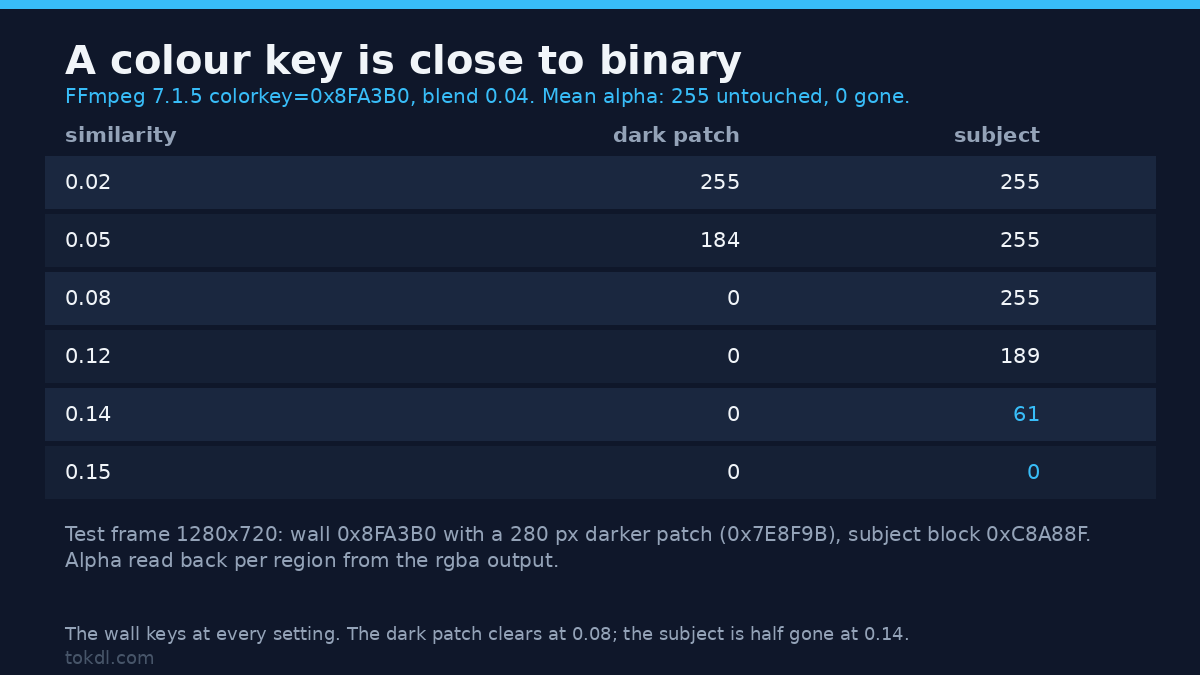
A painted wall, a bedsheet or a paper roll can be keyed even though none of them are green. If you’d rather not pay an editor to remove video background from a flat wall, this is the method: colorkey removes any single colour, so the job is choosing the colour of your wall and the tolerance around it.
ffmpeg -i subject.mp4 -i plate.mp4 -filter_complex
"[0:v]colorkey=0x8FA3B0:0.14:0.04[fg];[1:v][fg]overlay=shortest=1"
-c:a copy out.mp4
The two numbers after the colour are similarity and blend. Similarity sets how far from that exact colour a pixel can sit and still be removed. Blend softens the boundary, and it’s the control that saves you from a jagged outline.
Similarity is where the mistakes happen. I keyed a 1280×720 frame: a 0x8FA3B0 wall, a 280-pixel patch of 0x7E8F9B beside it, and a subject block of 0xC8A88F, with blend fixed at 0.04. The even wall cleared at every setting. The patch stayed opaque at 0.02, fell to alpha 184 at 0.05 and was gone by 0.08. The subject held full alpha until 0.12, sat at 61 by 0.14 and vanished at 0.15. The command above is one step from erasing the subject with the wall, so when you remove video background at that tolerance, check the subject first.
The limits are honest ones. Uneven light turns one wall into a dozen shades, so a key tuned for the bright patches leaves the corners behind, which is why a first attempt to remove video background comes back patchy. Colorkey has no spill suppression, which means a colour cast on the subject survives the key. And a key is close to binary, so a soft shadow on the wall either stays or goes with the wall.
If you do have a screen, the spill and edge work is a separate problem with its own habits. The guide to cleaning up chroma key spill walks through the controls in the order they matter.
To keep transparency instead of compositing, export a codec that carries an alpha channel. H.264 doesn’t, no matter what the filename says. The workflow for exporting a matte with alpha covers ProRes 4444 and WebM.
Shoot it so the matte has less to do
The cheapest fix is often not removal at all. You’ll spend less time trying to remove video background if you change the shot. If the room is the problem, darken it, blur it, or move the camera until the frame is mostly subject. A darker background behind a lit face reads as deliberate, and it takes ten seconds in an editor.
When you do need a real cut-out, change the shot instead of the settings. A longer lens and a tighter frame push the wall out of focus, which gives the model a cleaner boundary to find. A rim light on the shoulders separates dark clothing from a dark wall. Neither costs anything at the edit desk.
For a background you intend to replace, ask what the replacement is doing before you remove video background. A blurred plate hides edge errors that a sharp one exposes. Busy plates draw the eye to the soft halo around the hair, and every matte has one.
What the tools actually do, and where they break
Every tool that promises to remove video background in one click is estimating one number per pixel: how much of that pixel belongs to the subject. Colour, contrast and motion are the inputs. Nothing in the model knows that a chair leg is thin, or that a strap is meant to be there.
That’s why the failures cluster in the same places. Glasses reflect the room and confuse the estimate. Transparent fabric has no single correct alpha value. A fast hand is genuinely ambiguous, because the sensor recorded a blend and not two objects.
Desktop capture tools are a good test of the claim. OBS ships a chroma key filter and no segmentation model, so an ordinary room still needs a mask or a screen. Its own chroma key documentation is written for exactly that case. Phone editors do include segmentation, and they do it at a smaller resolution, which shows in the hair.
Rights and responsible use
Footage belongs to whoever recorded it. Replacing a background is an edit, and an edit doesn’t change ownership of the person in the frame, the room behind them, or the clip itself.
Keeping a clip for personal reference is one thing. Publishing it, monetising it, or setting someone else’s footage against your own branding is another, and a clean matte makes that easier to do without making it lawful. If you cut a subject out of a clip you found, you need the rights holder’s permission, not a tidy edge.
Replacement plates carry their own terms. Stock footage, photographs and AI-generated images each come with a licence that says where the result can be used, and a licence for a still image is not automatically a licence for video.
Saving a file never grants rights to what is inside it, and neither does removing a background from it. The tool’s own licence terms cover the software, not the video you feed it.
Troubleshooting: five failures you will hit
A grey or green fringe follows the shoulders
The edge is a blend of subject and wall, and the blend still contains wall colour. Widen the edge softness and choke the mask inward by a pixel or two, then check on a light background rather than a dark one.
The matte pulses from frame to frame
The model re-decides on every frame and small changes flip its answer. Lock the mask after the first pass and correct only where it drifts, instead of letting it re-evaluate the whole clip.
Hair turns into a solid helmet
The alpha edge is too narrow to hold individual strands. Widen the edge if the tool allows it, and accept a soft halo on busy plates. More separation at shoot time is the only real cure.
The export shows a black background instead of transparency
The codec dropped the alpha channel. Standard H.264 in a 4:2:0 profile has no alpha to carry. Export ProRes 4444, VP9 in WebM, or a PNG sequence and composite later.
The subject floats above the floor
The contact shadow was classified as background and removed with the room. Either paint a soft shadow back under the feet or keep a floor mask so the shadow survives.
Frequently asked questions
Can you remove video background without a green screen?
Yes, when the subject and the room differ in tone or colour, and it’s the cheapest way to remove video background when they do. A trained matte model handles an ordinary room; a colour key handles any single even tone, including a grey wall.
Is a plain wall enough on its own?
Usually. If the wall is lit evenly and the subject isn’t the same shade, a plain wall is enough to remove video background. Flat light matters more than the colour of the paint.
Why does the edge flicker between frames?
Because the model recalculates the mask on each frame and small changes flip its answer. Locking the mask and correcting only the drift usually fixes it.
Does it work on hair and fur?
Partly. Hair is the hardest thing to remove video background from: both produce fractional alpha at the edge, and most tools return a soft blob rather than strands. Extra separation and a faster shutter help more than any setting.
Can I do this on a phone?
Yes, with limits. You can remove video background on a phone, because the editors include segmentation models, but they run at reduced resolution, so fine detail and fast motion suffer first.
Which export format keeps the transparency?
ProRes 4444, VP9 in WebM, or an image sequence. H.264 in a normal MP4 does not carry an alpha channel.
Is it faster to reshoot?
Often, yes. A two-minute take against a lit wall can beat an hour of edge work on a clip that was never shot for keying, and that’s true whether you remove video background in an editor or with ffmpeg.
Which method should you use?
If the clip is a person against a room and you have an editor with a matte tool, use it. That is the shortest path from raw footage to a usable composite, and the edge fixes are small.
If the background is one flat colour, key it. FFmpeg does it in a single command, which makes keying the cheapest way to remove video background, and you can edit with proxy files afterwards if the render is heavy.
If the shot is short and the edge is the whole point, draw the mask yourself. If the shot is long and the background is only slightly distracting, skip removal and blur the background in post instead. Nobody in the audience checks whether the room is real.
And if you’re recording tomorrow, fix the shot tonight. A faster shutter, a metre of space and a lit wall cost nothing, and they remove most of the work this article describes.