
Proxy Files for Video Editing: Edit 4K Without the Lag
Your timeline went to sleep the moment a 4K clip landed on it. Every scrub takes seconds, playback drops frames, and the audio drifts because the picture can’t keep up. Nothing’s wrong with the computer or the file. You’re asking one CPU to decode ten million pixels thirty times a second, and it can’t. Proxy files fix that, and they don’t touch a single pixel of what you deliver.
I built a deliberately heavy 4K clip, made four proxies from it, and measured what each one costs and what it buys. What follows is those numbers, the commands you can paste into a terminal, and the two places where proxy files quietly ruin an export.
What you’ll learn
- What a proxy file is, and the one thing it must never be used for
- The measured cost of decoding 4K, instead of a guess
- A proxy ladder with sizes, decode speeds and quality scores side by side
- FFmpeg commands for one clip and for a whole card of them
- The colour-tag trap that makes a proxy grade differently from its original
What a proxy file is, and what it isn’t
A proxy file is a smaller, easier-to-decode copy of a clip, made so the timeline can play and scrub. Your editor shows the proxy while you work and swaps in the original when you export. DaVinci Resolve calls it “proxy media”, Premiere calls it “proxies”, and all three names mean the same file.
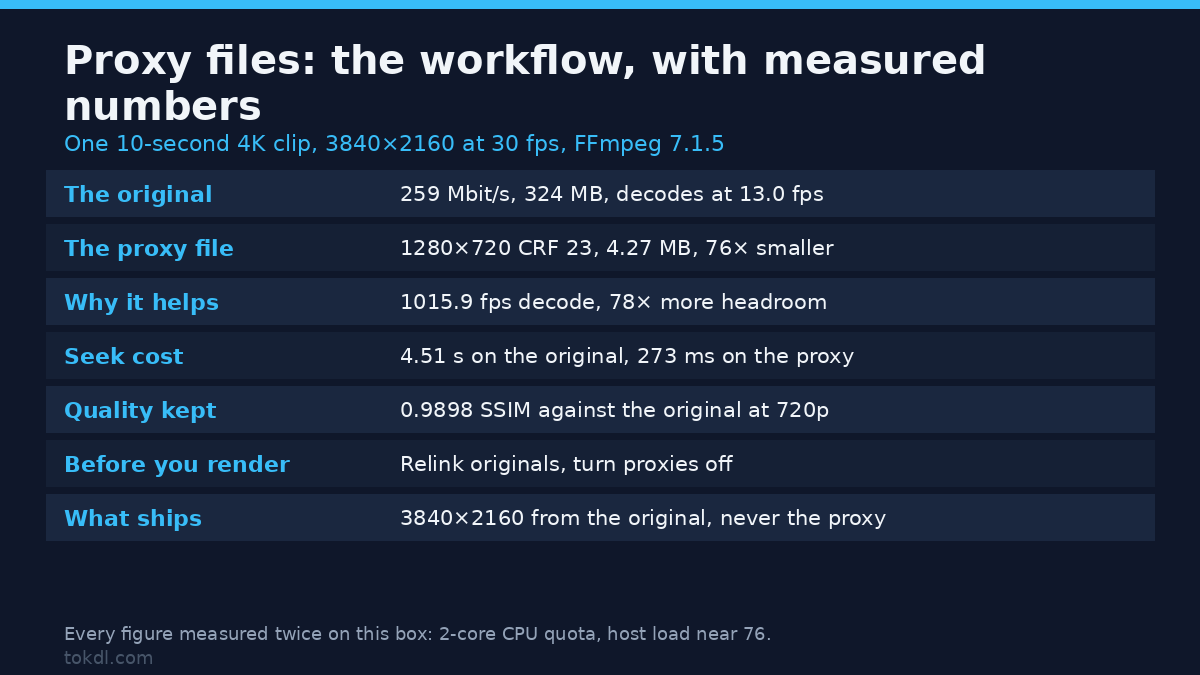
What a proxy file isn’t matters more. It isn’t a backup, it’s not what you archive, and it’s never the source for a final render. I tested that one: exporting a frame from the proxy handed back 1280×720, and the same frame from the original handed back 3840×2160. Same timeline, a quarter of the resolution gone.
Proxy files don’t have to look bad, either. The 720p proxy in my test scored 0.9898 SSIM against the original downscaled to the same size, and it weighed 4.27 MB against the source’s 324 MB. That’s a 75× drop you can’t see on a thumbnail.
Why the original is slow, in numbers
Two costs live in every scrub. Decoding pulls compressed frames back into pixels, and seeking jumps to a new point, which for a long-GOP codec means decoding forward from the last keyframe.
The test source is a 10-second 3840×2160 clip at 30 fps, built from a test pattern with temporal grain and encoded with libx264 at CRF 18. Grain is the worst case for any codec, so the file is extreme: 259 Mbit/s, 324 MB for ten seconds, heavier than a phone’s 4K and in the same league as a camera writing intra-frame 4K.
Decoding it and throwing every frame away ran at 13.0 fps. The clip plays at 30 fps, so real-time playback has no chance. That’s the stutter you feel before adding an effect.
Seeking is worse. I asked FFmpeg to jump to eight timestamps and decode one frame at each. The 4K original took 4.51 s and 4.59 s per seek across two runs. Some of that is FFmpeg starting up, which an editor doesn’t pay, but the shape of the problem is what you feel when you drag a playhead. That’s the case for proxy files in one number.
The proxy files I measured, side by side
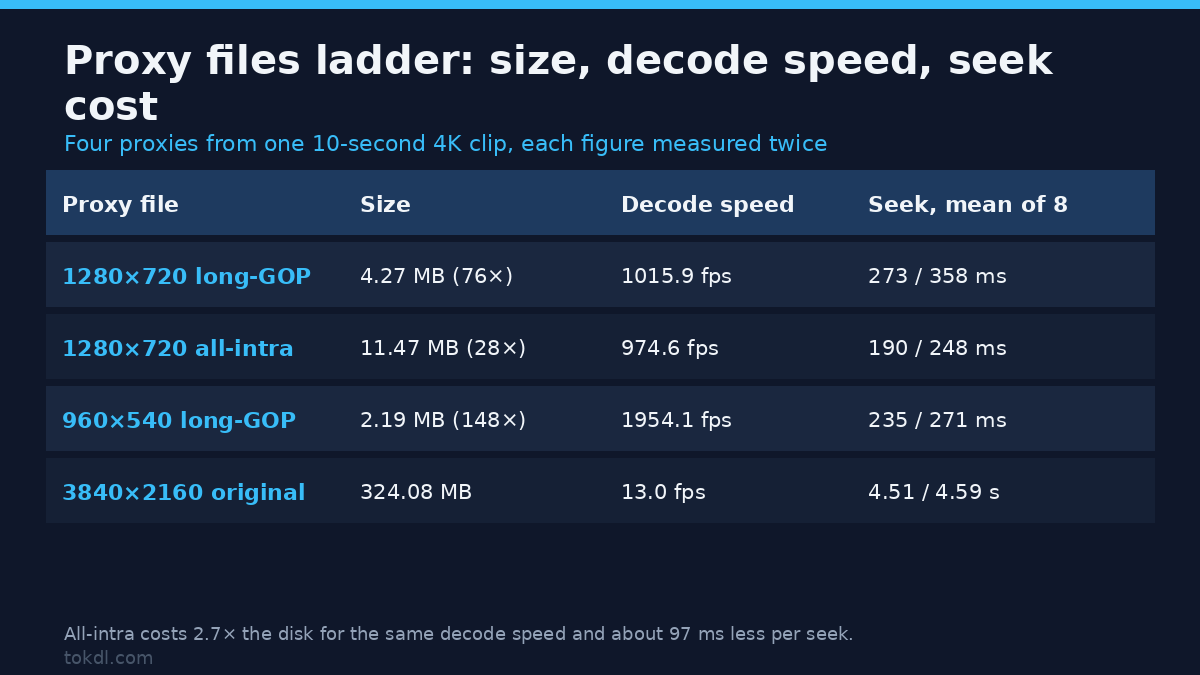
Four proxies from that same 4K clip, encode times measured twice each. This container’s CPU quota is two cores (cpu.max reads 200000 100000) while nproc reports 64, and the host load average sat near 76, so every figure is a mean of repeated runs rather than one pass.
| Proxy | Setting | Size | vs original | Encode |
|---|---|---|---|---|
| 1280×720, long-GOP | ultrafast, CRF 23 | 4.27 MB | 75.9× smaller | 27.6 s / 26.2 s |
| 1280×720, all-intra | ultrafast, CRF 23, -g 1 |
11.47 MB | 28.3× smaller | 26.8 s / 25.5 s |
| 960×540, long-GOP | ultrafast, CRF 23 | 2.19 MB | 148× smaller | 24.1 s / 25.5 s |
| 1280×720, light | ultrafast, CRF 30 | 1.39 MB | 233× smaller | 26.1 s / 26.1 s |
Encode time barely moves across those four, because the 25 seconds is mostly the cost of decoding the 4K original. Once you’re paying that decode, the encoder settings are almost free, so pick the proxy you want rather than the one that sounds cheapest.
Decode speed is where the payoff lands, again as a mean of three runs:
| File | Decode speed | Gain | Seek, mean of 8 |
|---|---|---|---|
| 4K original | 13.0 fps | 1× | 4.51 s / 4.59 s |
| 720p long-GOP proxy | 1015.9 fps | 78× | 273 ms / 358 ms |
| 720p all-intra proxy | 974.6 fps | 75× | 190 ms / 248 ms |
| 540p proxy | 1954.1 fps | 150× | 235 ms / 271 ms |
The 720p proxy file decodes 78× faster than the original, so footage that took 23 seconds to push through the decoder now clears in under a third of a second.
The all-intra row deserves a look. It decodes at the same speed as the long-GOP proxy and sits 2.7× bigger on disk, which sounds like a bad trade until you read the seek column. Strip out the 150 to 200 ms FFmpeg spends starting up and the all-intra file pays nothing extra per seek, while the long-GOP version spends about 97 ms walking back to a keyframe. Longer footage stretches that gap, and it’s the difference between a playhead that follows your mouse and one that trails.
How to make proxy files with FFmpeg
One command, one clip. It keeps the aspect ratio, writes 720p, and leaves your original alone:
ffmpeg -i footage/clip_01.mp4 -vf "scale=1280:-2"
  -c:v libx264 -preset ultrafast -crf 23 -pix_fmt yuv420p
  -c:a aac -b:a 128k footage/clip_01_proxy.mp4
On this box that took 3.1 seconds for a 3-second 1080p clip and turned 11,808,793 bytes into 1,953,192. The -2 in the scale filter rounds the height to an even number, which matters because H.264 refuses odd dimensions.
A whole card is a loop. Point the glob at your footage folder, write into a separate one, and use -n so a re-run skips finished work:
mkdir -p proxies
for f in footage/clip_*.mp4; do
  case "$f" in *_proxy*) continue;; esac
  ffmpeg -n -i "$f" -vf "scale=1280:-2"
    -c:v libx264 -preset ultrafast -crf 23 -pix_fmt yuv420p
    -c:a aac -b:a 128k "proxies/$(basename "${f%.mp4}")_proxy.mp4"
done
Three clips went through in 8.6 seconds. Running the loop again changed nothing: FFmpeg printed File 'proxies/clip_01_proxy.mp4' already exists. Exiting. for each one and the folder stayed at three files. On an hour of card footage that behaviour decides whether the loop runs unattended. The H.264 encoder guide on FFmpeg’s wiki covers the rest of the encoder options.
Add -g 1 to the encoder line for the all-intra proxy. It costs disk and buys faster seeks, which pays off on timelines you scrub constantly.
Editing with proxy files without breaking the export
Relink deliberately, and turn proxies off before the render. A naming convention you can automate handles the first part: my loop writes clip_01_proxy.mp4 from clip_01.mp4, so a folder-based relink finds the match without hand-labelling. Keep the frame rate identical, which that command does by default: FFmpeg reported avg_frame_rate=30/1 and the same time_base of 1/15360 for both files. Media with a mismatched frame rate relinks fine and drifts slowly, which is a bug you find in the last ten minutes of a project.
Then check the export rather than assuming. Exporting a frame with the proxy files attached gave me 1280×720; with the originals linked, the same frame came out at 3840×2160. Whichever the editor hands you is the resolution your viewer sees, so look at the delivered file, not the timeline badge. If you’re delivering a 4K master, our guide to downscaling 4K to 1080p covers the resize step after the cut is locked.
The colour-tag trap nobody warns you about
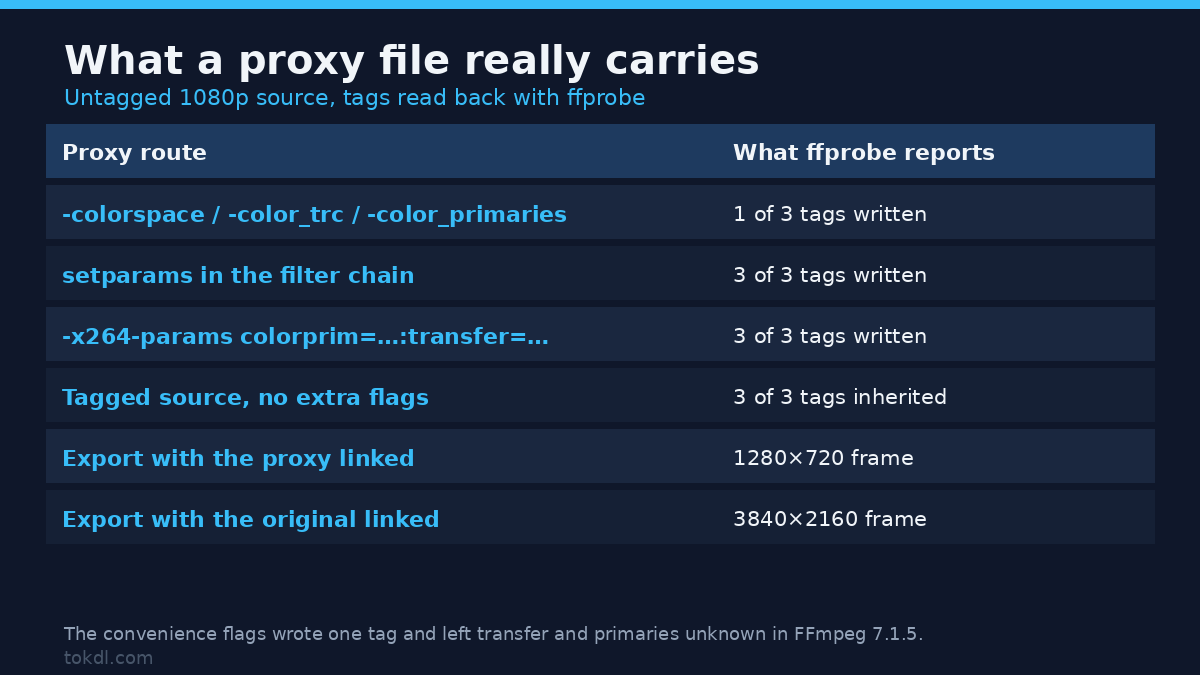
Proxy files carry metadata as well as pixels, and colour tags are the part that bites. Tagged sources inherit cleanly: I built a clip with bt709 primaries, transfer and matrix, made the proxy above with no extra flags, and FFmpeg reported color_space=bt709, color_transfer=bt709 and color_primaries=bt709 on the proxy.
Untagged sources are the problem, and camera files sometimes ship without tags. I tested three routes on an untagged 1080p clip, and the results aren’t what the flag names promise:
| Route | color_space | color_transfer | color_primaries |
|---|---|---|---|
-colorspace, -color_trc, -color_primaries |
bt709 | unknown | unknown |
setparams in the filter chain |
bt709 | bt709 | bt709 |
-x264-params colorprim=…:transfer=…:colormatrix=… |
bt709 | bt709 | bt709 |
Only two of the three routes wrote all three tags. The convenience options at the encoder wrote one and left the other two unknown in FFmpeg 7.1.5, and a file claiming bt709 primaries with an unknown transfer curve renders differently in different players. Set the tags with setparams or -x264-params, then probe the result instead of trusting the flag. On log footage that matters more, not less, because grading a proxy that lost its colour metadata drifts from the originals you’ll cut against later. Our log to Rec.709 guide walks through the tags a delivery file needs.
What your editor does on its own
Every major editor makes proxy files for you. DaVinci Resolve generates proxy media per clip and switches between proxy and source from the Playback menu, with resolution and format set in project settings, which Blackmagic documents in its own proxy media guide. Premiere creates them on ingest and toggles them with a button. Both land in the same place: smaller working files and a switch to flip before delivery.
The trade is control. A built-in workflow picks the codec and resolution for you and stores the proxy files wherever the app likes. Doing it yourself means you choose the size, you know where the files live, and the same folder works for a second editor on any machine. For a run of 4K footage that has to travel, that’s usually worth ten minutes of shell work.
How much disk a proxy project adds
| Material | Per minute | Per hour |
|---|---|---|
| 4K at 60 Mbit/s (typical phone) | 450 MB | 27 GB |
| 4K at 259 Mbit/s (my test clip) | 1943 MB | 116 GB |
| 720p proxy at 3.28 Mbit/s | 24.6 MB | 1.5 GB |
| 540p proxy at 1.61 Mbit/s | 12.1 MB | 0.7 GB |
A 720p proxy bill is about 5.6% of the equivalent phone-4K original, and an hour of it fits in 1.5 GB. Even the all-intra version stays inside a rounding error next to the source, which is why you shouldn’t delete proxy files mid-project to save space. That’s the one cleanup step that costs you a day of relinking. Our bitrate guide has the arithmetic behind those figures.
Three mistakes that cost people a day
Exporting while the proxy files are still linked
The most expensive one, and the easiest to miss, because the timeline looks fine and the render finishes fast. The delivered file comes out at proxy resolution, so check the export rather than the timeline, and toggle proxies off first.
Archiving proxies instead of originals
A proxy file is built to be thrown away. Grading or re-cutting from one means working from a 720p copy of a 4K frame, and there’s no way back. Keep the originals as the archive and the proxies as a cache.
Ignoring colour metadata on log footage
Tagged sources inherit cleanly, untagged ones don’t. Probe the proxy, and set the tags explicitly when the source has none, or your proxy and your original will grade to different pictures.
FAQ
Are proxy files lower quality than my originals?
Yes, and that’s the point. The 720p proxy scored 0.9898 SSIM against the original at the same resolution, close enough that you can’t judge a cut on it. You’re not delivering the proxy file, so the loss stays on the timeline where it buys speed.
Do proxy files change my export?
Not if you unlink them before rendering. If you don’t, they change it a lot: my test delivered 1280×720 from the proxy and 3840×2160 from the original.
What resolution should proxy files be?
Half the delivery resolution is the usual rule, so 1280×720 for a 1080p or 4K project. The 540p proxy decoded nearly twice as fast again, and on a long timeline cut on a weak laptop that speed beats detail you’ll never see while trimming.
Can I delete proxy files when the project is done?
Once the cut is locked and the master is exported, yes. They’re a cache, and the batch loop rebuilds them from the originals whenever you need them. Never delete the originals instead. The encoder mechanics sit in our hardware vs software encoding test.
The short version
Proxy files trade a little disk for a lot of responsiveness. The 720p proxy I measured decodes 78× faster than the 4K original it shadows, costs 4.27 MB against 324 MB, and looks close enough to cut against. Make them with one FFmpeg command or a five-line loop, set the colour tags explicitly when the source is untagged, relink so the editor finds the right file, and switch back to the originals before the render. Do that and the timeline stops fighting you. Skip the last step and you’ll deliver a 720p master without noticing until someone else does.
For the wider chain, our everyday FFmpeg commands cover the rest of an edit.
[…] Working from the converted file as a master. Keep the original, convert a copy for editing, and export from the right one. It’s the same discipline that applies to proxy files. […]
[…] confuse it with a proxy. A proxy file is a small stand-in you edit against and then discard, while an intermediate codec is a […]
[…] it in a single command, which makes keying the cheapest way to remove video background, and you can edit with proxy files afterwards if the render is […]