
How to Export a Video With an Alpha Channel (Transparent Video)
You keyed the background out of your logo animation, exported it, and dropped it on the timeline. Instead of a clean cut-out you get a black rectangle, or a green one. The same file plays fine in your browser, so the export must be fine, right?
Not necessarily. Most video formats have no way to store an alpha channel at all, and the ones that do are picky about how they receive it. I pushed one clip through every delivery path I could find on this machine, decoded the results, and read the pixels back. Two outcomes surprised me enough to change how I export transparent video.
What you’ll learn
- What an alpha channel stores, and why video files can carry one.
- Which containers and codecs keep it, measured on FFmpeg 7.1.5, with the file size of each path.
- How to check any file for transparency in one command, and the decoder trap that makes a working alpha channel look broken.
What an alpha channel stores
A normal video pixel holds three numbers: red, green, blue. A pixel with an alpha channel holds a fourth: how much of that pixel is there. Zero is fully transparent, 255 is fully opaque, and the values between blend the pixel with whatever sits behind it.
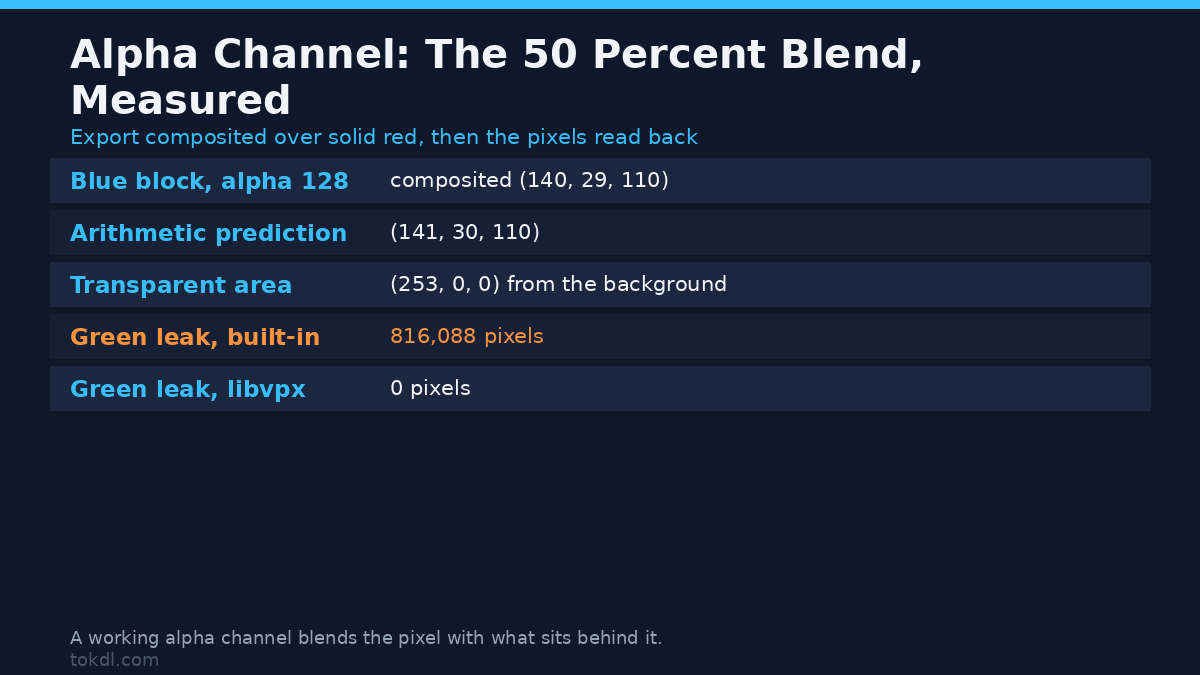
To show that the transparency is honored and not just metadata, I built a clip with three regions: a red disc at full opacity, a blue block at exactly 50 percent opacity, and a transparent background. Then I composited the export over red and read the pixels back with NumPy.
| Sample point | Source alpha | Composed pixel | Arithmetic prediction |
|---|---|---|---|
| Inside the blue block | 128 | (140, 29, 110) | (141, 30, 110) |
| Transparent background | 0 | (253, 0, 0) | (253, 0, 0) |
| Inside the red disc | 255 | (219, 29, 30) | (220, 30, 30) |
One level of error on a 50 percent blend, zero on the solid red. That single level is the story here: the alpha channel works, and the codec carrying it isn’t perfectly exact.
Which formats can hold an alpha channel
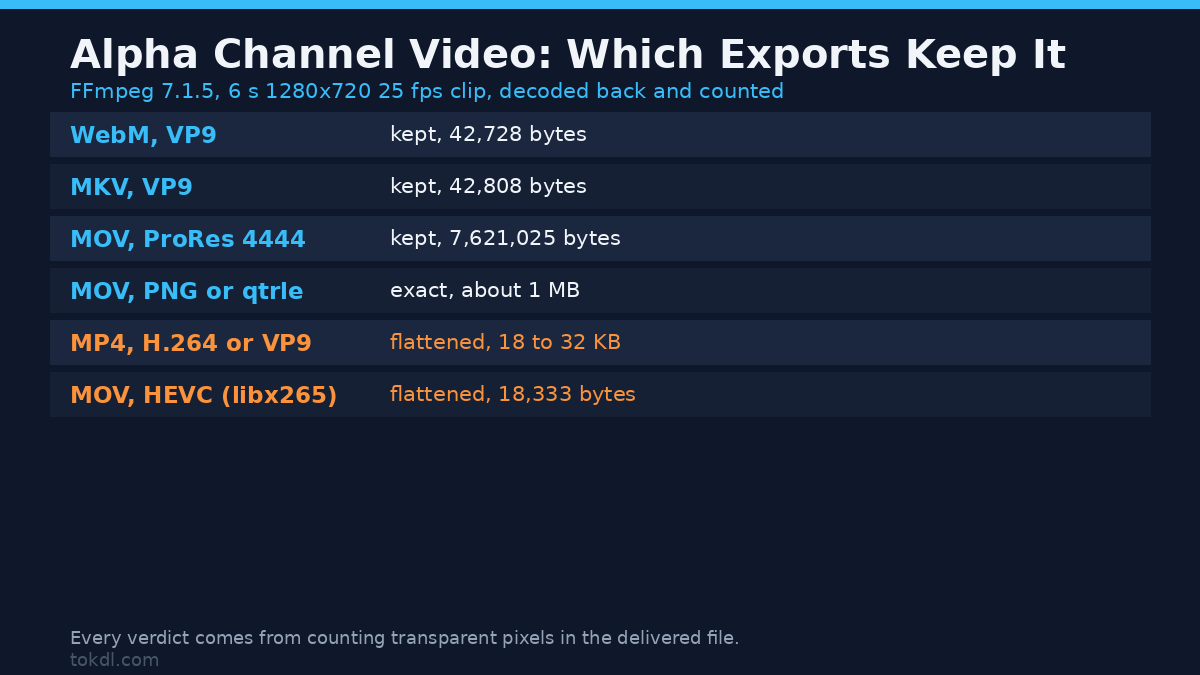
Here’s the table I wish I’d found before my first export. Every row is a command I ran on this box, and every verdict comes from decoding the delivered file and counting transparent pixels. The source was a 6 second, 1280×720, 25 fps clip with a lossless master.
| Container and codec | What the decoder reports | Kept? | Size |
|---|---|---|---|
| WebM with VP9 | pix_fmt yuv420p, tag alpha_mode=1 |
Yes | 42,728 bytes |
| MKV with VP9 | same, tag present | Yes | 42,808 bytes |
| MOV with ProRes 4444 | yuva444p12le, profile 4444 |
Yes | 7,621,025 bytes |
| MOV with PNG | rgba |
Yes, exact | 1,035,621 bytes |
| MOV with QuickTime Animation | rgba |
Yes, exact | 1,219,052 bytes |
| MP4 with VP9 | yuv420p, no tag |
No | 23,096 bytes |
| MP4 with H.264 | yuv420p after an automatic switch |
No | 31,686 bytes |
| MOV with HEVC (libx265) | yuv420p |
No | 18,333 bytes |
The container matters as much as the codec here. VP9 keeps its transparency inside WebM and MKV, and loses it inside MP4. The three lossless options are 24 to 29 times larger than the WebM, so transparency is cheap in VP9 and expensive everywhere else.
How to check whether a video has an alpha channel
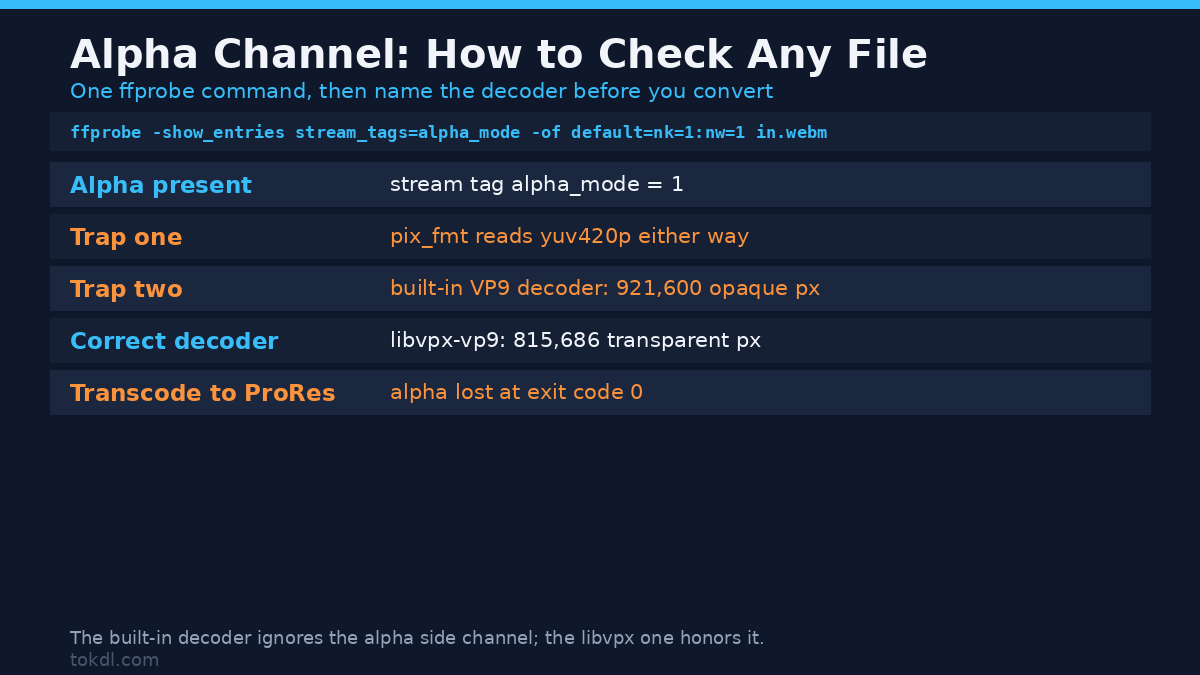
Run this on any file. It prints the stream tag written when an alpha plane is present:
ffprobe -v error -select_streams v:0
  -show_entries stream_tags=alpha_mode
  -of default=nk=1:nw=1 clip.webm
A printed 1 means the file carries transparency. Empty output means it doesn’t. On the WebM I exported, that command returned 1.
Now the part that trips people up. Don’t judge a file by pix_fmt. That same WebM reports pix_fmt=yuv420p, because VP9 stores transparency in a side channel rather than as a fourth plane in the reported pixel format. Check for a yuva prefix, see plain yuv420p, and you’ll conclude, wrongly, that your export dropped the alpha channel.
The decoder trap that fooled me first
My first pass decoded the exported WebM with FFmpeg’s built-in VP9 decoder and counted 921,600 opaque pixels. Every pixel. I was one paragraph from publishing “VP9 alpha transparency doesn’t work on FFmpeg 7.1.5”, which would have been wrong. Re-running with an explicit -c:v libvpx-vp9 decoder returned 815,686 transparent pixels. Same file, opposite answer: the built-in decoder ignores the alpha side channel, the libvpx decoder honors it.
A green-leak test settles it. I re-encoded the clip with bright green painted behind zero alpha, composited the export over a red background, and counted green pixels. With the libvpx decoder, zero green leaked. With the built-in decoder, 816,088 pixels of green leaked through, because the alpha channel was ignored and the raw color behind it was painted on screen.
That trap has an expensive second half. When you transcode a transparent WebM, FFmpeg uses the built-in decoder unless you say otherwise, so the transparency disappears on the way in even when the output format can hold it. Feeding that WebM into ProRes 4444 produced 7,675,998 bytes with zero transparent pixels, exit code 0, and no warning. Decoding with -c:v libvpx-vp9 first produced 9,069,055 bytes with the alpha channel intact. Moving transparency from WebM into an editor needs the decoder flag before the input.
Method 1: export a transparent WebM with VP9
This is the format for the web, and it produced the smallest file by a wide margin:
ffmpeg -i master.mov -c:v libvpx-vp9
  -pix_fmt yuva420p -crf 30 -b:v 0 -cpu-used 4
  transparent-video.webm
On this build the -pix_fmt yuva420p flag made no difference: with and without it, the file came out at exactly 42,728 bytes and both carried the alpha channel. I still write the flag, because auto-selection isn’t guaranteed to pick the alpha format on other builds. Constrained quality with -b:v 0 keeps the bitrate honest, and -cpu-used 4 keeps the encode from taking forever here.
One delivery caveat, from MDN’s web video codec guide: Chrome, Edge, Firefox and Opera render VP9 transparency, and Safari doesn’t. If it has to show in Safari, ship the WebM for everyone else and a flat, pre-composited MP4 as a fallback.
Method 2: export an alpha channel inside a MOV for editing
ProRes 4444
ffmpeg -i master.mov -c:v prores_ks -profile:v 4444
  -pix_fmt yuva444p10le edit.mov
This is what editors expect. The delivered file reports yuva444p12le with profile 4444, and the transparency survived, though not perfectly: the 50 percent block came back at 129 instead of 128, and every other pixel matched the master. On a 6 second clip it cost 7.6 MB, the price of an editing-friendly alpha channel. The wider trade-offs between ProRes and its rivals are in my comparison of ProRes vs DNxHD intermediate codecs, and FFmpeg’s codec documentation lists the profiles each encoder accepts.
Pixel-exact lossless: PNG and QuickTime Animation
When the transparency has to be bit-perfect, for a mask, a matte, or a title card you’ll reuse:
ffmpeg -i master.mov -c:v png -pix_fmt rgba lossless.mov
ffmpeg -i master.mov -c:v qtrle -pix_fmt rgba animation.mov
Both delivered rgba, both matched the master on all 921,600 pixels of the frame I checked, and both stayed near 1 MB instead of 7.6 MB. PNG is the lighter option on smooth graphics; QuickTime Animation is what Final Cut and older QuickTime tools expect.
Method 3: build the alpha channel when your source has none
Footage shot on a green screen has no transparency in the file. You create it in the keyer, then export one of the formats above. The measured details of that step are in my guide to green screen chroma key, where a half-strength blend setting ends up dissolving the whole subject. The same logic covers overlay work: transparency is what makes an overlay read as a cut-out instead of a rectangle, which is the workflow behind picture in picture video.
Why MP4 quietly throws the alpha away
MP4 is the format users ask for and the worst format for transparency. Asking libx264 for an alpha channel gets you a warning and a flattened file:
$ ffmpeg -i master.mov -c:v libx264 -pix_fmt yuva420p out.mp4
Incompatible pixel format 'yuva420p' for codec 'libx264',
auto-selecting format 'yuv420p'
Exit code 0, a file that plays, and no transparency. FFmpeg chose a format the encoder can use and moved on. The same clip exported to MP4 with VP9 came out flattened too, because the MP4 container has nowhere to put the transparency side data, and HEVC in a MOV behaved the same way. If your transparency vanished, suspect the container before the keyer.
One measured surprise from the same pass: a plain H.264 export from a source with an alpha channel picked yuv444p for itself, a 4:4:4 profile plenty of players refuse. Exporting a flattened MP4 from an RGBA source, set the pixel format yourself.
What the alpha channel costs
Transparency isn’t free, and the bill depends on the format. In WebM the alpha channel rides along for 42 KB across 6 seconds. In ProRes 4444 the same clip costs 7.6 MB. Lossless PNG and QuickTime Animation sit in between, around 1 MB.
Quality splits the same way. The WebM’s alpha channel is 8 bit and subsampled 4:2:0, the sampling issue that softens chroma in any chroma subsampling scheme. Across 921,600 pixels, 61,547 differed from the lossless master and the worst error hit 26 levels out of 255, all on the soft edge of the disc where the subsampled alpha ramps. ProRes 4444’s worst error was one level. The lossless pair came back at zero.
Common mistakes
- Checking
pix_fmtinstead of thealpha_modetag. A working VP9 alpha channel reportsyuv420p, so the check fails on a good file. - Transcoding a transparent WebM without naming the decoder. FFmpeg’s built-in VP9 decoder drops the transparency silently, at exit code 0.
- Exporting an MP4 and blaming the keyer. H.264 and the MP4 container have nowhere to store transparency.
- Assuming HEVC buys you alpha. The libx265 path flattened it in my test, just like H.264 did.
- Expecting Safari to show the transparency. Provide a pre-composited fallback.
- Expecting a 4:2:0 alpha channel to have razor edges. It can’t. If the edge of your cut-out looks soft, that’s the subsampled alpha plane, and the fix is a lossless format, not a sharper key.
FAQ
Does MP4 support an alpha channel?
No. H.264 has no alpha channel, and the MP4 container has nowhere to store a transparency side channel. VP9 in an MP4 loses it too. Use WebM, or a MOV with ProRes 4444, PNG or QuickTime Animation.
How do I tell whether a video file has transparency?
Check the alpha_mode stream tag rather than the pixel format. A value of 1 means it’s there. Then decode the file with the matching libvpx decoder if you plan to convert it, or you’ll flatten it on the way in.
What’s the best format for a transparent video on a website?
WebM with VP9. It came out at 42 KB in my test against 7.6 MB for ProRes 4444, and it renders in every major browser except Safari, which needs a flat fallback.
Why is the edge of my transparent video fuzzy?
Because the alpha channel is stored at 4:2:0 in the WebM path, so the opacity ramp at the edge of your subject covers more pixels than it does in the source. A lossless export matched the master exactly; the VP9 alpha channel didn’t.
Conclusion
The format list is short. WebM with VP9 for the web, ProRes 4444 for editing, PNG or QuickTime Animation when you need the transparency to come back unchanged, and nothing in MP4. The commands above are the ones I ran.
If you take one habit from this, make it the check. Run the alpha_mode probe before you trust a file, and name the decoder whenever you convert a transparent WebM. Both take seconds, and both cost less than rebuilding an export you already delivered.