

Transfer Videos From iPhone to PC Without Losing Quality (2026 Guide)
Your clip plays perfectly on the phone. On the laptop it opens as a black frame with sound, the editor says the format is unsupported, or Finder shows a file half the size you expected. Nothing was lost in transit. The import changed the file.
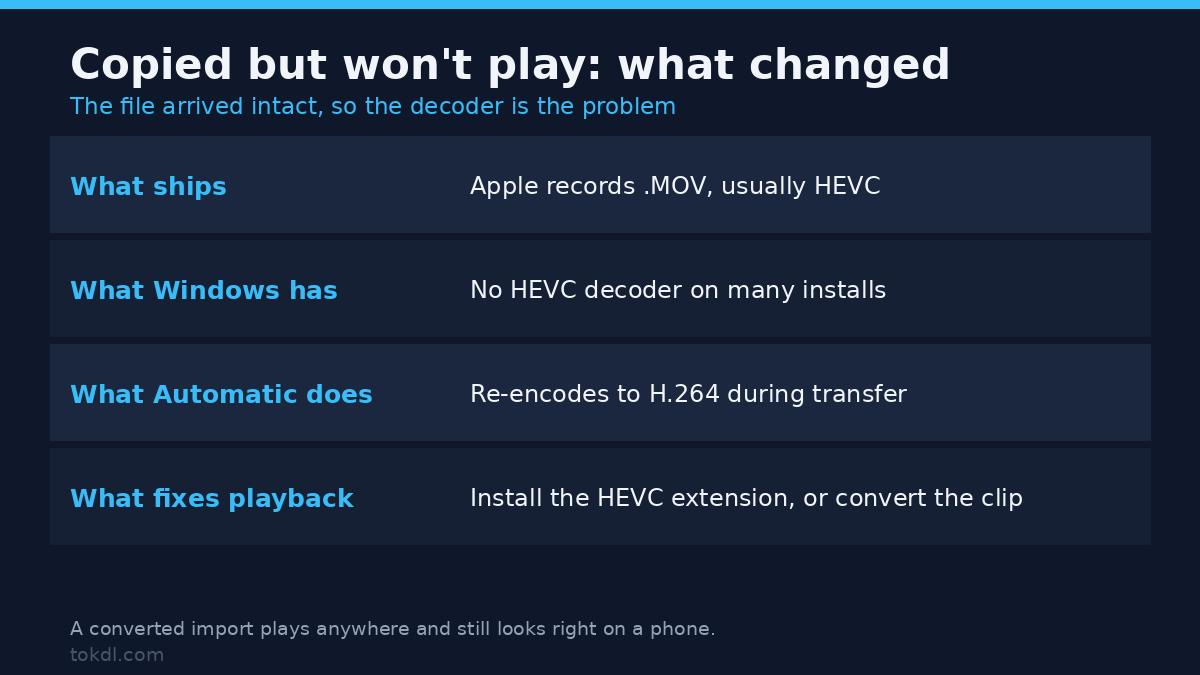
Apple stores video in a .MOV container, usually encoded as HEVC. Many Windows installs ship without an HEVC decoder, and the iPhone’s default import behaviour re-encodes to H.264 for compatibility. Both facts land in the same place: people conclude the transfer failed when the file arrived intact and got rewritten on the way out.
Four routes actually work, and they don’t produce the same file, which is the whole difficulty of an iphone to pc transfer. This guide covers all of them, which one preserves the original bitstream, and how to transfer videos from iPhone to PC or Mac without a conversion you never asked for.
The short answer: four routes, two outcomes
Use a cable or AirDrop when the file has to arrive exactly as recorded. Use iCloud Photos when the two devices are never in the same room. Everything else is a variation on those two ideas.
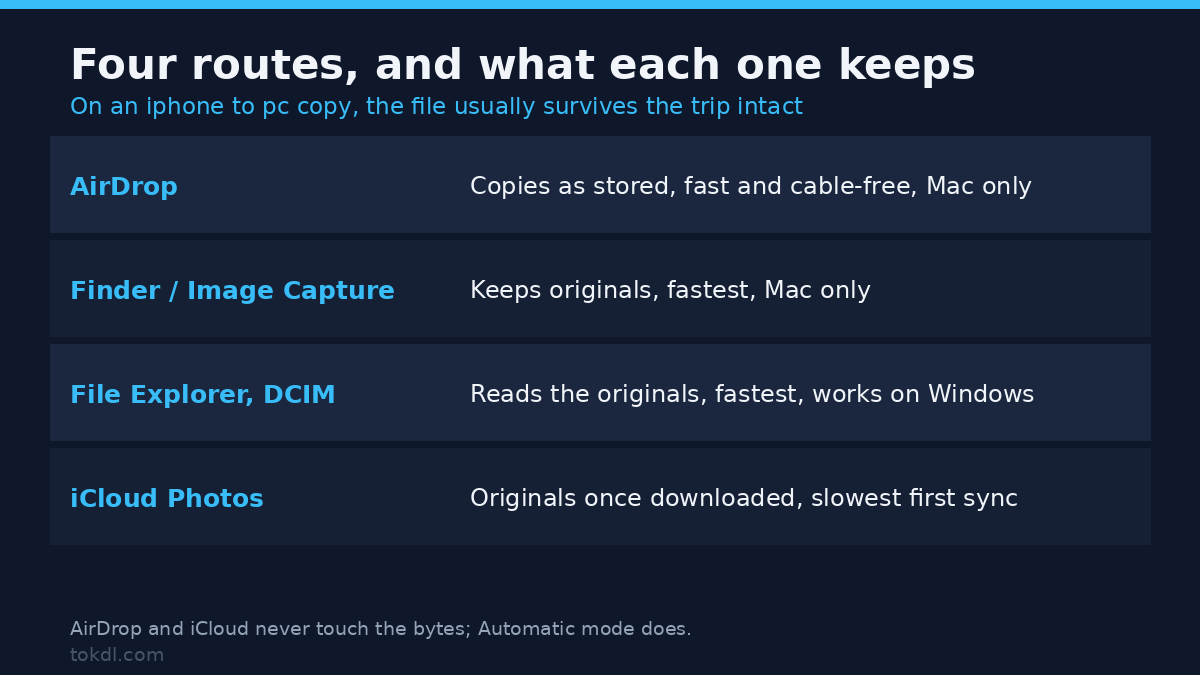
| Route | Keeps the original file | Speed on 10 GB | Works on Windows |
|---|---|---|---|
| AirDrop | Yes, copies as stored | Fast, no cable | No, Mac only |
| USB cable, Finder or Image Capture | Yes, with Keep Originals | Fastest | Mac only |
| USB cable, File Explorer | Yes, reads the DCIM folder | Fastest | Yes |
| iCloud Photos | Yes, once originals are downloaded | Slowest on first sync | Yes, through a browser |
In any iphone to pc transfer, one column matters more than the rest if the file is going to an editor: whether the bytes that left the phone are the bytes that arrived. A converted import still looks acceptable on a phone screen. On a large monitor, or after a second export, the loss becomes visible in gradients and fine detail.
Before you start: one setting decides what you get
On the phone, open Settings, then Photos, then scroll to Transfer to Mac or PC. That menu, not the cable, decides what an iphone to pc transfer delivers. The default, Automatic, converts HEVC video to H.264 during transfer and can hand back a smaller frame. Keep Originals transfers the HEVC file untouched.
Pick Keep Originals for an iphone to pc transfer when your computer plays HEVC or you plan to edit the footage. Pick Automatic if the destination is an older Windows machine without the codec package, or a program that refuses .MOV files. Automatic costs time and a little quality. It doesn’t cost you the clip.
Second setting: iCloud Photos with Optimize iPhone Storage. With that on, the phone may hold a compact copy and fetch the full one on demand. A cable import can deliver the compact version before the original has downloaded, which looks like a lossy transfer and isn’t one. Set the phone to Download and Keep Originals, or leave it on Wi-Fi for a while before importing.
An iphone to pc transfer needs a cable that carries data, a Mac running macOS 10.15 or later, or Windows 10 and 11. The phone must be awake and trusted the first time it connects to a computer. Apple’s iPhone User Guide documents the same import options if a menu has moved since this was written.
Method 1: AirDrop, no cable and no conversion
AirDrop is the shortest path between two Apple devices on the same desk. It copies the stored file, so a 4K HEVC clip stays 4K HEVC, and a few gigabytes move in less time than it takes to find a cable.
- Wake the iPhone and enter the passcode. AirDrop won’t start from a locked screen.
- Open Control Centre and set AirDrop to Contacts Only, or to Everyone for 10 minutes.
- On the Mac, open Finder and choose AirDrop in the sidebar. Set the discoverable-by option to the same group.
- In Photos, select the videos, tap Share, then tap the Mac’s name.
- Accept the transfer on the Mac. Files arrive in Downloads with their original names.
Failures here look dramatic and are usually trivial. The Mac never appears when Bluetooth is off, when either device sits on a VPN, or when the Mac is set to receive from no one. Check those three before you reinstall anything.
Method 2: a cable on a Mac, with Finder or Image Capture
Two apps handle an iphone to pc copy on a Mac, and they behave differently. Finder is the guided import, with an option to delete after copying. Image Capture is closer to a file browser: you choose a destination folder and it copies what you select.
For Finder, connect the phone, wake it, tap Trust, and enter the passcode. Select the iPhone in a Finder window, open the Photos or Files tab, pick your clips, and set the Import To folder. Then click Import Selected. Leave the delete-after-import box unticked unless clearing space is the actual goal.
For Image Capture, open the app from Applications, select the device in the sidebar, and choose an Import To folder. Select the clips and click Import. You get names like IMG_4821.MOV, which is exactly what the camera app wrote.
Both read the same DCIM folder, and neither re-encodes when the phone is set to Keep Originals. That’s why this is the route for a client handoff on an iphone to pc project: filenames, capture dates, and codec all match the source.
Method 3: Windows, how to transfer videos from iPhone to PC
Windows needs no iTunes to transfer videos from iPhone to PC, and the Apple Devices app isn’t required just to move files. The phone mounts as a camera and shows you its file system.
- Connect the cable, wake the phone, and tap Allow on the Trust This Computer prompt.
- Open File Explorer and click This PC. The iPhone appears under Devices and drives.
- Open Internal Storage, then DCIM, then a folder with a name like 100APPLE.
- Copy the .MOV files to a folder on your drive. Copy rather than cut, so the originals stay on the phone.
- For the Photos app, use Import, then From a connected device, select the clips, and choose the destination.
If the files copy but won’t play, the iphone to pc transfer worked and playback failed. Windows needs the HEVC Video Extensions package for HEVC clips, and .MOV plus HEVC is the combination that exposes the gap most often. Installing the extension fixes playback. Converting to H.264 fixes playback and import into older editors at the same time.
Our guide on how to convert HEVC to H.264 covers the encoding settings. MOV to MP4 covers the container side, including the remux that avoids re-encoding entirely.
Method 4: iCloud Photos, when no cable is involved
Sign in at iCloud.com on the PC, open Photos, select the videos, and use the download button. You get the original if the library holds the original, and a converted copy if the library holds one. This is the only iphone to pc route that works from a machine you don’t own.
The cost is time and bandwidth. A large library syncs upward from the phone first, and the download then pulls the same bytes back down. For one clip that’s fine. For a wedding, bring a cable.
Look at what the iphone to pc transfer delivered. A 1080p file from a 4K library, or an MP4 where the phone recorded MOV, points to the transfer setting or to Optimize iPhone Storage. Neither indicates a damaged clip.
What third-party transfer apps actually do
The paid apps in this space mostly wrap two things you already have: a driver that reads the phone over USB, and a converter that re-encodes on the way out. Some add selective backup, incremental copies, or access to old device backups. None of them make the phone produce a file it doesn’t hold.
Their limits are worth knowing before you pay for anything that promises a cleaner iphone to pc transfer. A licence usually covers one computer. Converter defaults often target H.264 at a bitrate chosen for file size rather than quality.
A tool that repairs or normalises clips on import can rewrite timestamps and metadata, which matters when the recipient tracks originals. Free routes cover the common case, so pay only for the incremental backup or the batch renaming you actually need.
Rights and responsible use
The video on your phone belongs to whoever recorded it. This guide is about moving your own footage between your own devices, and no transfer gives you rights over someone else’s work. Personal reference is one thing. Republishing, monetising, or passing a clip to a third party is another, and it needs the creator’s permission.
Two details come up in real iphone to pc transfers. A clip can carry GPS coordinates, device model, and timestamps in its metadata, so strip location data before sending footage outside your household. And when other people appear in the video, their consent governs what you may publish, whoever owns the file. Apple’s rules for its own services sit in Apple’s iCloud terms.
Troubleshooting: six failure states
The phone never appears in Finder or Explorer
The screen is locked, or the trust prompt was dismissed, and either one stops an iphone to pc transfer before it starts. Wake the phone, enter the passcode, unplug, and reconnect. A charge-only cable produces the same symptom, and so does a hub that passes power but not data.
The file copies but won’t play on Windows
The HEVC decoder is missing, not the file, which is why an iphone to pc copy looks broken while the clip is fine. Install the HEVC Video Extensions, or convert the clip. Our comparison of container formats explains why .MOV and .MP4 can hold identical video and still behave differently.
The imported video is 1080p, not 4K
Automatic transfer mode downscales some HEVC clips on the way to a computer, so an iphone to pc transfer can deliver 1080p from a 4K library. Switch the setting to Keep Originals and import again. Confirm the source resolution with ffprobe before blaming the cable.
Import stops halfway through a large batch
Usually a FAT32 destination drive, or the phone locking mid-copy. Copy in batches of twenty, keep the screen awake, and send the files to an exFAT or APFS volume, which is what a large iphone to pc transfer needs.
Filenames collide as IMG_4821 (1).MOV
The iPhone reuses its counter after a restore or a full reset. macOS and Windows both append a suffix instead of overwriting, so nothing is lost, but the order is. Sort by date captured and rename during import.
The video plays sideways on the computer
The rotation flag lives in metadata, and some players ignore it. The pixels were never rotated, so the clip isn’t damaged. Re-saving it from any editor writes a fresh file with the orientation baked in.
Frequently asked questions
Can I transfer videos from iPhone to PC without iTunes?
Yes. An iphone to pc transfer needs no iTunes: Windows reads the phone as a camera over USB, and iCloud.com works in any browser. iTunes isn’t needed for file transfer, and the Apple Devices app matters only for backups and updates.
Does AirDrop reduce video quality?
No. AirDrop copies the stored file rather than re-encoding it, so resolution, frame rate, and codec normally stay as recorded. Any compression happened earlier, in the app that created the file.
Why is a short clip several gigabytes?
Because 4K is mostly data. At 45 Mbps, ten minutes works out to roughly 3.4 GB, and HEVC already needs less than H.264 for the same picture quality.
Can I move videos from an iPhone to an Android phone?
Not over AirDrop. Use a cable with a file manager on the Android side, a cloud service both devices support, or a transfer app installed on both phones over local Wi-Fi.
Do I need iCloud to get videos off an iPhone?
No. A cable or AirDrop completes an iphone to pc transfer with no cloud account and no upload. iCloud only helps when the two devices are apart.
Will transferring delete the videos from my phone?
Only if you ask it to. Finder and Image Capture offer a delete-after-import option that is off by default, and copying files in Explorer leaves the originals in place.
Is USB faster than Wi-Fi for large transfers?
Almost always. A USB 3 cable to a local SSD beats both AirDrop and cloud sync for tens of gigabytes, because nothing has to travel through a network first.
Which method should you use?
For an iphone to pc transfer, cable to a local drive when the footage matters and a port is free. AirDrop when both machines sit on the same desk and the file should land in ten seconds. iCloud when the phone is somewhere else entirely. Automatic mode only when the destination machine can’t decode HEVC and you’ve no way to install the codec.
Whatever you choose, inspect the file after it lands: resolution, codec, duration. Then delete nothing from the phone until you have confirmed a second copy exists, because the fastest way to transfer videos from iPhone to PC is also the quickest way to lose the only good one.