
USB Drive Video Not Playing on TV: Fix the File and the Format (2026)
You copied a film to a USB drive, plugged it into the TV, and the set shows an empty folder, lists the file and then refuses to open it, or plays the picture with no sound. The same USB drive works fine on a laptop. Nothing is corrupt, and the TV isn’t lying: it decodes a narrow slice of what a computer handles, and your file sits outside that slice.
I spent an evening measuring what FFmpeg writes into a video file on this machine, then checked which of those fields a TV reacts to. The results explain most “unsupported format” errors, and they show why the obvious fixes often change nothing. One flag you’d expect to help, -level, turned out to relabel the file without touching a single frame.
Here’s what you’ll learn: how to read a file the way a TV reads it, which four fields decide whether it plays, how much video fits on a USB drive, and the commands that produce a copy the set will accept.
Four reasons a TV refuses a USB drive
The folder looks empty. The TV can’t read the filesystem. Many sets read FAT32 and nothing else, and a USB drive formatted as NTFS or exFAT can mount as an empty volume even when it’s full on your laptop.
The file is listed but won’t open. A USB drive can be perfectly healthy and still fail here: the container or the video codec is outside the set’s list, and that’s the most common case.
Picture plays, sound doesn’t. The video decoded and the audio didn’t. A file with FLAC, PCM or 5.1 AAC can look fine in the list and fail the moment playback starts.
It plays but looks washed out. The file carries a full-range colour flag that the TV ignores, so every level is drawn as if it were studio range.
Four failures, four fixes. That’s why “convert it to MP4” rescues some people and does nothing for others.
Check the file before you blame the TV
One command tells you which of the four you’re facing. Run it on the file that failed on the USB drive, from the machine the file came from.
ffprobe -v error -show_entries
  stream=codec_type,codec_name,profile,level,pix_fmt,color_range,channels
  -show_entries format=format_name,duration,bit_rate
  -of default=noprint_wrappers=1 movie.mp4
The video fields come first, then the audio ones:
codec_name=h264
profile=High
pix_fmt=yuv420p
level=42
color_range=unknown
codec_name=aac
sample_rate=48000
channels=2
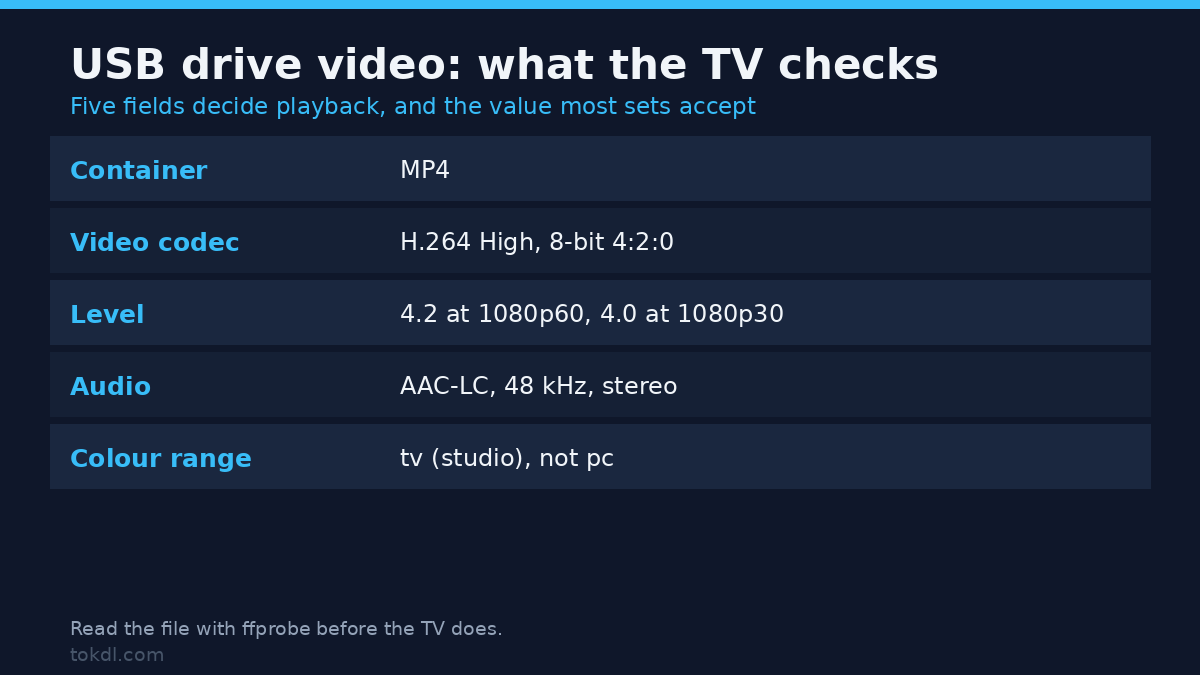
That file plays on nearly anything: H.264 High at level 4.2, 8-bit 4:2:0, stereo AAC at 48 kHz. Compare each line with your TV’s manual. If profile says High 4:4:4 Predictive, or pix_fmt says yuv444p or yuv420p10le, you’ve found the problem in under a minute. Our guide to reading a file’s real specs covers the rest of those fields.
How much video fits on a USB drive
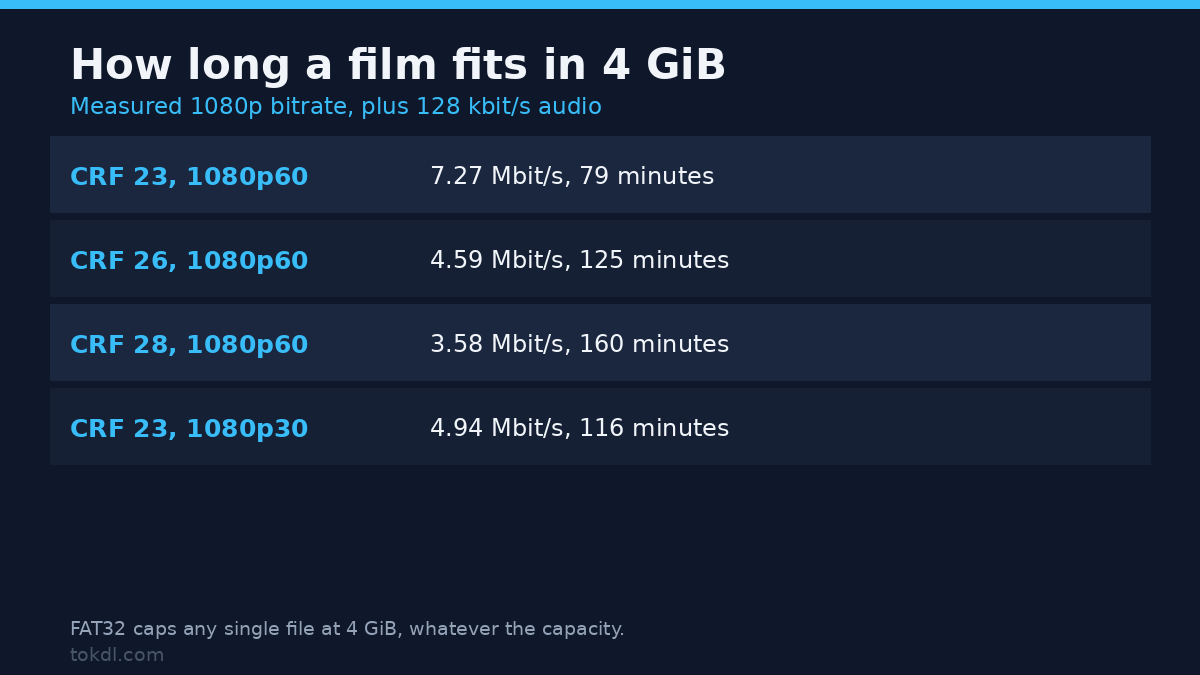
FAT32, the format most TVs read without complaint, caps a single file at 4 GiB according to Microsoft’s comparison table, however large the stick is. A 64 GB USB drive formatted as FAT32 still can’t hold a 4.2 GB film.
How much fits depends on bitrate. I encoded one 1080p60 clip at five quality settings and added 128 kbit/s for audio:
| Quality | Measured bitrate | Minutes in 4 GiB | Looks like |
|---|---|---|---|
| CRF 18 | 13.96 Mbit/s | 41 | Archive copy |
| CRF 20 | 11.19 Mbit/s | 51 | High quality |
| CRF 23 | 7.27 Mbit/s | 79 | Good for a TV |
| CRF 26 | 4.59 Mbit/s | 125 | Fine at 1080p |
| CRF 28 | 3.58 Mbit/s | 160 | Soft on detail |
The arithmetic: 4 GiB is 34,359,738,368 bits, so at 7.27 Mbit/s you get 4,726 seconds, or 79 minutes. A two-hour film has to stay under 4.7 Mbit/s to fit on a USB drive, which means CRF 26 on most material.
Two ways around the cap: format the USB drive as exFAT or NTFS and hope the TV reads it, or split the film. Dropping to 1080p30 is the better trade, since it measured 4.94 Mbit/s at CRF 23, or 116 minutes in the same 4 GiB.
The level field: why -level 4.0 fixes nothing
Level declares how much decoding work the stream demands, and it decides whether a USB drive copy plays on an older set. A TV that stops at level 4.0 refuses a 1080p60 file, because 1080p60 needs 4.2.
A 1920×1080 frame is 8,160 macroblocks, so at 60 fps the stream asks for 489,600 macroblocks per second. Levels 4.0 and 4.1 allow 245,760; level 4.2 allows 522,240. Push a 1080p60 file into level 4.0 and x264 says so:
[libx264 @ 0x55e2a6dd33c0] MB rate (489600) > level limit (245760)It also exits 0, writes the file, and stamps level 4.0 in the header. That’s the trap. The warning prints at warning level, so a script run with -v error reports success and shows nothing, and the frames don’t change: my files at level 4.0, 4.1 and 4.2 had byte-identical video packets (same MD5, dddaf9a3). The only difference was the label a player reads before it decodes.
| Resolution and rate | Macroblocks per second | Lowest legal level | Bitrate at CRF 23 (video only) |
|---|---|---|---|
| 1280×720 at 30 | 108,000 | 3.1 | 1.31 Mbit/s |
| 1280×720 at 60 | 216,000 | 3.2 | 1.65 Mbit/s |
| 1920×1080 at 30 | 244,800 | 4.0 | 4.94 Mbit/s |
| 1920×1080 at 60 | 489,600 | 4.2 | 7.14 Mbit/s |
| 3840×2160 at 30 | 972,000 | 5.1 | 10.39 Mbit/s |
The 1080p30 row leaves 960 macroblocks per second of headroom against a limit of 245,760. That 0.4% margin is why 1080p30 is the safe setting for a TV that stops at level 4.0. Drop the frame rate instead of the label and the file becomes legal rather than just claiming to be. The H.264 level tables list every ceiling, and FFmpeg’s codec documentation covers the options.
Profile and pixel format: the pair that breaks slideshows
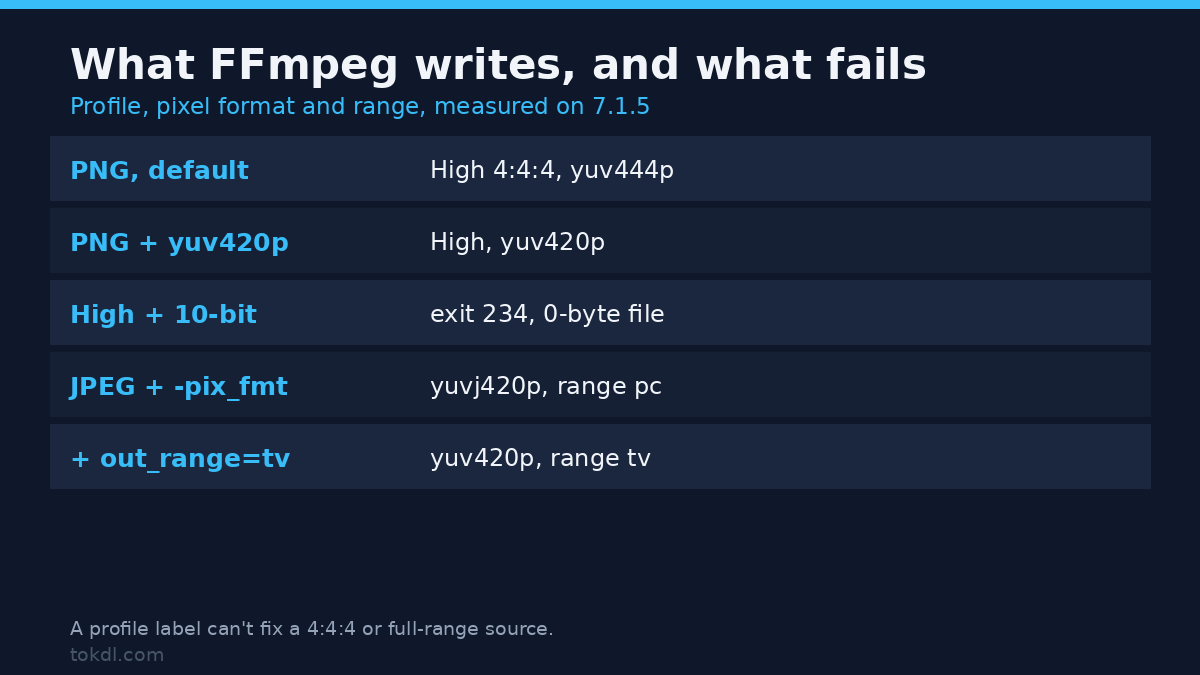
Profile decides which coding tools the stream uses; pixel format decides how colour is stored. A TV that decodes H.264 High at 8-bit 4:2:0 often can’t decode 4:4:4 or 10-bit, and FFmpeg produces both without being asked. That’s how a slideshow ends up unplayable from a USB drive that plays everything else.
I turned a PNG still into a four second clip with nothing but a quality flag. The default output was High 4:4:4 Predictive with yuv444p, because the PNG carries full colour and libx264 followed the source. Adding -vf format=yuv420p produced High with yuv420p. Same picture, different compatibility.
Ask for a combination the profile can’t carry and the encode fails. Both of these returned exit code 234 and left a zero-byte file:
ffmpeg -i in.mp4 -vf format=yuv420p10le -c:v libx264 -profile:v high out.mp4
ffmpeg -i in.mp4 -vf format=yuv444p   -c:v libx264 -profile:v high out.mp4
High profile is 8-bit 4:2:0, so 10-bit needs High 10 and 4:4:4 needs High 4:4:4. The fix isn’t a different profile, it’s converting the picture down: -vf format=yuv420p -profile:v high. Slideshows and screen recordings land here, since both start from RGB.
The colour range flag that washes out a picture
JPEG is full range: black stored as 0, white as 255. Video is normally studio range, where black is 16 and white is 235. When a still becomes a video for a USB drive, that flag travels with it, and a TV that ignores the flag draws 16 as 0, lifting every shadow.
On a JPEG source, the flag survived the obvious fix:
| Command variation | pix_fmt written | Range written |
|---|---|---|
| Default encode from JPEG | yuvj420p | pc (full) |
Same, plus -pix_fmt yuv420p |
yuvj420p | pc (full) |
Same, plus -vf scale=out_range=tv |
yuv420p | tv (studio) |
Same, plus -vf setparams=range=limited |
yuv420p | tv (studio) |
-pix_fmt yuv420p looks like it should fix this and doesn’t, because the range comes from the source. Convert the values with scale=out_range=tv or restate the flag with setparams=range=limited, then read the output with ffprobe before copying it to the USB drive. On a laptop the two look identical.
HEVC needs the right tag, audio needs AAC
If the file on your USB drive is HEVC, there are two ways to write it into an MP4 and only one travels well. FFmpeg’s default tag is hev1; Apple’s players and plenty of TV firmware expect hvc1. The tag is the only difference: my two test files were both 5,246,643 bytes with identical streams.
ffmpeg -i in.mp4 -c copy -tag:v hvc1 out-tv.mp4That’s a remux, so it takes seconds and doesn’t re-encode. If the TV still won’t open it, the set probably has no HEVC decoder, and the answer is H.264. Our HEVC to H.264 guide covers that conversion with quality checks.
Audio is the quieter failure. MP4 will mux AAC, MP3, PCM, AC-3 and FLAC without complaint; all five exited 0 in my tests, and the PCM stream came out tagged ipcm. The container accepting a codec tells you nothing about the TV, so stick to AAC-LC, 48 kHz, stereo:
ffmpeg -i in.mkv -c:v copy -c:a aac -b:a 128k -ar 48000 -ac 2 out-tv.mp4A 128k request delivered 127,762 bit/s. A container that refuses a codec does fail loudly: writing FLAC into a MOV file returned exit code 234 and produced no file at all.
Remux first, re-encode only when you must
Most failures are container problems, not codec problems, so try the cheap pass. I wrapped an MP4 with H.264 and AAC into MKV, then back into MP4, and the video packet MD5 stayed identical through all three files (fed8535). Sizes moved by a few kilobytes, which is container overhead.
ffmpeg -i movie.mkv -c copy -movflags +faststart movie-tv.mp4If ffprobe showed H.264 High, 8-bit 4:2:0 and AAC, this command is the whole fix. If it showed HEVC, 10-bit or FLAC, remuxing keeps the problem and you need to re-encode the part that’s wrong. Keep the good stream either way: -c:v copy -c:a aac re-encodes only the audio.
For the container side, the MP4, MKV and MOV comparison explains what each format can hold, and the MKV to MP4 remux guide walks through the copy path.
Mistakes I see most often
1. Blaming file size when the filesystem is the limit. A 4.2 GB film won’t fit a FAT32 stick however much free space the USB drive reports.
2. Setting -level 4.0 and expecting an easier file. The frames stay byte-identical, the warning confirms the stream is too fast for that level, and a TV may honor the label and refuse.
3. Running the encode with -v error. The macroblock warning prints at warning level, so a clean log doesn’t mean a compatible file.
4. Trusting the exit code. Both High-profile tests above returned 234 and left a zero-byte file, and a batch that copies such a file to a USB drive looks finished until you open the folder on the TV.
Questions I get about USB drive playback
Why does the TV show the folder but no files? Usually the filesystem. Format the USB drive as FAT32 if the set is older, and keep video files at the root or one folder deep.
Will a 4K file play on a 1080p TV? Not usefully. The set has to scale it down, many don’t, and a 2160p30 file needs level 5.1.
Does bitrate matter, or only the codec? Both. A file inside the level and profile limits can still stutter if it sits far above what the decoder handles, which is another reason to keep the USB drive copy near 5 to 8 Mbit/s at 1080p.
What to take away
A USB drive doesn’t fail because the TV is picky. It fails on one of four fields: filesystem, container, codec profile and level, or the colour and audio flags inside the file. Read them with ffprobe, compare with the set’s manual, and change the one that’s outside the list.
Start with the free pass. Remux when the codecs match, drop to 30 fps when the level is the problem, force yuv420p when the source was RGB, and keep the audio at AAC stereo. Then copy the file, play the first minute on the TV, and check the shadows before you settle in. Our bitrate guide has the size arithmetic for the archive copy.