

Video Bitrate Explained: How to Choose the Right Bitrate (2026 Guide)
Two 1080p videos can show the same resolution in a file manager and still differ tenfold in size. Same grid, same frame rate. The video bitrate is what separates them.
Bitrate is the budget an encoder spends to describe each second of motion. Set it too low and faces smear, skies band, and fast pans turn to mush. Set it too high and you pay for storage and upload time while the picture barely changes.
This guide covers what the number means, how to read the bitrate of a file you already own, and which value to pick before you export or upload. Most people need one number for their resolution and one nudge for frame rate. That is the whole job.
Video Bitrate: The Short Answer
Video bitrate is the amount of data used to store one second of video. It is measured in kilobits or megabits per second, written kbps or Mbps, and a 12 Mbps clip spends roughly twelve megabits on every second it plays.
More data usually means more retained detail, especially in motion, gradients, and fine texture such as hair or foliage. Less data means a smaller file that is easier to send and store. The trade-off bends: the jump from 2 to 8 Mbps is obvious to anyone, while 40 to 80 Mbps doubles the file for a difference most viewers cannot name.
There is no single correct number. Resolution, frame rate, motion, grain, and the file’s destination all move the answer.
How to Find the Bitrate of a Video You Already Have
Measure the file in front of you before you change anything. A target bitrate only means something next to what the source already carries.
Every operating system and player reports it somewhere:
- Windows: right-click the file, open Properties, and read Total bitrate on the Details tab.
- macOS: select the file and choose File, then Get Info, or press Cmd+I in QuickTime Player.
- VLC: open Tools, then Media Information, then the Codec details tab.
Two numbers matter, and they are not the same. The container’s total bitrate counts video, audio, and file overhead together. The video stream has its own bitrate. A file listed at 6 Mbps might hold 5.7 Mbps of picture and 256 kbps of sound.
For a precise reading across formats, use the MediaInfo utility or the command line tool ffprobe:
ffprobe -v error -show_entries format=bit_rate,duration -of default=noprint_wrappers=1 input.mp4You can also predict the output size before exporting. Size in megabytes equals bitrate in Mbps multiplied by duration in seconds, divided by eight. A ten-minute clip at 20 Mbps lands near 1.5 GB.
Method 1: Pick a Target Video Bitrate by Resolution
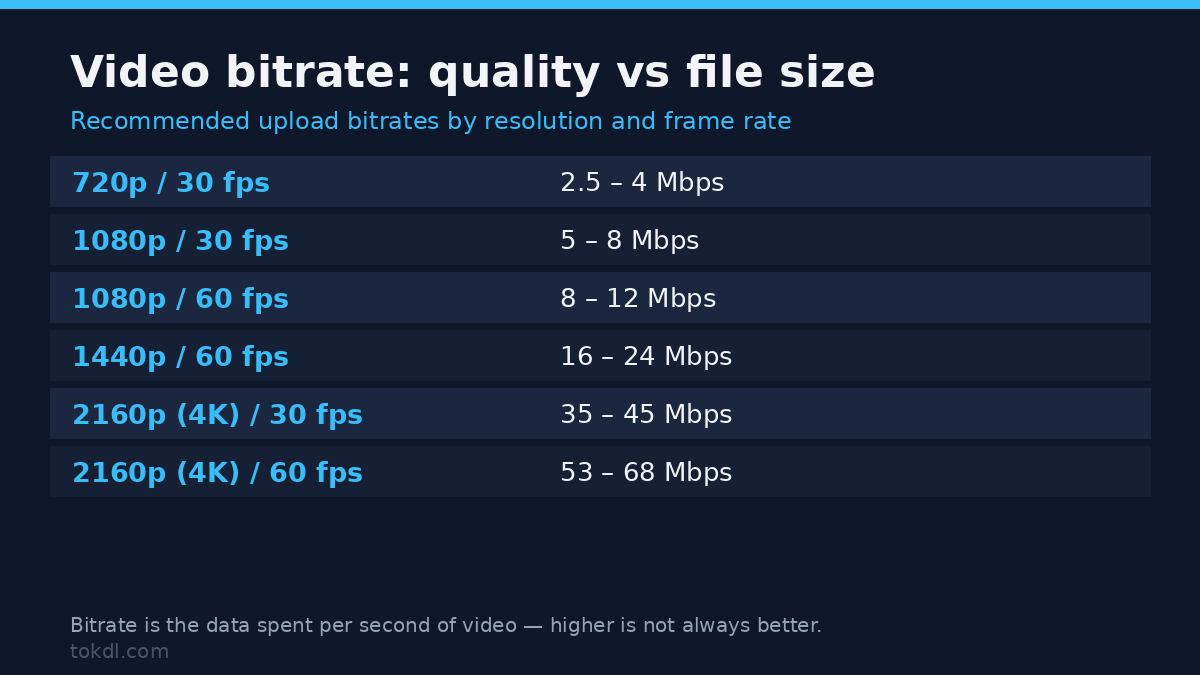
Start from resolution, then adjust for motion and frame rate. The ranges below are widely used starting points for H.264 video, not hard rules.
| Resolution and frame rate | Common bitrate range | Typical use |
|---|---|---|
| 720p at 30 fps | 5 Mbps | chat apps, small screens |
| 1080p at 30 fps | 8 to 10 Mbps | the safe default for uploads |
| 1080p at 60 fps | 12 to 16 Mbps | gameplay, sport, screen motion |
| 1440p at 30 fps | 16 Mbps | sharp text, product footage |
| 4K at 30 fps | 35 to 45 Mbps | H.264 archiving |
| 4K at 60 fps | 53 to 68 Mbps | high-motion 4K |
Then apply three adjustments:
- Double the bitrate when you double the frame rate. Sixty frames per second carry twice as much change to describe, which is why 1080p at 60 fps sits near double its 30 fps figure.
- Add headroom for heavy motion, grain, or confetti-style detail. A calm talking head needs less than fast camera movement at the same resolution.
- Avoid targeting above the source. Re-encoding a 3 Mbps phone clip at 15 Mbps produces a big file of the same soft footage.
Choose a variable bitrate mode rather than a fixed one. Two-pass VBR spends data where the picture needs it and saves it on static scenes, which is the best quality per megabyte you can get. For a deeper look at how resolution and bitrate interact, see our comparison of 720p, 1080p, and 4K.
Method 2: Use the Platform’s Own Recommended Settings
If the file is heading to YouTube, stop guessing. The platform publishes the bitrate it wants for each resolution, and those numbers are the ones its encoder is tuned to expect.
- Export as MP4 with H.264, or H.265 for large 4K files.
- Set the bitrate to the published recommendation: about 8 Mbps for 1080p at 30 fps, 12 Mbps at 60 fps, and 35 to 45 Mbps for 4K.
- Keep audio as AAC at 384 kbps for stereo.
- Upload the highest-quality version you have. The platform re-encodes to its own ladder anyway, and a clean source survives that step better than a compressed one.
The full list lives in YouTube’s upload settings guide. Frame rate and resolution choices matter here too; our frame rate comparison covers when 60 fps is worth the extra bitrate.
Vimeo and other hosts use similar logic with different numbers, so check each platform’s help page before a large export.
What Bitrate Tools and Settings Actually Do, and Their Limits
Almost every converter, compressor, and reduce-file-size slider does one of two things: it changes the bitrate target, or it changes the codec. That is the entire trick.
Quality-mode encoders, such as CRF in x264 and x265, choose a bitrate for you while chasing a quality target. Bitrate-mode encoders hold the number you set. Both re-encode, meaning the picture is decoded and compressed again, and that generation of loss never returns.
The hard ceiling is the source. No setting adds detail that was never captured. A converter also cannot make a protected file playable; it can only re-compress the parts a normal player already reads. Tools that promise otherwise are selling a filename change.
Practically, an honest tool lowers size by lowering bitrate while accepting some softness, or by switching to a newer codec such as AV1 or H.265 that stores the same picture in fewer bits. If the file must stay visually identical, a remux into a new container changes nothing about bitrate at all.
Rights and Responsible Use
Bitrate settings act on files, not on ownership. Typing a smaller number into an export dialog does not change who owns the video inside it.
Your own footage is yours to compress, archive, and re-upload however you like. Someone else’s video stays theirs whether you store it at 3 Mbps or 60 Mbps. Saving a copy for personal reference is a different act from reposting it, monetising it, or folding it into a video you publish.
For anything returning to YouTube, its rules are the reference point; the YouTube Terms of Service spell out what may be uploaded. When in doubt, ask the creator for permission.
Troubleshooting: When Bitrate Settings Go Wrong
Almost every bitrate problem falls into one of these six cases.
- The file doubled in size but looks the same. You targeted above the source bitrate. Up-encoding adds bytes, not detail. Re-export at or below the original number.
- It looked clean on your drive and blocky after upload. You uploaded below the platform’s recommended bitrate, so the platform re-encoded downhill from an already thin source.
- Faces smear and skies band in fast scenes. The bitrate is too low for the motion or grain. Raise it, or lower the resolution so each frame gets more data per pixel.
- Audio drifts out of sync after compression. An audio bitrate or format mismatch is the usual cause. Stay with AAC at a standard sample rate.
- Playback stutters but the file is fine on your laptop. The bitrate exceeds the network or the device’s ceiling. Make a lower-bitrate copy for streaming.
- Your size estimate is off by a factor of eight. You compared bits to bytes, or a variable-bitrate file never reached its peak, so it came in under the calculation.
Frequently Asked Questions
What is video bitrate in simple terms?
Bitrate is the data budget each second of video is allowed to use. More data buys more detail and a larger file; less data saves space and softens the picture.
Does a higher bitrate mean better quality?
No. Past the point where the source has no more detail to give, extra bitrate only inflates the file. Very high bitrates can also make playback stutter on older devices.
What bitrate should I use for 1080p?
About 8 to 10 Mbps at 30 fps, or 12 to 16 Mbps at 60 fps. If the video is headed to a platform, use that platform’s published recommendation instead.
What is the difference between CBR and VBR?
CBR holds one fixed bitrate throughout, which predicts file size but wastes data on static shots. VBR varies the rate with the picture, giving better quality for the same average size.
Does bitrate matter more than resolution?
For perceived sharpness, often yes. A clean 1080p file at a healthy bitrate can look better than a starved 4K file whose bitrate is too low to fill all those pixels.
How do I lower a bitrate without wrecking the video?
Lower it gradually and re-check. Drop the value by about a quarter, watch a motion-heavy scene, and repeat until the softness becomes visible. Compressing a video without visible loss is easiest on calm footage.
What bitrate does YouTube recommend?
YouTube suggests roughly 8 Mbps for 1080p at 30 fps, 12 Mbps at 60 fps, and 35 to 45 Mbps for 4K. Those figures are for the upload; the platform then re-encodes to its own settings.
Does bitrate affect audio too?
Yes, audio carries its own bitrate, usually 128 to 384 kbps. It is a small part of the file, so trimming it saves little space; if you only want the sound, pulling the audio track separately makes more sense.
Which Bitrate Should You Use Next?
Ask one question first: where is this file going?
If it is going to a platform, use that platform’s recommendation and export clean. If it is an archive master, keep the highest bitrate the source allows, because you can always make smaller copies later but never recover detail you discarded. If it is going into a chat, an email, or a slow connection, lower the bitrate and shrink the resolution together for the biggest saving.
When you are unsure, start with 1080p at 8 Mbps for a 30 fps upload and move on. That single line clears most everyday jobs.
[…] you want the wider picture on picking a number rather than calculating one, the guide to choosing a bitrate covers how codec, resolution, and motion all push the target up or down. And when a file has to […]
[…] If neither fits the clip you have, the fix is a lower bitrate rather than a different codec, and how bitrate maps to picture quality explains what you give up at each step. The bitrate calculator walkthrough does the same sum for […]
[…] the same pipeline, and 720p vs 1080p vs 4K covers what those targets mean. When the file is ready, choosing a bitrate decides whether it stays sharp. If you’d rather see the commands side by side, there’s […]
[…] gets interpolated at a different fractional offset and consecutive frames stop matching. Cap the bitrate if size bites more than […]
[…] seconds of 1080p is 3.05 MB and five minutes is about 187 MB. That’s the arithmetic from the bitrate guide: megabytes equal megabits per second times seconds, divided by […]
[…] ignoring bitrate. A starved 10-bit video still looks soft, and depth won’t rescue it. Our bitrate guide covers that other […]
[…] the resolution and the motion, then check the delivered file rather than the timeline preview. Our bitrate guide has the numbers for common […]
[…] rather than remembered. If you’re still choosing a bitrate number, start with our guide to video bitrate and the walkthrough on how to calculate video bitrate. This article is about which mode you hand […]
[…] one frame at 30 fps. Change 30 to 24 for a slightly longer, more film-like result. When you export, choosing a bitrate that matches the frame rate keeps the file from […]
[…] at 1080p and pick a sensible bitrate rather than the maximum; stills carry far less detail than live […]