

Video Won’t Play in PowerPoint: Fix the Codec, Not the Slide (2026)
PowerPoint has no video decoder of its own. On Windows it hands every clip to Media Foundation, the same component Windows Media Player and the Photos app call on. So when a deck refuses a file that plays fine everywhere else, the slide isn’t the problem and neither is the app. The codec set on that one machine is.
That detail explains most of the messages that arrive as “my video won’t play in PowerPoint”. The footage is usually 10-bit from a phone, H.265 from a camera, or a screen recording with a variable frame rate. All three are ordinary files. None of them match what the app expects.
Below is how to identify the file you have, convert it to the combination PowerPoint handles without complaint, and recognise the cases where converting is the wrong move.
The direct answer: why a video won’t play in PowerPoint
PowerPoint plays MP4 files holding H.264 video at 8-bit colour with 4:2:0 chroma and AAC stereo audio. Stay inside that envelope and the file works on almost any machine, including a borrowed laptop in a meeting room. Step outside it and the result ranges from a clean refusal to a black rectangle with sound.
The extension tells you nothing. An .mp4 can carry H.265, AV1, ten-bit colour, four audio channels or a 4:4:4 profile, and File Explorer will still draw the same generic icon next to it.
| Property | Safe | Usually fails |
|---|---|---|
| Container | MP4 (.mp4, .m4v) | MKV, WebM, FLV |
| Video codec | H.264 (AVC) | H.265 (HEVC), AV1, VP9 |
| H.264 profile | Baseline, Main, High | High 10, High 4:2:2, High 4:4:4 |
| Bit depth | 8-bit | 10-bit, 12-bit |
| Chroma | 4:2:0 | 4:2:2, 4:4:4 |
| Audio | AAC-LC, stereo, 48 kHz | AC-3, 5.1 AAC, DTS |
| Frame rate | Constant 23.976 to 60 fps | Variable, 120 fps, 240 fps |
Two rows cause most failures. H.265 inside an MP4 is the common one, because phones and cameras now default to it. Ten-bit colour is the second: iPhone ProRes and most mirrorless bodies write yuv422p10le, and renaming the file won’t make that decode. If a video won’t play in PowerPoint, compare the file against the table before touching any settings.
The bit-depth problem is covered properly in the 8-bit versus 10-bit comparison, including why the extra bits are worth keeping until the export.
Step one: identify the file before you convert it
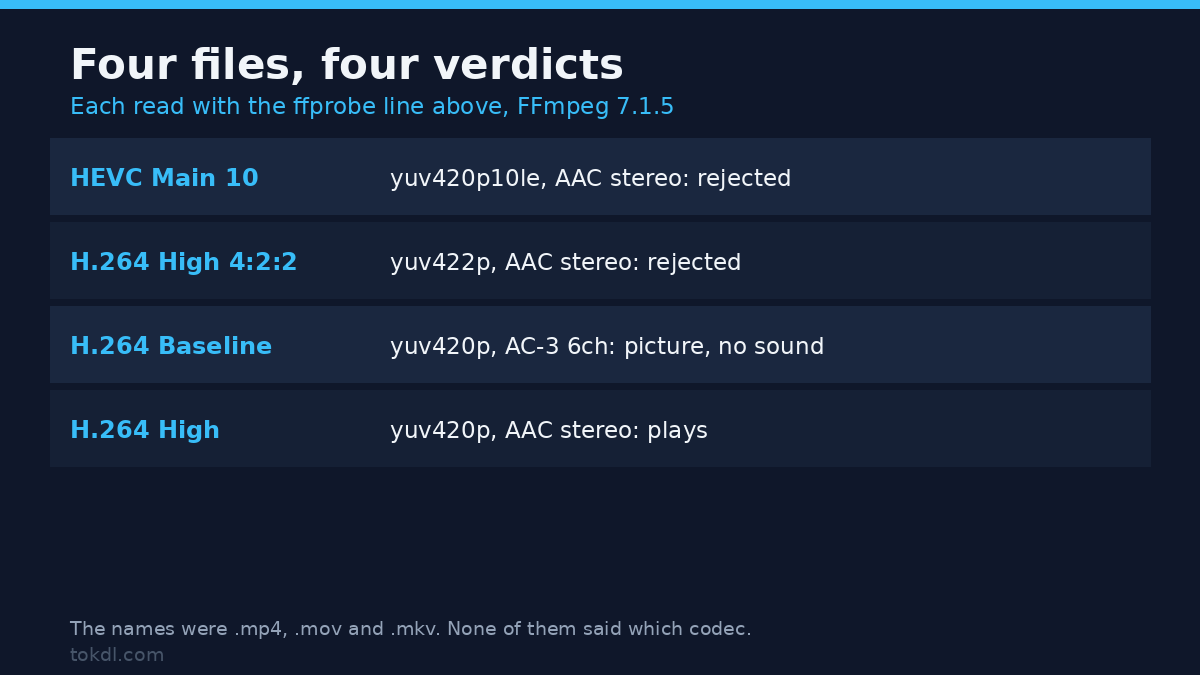
ffprobe -v error -select_streams v:0 -show_entries stream=codec_name,profile,pix_fmt,width,height,r_frame_rate,avg_frame_rate -of default=nw=1 input.mp4Read four values. codec_name should say h264. profile should say High, Main or Baseline, never High 10 or High 4:2:2.
Then check pix_fmt, which should be yuv420p or yuvj420p. Compare r_frame_rate against avg_frame_rate: when the two disagree, you’re looking at a variable frame rate screen capture.
For audio, run the same command with a:0 and ask for codec_name, channels and sample_rate instead. You want aac, 2 channels, 48000. A 5.1 track inserts cleanly and then plays as silence through a laptop dock, which is a confusing hour to lose.
The full ffprobe field guide explains the output lines that look like noise the first time.
Step two: convert to a file PowerPoint accepts
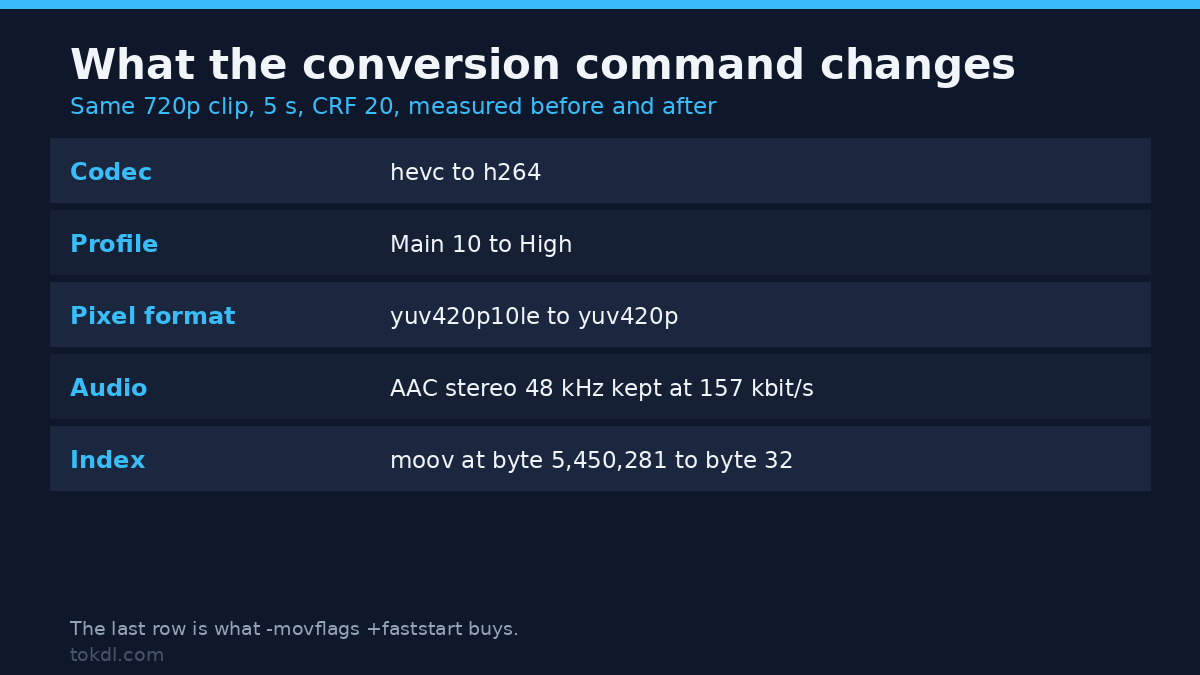
ffmpeg -i input.mov -c:v libx264 -profile:v high -pix_fmt yuv420p -crf 20 -preset medium -vf "scale=trunc(iw/2)*2:trunc(ih/2)*2" -c:a aac -b:a 160k -ac 2 -ar 48000 -movflags +faststart output.mp4Each flag earns its place. libx264 at profile high produces the 8-bit H.264 that every PowerPoint build decodes. yuv420p discards the extra chroma resolution that the decoder refuses. The scale filter rounds odd dimensions down to even numbers, because H.264 can’t store a 1081-pixel height.
The audio side matters as much. -ac 2 folds a surround track down to stereo, which is what a laptop speaker or a ceiling speaker expects. -ar 48000 keeps the standard rate. faststart moves the index to the front of the file so playback begins without a stall.
CRF 20 is a starting point, not a rule. Screen recordings full of small text hold up better at 18. A 4K clip that only has to survive a projector is fine at 22, and the smaller file is the point. The ffmpeg codec reference lists the remaining options if you need to tune further.
Once you know why the video won’t play in PowerPoint, the fix is usually this single command and a two-minute wait.
Step three: the settings inside PowerPoint and Windows
Embed rather than link. Insert, then Video, then This Device copies the file into the presentation. The other option points at a path on disk and plays from there.
Email the deck and the recipient gets a poster frame where your video used to be. Embedding inflates the file, and it’s the only version that survives being sent.
HEVC on Windows needs a separate package. Microsoft ships that decoder as HEVC Video Extensions. Without it, an H.265 clip from a phone inserts as a black frame or refuses with a format error. Install it if you have to play H.265; convert instead if the deck has to travel.
On a Mac, PowerPoint uses the macOS media frameworks, and H.264 MP4 plays without extra packages. The same H.265 ceiling applies, softened by the fact that recent macOS releases decode HEVC natively.
Compress Media sits under File, then Info, in Microsoft 365 builds. It re-encodes the videos already inside the deck at a lower bitrate. That fixes a deck too large to send. It doesn’t fix a file PowerPoint can’t decode, because compression happens after the video has been accepted.
What conversion cannot fix
A deck carries its own copy of every embedded video, so the .pptx roughly doubles in size. A two-gigabyte master becomes a four-gigabyte deck that no mail server will take, and no codec setting changes that arithmetic. Trim the clip, or link it and accept that it won’t travel.
Re-encoding also costs something. H.264 at CRF 20 from a clean source looks close on a projector, but it’s a new encode rather than a copy. Convert the same clip for three different decks and the softening compounds each time.
The codec problem follows the machine, not the file. Presentation computers in hotels and offices are often years behind, with no HEVC package and an old graphics driver. Carrying a 1080p H.264 version on the same stick as your deck costs a few minutes and removes the one variable you can’t control.
Rights and responsible use
The clip belongs to whoever recorded it, whichever container it sits in. Changing a codec is a technical step, not a licence, and a flattened H.264 copy carries exactly the same ownership as the original file.
Client footage is the usual trap. A producer sends a master so you can build a pitch deck, and the contract covers that deck, not the file’s second life on a portfolio page. Watching something in a room differs from projecting it to an audience or mailing the deck to a distribution list.
If someone passes you a clip that came from a video platform, that platform’s rules travel with it after conversion. YouTube’s Terms of Service is a fair starting point for public uploads, and it says plainly that watching a video grants no rights to it.
Troubleshooting
“PowerPoint cannot insert a video from the selected file”
The insert step validates the file before playback starts, so a rejection here is a property of the file rather than a player bug. Check profile and pix_fmt first. High 10, 4:2:2 and 4:4:4 all produce this message on a file that opens perfectly elsewhere.
The clip inserts but the slide stays black
Sound plays and the picture doesn’t, which points at a missing video decoder. H.265 without the Windows package behaves exactly like this, and so does AV1.
It plays on your laptop and not on the venue PC
Codecs are installed per machine. Your laptop may decode HEVC without you ever noticing. The conference room machine won’t, and the fix is the file rather than the room.
Picture but no sound
A 5.1 AAC track or an AC-3 track is the usual cause, and PowerPoint reports it as silence rather than as an error. Re-encode the audio to stereo AAC at 48 kHz.
The video runs at double speed or drifts out of sync
Phone slow-motion clips at 120 or 240 fps and variable frame rate screen recordings both confuse the timeline. Add an explicit constant rate, such as -r 30, and the drift stops.
The deck is too large to send
Embedded media lives inside the file, so one long clip can push a deck past every mail limit at once. Compress Media helps. Trimming the clip helps more.
Frequently asked questions
Why won’t my video play in PowerPoint when VLC opens it?
VLC bundles its own decoders and ignores the system’s. PowerPoint borrows the operating system codecs, so a file that plays in VLC proves nothing about a deck.
Does PowerPoint support MP4 files?
Yes, when the MP4 holds H.264 video and AAC audio. MP4 is a container, so the extension alone guarantees nothing about the codec inside it.
How do I play HEVC video in PowerPoint?
Install HEVC Video Extensions on Windows, or convert the clip to H.264. Converting is the better answer for a deck you intend to send to anyone.
Can I convert H.265 to H.264 without losing quality?
Not without a re-encode, and every re-encode loses a little. CRF 18 to 20 keeps the loss below what a projector can show. The HEVC conversion walkthrough covers the settings in detail.
Can I fix the file without re-encoding it?
Sometimes. If codec_name already reports h264 and pix_fmt is yuv420p, the container is the only problem, and a copy remux rewrites it in seconds without touching a frame. That holds as long as the audio is already stereo AAC. Copy across an AC-3 track and the MP4 keeps it, so the picture plays and PowerPoint reports silence. Check the audio stream first, and add -c:a aac -b:a 160k -ac 2 -ar 48000 when the track isn’t AAC stereo.
ffmpeg -i input.mkv -c copy -movflags +faststart output.mp4Why is there no sound in my PowerPoint video?
The audio is probably multichannel or in a codec PowerPoint won’t decode. Stereo AAC-LC at 48 kHz is the combination that works everywhere.
Will the video still play after I email the deck?
Only if it was embedded rather than linked, and only if the recipient’s machine can decode it. That second condition is the reason an H.264 copy is worth the extra step.
Which fix do you need?
If the file came from a phone and the deck will be shown on a Windows laptop, convert to H.264 and stop reading. That covers most of the cases that reach this page.
If ffprobe says h264 with yuv420p and the file still fails, the container is wrong. Remux with -c copy and keep every pixel you started with.
If the deck has to travel by email, convert, trim, then compress. Linking stops being an option the moment the file leaves your machine.
If you’re presenting in a rented room, bring the H.264 copy and test it on their equipment before the session starts. And if the deck only ever plays on your own Mac, try the original first. It may already work, and a needless re-encode is its own small loss.