

WhatsApp Video Quality: Why Your Clips Look Soft and How to Fix It (2026)
A clip that looks sharp on your phone can land in a group chat looking like it was filmed through a sock. WhatsApp re-encodes video before it plays inside the chat, and that re-encode isn’t gentle. Nothing’s broken, and your camera isn’t the problem.
WhatsApp video quality comes down to two choices you make before you tap send: which quality setting is active, and whether the file leaves as media or as a document. Both live inside the app, and you don’t need an extra tool.
What follows is what the app actually does to your video quality, the three routes around it, and the cases where none of them help.
WhatsApp video quality: the short answer
WhatsApp compresses video because a chat isn’t a file locker. A two-minute 4K clip from a recent phone can run to several hundred megabytes, and the app has to move it to a dozen people on mobile data. So it decodes your file, scales it down, re-encodes at a lower bitrate, and sends that instead.
The result is a single generation loss you can’t undo, made worse by the fact that the file it produces is what gets forwarded, saved and re-sent. High-definition mode raises the ceiling on that re-encode, which is where most of the video quality gains come from. It doesn’t remove the loss.
One route does remove it. A video attached as a document isn’t treated as media at all, so the bytes that arrive are the bytes you sent.
What actually happens to your video quality
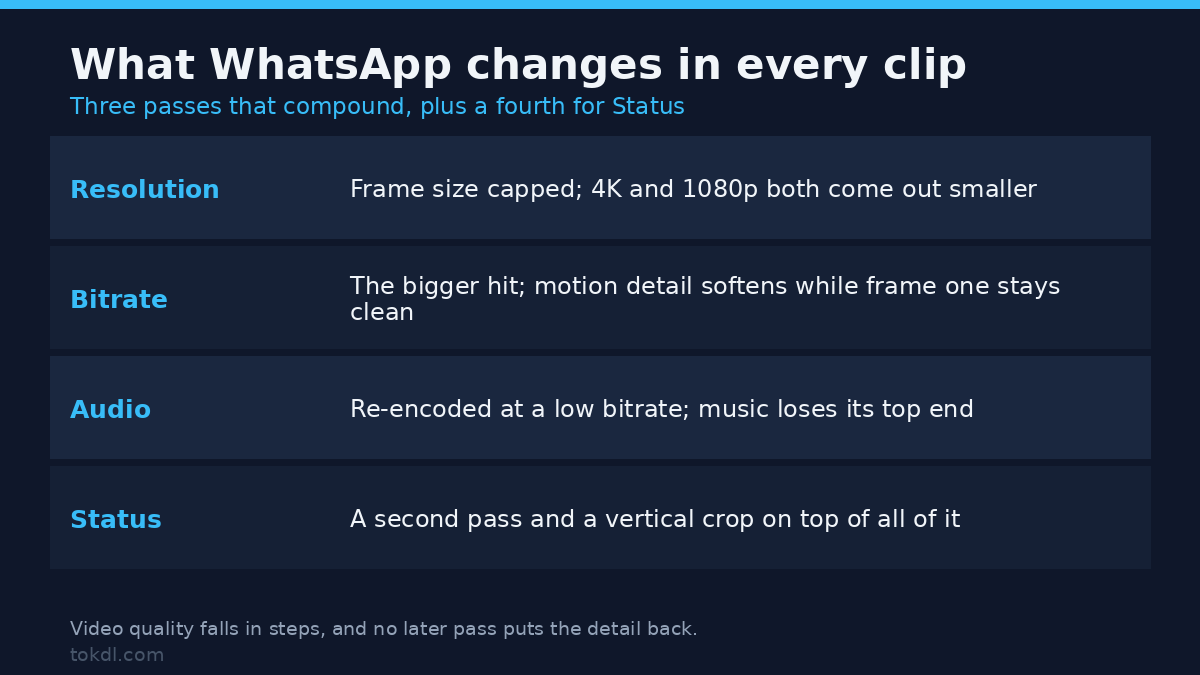
Three things change in the media pipeline, and they compound, so video quality falls in steps rather than all at once.
Resolution. The app caps the frame size. A 4K clip and a 1080p clip both come out smaller than they went in, and the difference in video quality between standard and HD is mostly how much of that cap you get back.
Bitrate. This is the bigger hit to video quality. Detail in motion is expensive to encode, so the encoder spends its budget on a clean first frame and lets the rest soften. That’s why a static shot survives and a pan across grass turns to mush.
Audio. The soundtrack is re-encoded as well, at a low bitrate. Music loses its top end, and a quiet room recording picks up a faint warble that wasn’t in the original.
Status adds a second pass on top, plus a crop to a vertical frame. A clip that goes through the Status editor with text and a music bed has been encoded three times before anyone watches it.
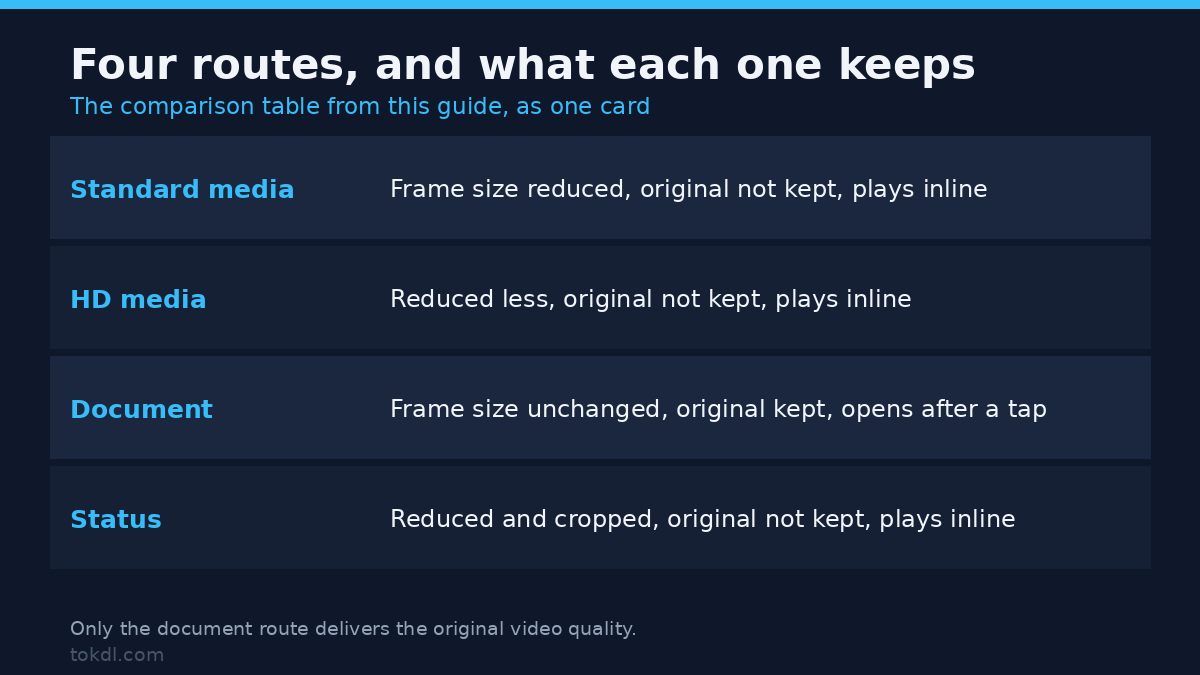
| Route | Frame size | Original file kept | Plays inline |
|---|---|---|---|
| Standard media | Reduced | No | Yes |
| HD media | Reduced, less | No | Yes |
| Document | Unchanged | Yes | After tapping |
| Status | Reduced and cropped | No | Yes |
Before you send: know what your source file is
You can’t tell whether the app hurt a clip’s video quality unless you know what went in. On a phone, the gallery’s info panel lists resolution and size. On a desktop, a file inspector shows the same numbers, and ffprobe shows the rest.
ffprobe -v error -select_streams v:0 -show_entries stream=width,height,codec_name,bit_rate -of default=noprint_wrappers=1 input.mp4Two numbers decide the route. If the clip is already 720p or smaller, there’s little video quality for the pipeline to take and the HD toggle is enough. At 1080p and above the cap will bite, and a document is the only attachment that keeps the detail.
Check the size against the chat limits too, because they aren’t the same limit. Media has a much lower ceiling than documents, and a long clip tends to stall near the end of the upload rather than fail at the start. If size is the real problem, the fixes overlap with the usual file size limits that stop most uploads.
Method 1: switch on HD before you send
The HD option is the least disruptive way to improve WhatsApp video quality, and it’s already in the app. It changes nothing about the file itself, only the video quality ceiling the encoder works to.
Android
Open the chat, tap the attach icon, choose Gallery, and pick the clip. An HD chip appears over the preview. Tap it once so it reads HD, then send. On many builds the same chip sits beside the caption field and the label changes to HD quality when it’s active.
iPhone
Attach a photo or video, select the clip, and tap the HD control in the corner of the preview before you confirm. Some versions bury it behind a Done step, so look at the preview a second time before sending.
Making it stick
Settings has the default: look under Storage and data for a media upload quality entry and choose the highest option offered. The wording shifts between versions and some carriers push a data-saving default that quietly lowers video quality, so check WhatsApp’s help pages for your version and confirm the chip shows HD the first time you send after changing it.
On most builds HD applies per message rather than permanently. That’s why people insist the setting reverted after an update when nothing was reset.
Method 2: send the video as a document
This is the route that skips compression outright, because a document is treated as an opaque file. No scaling, no re-encode, no audio pass, and video quality arrives exactly as it left.
On Android, open the chat, tap attach, choose Document, and browse to the file. On iPhone, use the attach menu and pick the file from Files or export it from the photo library first. The clip arrives as a file card with a name and a size instead of a thumbnail.
The trade-offs are real. There’s no inline preview, so the recipient taps the card and waits for the file before they can watch it. In a busy group a file card gets ignored where a thumbnail gets tapped. Members on limited data also pay for the full weight of the original.
Compatibility is the other catch, and it’s the one people miss. A document arrives exactly as it left, which means an HEVC clip from an iPhone or an MKV from a camera may refuse to play on an older Android phone. Export to H.264 in an MP4 container when you don’t know what the recipient is holding.
If the original is too heavy even for the document ceiling, compress it without wrecking it before you send.
Method 3: export a master the app can handle
You can also meet the encoder halfway. A file already close to what the app targets loses far less video quality in the pass and uploads faster. The usual target is 720p for chat, 1080p when the clip carries small text or fine detail that has to survive.
ffmpeg -i input.mov -vf "scale=-2:1080" -c:v libx264 -preset slow -crf 22 -profile:v high -pix_fmt yuv420p -c:a aac -b:a 128k -movflags +faststart output.mp4Swap 1080 for 720 to halve the pixels. Keep CRF between 20 and 23, because below 20 you’re spending file size on detail the app will throw away. The yuv420p pixel format matters more than it looks: 10-bit and 4:2:2 sources are the most common reason a perfectly good export won’t open elsewhere.
If the source is HDR, convert it to standard dynamic range first. Feeding HDR into a pipeline that assumes SDR is how clips come back grey and flat.
What no setting can fix in video quality
No setting in current versions makes the original file play inline in a chat. The media pipeline is the default for a reason, and HD, data-saving modes and the desktop clients all sit on that same path, so they all land at the same video quality. WhatsApp Web compresses the way the phone does.
Compression is also one-way. Once a clip has been through the pipeline, the video quality can’t be restored by forwarding it again, and the best you can do is avoid losing more. That’s why a clip saved from a chat and re-sent looks worse than the original send, and why the third hop in a group is always the ugly one.
Status is its own case. It crops to a vertical frame and runs its own encode regardless of the HD setting, so a landscape clip loses its edges no matter what you choose.
Rights and responsible use
Every clip in a chat belongs to whoever made it. Sending one as a document changes the file’s quality, not its ownership: the person who receives it gains no licence to republish it, cut it into their own video, or use it commercially, and forwarding it passes along the bytes rather than the rights.
Personal reference is a narrow allowance. Watching a clip later on your own phone is a different act from putting it in a public feed, a monetised video, or a client deliverable. The WhatsApp Terms of Service govern what may be shared in a chat at all, and they apply before you forward anything you didn’t create.
The practical rule: the fact that you can now forward a clip at full quality doesn’t make it yours to publish.
Troubleshooting
The video still arrives soft with HD on
HD usually applies per message, so a clip sent before you tapped the chip goes out at standard video quality. Check the chip on the preview rather than the setting in Settings. Forwarding an old message also forwards the compressed copy, never the original.
The recipient can’t open the document
This is almost always the codec. iPhone video defaults to HEVC, and older Android devices and some desktop players won’t decode it. Re-export to H.264 and the same file opens everywhere.
The upload stalls at ninety-something percent
Media attachments have a far lower size ceiling than documents, and a long clip can hang near the end before failing. Trimming is quicker than fighting the limit, and the document route avoids it entirely.
The clip arrives with no sound
The source audio is probably in a format the recipient’s player doesn’t handle, or the track is a second audio stream the app ignored. Export a single AAC track at 128 kbps and send again.
Colours look washed out, or the clip is sideways
HDR footage sent into an SDR pipeline comes back flat, and clips that rely on a rotation flag can lose that flag in a re-encode. Bake the rotation into the pixels with a re-export instead of trusting metadata.
The Status version is cropped
Status is vertical by design. Scale and pad to 9:16 yourself rather than letting the app cut the middle out of a landscape frame.
Frequently asked questions
Why does WhatsApp video quality drop when I send a clip?
Because the app re-encodes the file for playback in the chat. It decodes your video, caps the frame size, re-encodes at a lower bitrate and re-encodes the audio, then sends that copy. The original never travels unless you attach it as a document, and that’s the only route that keeps the video quality you started with.
Does the HD option send my video at full quality?
No. HD raises the resolution ceiling and keeps more detail than the standard option, but the file still passes through the encoder. It’s an improvement, not a bypass.
How do I send a video on WhatsApp without compression?
Attach it as a document instead of as a photo or video. Documents bypass the media pipeline entirely, so the recipient gets the original file at its original size, resolution and bitrate.
What is the largest video I can send?
Documents go up to 2 GB on current versions. Media attachments hit a much smaller ceiling, which is why long clips often fail on the media route and succeed as a file.
Will the recipient still see a preview if I send a document?
No. They get a file card with a name and a size, and they tap it to open. That missing thumbnail is the main reason the document route is a poor fit for casual sharing.
Does WhatsApp compress videos differently for Status?
Yes. Status applies its own encode and crops to a vertical frame, and it ignores your HD preference. Anything you add in the Status editor is another generation on top.
Can I get the quality back after a video has been sent?
No. Compression is one-way, and re-sending the received file only adds another loss. The only fix is to send the original again from the device that holds it.
Which method should you use?
Use HD when the clip is going to a handful of people, runs under a minute, and the point is that they watch it without friction. Tapping a thumbnail is easier than tapping a file card, and on a phone screen the video quality loss is small.
Use the document route when the clip is a deliverable: a client review, footage headed into another edit, or anything with small text that smears at low bitrate. The recipient already expects a file.
Use the export first if you send video often. A 720p H.264 master costs a couple of minutes and behaves predictably on every route, including the ones you don’t control.
And if the softness survives all three, the chat app isn’t the culprit. The same symptom shows up after other uploads for the reasons covered in why uploads look soft.
WhatsApp video quality is a routing decision, not a camera setting, and it’s one you make before you tap send.