

Video Blurry After Upload? Why YouTube Playback Looks Soft (2026)
A 1080p upload at 8 Mbps and one at 40 Mbps look identical on your timeline. On YouTube they don’t play identically. The platform re-encodes both toward roughly the same delivery bitrate, and the fatter master usually keeps more of its detail on the way through.
That gap explains most cases of a video blurry after upload. The file on your drive is fine. The copy the viewer receives is smaller, and how much smaller depends on settings you control before the upload and settings the viewer controls afterward.
This guide covers the export side, the platform side, and the honest limits of both.
Video Blurry After Upload: The Short Answer
YouTube transcodes every upload into a ladder of renditions, from 144p up to whatever resolution you sent, and the platform picks each rendition’s bitrate. Your master file is never served to a viewer.
Which rendition a viewer gets is decided by connection speed, device, and the quality setting in the player. On a weak connection that can mean 480p playback of a file you exported at 4K, and the picture goes blurry after upload for reasons that have nothing to do with your encoder.
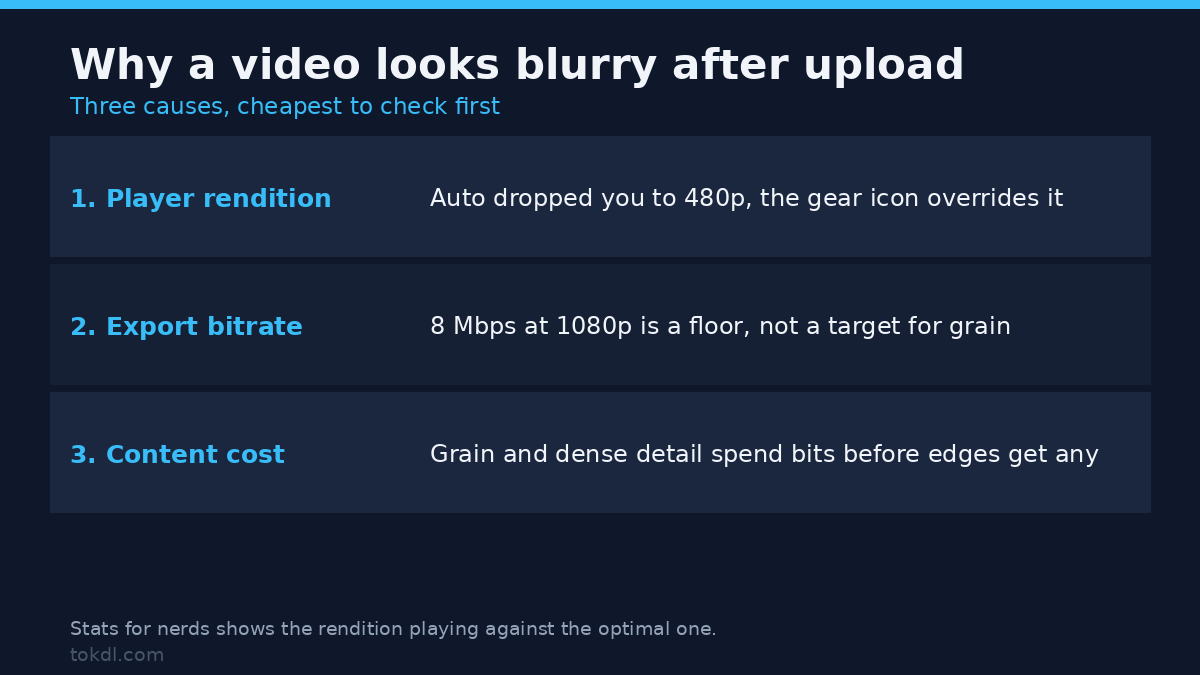
So a video that looks blurry after upload usually falls into one of three buckets. The player is showing a lower rendition, your export bitrate was too low for what the footage contains, or the content itself costs more bits than the delivery bitrate allows.
Before you touch the encoder: is it really blurry after upload?
Two checks in the player take about a minute and rule out half the reasons a clip goes blurry after upload.
Check the quality setting. Open the gear icon and read the number. If it sits on Auto and your connection dipped, you’re watching 480p, which is the most common reason a video looks blurry after upload. Choose 1080p by hand, then compare the same timestamp again.
Check the rendition and codec. Right-click the video and pick “Stats for nerds”. The overlay lists the codec, the resolution currently playing, and the optimal resolution for your window. When Current sits below Optimal, bandwidth is the limit, not your export.
Check processing status. A freshly published video serves low renditions first, and long or high-resolution files wait longest, so a video that’s still blurry after upload an hour in is often just waiting its turn. Look for the HD badge in Studio before judging anything.
Method 1: export settings that survive re-encoding
A handful of settings decide how much detail reaches the viewer. Fix these and fewer videos come back blurry after upload. All of them follow YouTube’s published encoding guidance, and none of them requires paid software.
- Export at the resolution you shot. A 1080p timeline exported at 2160p holds no extra detail, and the platform still treats the file as a 4K master. Upscaling adds pixels, not information, so settle resolution choices before you export.
- Give the bitrate headroom. Start from the platform’s target for your resolution, then add 30 to 50 percent for footage with grain, fast motion, or fine on-screen text.
- Use H.264 at High profile, 4:2:0, closed GOP. Put a keyframe every two seconds or so. Short GOPs give the encoder clean places to cut, and the gap between H.264 and H.265 matters less than the bitrate you feed either one.
- Keep the frame rate native. Converting 60 fps down to 30 before upload throws away motion information that the encoder would otherwise compress well.
- Leave the sharpen slider alone. Pre-sharpening adds halos, halos are expensive to encode, and they come back as ringing after the transcode.
- Encode audio as AAC-LC at 48 kHz. The guidance lists 384 kbps for stereo, and that figure is more than enough for dialogue.
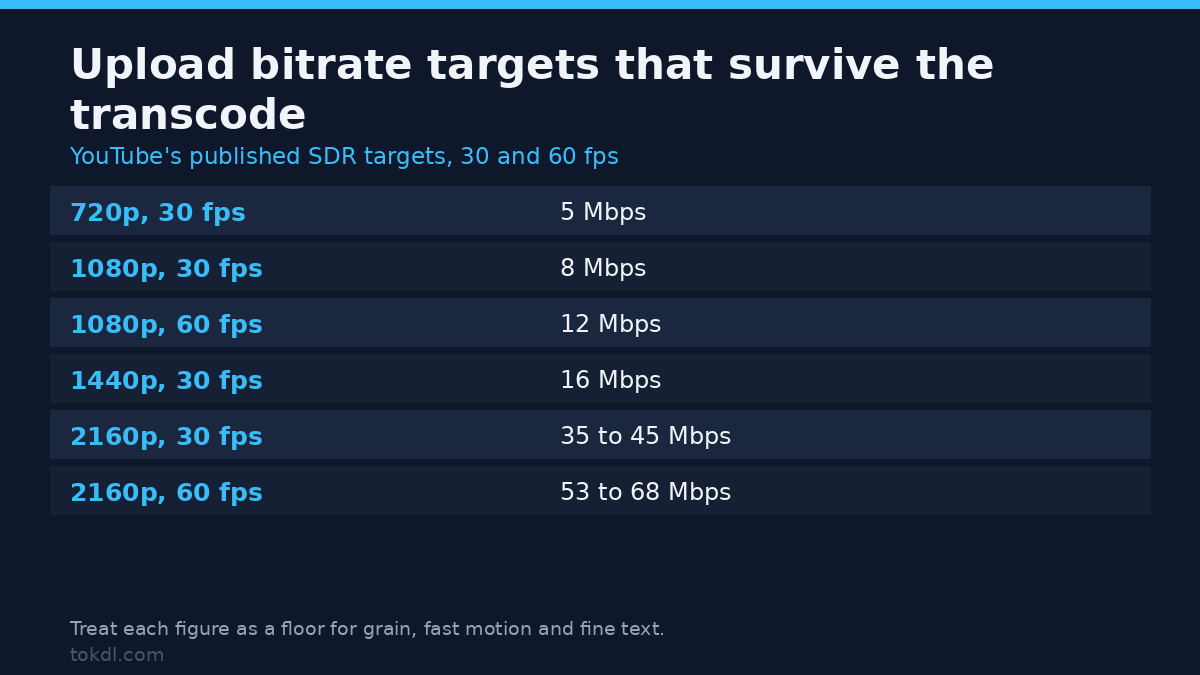
The table below holds YouTube’s published targets for SDR uploads. Treat the numbers as a floor for busy footage rather than a target to shave.
| Resolution | Frame rate | Upload bitrate |
|---|---|---|
| 720p | 30 | 5 Mbps |
| 1080p | 30 | 8 Mbps |
| 1080p | 60 | 12 Mbps |
| 1440p | 30 | 16 Mbps |
| 2160p | 30 | 35 to 45 Mbps |
| 2160p | 60 | 53 to 68 Mbps |
A working FFmpeg line for a 30 fps 1080p master looks like this:
ffmpeg -i master.mov -c:v libx264 -profile:v high -preset slow
  -crf 16 -maxrate 20M -bufsize 40M -pix_fmt yuv420p -g 60
  -c:a aac -b:a 384k -ar 48000 upload.mp4
CRF 16 with a 20 Mbps ceiling keeps gradients clean without letting a two-minute clip grow past a gigabyte. Raise the ceiling for 1440p or 2160p, and lower -g to 30 if you deliver 60 fps. That one change answers a lot of complaints about a video blurry after upload. If the numbers themselves are the puzzle, how bitrate works explains what each value costs you.
Method 2: compare delivery against your own master
YouTube’s own tools answer the question that actually matters: how much detail survived the transcode. No third-party measurement comes closer, because nobody else has the delivered file.
- Open the video in YouTube Studio and use the download option to pull the processed copy back to your machine.
- Put that file beside your export in a player that steps frame by frame, pause on a frame with text and motion, and compare both at 100 percent.
- Repeat with “Stats for nerds” open, so you know which codec and resolution the delivered copy came from.
Do this once per format and the result tells you whether your problem is the export or the viewing conditions. A delivery copy that matches your master within a few percent means the copy that looked blurry after upload was a lower rendition, not damage.
What enhancement tools can and can’t recover
Upscalers, denoisers and AI sharpening filters all promise to rescue footage that came out blurry after upload. It helps to know what each one changes.
An upscaler rebuilds a wide frame from a narrower one, inventing plausible edges between existing pixels. When detail was destroyed by a low-bitrate transcode, it amplifies the blockiness along with everything else. That’s why upscaled clips often look sharper and worse at the same time.
Light denoising before export does help footage shot at high ISO, because grain is expensive to encode. It can’t rescue a file that’s already blurry after upload, since noise and fine detail occupy the same frequencies.
Sharpening goes the wrong way, and it’s the tool most often blamed when a sharp master turns blurry after upload. Halos count as high-frequency detail, and the encoder spends bits reproducing them instead of your subject. If you want to know how far you can push it, sharpening before upload has a measured walkthrough of the amount and radius that survive compression.
Rights and responsible use
The file you exported belongs to you, and uploading it doesn’t transfer ownership to YouTube. It does grant the platform a licence to host, transcode and serve that file, which is what the Terms you accept at upload describe.
Comparing your own master against the delivered copy is ordinary use of your own work. Saving someone else’s video is a different act: a saved file carries no rights with it, and publishing it again is redistribution, whichever tool made the copy.
Personal reference and commercial reuse sit far apart. When the footage isn’t yours and not licensed, the workable options are the creator’s own channel, a licensed stock library, or written permission.
The full conditions live in the YouTube Terms of Service.
Troubleshooting: five soft-playback cases
Still blurry after upload: the processing isn’t finished
Higher renditions are still processing. YouTube builds 1080p and 2160p copies last, and a long file can take hours. Check the processing column in Studio; if it hasn’t reported HD yet, you’re judging an intermediate copy.
Thin text and edges shimmer during motion
Chroma subsampling and a bitrate ceiling are meeting at the worst possible place. YouTube delivers 4:2:0 video, so saturated red type on black loses its edge first. Use heavier weights, avoid single-pixel rules, and raise the upload bitrate for screen recordings that came out blurry after upload.
Sharp on your monitor, soft on the television
The TV is scaling the stream and applying its own picture processing. Set the TV app to the highest available quality, switch the picture mode out of Vivid, and turn off motion smoothing before you blame the encoder. Televisions often guess a rendition from their own connection, independent of the one your laptop picked.
Sharp for a colleague, blurry for you
Your player is on a lower rendition, which is why the same video looks blurry after upload on one machine and sharp on another. The gear icon overrides Auto, and a wired connection or a pause to let the buffer fill usually restores 1080p. Nothing about the file changed between the two viewers.
Grainy footage looks far worse than the source
Noise consumes the bitrate budget before edges get any. Denoise lightly during the edit, skip heavy sharpening, and export at the top of the range for your resolution. Grain that’s left is fine; grain the encoder fights turns into smearing across flat areas.
Frequently asked questions
Why is my video blurry after upload when the file on my PC is sharp?
Because YouTube serves a re-encoded copy, not your file. The platform builds renditions at lower bitrates and hands viewers whichever one fits their connection. Your master keeps its detail; the delivered copy doesn’t.
What bitrate should I upload at?
Use YouTube’s published target for your resolution, then add headroom. For 1080p at 30 fps that means starting at 8 Mbps and going up for grain, motion, or fine text. Higher ceilings cost upload time, not quality.
Does uploading in 4K make the 1080p version sharper?
Sometimes, and only when the 4K file contains real detail. Higher-resolution renditions receive larger bitrate budgets, so a genuine 4K master can improve how the 1080p rendition looks. Upscaling a 1080p edit to 2160p adds no detail to preserve.
How long does YouTube take to finish processing HD?
Minutes for a short 1080p clip, considerably longer for 4K or hour-long files, which is why a 4K upload can sit there blurry after upload for an hour. The HD badge in Studio is the reliable signal. Judging quality before it appears measures a half-built rendition.
Can I improve the quality of a video that is already published?
No. Renditions are generated from the file you uploaded, and publishing doesn’t re-open that door. Any real improvement means a new export and a new upload, though you can keep the old URL private while you compare.
Will deleting and re-uploading the same file fix it?
Only if the export changed. The same file produces the same renditions, which is why it comes back blurry after upload a second time, and the re-upload costs you the views, comments and watch history attached to the original.
Why do other channels look sharper at the same resolution?
Their footage is easier to encode. Slow camera moves, shallow depth of field, and clean flat surfaces compress well, while handheld grain and dense detail don’t. Per-video encoding gives the easy material more bits per frame, and the difference shows.
Which fix should you try first?
Work outward from the cheapest check, because a video blurry after upload is a viewing problem more often than an encoding problem. Open the gear icon and set the quality by hand, then look at “Stats for nerds” to see whether Current matches Optimal. That answers the player question in under a minute.
If the soft look survives a forced 1080p, the export is next. That’s where footage that stays blurry after upload gets fixed. Compare your master against the delivered copy from Studio, then re-export with more bitrate and a shorter keyframe interval if the gap is real.
Change the footage only when both of those come back clean. Larger type, less grain, and slower camera moves reduce what the encoder has to spend, and they cost nothing at upload time.