

Choppy Video Playback: Find the Bottleneck, Then Fix It (2026)
The same 4K clip stutters on a two-year-old laptop and plays cleanly on a phone that cost less than the laptop’s keyboard. Nothing is wrong with the file. The laptop has no circuit that knows how to decode it.
That distinction decides the next hour of your evening. Frames arriving late because the decoder is too slow can’t be fixed by changing the container. Frames arriving late because the drive is slow can’t be fixed by a new encoder.
So treat choppy video playback as a diagnosis before it becomes a conversion. Three stages can fail, and only one of them is normally at fault. Video playback is those three jobs in a chain, and a stutter is the weakest link.
The direct answer: choppy video playback is a decode problem first
Every player does the same three things. It reads bytes from storage, turns compressed frames back into pictures, and hands those pictures to the display. A stutter is one of those three arriving too late.
Decoding is the usual suspect, storage is second, and the display is third. You can separate them in about a minute, without converting anything.
Play the file in a player that carries its own decoders, then play it in the system player or the browser. Smooth in one and stuttering in the other means the file is healthy and the second player is missing a decoder. Stuttering in exactly the same places in both means the problem sits below the software.
Read the file before you judge video playback
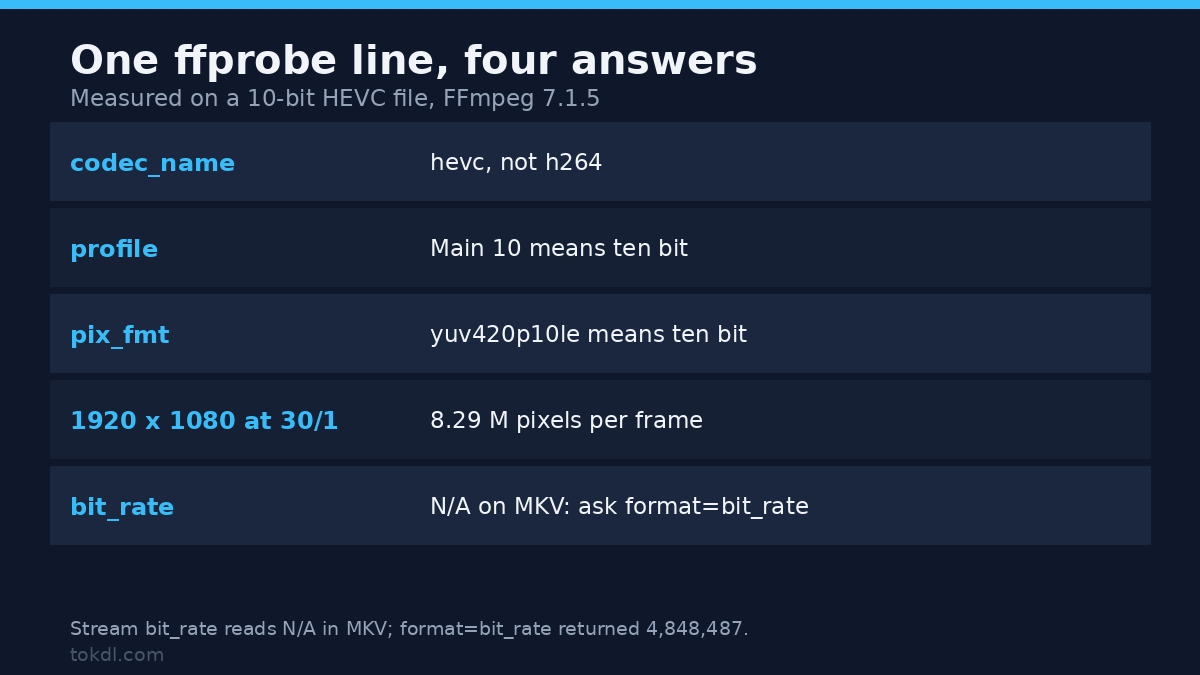
Four numbers explain most stutters on their own: codec, profile, pixel format and bitrate. One command prints all of them, with one gap worth knowing: on an MKV the bit_rate line reads N/A, because Matroska keeps the rate at container level. Swap in -show_entries format=bit_rate and the number comes back, at 4,848,487 on a ten-bit test file.
ffprobe -v error -select_streams v:0 -show_entries stream=codec_name,profile,pix_fmt,width,height,avg_frame_rate,bit_rate -of default=noprint_wrappers=1 input.mp4The first line names the codec, so h264, hevc or av1. The profile line separates Main from Main 10, and that difference matters more than the codec name does.
The pixel format settles it. A value ending in 10le, such as yuv420p10le, means ten bits per channel. Plenty of graphics chips decode eight-bit HEVC in hardware and fall back to the CPU for ten-bit.
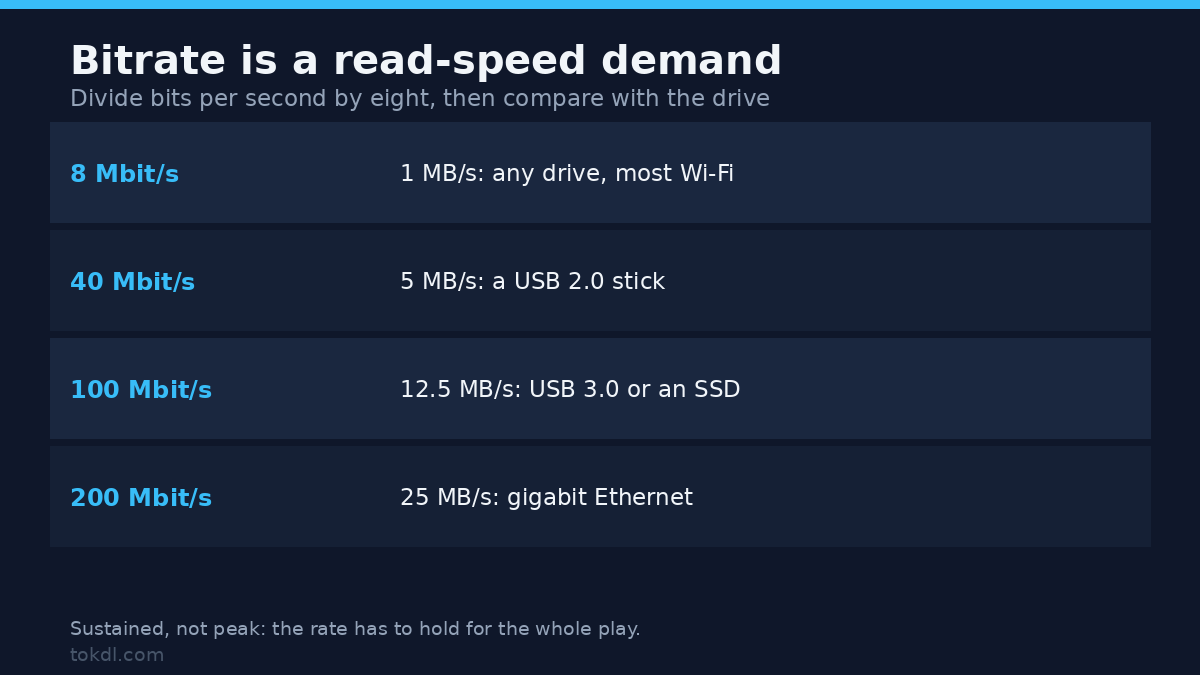
Bitrate is the storage demand, and the conversion is simple arithmetic. Divide bits per second by eight to get bytes per second. A 100 Mbit/s file needs 12.5 MB/s of sustained reading for as long as it plays.
| Video bitrate | Bytes per second | What sustains it |
|---|---|---|
| 8 Mbit/s | 1 MB/s | Any drive, most Wi-Fi |
| 40 Mbit/s | 5 MB/s | A USB 2.0 stick, home Wi-Fi |
| 100 Mbit/s | 12.5 MB/s | 100 Mbit Ethernet, USB 3.0, an SSD |
| 200 Mbit/s | 25 MB/s | Gigabit Ethernet or a local SSD |
Then watch what the machine is doing. VLC reports lost frames under Tools, Media Information, Statistics, and the counter should stay near zero in healthy video playback. VLC Media Player is free and portable, which makes it the quickest way to get that number.
On Windows, Task Manager offers a second opinion. Open Performance, pick the GPU, and change one of the four graphs to Video Decode. A flat line during 4K video playback means the GPU is idle and the CPU is decoding in software.
Method 1: give the machine a stream it can decode
Force software decoding once, as a test. In VLC, open Preferences, then Input and Codecs, and set hardware-accelerated decoding to Disable. If the picture turns smooth, the hardware path is broken by a driver rather than by a missing format, and a driver update is the fix.
If software decoding stutters too, the file needs a different encoding. Eight-bit H.264 has the widest support of any format, and FFmpeg’s H.264 guide explains the settings behind this command.
ffmpeg -i input.mkv -c:v libx264 -preset slow -crf 20 -pix_fmt yuv420p -c:a aac -b:a 192k playback.mp4CRF 20 stays visually close to the source on most footage, and -pix_fmt yuv420p is what lets the result play in browsers and older devices. Browsers decode eight-bit H.264; the ten-bit profile isn’t on their list.
If 4K is the part your machine can’t handle, keep the frame and drop the pixels. Add -vf scale=1920:-2 before the output name, where -2 forces an even height.
Speed matters when you’re working through a folder of old recordings. Your GPU’s own encoder, called h264_nvenc, h264_qsv or h264_videotoolbox, is several times faster and good enough for a video playback copy. The trade-off between those two paths is covered in hardware versus software encoding.
Keep the master. A playback copy is a second file made for a second purpose, and the original stays untouched for editing or archiving.
Method 2: fix the path the bytes travel
A decode problem survives every container change. A throughput problem looks identical on screen and is fixed in a completely different place, and the two are hard to tell apart while video playback is failing.
Copy the clip to the internal drive and play it again. If the copy is smooth and the network version isn’t, the codec was never the issue. An external USB 2.0 enclosure tops out near 35 MB/s in practice, and a 200 Mbit/s file asks for 25 MB/s before the drive does anything else.
Streaming over HTTP adds a second constraint. The player needs the file’s index at the front, or it waits for data it hasn’t received. Rewriting that index takes a second and costs no quality:
ffmpeg -i input.mkv -c copy -movflags +faststart output.mp4-c copy moves the streams without re-encoding, and +faststart puts the index first. The picture isn’t re-encoded at all, so it can’t get worse: the packet md5 of the source and the remuxed copy matched byte for byte in a test run. That combination repairs a file that stalls at the start, and it can’t repair a decoder, because the codec inside is unchanged. The mechanics are the subject of the moov atom guide.
When video playback drops no frames
Sometimes the counter stays at zero and the picture still judders. Nothing is late; the rhythm is wrong. Choppy video playback with no dropped frames is a cadence problem rather than a throughput problem, and it needs a different remedy.
A 23.976 fps film shown on a 60 Hz panel needs a repeating cadence that no player can make perfectly even, and most eyes read that unevenness as a stutter. Matching the display refresh rate to the source, or letting the player switch it, removes the cadence. That’s a separate fault from the ones above, and re-encoding won’t touch it.
Phone footage adds a second variant. Many phones record at a variable frame rate while players assume a constant one, so timestamps drift and the sound slides out of step with the picture. Converting VFR to CFR is the repair for that.
Heat is the third impostor. A laptop that plays 4K smoothly for nine minutes and then chokes is throttling, and the file is innocent. Watch the clock speed or the CPU temperature while it degrades. A drop that lines up with the stutter is the whole answer.
What the video playback tools do
Players differ mainly in which decoders they carry, and that single difference explains most of what people call a video playback problem on a desktop. VLC and mpv ship their own, so they handle formats the operating system has never heard of. Browsers and built-in media apps borrow from the system, which is why one file behaves differently in each of them.
Transcoders change the stream itself: codec, profile, bit depth, resolution. HandBrake puts the same encoders behind a window and a row of presets, and the encoder settings underneath are the ones that decide whether the output plays smoothly.
Most choppy video playback is a decoder gap, and the market for system optimizers exists because that gap is easy to sell against. None of them ship a codec the hardware lacks. What they change is cache size, power plans and player preferences, which are the same switches you can flip yourself in two minutes.
Video playback inside an editor is a fourth case and a different problem. An editor decodes several streams at once and renders effects in real time, so it stalls where a player would not. Proxies are the fix there, as described in the proxy workflow guide.
The limits of any video playback work deserve stating plainly. Software decoding buys compatibility at the cost of battery life and fan noise, and it won’t rescue 4K on a weak processor. A transcode costs one generation of quality, which is why it belongs on a copy. And a failing drive produces freezes and skips rather than steady stutter, so a different diagnosis is needed entirely.
Rights and responsible use
Converting a file for your own screen doesn’t change who owns the footage. The picture and the sound belong to whoever made them, and a re-encode is a technical change rather than a legal one.
Watching something comfortably on your own device is a different act from publishing it, cutting it into your own video, or selling access to it. A playback copy made for that private purpose grants nothing beyond it, and it doesn’t license the music that happens to sit inside the file.
FFmpeg is free software under the LGPL or the GPL, depending on the build. FFmpeg’s licence terms cover the tool, not the material you pass through it.
Troubleshooting
Video playback smooth in VLC, choppy in the browser
The browser has no decoder for that codec, profile or bit depth, so video playback falls back to the CPU. Chrome and Firefox lean on the operating system for HEVC, and ten-bit is the case that most often falls back to software. Convert one copy to eight-bit H.264, or watch the file in a player that carries its own decoder.
Video playback smooth at first, choppy after ten minutes
The machine is heating up and the clock speed is dropping. Clear the vents, lift the laptop off the desk, and check that it’s plugged in, because a battery-saver power plan caps the processor long before the file becomes the problem.
Video playback choppy only in fullscreen
The renderer switches to a full-resolution surface and the GPU has to keep up with the entire frame. Check that the display isn’t running above its native resolution, then try a different player to see whether the compositor or the decoder is at fault.
Video playback choppy only from the network drive
That’s throughput, not decoding. Wi-Fi that benchmarks well can still stall on a sustained read, and a sleeping NAS adds a pause that no buffer survives. Copy the file locally and compare the two.
Sound drifts ahead of the picture
The source has a variable frame rate and the player is counting frames on a fixed clock. Convert to a constant rate, then verify that the audio duration matches the video duration in the output.
Worse after you converted it
The second encode was too aggressive, or the pixel format changed into something the player handles badly. Compare the bitrate of the two files, then re-run the command at CRF 18 if motion lost detail.
Frequently asked questions
Why does choppy video playback happen on a new laptop?
New doesn’t mean capable. A recent CPU can sit beside a GPU that lacks hardware decoding for ten-bit HEVC or AV1, and the processor alone often can’t keep up with 4K. The fix for choppy video playback is a stream the machine can decode, not a faster drive.
Can I fix choppy playback without re-encoding?
Sometimes. A remux with a rewritten index repairs video playback that stalls at the start over a network, and moving the file to a faster drive repairs throughput stalls. Neither touches a decoder, so a decode problem still needs a new encode.
Does a lower resolution fix stutter?
Often, yes. Scaling 4K to 1080p cuts the pixels the decoder has to push by about three quarters, which is usually enough to make video playback smooth on older integrated graphics. It reduces file size as well, so it helps throughput at the same time.
Why is the video smooth in one player and choppy in another?
They decode differently, and that’s most of what decides video playback in a browser. Players that bundle their own libraries handle formats the system does not, while system players and browsers rely on whatever the operating system and the graphics driver provide.
Does converting MKV to MP4 stop the stutter?
Only when the container or its index was the cause of the stalled video playback. If the MKV holds ten-bit HEVC and the player can’t decode it, an MP4 of the same stream stutters in exactly the same places.
Can integrated graphics play 4K smoothly?
Usually yes, when the chip decodes that codec in hardware. Integrated graphics have handled eight-bit HEVC for several generations, and ten-bit or AV1 support depends on how old the chip is. When the format is newer than the hardware, software decoding decides the outcome.
How do I know if hardware decoding is active?
Watch the Video Decode graph in Task Manager on Windows, or the statistics panel inside the player. A moving graph means the GPU is working. A flat line during playback means the CPU is doing it instead.
Which route fits your file?
If one player is smooth and another stutters, convert. Eight-bit H.264 at CRF 20, scaled to 1080p on an older machine, solves the largest group of cases with one command and one cup of coffee.
If every player stutters in the same places, look below the software. Copy the file to an internal drive, then check the read speed that the bitrate demands. Remux with a faststart index if it only fails at the start.
If no frames are dropping and video playback is uneven rather than late, stop converting. The refresh rate and the source frame rate disagree, or the file came off a phone with a variable rate, and both of those are fixed without touching image quality.
And if the stutter only appears inside an editor, the file isn’t the problem. That’s a timeline asking for more streams than the machine can render, and proxies cost less than a new computer.