
Chroma Subsampling Explained: 4:2:0 vs 4:2:2 vs 4:4:4 (2026)
Almost every video you export from a phone stores colour at a quarter of the resolution of its brightness, and nothing on screen tells you it happened. The trade has a name, chroma subsampling, and it explains a puzzle you’ve probably met: a red logo in your clip looks smeared while the white headline next to it stays razor sharp.
The reason is a quirk of human vision, and it’s the whole basis of chroma subsampling. Your eyes pick out fine detail in brightness far more easily than in colour, so encoders spend most of their bits on luma, the black-and-white image, and store chroma, the colour, at a lower resolution. The three-number code that describes how much lower is 4:2:0, 4:2:2 or 4:4:4.
Most of the time the default is fine and you can stop reading soon. It stops being fine in two places: keying a green screen, and anything with coloured text or flat graphics. Those cases are worth the next ten minutes.
The Direct Answer: Which Chroma Subsampling You Need
Keep 4:2:0 for anything you publish, 4:2:2 for footage you’ll shoot and grade, and 4:4:4 for graphics, screen recordings and titles. That single line mirrors how the industry has split the job for decades.
Subsampling is lossy, and that’s the whole problem. Once colour is stored at a lower resolution, no later step can restore detail that was never recorded. Choose the setting where the detail is created, not at the end of the chain.
| Setting | Colour stored at | Typical use |
|---|---|---|
| 4:4:4 | Full resolution | Graphics, titles, screen recordings, colour grading, archiving |
| 4:2:2 | Half horizontal resolution | Camera acquisition, green-screen work, editing intermediates |
| 4:2:0 | Half horizontal and half vertical, a quarter of the pixels | Final delivery: streaming, phones, broadcast, disc |
What the Chroma Subsampling Numbers Throw Away
Every frame is stored in a colour space called YCbCr, where three channels ride together: Y carries brightness, and Cb and Cr carry colour.
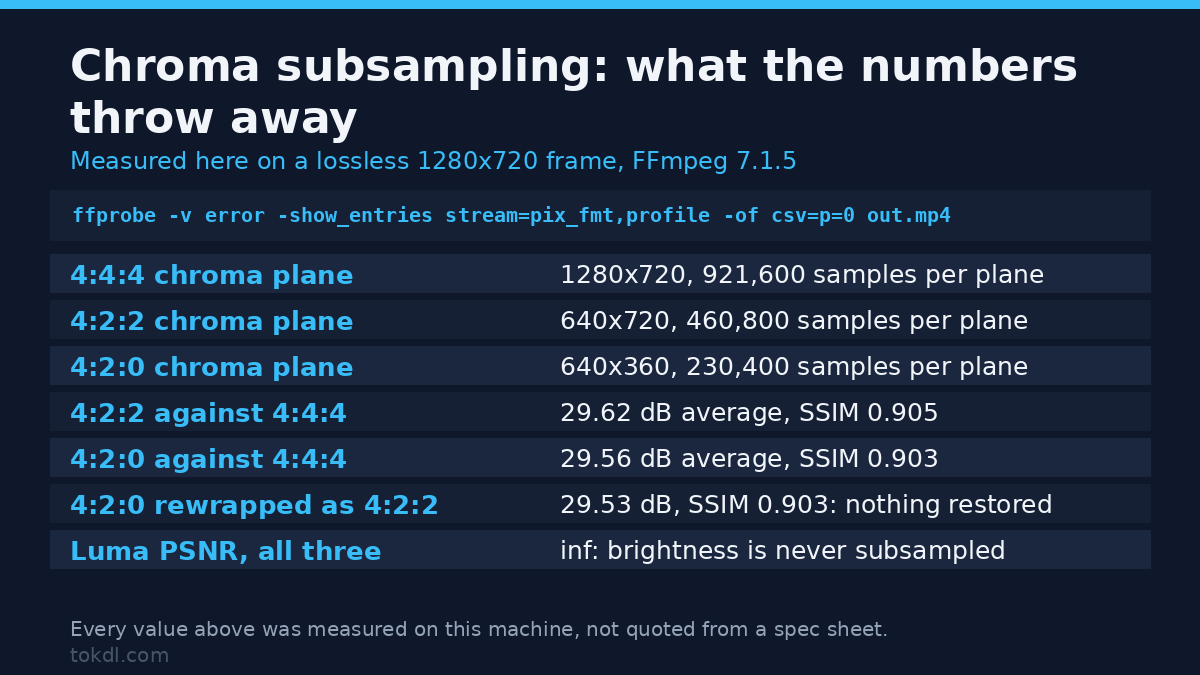
In 4:4:4 all three keep one sample per pixel. In 4:2:2 the two colour channels keep one sample for every two pixels across each line, so colour runs at half the horizontal resolution. In chroma subsampling at 4:2:0 they’re halved in both directions, leaving one colour sample for every 2×2 block of pixels.
The arithmetic is blunt, and it’s measurable: on a 1280×720 frame the 4:2:0 colour plane holds 230,400 samples, 4:2:2 holds 460,800 and 4:4:4 holds 921,600, while brightness stays at 921,600 in all three. Stored next to full-resolution brightness, the difference rarely shows on a face or a landscape, which is exactly why it became the delivery default in the first place.
Where it shows is saturated colour with hard edges. A bright red button on a dark background, thin coloured text, or a graphic with a sharp colour boundary loses its crispness, because the encoder is averaging colour across a group of neighbouring pixels. Pair that with 8-bit colour depth and smooth gradients start to band as well.
Older formats used other patterns. DV and early broadcast tape often ran 4:1:1, which keeps colour at a quarter of the horizontal resolution but full vertical resolution, so vertical colour edges survive better than horizontal ones. You’ll still meet it in old footage, and it’s one more reason to check a file rather than assume it’s 4:2:0.
Check the Chroma Subsampling Setting on Any File Before You Touch It
Before changing anything, find out what you’re working with. FFmpeg prints the pixel format, the shorthand for the sampling scheme, in a single command:
ffprobe -v error -select_streams v:0 -show_entries stream=pix_fmt,codec_name -of default=nw=1 input.mp4A result of yuv420p means 4:2:0 at 8-bit, yuv422p means 4:2:2, and yuv444p means 4:4:4. A trailing 10 or 12 (yuv420p10le, for example) tells you the bit depth as well. MediaInfo and most editing apps expose the same value under a colour-sampling field, so if you prefer a window over a terminal, that field is the one to read.
If you haven’t used the command line before, the everyday FFmpeg commands walk through the same tools with real examples.
Method 1: Set the Chroma Subsampling With FFmpeg
FFmpeg controls the scheme with the -pix_fmt flag. To force 4:2:0 at 8-bit, the format that plays everywhere:
ffmpeg -i input.mov -c:v libx264 -pix_fmt yuv420p -crf 20 -c:a copy output.mp4For 4:2:2 you need yuv422p, and naming the matching H.264 profile is the portable way to ask for it:
ffmpeg -i input.mov -c:v libx264 -profile:v high422 -pix_fmt yuv422p -crf 18 output.mp4And for 4:4:4, which suits graphics and screen captures:
ffmpeg -i input.mov -c:v libx264 -profile:v high444 -pix_fmt yuv444p -crf 18 output.mp4Two cautions. First, raising the chroma subsampling to 4:4:4 doesn’t invent detail that was never captured; it only stops you discarding more. Second, yuv444p and yuv422p files play back in fewer places, since most browsers and many televisions only decode yuv420p. A 4:4:4 file is an editing master, not a delivery file.
The full option list and the profile constraints live in FFmpeg’s H.264 guide, which is the reference to check when a flag is rejected.
Method 2: Where the Chroma Subsampling Setting Hides in an Editor
Most editors don’t give you a direct switch. They tie the sampling scheme to the codec and the export format, so the real lever is your choice of container and codec rather than a checkbox you can toggle.
Export to H.264 or HEVC for the web and you’re almost always writing 4:2:0, and the export dialog won’t mention it. Choose an intermediate codec instead, such as ProRes 422, DNxHR HQ or an equivalent, and you get 4:2:2 or better at the cost of a much larger file.
That’s why the professional workflow splits in two. Cameras and editors work in ProRes or DNxHR intermediates for headroom, then the finished piece is compressed to 4:2:0 for the platform. If you need both, export a master at 4:2:2 and a separate delivery file at 4:2:0, rather than treating one file as both jobs.
What Chroma Subsampling Can and Cannot Do
Changing the chroma subsampling scheme isn’t a quality dial you can turn up at the end for free. Re-encoding a file that chroma subsampling already reduced to 4:2:0 as 4:4:4 produces a 4:4:4 file with no more colour detail than it started with, and often a slightly softer one, because the interpolation is a guess. The detail has to exist in the source.
What it can do is stop future loss. If you capture or grade at 4:2:2 or 4:4:4, you keep colour headroom for keying, stabilising, rotating and colour work, all of which move pixels around and are happier with full-colour neighbours.
For the final upload, the platform re-encodes everything it receives. YouTube’s recommended upload settings ask for 4:2:0, which tells you the delivery target is the one place a higher setting buys you nothing.
Rights and Responsible Use
Changing the colour sampling of a clip is a technical operation on pixels. It isn’t a licence, and it moves no rights at all. Footage belongs to whoever created it, and re-encoding, converting or “improving” a file you found elsewhere gives you no claim over it.
Keeping a copy for private study, or for editing your own material, is a different act from republishing it. Your own recordings are yours to grade, export and license as you wish. Someone else’s aren’t, whatever pixel format they happen to arrive in.
When you do publish, the terms of the destination decide what you may upload. YouTube’s Terms of Service cover the most common destination for a finished video and spell out those limits.
Troubleshooting: Five Chroma Subsampling Problems and Their Causes
Green-screen edges keep a coloured fringe after chroma subsampling
The most common cause is source footage shot at 4:2:0. Colour is smeared across 2×2 blocks, so even a clean key on the backdrop leaves coloured halos on hair and edges. Shoot or transcode to 4:2:2 before you key, and add spill suppression on top of it.
Red text and logos turn to mush under chroma subsampling
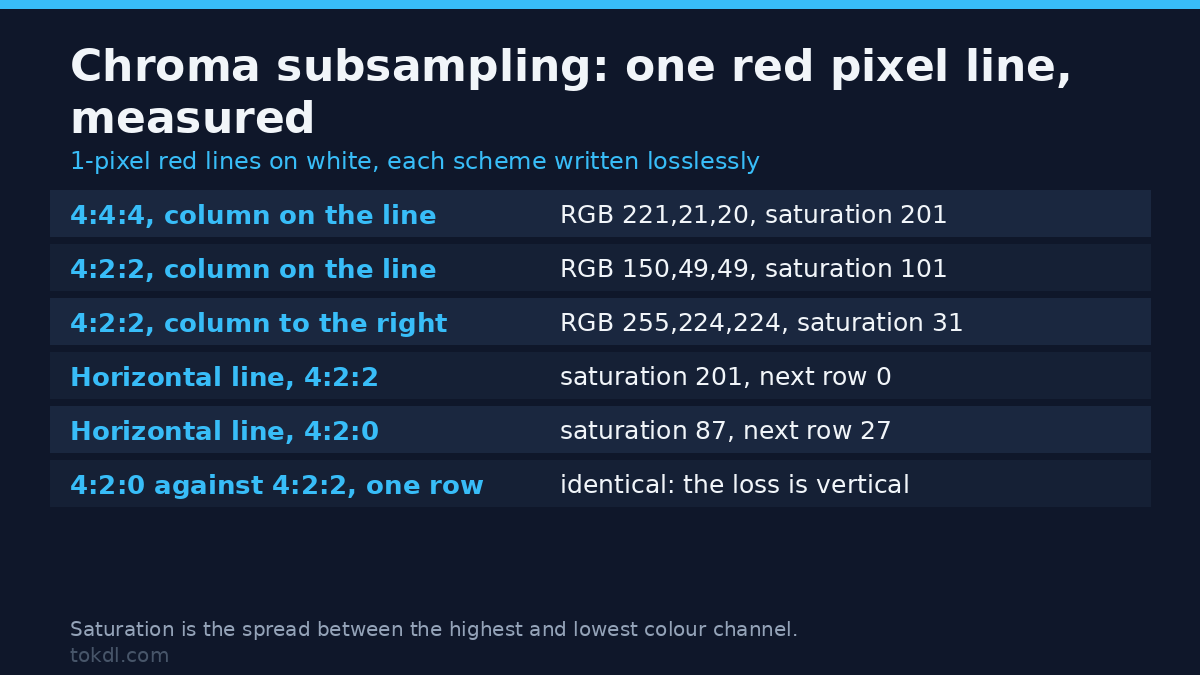
Saturated red is the worst case for 4:2:0, because Cr carries almost all of it at a quarter resolution. If the graphic matters, composite it in 4:4:4, or set the text in a heavier weight so the encoder has more solid colour to hold onto.
The file plays as a black screen in a browser or on a TV
The likely cause is a 4:4:4 or 4:2:2 pixel format the player can’t decode. Re-encode with -pix_fmt yuv420p and it’ll play. Browsers and most televisions only guarantee 4:2:0 H.264, so an editing master isn’t a delivery file.
Coloured text in a screen recording shows fringes
Screen recorders often capture to a 4:2:0 codec by default, which is exactly what hurts thin coloured text on a flat background. Capture with a lossless or 4:4:4 codec, then deliver in 4:2:0. The fringing won’t be there in the master.
FFmpeg refuses to write yuv422p with libx264
On this machine it isn’t a refusal at all. FFmpeg 7.1.5 with libx264 encoded 4:2:2 straight from a bare -pix_fmt yuv422p, choosing High 4:2:2 at 8-bit on its own, and the delivered file probed back as yuv422p. The command fails only when the profile you name can’t carry the chroma: -profile:v high exits with code 234 and the encoder reports that the high profile doesn’t support 4:2:2. Pin -profile:v high422 when you want the profile fixed in the command, and read the encoder’s own error before blaming the build.
Frequently Asked Questions
What is chroma subsampling in simple terms?
It stores colour at a lower resolution than brightness. Because people notice brightness detail far more than colour detail, most video keeps full-resolution luma and a fraction of the colour, saving a large amount of data for almost no visible cost on ordinary footage.
Is 4:2:0 good enough for normal video?
Yes, for almost everything you watch. Streaming, phones, broadcast and Blu-ray all deliver 4:2:0, and on ordinary footage the difference from 4:4:4 is invisible. It only becomes a problem with graphics, saturated colour and keying.
Can I convert 4:2:0 footage to 4:2:2 and get the detail back?
No, you can’t recover colour detail that was never recorded. Chroma subsampling can’t be undone after the fact: a lossless 4:2:0 capture rewrapped as 4:2:2 measured 29.53 dB against the 4:4:4 frame, against 29.56 dB for the untouched 4:2:0. Upsampling interpolates the colour that’s already there and stops. The missing samples are gone, so the image won’t gain colour detail.
Is 4:2:2 better than 4:2:0 for green screen?
Yes, and it’s usually the difference between a clean key and a fight. 4:2:2 keeps twice the colour resolution, so keying software has cleaner colour around the edges. Shoot at 4:2:2 whenever a green screen is involved, even if you deliver at 4:2:0.
Why does YouTube ask for 4:2:0 if higher settings look better?
Because the platform re-encodes everything it receives back to 4:2:0. Uploading 4:4:4 doesn’t survive that step, so it costs you upload time and nothing is gained on the viewer’s screen.
Does chroma subsampling change the file size?
Yes, and chroma subsampling is one of the larger levers on size: a 3-second 1280×720 clip at CRF 20 came out at 1,211,912 bytes in 4:2:0, 1,263,859 in 4:4:4 (4.3% more) and 1,376,281 in 4:2:2 (13.6% more), so the ladder isn’t a straight line. Dropping from 4:4:4 to 4:2:0 cuts the raw colour data by three quarters, which is why the setting matters so much for storage and streaming. Codec efficiency and bitrate usually matter more in the final number.
Which codec and pixel format should I export for the web?
H.264 in yuv420p is the safe default that plays everywhere. Use 10-bit yuv420p10le only if you’re delivering HDR, and keep 4:2:2 or 4:4:4 for masters that stay off the web.
Which Chroma Subsampling Setting Should You Use?
Match the setting to the job, not to a preference for “higher”. Capture and edit at 4:2:2 when your camera allows it, key and composite at 4:4:4 when you can, and deliver at 4:2:0 because that’s what every platform and player expects. Get that order right and the colour problems in this guide stop appearing in the first place.