
How to Extract Subtitles From a Video and Save Them as SRT
Somewhere inside the video you’re holding, there’s a text track with every line of dialogue in it. Maybe it arrived with an MKV you bought, maybe it’s a caption track you added last month and never saved separately, or maybe a client sent an MP4 with subtitles embedded in the container. You need that text as a file you can edit, spell-check or translate, and retyping nine hundred lines isn’t a plan.
You can extract subtitles from a video in one FFmpeg command, and the job takes about ten seconds once you know which stream you’re pointing at. The trouble sits around that command: the track you picked isn’t the one you wanted, the output is zero bytes, or the timings come back a few milliseconds off and you can’t tell whether the tool lied.
I built a 60-second test clip for this article, 640×360 at 30 fps, with three subtitle tracks inside it (English SubRip, French SubRip and a styled ASS track) plus a second copy in MP4 where the subtitle stream is mov_text. Every command below ran against those files on FFmpeg 7.1.5, and every number is measured from that run.
What You’ll Learn
- How to list subtitle streams with their codec and language before you extract subtitles.
- The map syntax that picks a track by position or language, and why the absolute index fails.
- When
-c:s copyworks, how to verify the output, and why cues can come back 21 ms late.
Three Kinds of Subtitle, One That Extracts Cleanly
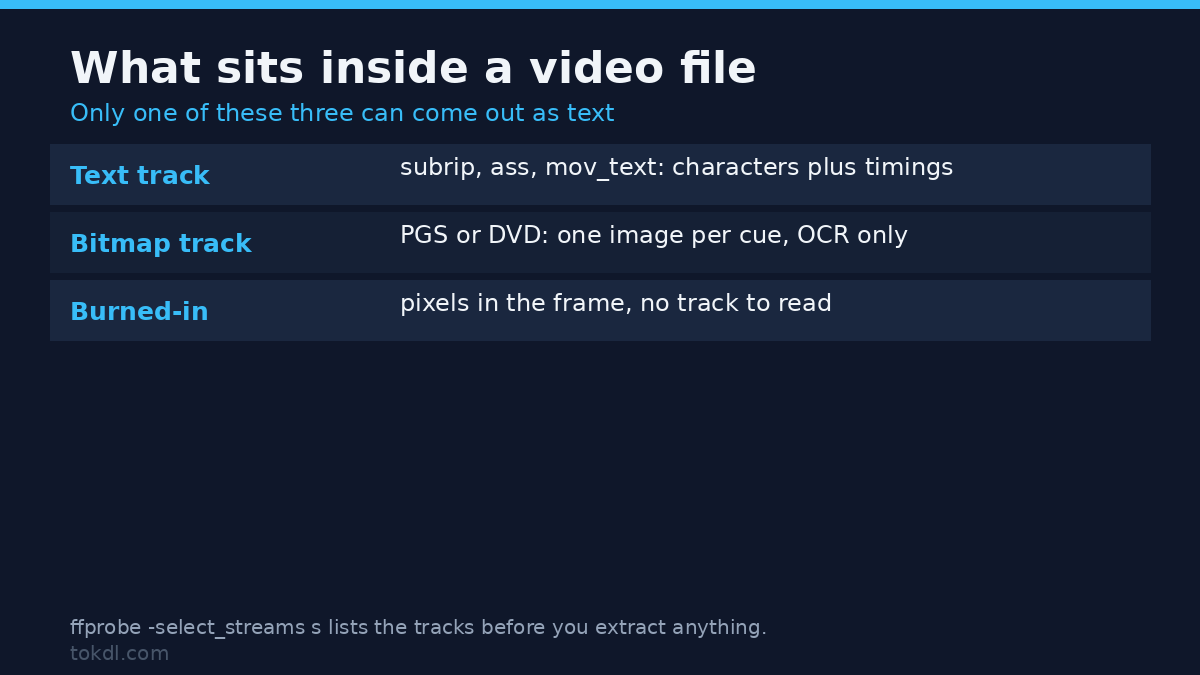
Which type you have decides whether you can extract subtitles at all. A soft subtitle track is a separate stream holding characters plus timings, and it’s what nearly every MKV and most editor-exported MP4s carry. A bitmap track is also a stream, but it stores one small image per cue: Blu-ray PGS and DVD subpictures work this way, and FFmpeg has a PGS decoder and no PGS encoder. Burned-in subtitles are just pixels in the frames.
| Type | Stored as | Text extraction? | Codec names |
|---|---|---|---|
| Soft, text | Characters and timestamps | Yes, the normal job | subrip, ass, mov_text, webvtt |
| Soft, bitmap | One image per cue | No, needs OCR after decoding | hdmv_pgs_subtitle, dvd_subtitle, dvb_subtitle |
| Burned in | Pixels in the frame | No, no track to read | it’s just video |
Step 1: Find the Tracks First
Guessing costs more time than looking, and it’s the wrong way to extract subtitles. One ffprobe call lists every subtitle stream with its codec, language tag and default flag:
ffprobe -v error -select_streams s
  -show_entries stream=index,codec_name:stream_tags=language,title
  -show_entries stream_disposition=default,forced -of json subs.mkv
On my test file that returned three subtitle streams: 0:s:0 is subrip tagged eng with default: 1, 0:s:1 is subrip tagged fra, and 0:s:2 is the ass track, tagged eng but with no default flag, so a player won’t choose it on its own.
Two details matter when you extract subtitles. The 0:s:N numbering counts only subtitle streams, so it stays stable in a file carrying five audio tracks. The raw index in the probe output counts everything, and the same track gets a different number when extra audio is present. FFmpeg’s stream selection rules cover the rest of the map syntax. If the language tag reads und, nobody set one.
Step 2: Extract Subtitles With One Command
ffmpeg -i subs.mkv -map 0:s:0 -c:s srt english.srtThree parts, three jobs, and it’s the whole recipe to extract subtitles once you know the track. -map 0:s:0 takes the first subtitle stream from input 0 and nothing else, which is why the output holds no video or audio. -c:s srt sets the subtitle codec and decides whether this works at all. The last argument is the destination, and 435 bytes with five cues is what came out.
For the other tracks, change the subtitle number, not the index from the probe: -map 0:s:1 gave 163 bytes with two cues, -map 0:s:2 gave the ASS track. To select by language, -map 0:s:m:language:fra produced a byte-identical file to -map 0:s:1, which is safer when you don’t control the track order. You can also extract subtitles from two tracks in one call:
ffmpeg -i subs.mkv -map 0:s:0 -c:s srt english.srt
                  -map 0:s:1 -c:s srt french.srt
That wrote 435 and 163 bytes, the same two files as separate runs, and it’s the quickest way to extract subtitles from both languages. Leave -map out and FFmpeg picks the stream flagged default, which matched the English file byte for byte. Fine with one track, risky with five, where the default flag often marks the forced track or whichever language somebody added first. Two failures are worth recognising: with no subtitle stream in the file, -map 0:s:0 stops at exit 234 with Stream map '' matches no streams, and mapping by absolute index onto the audio stream gives exit 8, because the SRT muxer has no AAC encoder.
Step 3: Choose the Format on Purpose
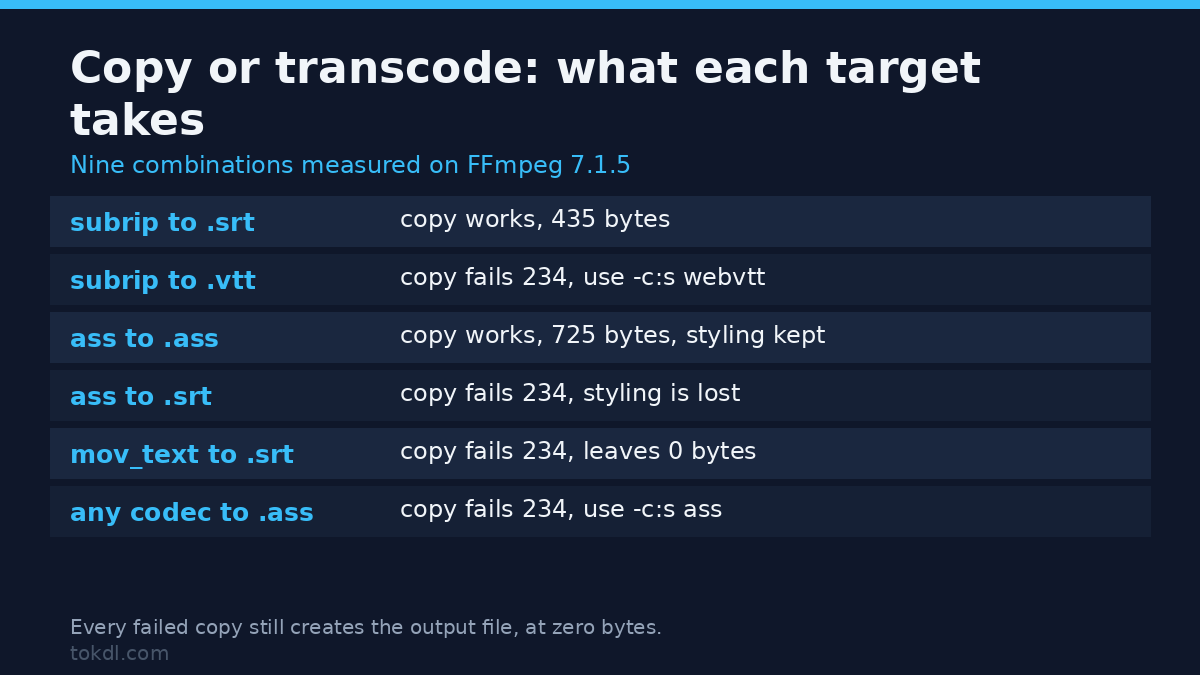
Copying the stream feels safest, and it only works when the source codec already matches the destination container; the codec reference lists which subtitle codecs each muxer accepts. I ran all nine combinations: copy is the top half of the table, an explicit codec the bottom.
| Source codec | To .srt | To .vtt | To .ass |
|---|---|---|---|
subrip, -c:s copy |
Works, 435 bytes | Fails, 234, 0 bytes | Fails, 234, 0 bytes |
ass, -c:s copy |
Fails, 234, 0 bytes | Fails, 234, 0 bytes | Works, 725 bytes |
mov_text, -c:s copy |
Fails, 234, 0 bytes | Fails, 234, 0 bytes | Fails, 234, 0 bytes |
| subrip, named codec | srt, 435 bytes | webvtt, 402 bytes | ass, 1101 bytes |
| ass, named codec | srt, 316 bytes | webvtt, 150 bytes | ass, 725 bytes |
| mov_text, named codec | srt, 435 bytes | webvtt, 402 bytes | ass, 1101 bytes |
The errors are specific once you know them: Unsupported subtitles codec: mov_text when you copy mov_text into SRT, and webvtt muxer supports only codec webvtt for any copy into a .vtt. All of those exit with 234 and still create the output path at zero bytes, so a script that checks whether the file exists reports success on nothing. Copy only when codec and container agree, otherwise name the codec. Either way you extract subtitles as plain text, so the transcode is string formatting with no frames involved.
Styling is what you pay when you extract subtitles into SRT. Converting the ASS track to SRT gave a cue reading <font face="DejaVu Sans" size="28" color="#ffff00"><b>{an8}<i>Italic text placed near the top</i></b></font>: the style became an HTML font tag, the italic survived as <i>, and the position override leaked into the visible text as a literal {an8}. Other overrides vanished (pos did), so a cue near the top of the frame lands wherever the player puts it. If styling matters, extract subtitles to ASS and stop there.
WebVTT has its own habits: FFmpeg drops the hours field under an hour, writing 00:02.000 --> 00:05.000 where SRT prints 00:00:02,000. That’s legal and browsers accept it, but a parser written for three colon groups will trip. HTML entities passed through untouched in both formats.
Step 4: Check What You Got
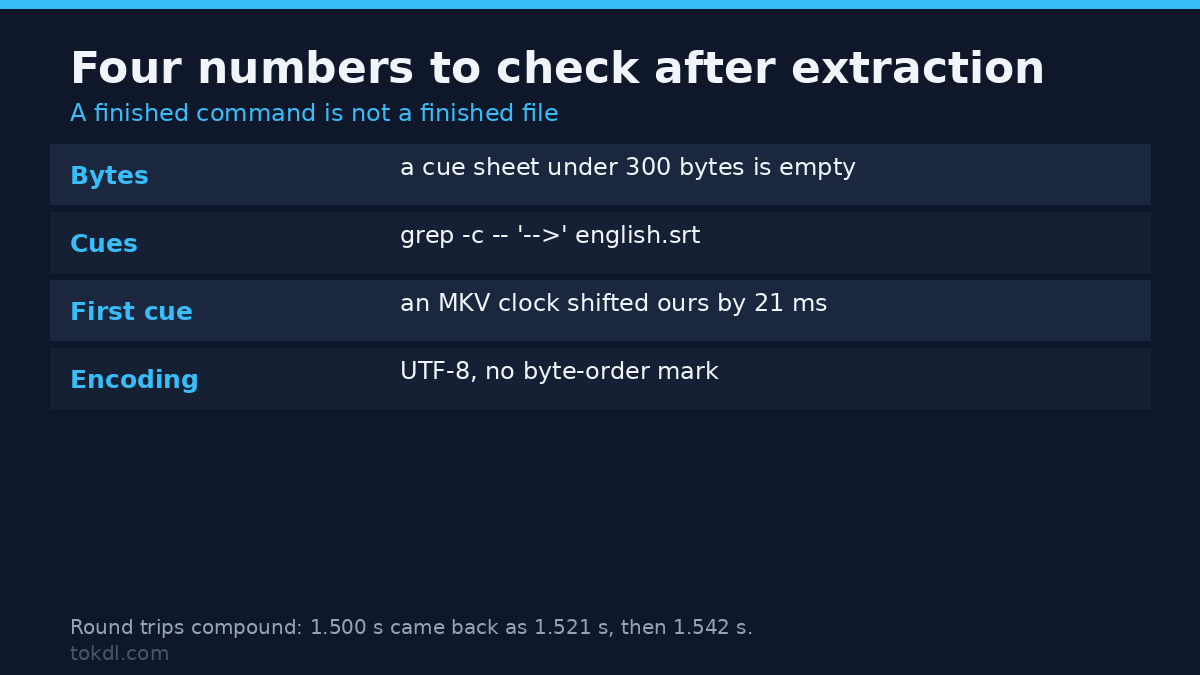
Exit code 0 means FFmpeg finished, not that the file you meant to extract subtitles into has cues. Four checks catch everything above, and they take a minute the first time: byte size (under a few hundred bytes for a feature is empty), cue count from grep -c -- '-->' english.srt, the first and last timestamps from head -2 and tail -4, and the character encoding, which should read UTF-8 with no byte-order mark. FFmpeg writes plain UTF-8 and line feeds, so any text editor’s status bar settles the last one.
Here’s the part that surprised me. The source SRT I muxed into the MKV had its first cue at 1.500 s. Extracted from that MKV, the same cue came back at 1.521 s, and all ten timestamps were exactly 21 ms later. The cues weren’t drifting; the whole track had moved. The packets explain it: the first video packet in that MKV sits at 0.021 s rather than 0.000, because the source MP4 carried a B-frame delay, and the subtitle stream was shifted with the rest of the timeline when the container was written. The same five cues from the MP4 came back identical, so the 21 ms arrives with the MKV rather than with the act of extracting subtitles. A fresh round trip gave 1.542 s.
Extracting a segment has its own clock trap. With -ss 20 before -i, the cue at 24.921 s came out at 4.921 s, because FFmpeg reset the timeline to the segment start. With -ss 20 after -i, the same cue stayed at 24.921 s, and adding -copyts to the input-side seek kept the absolute value too. Those placements move in opposite directions, so decide which timeline you want first.
How to Extract Subtitles From an MP4
MP4 can’t hold SubRip. Editors and streaming tools store text captions as mov_text, the format Apple defined, so that’s the codec in most captioned MP4s. It’s text, and you can extract subtitles from it, but doing so is the source of the most common zero-byte surprise here, since -c:s copy into an .srt fails with 234.
ffmpeg -i titles.mp4 -map 0:s:0 -c:s srt titles.srtThat produced 435 bytes and five cues, matching the MKV extraction in text and timing. If you need the track inside a container rather than a sidecar, copying into a .mov works and kept mov_text intact at 1119 bytes; only the text containers are picky. mov_text tracks often carry no title, so the language tag is the only handle you get.
What You Can’t Extract Subtitles From
Bitmap tracks are one wall: a PGS track decodes to images, and with a decoder and no encoder there’s nothing to turn into text, so OCR in a subtitle editor is the real answer. Burned-in text is the harder wall, because there’s no track to read. Check the probe first: if no stream reports codec type subtitle, nobody embedded anything.
One case looks broken and isn’t: a cue past the end of the picture still extracts, because nothing clamps cues to the video duration. I muxed a cue at 62 s into a 60 s clip and got it back intact.
Five Mistakes That Cost the Most Time
-c:s copyinto a container whose muxer won’t take the codec. Exit 234, zero bytes. Name the codec instead.- Mapping by absolute stream index. That column counts video and audio too, so use
0:s:Nwhen you extract subtitles. - Checking the exit code and not the file. Every copy failure above still creates the output path at zero bytes, so look at the file the first time you extract subtitles from a new source.
- Ignoring the source encoding. A Windows-1252 SRT without
-sub_charencdied at exit 69 and wrote nothing.-sub_charenc WINDOWS-1252fixed it;ISO-8859-1decoded the accents but dropped the em dash, since byte 0x97 is a control character in Latin-1. - Expecting FFmpeg to wrap long lines. It doesn’t, my longest line came out at 65 characters, and the player wraps at display time.
Frequently Asked Questions
Does extracting subtitles touch the video?
No. The output is a subtitle file with no video stream to re-encode, so the picture and audio are never touched.
Can I extract subtitles as their own MKV?
Yes. Copying the ASS track into a fresh MKV gave a 1337-byte file whose single stream was still ass, with language tag and title intact. It’s the lossless route when styling matters.
How do I get every track out at once?
Map them into one output (-map 0:s -c:s copy all.mkv wrote 2193 bytes for three tracks) or name one output per stream. FFmpeg writes them in the order the maps appear, so check names before the run when you extract subtitles from a multi-language file.
The Short Version
Probe the file, note which subtitle stream you want and whether its codec is text or bitmap, then run one command with -map and an explicit -c:s. Use copy only when codec and container already agree. Check byte size, cue count and the first timestamp of the subtitles you extracted before trusting the result, because a failed copy still leaves a file behind and an MKV round trip can move a whole track by 21 ms.
Once the text is out, the rest gets easier. Fixing timing is a constant offset or a rescale, which the subtitle sync guide covers step by step, and the delivery format is a separate decision that SRT vs VTT vs ASS settles. If you’re creating captions rather than pulling them out, start with how to add subtitles to a video. When a probe finds no subtitle stream on a file that should have one, the path matches a video with no sound.