
GIF to MP4: Convert Animated GIFs to Video That Uploads (2026)
You made a GIF. It loops the way you wanted, and then you try to post it and the platform rejects it or turns a three-second clip into an eight-megabyte monster. That’s when most people search for a gif to mp4 conversion, and then hit a second wall: the video comes out with a white background where the GIF was transparent, or it plays at an odd frame rate.
None of that is mysterious. A GIF is a palette format from 1989 that happens to support animation, and MP4 is a video container with a modern codec inside. Moving between them is a translation, and translations lose things. I ran these conversions on FFmpeg 7.1.5 with test GIFs I built, measured the output and read the pixels back, so the numbers below come from this machine.
What you’ll learn
- Why a gif to mp4 conversion usually makes the file 3 to 4.5 times smaller.
- Which command keeps a GIF’s uneven timing.
- What happens to a transparent background, with pixel values from both routes.
Why convert a GIF to MP4 at all
GIF is an indexed format: at most 256 colours per frame, one fully transparent index, and LZW compression from the era of 2400-baud modems. Video codecs store one frame, describe only what changed, and spend bits where the eye notices.
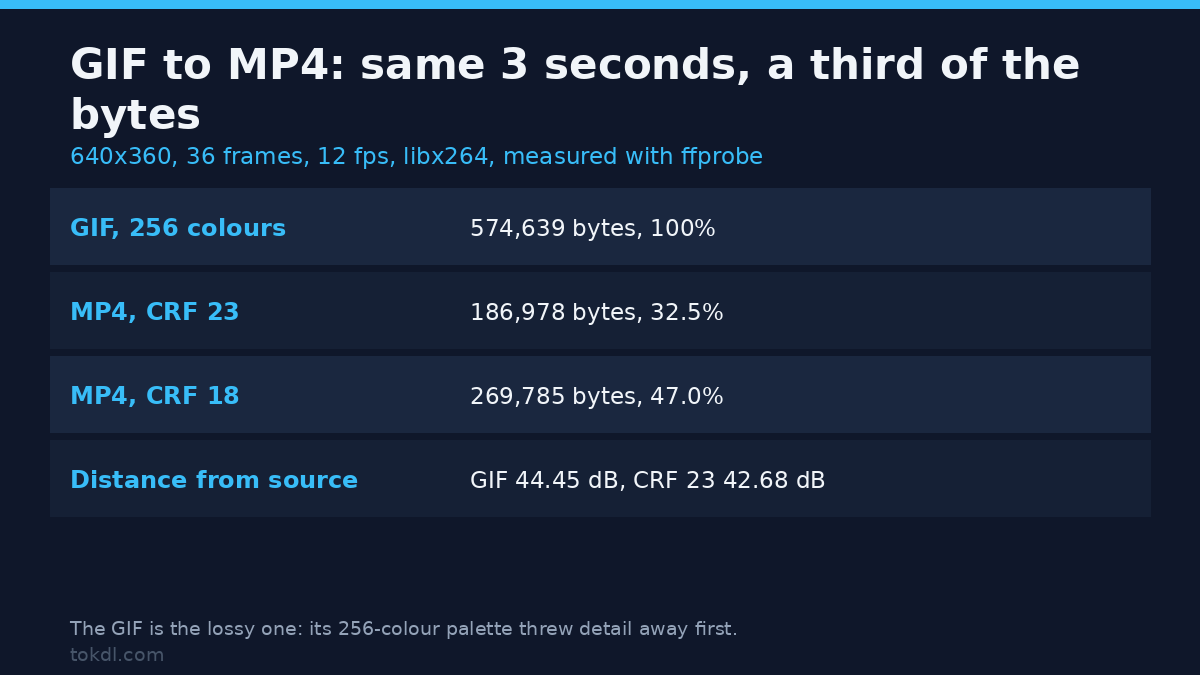
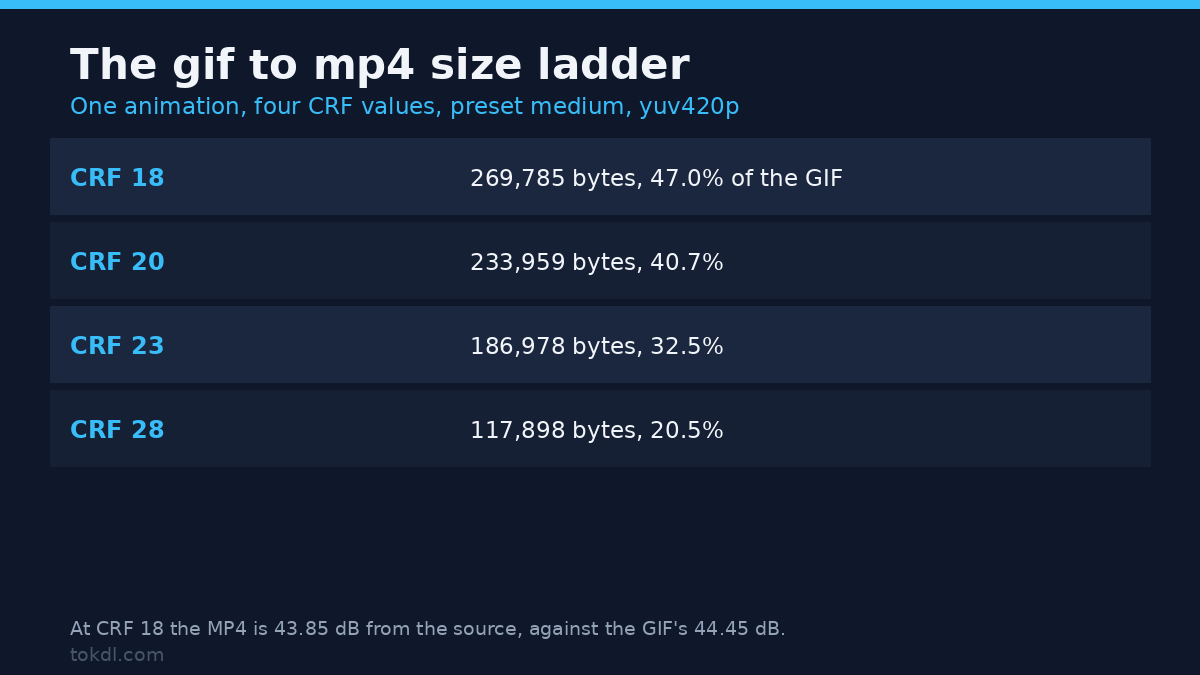
The size difference isn’t subtle, and it’s why a compressed GIF is still a poor substitute for a video file. I built a 640×360 animation of 36 frames at 12 fps and encoded it twice. The GIF came out at 574,639 bytes for three seconds. The same animation as H.264 at CRF 23 came out at 186,978 bytes, 32.5 percent of the GIF, a little over three times smaller.
| Version of the same 3-second animation | Bytes | Share of the GIF |
|---|---|---|
| GIF, 256-colour palette | 574,639 | 100% |
| MP4, H.264 CRF 18 | 269,785 | 47.0% |
| MP4, H.264 CRF 20 | 233,959 | 40.7% |
| MP4, H.264 CRF 23 | 186,978 | 32.5% |
| MP4, H.264 CRF 28 | 117,898 | 20.5% |
Here’s the quality column nobody prints. Measured against the lossless original, the GIF scored 44.45 dB PSNR and the CRF 23 MP4 scored 42.68 dB. The smaller file is 1.8 dB further from the source. At CRF 18 you recover most of that gap (43.85 dB) and still land under half the GIF’s size. If the GIF is your only copy, you’re encoding an already-quantised picture, and no gif to mp4 setting puts back the colours the palette threw away.
What a GIF file stores
Every gif to mp4 conversion starts with this check. Before converting, look at what the file holds. The GIF89a specification defines a per-frame delay in hundredths of a second, so the timing is per frame rather than one frame rate. My test file had delays of 100, 100 and 500 milliseconds repeating, and ffprobe reported this:
ffprobe -v error -show_entries stream=codec_name,pix_fmt,avg_frame_rate,nb_frames,duration
  -of default=nw=1 gif_uneven.gif
codec_name=gif
pix_fmt=bgra
avg_frame_rate=100/23
nb_frames=30
duration=7.000000
Thirty frames, seven seconds, an average rate of 100/23 (about 4.35 fps), and a pixel format with an alpha channel. That bgra is the part people forget: GIF transparency is real alpha, and it’s the first thing a video codec refuses to keep.
Method 1: the one-command gif to mp4 conversion
For a file with steady timing, one command does the job:
ffmpeg -i animation.gif -pix_fmt yuv420p -c:v libx264 -crf 23 animation.mp4On a 320×180 GIF of 30 frames at 10 fps (25,322 bytes), that gif to mp4 command produced a 5,573-byte file: 30 frames, 10 fps, 3.000 seconds, H.264 High profile, yuv420p. The ratio was 22 percent, or 4.5 times smaller, and the frame count was exact. The 10 fps stayed 10 fps, so on a 30 fps timeline each picture is shown three times and the motion looks like the GIF.
The -pix_fmt yuv420p isn’t optional: 4:2:0 is the layout every browser, phone and platform decoder accepts without argument. If you convert video rather than GIFs, converting a video to MP4 covers the cases where a remux beats a re-encode.
Keeping a GIF’s uneven timing
The interesting gif to mp4 test is the file with 500-millisecond holds. A naive conversion could flatten it into a constant frame rate and turn a pause into a stutter. It doesn’t. FFmpeg’s GIF demuxer passes the per-frame timestamps through, and the MP4 keeps them as presentation timestamps with gaps:
ffprobe -v error -select_streams v:0 -show_entries frame=pts_time -of csv=p=0 uneven.mp4
0.000000
0.100000
0.200000
0.700000
0.800000
0.900000
1.400000
That’s the original pattern, intact: two tenths of a second, a half-second hold, then the repeat. The output is 30 frames over 7.000 seconds and 6,249 bytes. What changes is the reported rate: avg_frame_rate reads 30/7 while r_frame_rate still says 10/1, because the file is now variable frame rate. A gif to mp4 conversion that keeps the pauses is the correct result, not a bug to fix.
When you force 30 fps anyway
Plenty of guides tell you to add -r 30 “for compatibility”. I tested what that does to the same 30-frame GIF. The output had 90 frames for 30 distinct pictures, so 60 are duplicates, and the file grew from 5,573 to 7,472 bytes, a 34 percent increase for no new information.
Don’t take my word for the duplication. Extract three consecutive frames and compare them:
ffmpeg -i thirty.mp4 -vf "select=eq(n,1)" -frames:v 1 f1.png
ffmpeg -i thirty.mp4 -vf "select=eq(n,2)" -frames:v 1 f2.png
md5sum f1.png f2.png
Both hashes came back identical, and so did the next triple. Add -r 30 to a gif to mp4 command only when a specific upload form refuses a 10 fps file, and expect a third more bytes when you do.
What happens to transparency in a gif to mp4 file
This is where most gif to mp4 conversions look broken. The alpha channel has nowhere to go in 4:2:0, and FFmpeg doesn’t composite the transparency against anything. It drops the alpha and keeps the colour sitting under the transparent index.
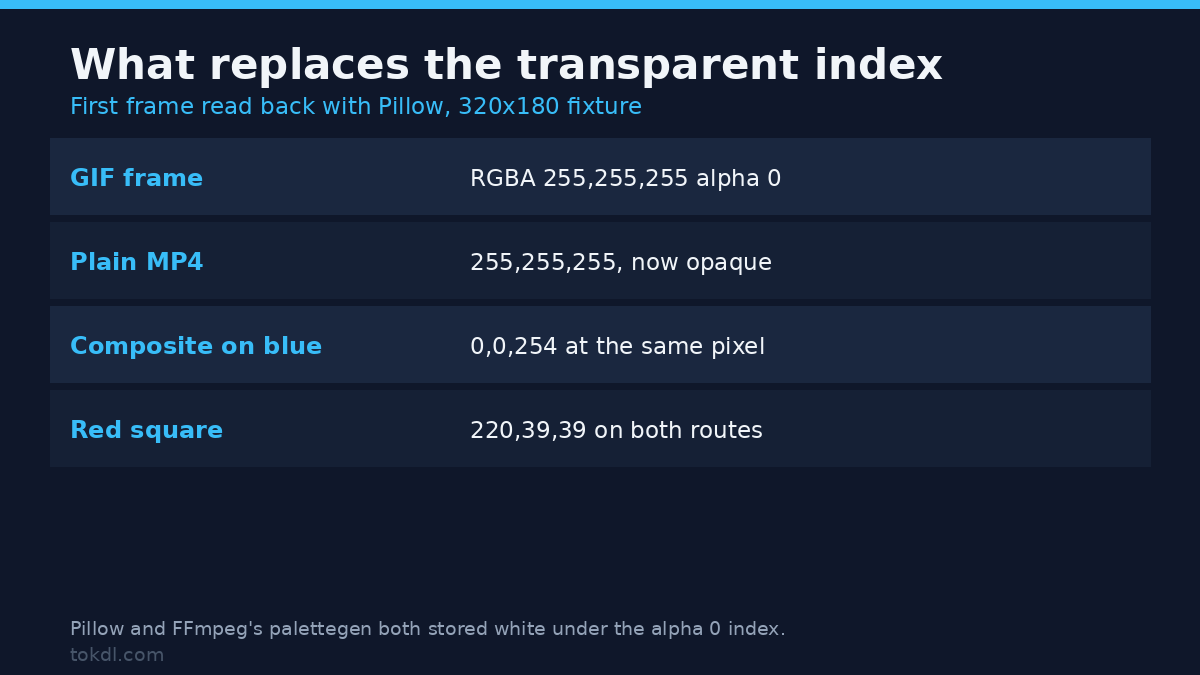
I built two transparent GIFs with two encoders: one with Pillow, one with FFmpeg’s own palettegen set to reserve a transparent entry. Both decoded to RGBA(255, 255, 255, 0) at the background, pure white under a zero alpha. Convert either with the plain command and you get a white background in the MP4, pixel value (255, 255, 255), fully opaque. It isn’t a colour-range bug and it isn’t your player. The white was in the file.
Want a specific background? Composite it yourself, and that is the only gif to mp4 step where you get to pick what fills the gaps:
ffmpeg -f lavfi -i "color=c=0x0000FF:s=320x180:r=10:d=1.2" -i animation.gif
  -filter_complex "[0:v][1:v]overlay=shortest=1,format=yuv420p"
  -c:v libx264 -crf 23 on_blue.mp4
Reading the first frame back gave (0, 0, 254) where the GIF was transparent, and (220, 39, 39) on the red square, so the composite is exact. Swap the colour for your brand background, or use a frame from your own footage as the base. If you need the transparency itself, MP4 is the wrong container and you want the alpha channel export route instead.
Colour tags: the part FFmpeg leaves blank
My plain gif to mp4 conversion wrote no colour metadata at all: color_range, color_space, color_primaries and color_transfer all came back null. The levels were fine, and I checked: a background pixel of (24, 24, 28) came back as (24, 23, 28), one unit of quantisation and no range shift.
Untagged H.264 is read as limited range by every player, and since the encoder wrote limited-range samples, that assumption holds. Trouble starts downstream, when someone re-encodes or converts the file and the missing tags leave the range open to interpretation, the failure mode behind most washed-out exports. Writing the tags costs a few bytes:
ffmpeg -i animation.gif -vf "scale=out_range=tv,format=yuv420p" -c:v libx264 -crf 18
  -x264-params colorprim=bt709:transfer=bt709:colormatrix=bt709 tagged.mp4
That output reported color_range=tv plus bt709 for space, primaries and transfer, at 6,299 bytes. The scale and overlay filters are documented in the FFmpeg filter reference. Note that scale=out_range=tv on its own changed nothing at CRF 23: the file was byte-identical to the untagged one at 5,573 bytes. The tags came from the x264 parameter list, not the filter. Probe the delivered file rather than trusting the flag you typed.
Which output should you keep
| Output | Best for | Watch out for |
|---|---|---|
| MP4, H.264, CRF 23, yuv420p | Uploads, chat apps, slides | White background from transparent GIFs |
| MP4, H.264, CRF 18, tagged BT.709 | Anything you’ll re-edit later | Roughly twice the bytes of CRF 23 |
| MP4 with a composited background | Transparent GIFs, brand colours | You must pick the background |
| WebM, VP9 | Web pages where size wins | Not every upload form accepts it |
These are the gif to mp4 settings worth keeping. On the small flat-colour fixture, VP9 at CRF 34 came out at 3,481 bytes against H.264’s 5,573, so it wins on size there. It loses on compatibility, and a gif to mp4 conversion exists mostly because MP4 is the format everything opens.
Common mistakes
Adding -r 30 out of habit. It tripled the frame count and added 34 percent to the file for nothing. A 10 fps GIF is already a valid video.
Expecting transparency to survive. It doesn’t. The alpha is dropped and the colour under the transparent index, white in both fixtures, becomes your background. Composite deliberately and check a frame.
Assuming the GIF is the quality reference. It’s the most common wrong assumption in any gif to mp4 job. It isn’t. The GIF measured 44.45 dB against the source and CRF 23 measured 42.68 dB, but both are guesses about a picture that already lost its colours to a 256-entry palette. If the original video still exists, convert that instead and skip the gif to mp4 detour. Going the other way is a separate job, covered in making a GIF from a video.
Trimming after the conversion. Cutting the MP4 with -t 1.5 gave exactly 15 frames and 1.500 seconds, but trimming the GIF first saves encoder work.
Ignoring the colour tags. An untagged file plays correctly today and becomes a coin flip after the next re-encode.
Forgetting audio. A GIF has none, so neither will the MP4. Add a track in the same command with -i audio.m4a -c:a aac -shortest.
FAQ
Does a gif to mp4 conversion lose quality?
A little, less than you’d think. Against the lossless source my GIF scored 44.45 dB and the CRF 23 MP4 scored 42.68 dB. The bigger loss already happened when the GIF was made.
Can I keep the transparent background in the MP4?
No. H.264 in an MP4 has no alpha channel. Composite the GIF over any background you like before encoding, or export to a format that carries alpha, such as VP9 in WebM or ProRes 4444 in a MOV.
Why does a gif to mp4 file have a weird frame rate?
Because the GIF’s delays were uneven. The MP4 is variable frame rate and reports an average such as 30/7, while its timestamps follow the original holds. Playback is correct, and forcing a constant rate adds duplicate frames.
Will the gif to mp4 file loop like the GIF did?
The file carries no loop instruction that players honour. Looping is set by whatever plays it, which is why GIFs loop in a tab and MP4s usually stop on the last frame.
What CRF should I use?
23 for uploads, 18 for files you’ll edit again. At 23 my 640×360 test came out at 32.5 percent of the GIF’s size, at 18 it was 47 percent with 1.2 dB more fidelity.
Conclusion
The conversion is one command, and the surprises come from what GIF stores that MP4 can’t: per-frame delays, a transparent index and a 256-colour palette. Keep the timing, composite the transparency onto a background you chose, write the colour tags if the file travels, and leave the frame rate alone. Do that and your gif to mp4 file looks like the GIF you made, at a fraction of the size.