
How to Rotate a Video: Fix Sideways Footage on Any Device (2026 Guide)
A video that plays sideways on one screen and perfectly on another is rarely broken. The pixels are fine and so is the file. What differs is a small piece of rotation data: one player honors it, the next one ignores it.
That detail decides whether your fix sticks. If you only know how to rotate a video inside one app, you can still end up with a file that looks wrong everywhere else. Learn the two causes of sideways footage first, and the right button becomes obvious.
Every mainstream phone and computer already has an editor that rotates video and exports a corrected file. You do not need a new app, an account, or a paid plan for clips you recorded yourself.
How to rotate a video: the short answer
Open the clip in the editor that came with your device. Turn the frame until it faces the right way. Save or export a copy, then upload or send that copy instead of the original.
The step people skip is the export. Rotating the preview and then sharing the untouched original is the most common way a fix fails. Whichever editor you use, the pattern for how to rotate a video stays the same: turn the frame, export a copy, open that copy in a different player, and only then upload it.
Why a video plays sideways on one screen and fine on another
Your phone’s camera sensor is physically fixed. When you film while holding the phone upright, the camera records sideways pixels and attaches a flag that says “turn this before showing it”. Players that read the flag show the clip upright. Players that ignore it show the raw sideways pixels.
Think of the flag as a note on a box that says “this side up”. Most couriers read the note. The one who ignores it delivers the box upside down.
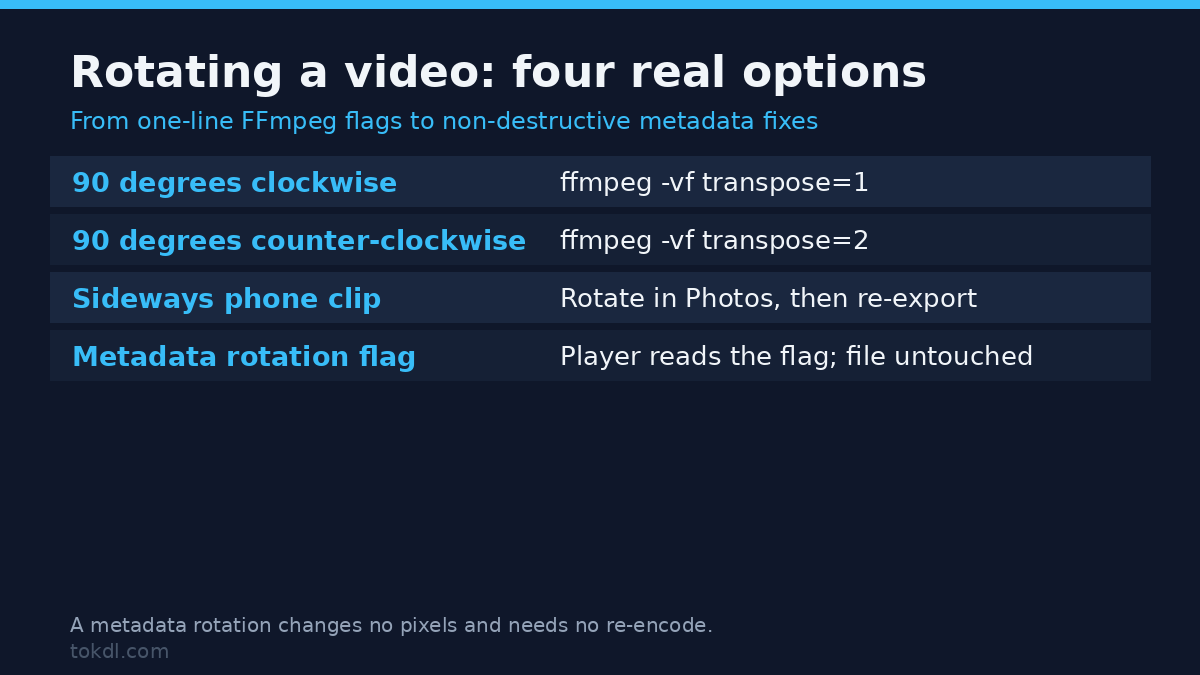
Editors differ in what they change when you rotate. A proper export rewrites the actual pixels, so the correction travels with the file and apps that ignored the flag now show it correctly. Some lightweight tools only rewrite the note. The file looks fixed in their own preview and broken in the next app you open.
Method 1: Rotate on an iPhone or Android phone
If the video lives on your phone, fix it there. Two minutes, no computer involved.
On an iPhone with Photos
Open Photos and tap the video. Tap Edit, then tap the crop icon at the bottom of the screen. Tap the curved-arrow rotate button until the frame faces the right way, then tap Done.
The Photos app keeps the original and the corrected version side by side. When you share the clip, send it in a message, or save it to Files, what leaves the phone is the corrected file.
On Android with Google Photos
Open Google Photos and tap the video. Tap Edit, then Crop, then the rotate icon above the preview. Tap Save copy once the frame is upright.
Most gallery apps that ship on Android phones offer the same move under an edit pencil. Save as a copy so the original recording stays untouched.
Method 2: Rotate on Windows or Mac with built-in tools
On Windows with the Photos app
Open the video in the Photos app that comes with Windows. Click Edit in the top bar, then click Rotate until the clip faces the right way. Click Save a copy so the original file stays untouched.
Windows also includes Clipchamp, a free editor that opens more formats and exports MP4. It runs in a browser too, which helps when you are working on a machine without the right app installed.
On a Mac with QuickTime Player
Open the video in QuickTime Player. Open the Edit menu and choose Rotate Left or Rotate Right until the frame is upright, then press Command-S to save the change into the file.
A rotated QuickTime window that you never save is only a preview. Saving writes the correction into the file so it survives on other devices.
What rotation tools actually do, and their limits
Under the surface, a rotate command does one of two things. It either turns the pixels and re-encodes the video, or it edits the flag and leaves the pixels alone. Built-in editors like Photos and QuickTime export turned pixels, which is why their results behave in apps that ignore flags.
Re-encoding is where quality is usually lost, and it is rarely the rotation itself that hurts. Exporting once at the original resolution keeps the damage near zero. Moving the clip through several tools, each re-encoding again, is what makes it soft. Keep the original file and rotate once.
Online rotators exist by the dozen and many of them work. The tradeoff is that you upload a private clip to a server you do not control, and the free tiers often re-encode at a low bitrate or push you toward a paid export. For anything personal, the built-in editors above are safer and usually better.
If you are comfortable with a terminal, FFmpeg bakes the rotation into the pixels in one line. The command below turns the video 90 degrees clockwise and copies the audio track without touching it:
ffmpeg -i input.mp4 -vf transpose=1 -c:a copy output.mp4Change the 1 to a 2 to spin the other way. FFmpeg’s transpose filter documentation explains the directions. Because this route re-encodes the picture, keep the original file and treat the output as a new version.
One honest limit applies to every tool in this article. Rotation turns the frame, it does not reshape it. A portrait clip rotated to landscape still shows a tall picture with bars at the sides or a crop, and no rotate button invents detail that was never recorded.
Rights and responsible use
Rotation is an edit, and an edit changes no ownership. Turning a video you recorded, exported, or were given permission to work on is your call. Turning a clip you saved from someone else’s feed does not give you the right to republish it, sell it, or pass it off as your own work.
Keep edited copies for personal reference and you stay on safe ground. Redistribution and commercial use are a different matter, and every platform sets its own rules for what members may do with content they did not create. Saving or editing a file grants no rights to it, a point YouTube’s Terms of Service state plainly for the largest video library on the internet.
Troubleshooting: the rotation did not stick
The clip still uploads sideways. You probably shared the original instead of the exported copy, or the editor only adjusted the flag. Export a new file, play that file in a different player such as VLC, and upload the version that looks correct there.
It plays fine on my phone but sideways on the TV. The TV’s player is ignoring the rotation flag. Bake the rotation into the pixels with an export from Photos or Google Photos, then send that file to the TV.
The exported clip looks softer or the file got huge. Every export re-encodes, and quality drops fastest when a clip passes through several tools. Rotate once, export at the original resolution, and keep the untouched original as your master copy.
My editor will not open the file at all. Some formats, like AVI or MKV, are outside what phone galleries and older desktop apps handle. Convert it to MP4 first, then rotate the converted file.
The video is upside down rather than sideways. That is a 180-degree turn, not a 90-degree one. Rotate twice, or choose the 180-degree option if your editor has one, and check the recorder’s orientation settings before the next take.
Frequently asked questions
How to rotate a video on a phone?
Use the Photos app on iPhone or Google Photos on Android. Both turn the frame and save a corrected copy, which is all the fix needs.
Does rotating a video reduce quality?
Not if you export at the original resolution and rotate only once. Every export re-encodes the picture, so rotate once and keep the untouched original as your master.
Why does my video play sideways on one device but not another?
Because the rotation is stored as a flag that some players ignore. Bake the rotation into the pixels with a proper export and the file shows upright in any player that supports its format.
Can I rotate a video for free?
Yes, every mainstream phone and computer ships with a free editor that rotates. The methods above use no paid app and no account.
How do I flip a video instead of rotating it?
Rotate spins the frame, while flip mirrors it like a reflection. Use flip for text that reads backwards or a mirror-image mistake, not for sideways footage.
Will rotating fix a portrait clip I want in landscape?
No, rotating turns the frame but does not change its shape. You get bars on the sides or a crop, so re-shoot the scene or accept the tradeoff.
Which method should you use?
Once you know how to rotate a video, the choice is mostly about where the file lives and where it is going next. A clip that stays on the phone gets rotated in Photos or Google Photos. A file bound for a TV, an upload, or a shared drive gets baked on a computer with the Photos app or QuickTime Player, and converted first when the format is stubborn.
If the recording itself started wrong, the fastest fix is often to re-record the moment with the device held the right way. For display captures, check the recorder’s orientation controls before you record your screen. When length is the real problem after orientation, a separate trimming guide covers cutting the result.
Rotate once, export a copy, and check the copy in another player. That habit fixes sideways footage for good.
[…] by mistake when they only need a mirror. If the frame has to turn rather than mirror, the guide on how to rotate a video covers […]