
How to Flip a Video: Mirror Footage Without Ruining the Frame
The short version: a flip mirrors a video. It doesn’t rotate it and it doesn’t play it backwards. If your selfie looks mirrored, if text in the background reads the wrong way round, or if your own logo landed on the wrong side, a flip fixes it in seconds. Pick the wrong operation and you’ll spend an afternoon wondering why a portrait clip came back sideways.
I ran every operation below on FFmpeg 7.1.5 on this machine, read the pixels back to prove what moved, and measured what a flip costs. So this isn’t a tour of buttons. It’s what happens when you flip a video, with the numbers attached.
What you’ll learn
- How flip, rotate and reverse differ
- The exact FFmpeg commands that mirror a clip
- How to flip a video on a phone, in an editor and in a browser
- The rotation trap that ruins phone footage
- What a flip costs in quality
Flip, rotate and reverse aren’t the same thing
A flip mirrors the frame along an axis. Flip horizontally and the left edge swaps with the right, like a reflection in a window. Flip vertically and top swaps with bottom. Nothing turns, so the frame’s shape never changes.
A rotation turns the frame a quarter or half turn. Rotate a 1920×1080 clip 90 degrees and it becomes 1080×1920. That’s what sideways phone footage needs, and it’s the move people make by mistake when they only need a mirror. If the frame has to turn rather than mirror, the guide on how to rotate a video covers that.
A reverse leaves every pixel where it is and plays the frames last to first. Frame one looks identical; it just runs the other way.
| Operation | What moves | FFmpeg filter | Use it for |
|---|---|---|---|
| Flip horizontal | Left edge and right edge swap | hflip |
A mirrored selfie, backwards text |
| Flip vertical | Top edge and bottom edge swap | vflip |
Footage shot through a mirror rig |
| Flip 180 degrees | Both axes at once | hflip,vflip |
A clip that’s upside down both ways |
| Rotate 90 degrees | The whole frame turns | transpose |
Sideways phone or drone footage |
Where each pixel lands
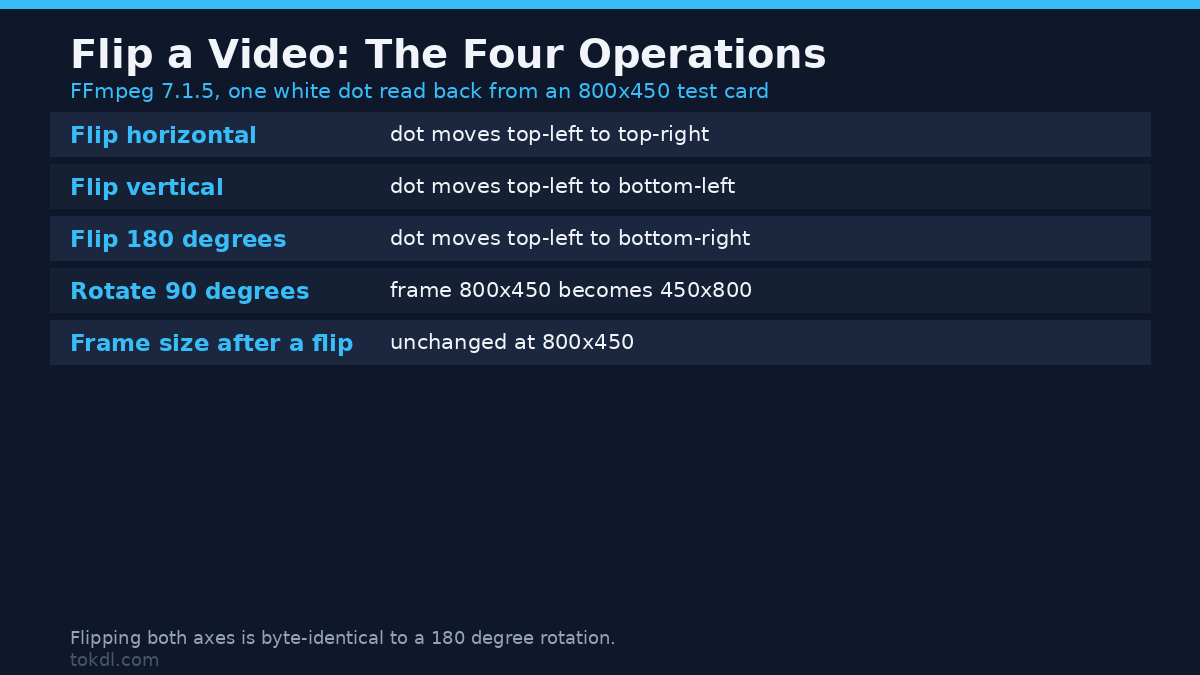
I built an asymmetric test card: four coloured quadrants and one white dot in the top-left corner, then ran each filter over it. The dot starts top-left, lands top-right after hflip, bottom-left after vflip, and bottom-right after both. The frame stayed 800×450 every time.
One result was worth keeping. Flipping horizontally and then vertically isn’t merely similar to a 180 degree rotation, it’s the same picture byte for byte. Both routes produced the hash 3f6f9a07daa41a02695c168291ae59bb.
How to flip a video with FFmpeg
Three commands cover every case. Keep them in a notes file and you’ll never open an editor just to mirror a clip.
# flip a video horizontally (mirror)
ffmpeg -i input.mp4 -vf hflip -c:a copy output.mp4

# flip a video vertically
ffmpeg -i input.mp4 -vf vflip -c:a copy output.mp4

# flip a video 180 degrees (both axes)
ffmpeg -i input.mp4 -vf "hflip,vflip" -c:a copy output.mp4
The last flag matters. -c:a copy leaves the sound untouched: the audio MD5 was 0da0451f1184d5e37acce1c968754ecc before the flip and the same string afterwards, while the video stream’s hash changed, as it must. Everything else survives as well. On a four second 1280×720 clip at 25 frames per second, the flip left the duration, the frame rate and the resolution alone and moved only the file size, from 2,049,458 bytes to 1,890,585. That’s the re-encode, not the mirror.
Why a flip always re-encodes
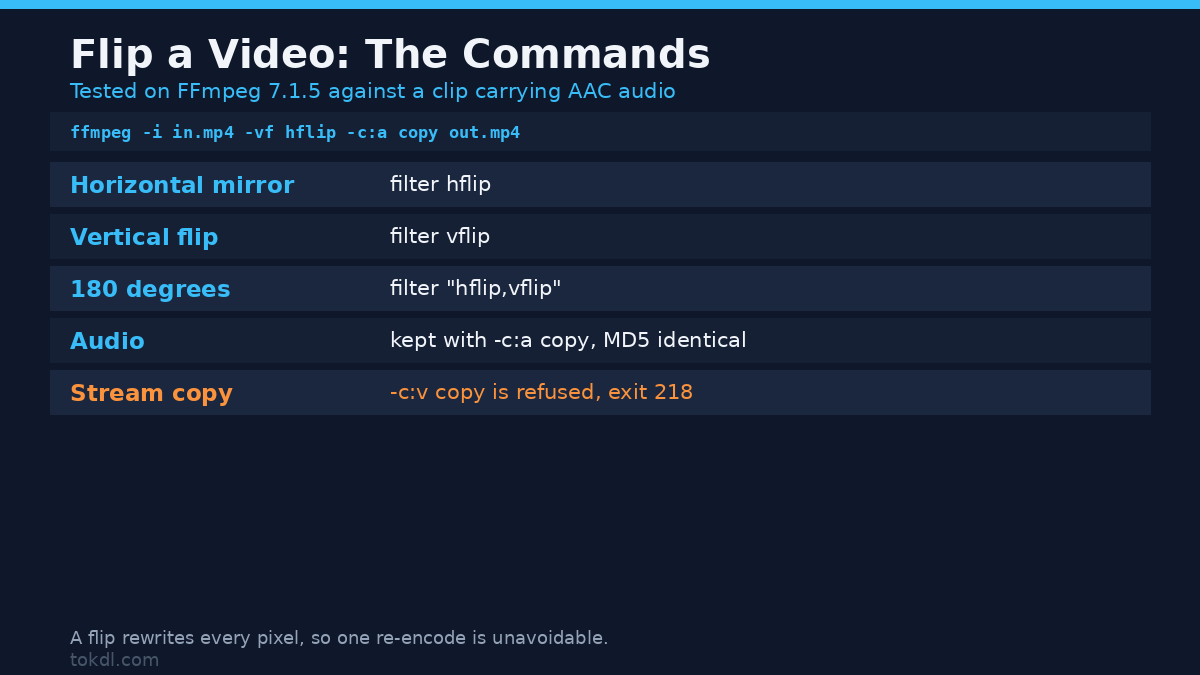
A crop or a rotation can sometimes be done by copying the stream. A flip can’t, because every pixel changes place. Ask for both at once and FFmpeg refuses outright.
ffmpeg -i input.mp4 -vf hflip -c:v copy output.mp4
# exits with code 218, "Function not implemented", no file written
That’s not a bug. Filters rewrite pixels, and stream copy promises not to touch them, so the two requests contradict each other. Whenever you flip a video, you pay for one re-encode. That’s why the quality question below is worth asking.
How to flip a video on a phone
On an iPhone, open the clip in Photos, tap Edit, then the crop and rotate icon. The mirror button sits in the top-left of that tool. One tap flips the frame, a second tap puts it back. Recent Android galleries work the same way, with a mirror button beside the rotate arrows.
If your phone’s editor has neither, CapCut does. Drop the clip on the timeline, tap it, open Transform, and pick Flip Horizontal or Flip Vertical. Export at the resolution and frame rate you imported, or the fix costs quality for no reason.
One detail most guides skip. Many front cameras show a mirrored preview while saving an unmirrored file, which is why the same selfie looks wrong in one app and fine in another. Check the saved file before you flip a video.
How to flip a video in a desktop editor
The control lives in the transform panel, though the panel wears a different name in each app. In Premiere Pro it’s Effect Controls, then Motion. In DaVinci Resolve it’s the Inspector, under Transform. CapCut’s desktop build hides it behind Transform as well, and Kdenlive ships a Mirror effect with horizontal and vertical options.
Two habits save time. Flip a video before you add titles, or the text mirrors with the picture and you type it twice. If the clip already carries burned-in words, the guide on how to add text to a video shows how to redo the overlay, and if it carries your own watermark, the mark moves to the other side.
How to flip a video online
Browser tools are the fastest route when you can’t install anything. You upload the clip, press mirror, and download the result. The catch is the upload itself: free tools cap file sizes, and a two minute 4K clip bounces off a 100 MB limit. Shrink it first with the methods in the guide to fitting a video upload size limit, then flip the smaller copy. Treat the upload as the real cost, since the file lands on a server you don’t control.
How to flip a video that’s sideways (the rotation trap)
Phone footage bites here. A portrait video often isn’t stored as a tall frame at all. It’s a wide frame with a 90 degree rotation flag attached, and the player turns it upright when it displays it. FFmpeg honours that flag by default too, which changes what you see when you flip a video.
I built a clip with a 90 degree matrix and flipped it twice, once with the defaults and once with -noautorotate. The results aren’t the same file.
| Command | Output resolution | Rotation flag kept | What you see |
|---|---|---|---|
| default flip | 720×1280 | no | Upright, mirrored, flag baked in |
-noautorotate flip |
1280×720 | yes, 90 degrees | The player rotates it, then you see the mirror |
The default is usually what you want. The rotation gets baked into the pixels, the flag disappears, and every player shows the same upright, mirrored video. The -noautorotate route keeps the flag, so the player rotates the frame after your flip has already mirrored the raw pixels. For a portrait clip that’s the difference between a fixed video and one that looks flipped the wrong way. For a folder of phone clips, the batch conversion loop handles them in one pass.
Does flipping a video hurt the quality?
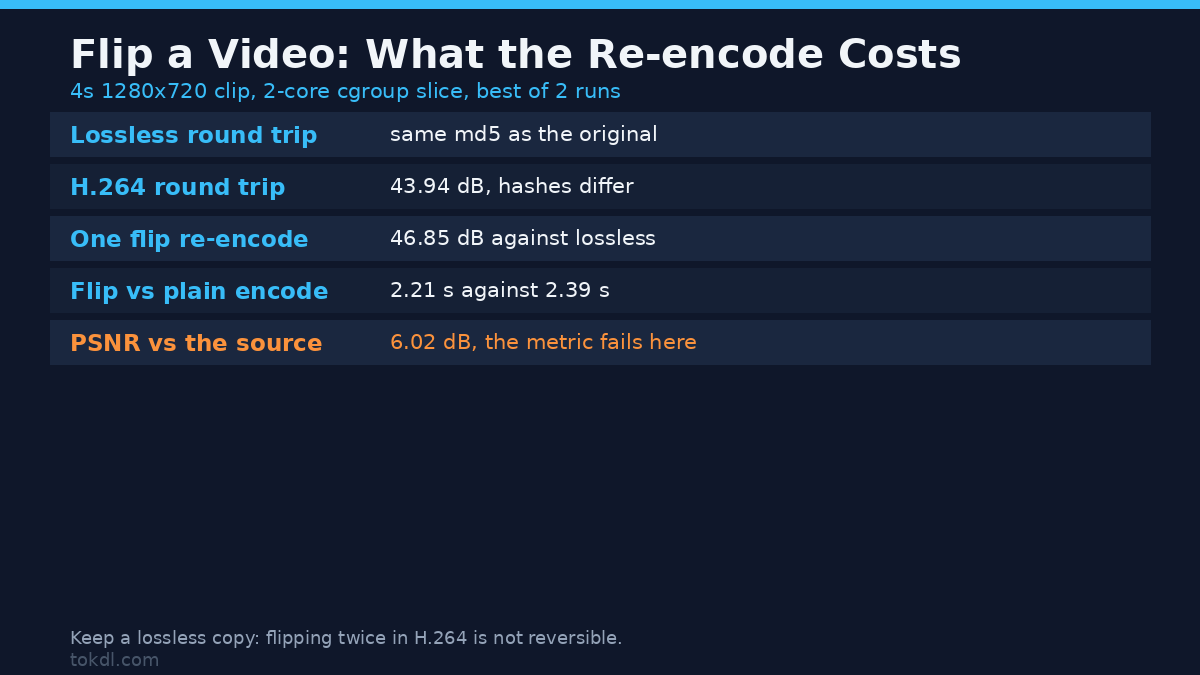
Slightly, because of the re-encode. The flip itself costs nothing on top of the encode you were already paying for: on the same four second clip, a flip encode took 2.21 seconds against 2.39 seconds for a plain re-encode with no filter. The mirror is free; the encode is the bill.
Comparing the H.264 output of a flip at CRF 18 against a lossless flip gave 46.85 dB, which is a quiet change. Flip the clip twice and the second generation costs little: the twice-flipped H.264 file scored 43.94 dB against the original. But flip a video twice in a lossless codec and you get the original back, bit for bit, both files hashing to cb4e429c2058b2b21984aacd311a2ba4. In H.264 at CRF 18 the hashes differ instead.
| Test | Result |
|---|---|
| Lossless flip, flipped back again | Identical to the original, same md5 |
| H.264 CRF 18, flipped back again | Not identical, 43.94 dB against the original |
| Cost of one flip re-encode | 46.85 dB against a lossless flip |
| PSNR of a flipped clip against its source | 6.02 dB |
That last row is the one to remember. A flipped video scores about 6 dB against its source, which looks catastrophic and means nothing, because a mirror moves every pixel. PSNR and SSIM compare pixels in place, so they’re the wrong tools here. Compressing without losing quality is where they belong.
Common mistakes when you flip a video
- Flipping instead of rotating. A mirror won’t straighten a sideways clip. It makes it sideways and backwards. Use a rotation for orientation, a flip for reflection.
- Flipping after you burn in text. Titles, menus and captions mirror with the picture. Flip a video first, then add the words.
- Ignoring the rotation flag. On phone footage, a default flip and a
-noautorotateflip give different results. Check the output before you send it anywhere. - Expecting the audio to change. It shouldn’t. Keep
-c:a copyand confirm the sound survived, checksum and all. - Testing a flip with PSNR. A mirror destroys pixel similarity by design. Judge the result by eye, or by a lossless round trip.
Which method should you use?
| Method | Re-encodes | Cost | Best for |
|---|---|---|---|
| FFmpeg | Yes | Free | Batches, repeatable jobs, servers |
| Phone gallery or app | Yes | Free | One clip, fixed on the spot |
| Desktop editor | Yes | Free or paid | Clips already sitting in a timeline |
| Online tool | Yes | Free, upload required | A single clip on a locked-down machine |
All four routes re-encode, because a flip has to rewrite pixels. Pick whichever is fastest when you flip a video, then export at a sensible quality so the one unavoidable encode isn’t the one that ruins the file.
FAQ
What’s the difference between flipping and mirroring a video?
Nothing useful. Mirror and flip horizontal describe the same operation, and apps pick different words for it. If a menu offers both, check the icon that swaps left and right.
How do I flip a video without losing quality?
You can’t skip the re-encode, but you can make it harmless: export at high quality or a lossless codec, and keep a lossless copy so a second flip never stacks another generation on the first.
Why does my flipped video come out sideways?
Because the original carried a rotation flag that FFmpeg either baked in or kept. A default flip bakes the rotation into the pixels and drops the flag; -noautorotate keeps it.
Can I flip a video and keep the original audio?
Yes. Add -c:a copy and the audio stream is copied untouched. That’s how the audio MD5 stayed identical through every flip in this guide.
The takeaway
A flip is the smallest edit you can make to a video and still count as editing: it mirrors the frame, leaves the timing alone, and asks for one re-encode in return. The rest is picking a tool. FFmpeg if you want it scripted, your phone if you want it now, an editor if the clip is already in a timeline.
The filters are documented in the FFmpeg filter reference, and the rotation flag behaviour sits in the main FFmpeg manual under the display rotation options. The first time you flip a video, check the output by eye before deciding the file needed a rotation. A mirrored frame is easy to spot; a rotated one mistaken for a mirror is easy to miss.