
Instagram Reels Size and Specs: Resolution, Length and Safe Zones (2026)
The upload finishes and the Reel looks wrong. Not broken, wrong: heads cropped at the forehead, a black band above and below, or tape-sharp on your phone and mushy in the feed. Instagram made all three decisions without telling you, and it made them from the shape of the file.
Instagram Reels size is 1080 × 1920 pixels at 9:16, and that single ratio decides almost everything else: where the buttons sit, how much bitrate survives re-encoding, and whether your title text is visible or buried under the caption. Four numbers, checked before export, remove the guesswork.
Everything here concerns your own footage and your own account. No step depends on handing a password to a tool you’ve got no reason to trust.
The short answer: Instagram Reels size and specs
Export at the Instagram Reels size: 1080 × 1920, H.264 in an MP4 container, 30 frames per second, roughly 10 Mbps of video bitrate. That combination sits inside every limit Instagram publishes and leaves the encoder enough data to survive its own compression pass.
| Specification | Value |
|---|---|
| Resolution | 1080 × 1920 px |
| Aspect ratio | 9:16 |
| Frame rate | 30 fps (24 and 60 accepted) |
| Video codec | H.264, 8-bit 4:2:0 |
| Container | MP4 or MOV |
| Audio | AAC, 128–192 kbps |
| Maximum file size | 4 GB |
| Duration | up to 3 minutes for a new Reel |
| Profile grid crop | centered 1:1 square |
Two of those numbers move. Instagram has raised the Reels duration ceiling repeatedly, from fifteen seconds to thirty, then sixty, ninety, and most recently three minutes, and the file cap moved with it. The counter inside the upload screen is the number that matters on the day you post. Treat the table as a starting point, not scripture.
The three numbers that decide quality
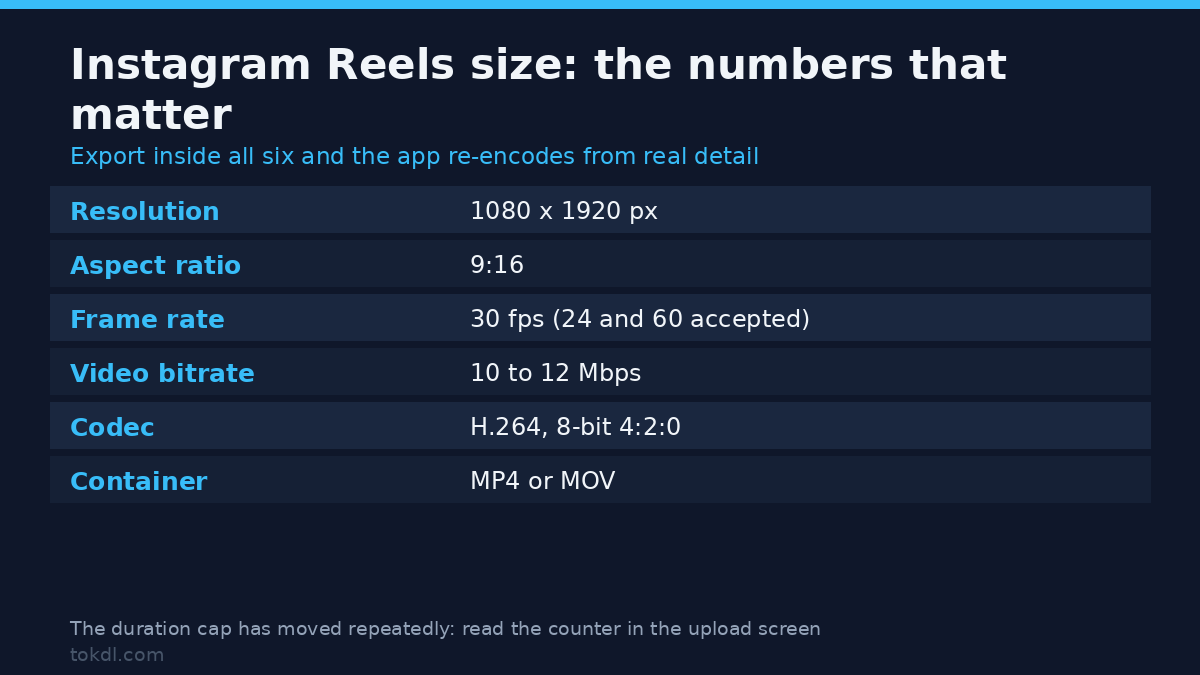
Width is a ceiling, not a target. Instagram scales every upload to the 1080-pixel width of the Instagram Reels size and discards the rest. A 4K vertical export isn’t sharper on the platform; it’s a larger file that gets downscaled anyway. Shoot 4K if you want room to reframe in the edit, then deliver 1080.
Bitrate sets the floor. Your file is re-encoded once on upload. Feed a 1080p clip at 2 Mbps and the second pass starts from an already-degraded source, so the artifact compounds. Land nearer 10 Mbps and that same pass has real detail to work with.
Frame rate should match the source. Thirty is the safe answer for phone footage and screen recordings. Sixty is accepted and looks noticeably better for gameplay and fast motion, but it doubles the data per second, so keep the bitrate up if you use it.
Method 1: export a 9:16 file from your editor
This route gives you control, and the steps are close to identical in Premiere Pro, DaVinci Resolve, Final Cut Pro and CapCut, with different menu names. Whatever the menu calls the preset, the target is the Instagram Reels size: 1080 × 1920 at 30 fps.
- Create a sequence at the Instagram Reels size, 1080 × 1920, with a 30 fps timebase.
- Set the clip scale so the subject fills the frame: fill mode crops the sides, fit mode adds bars.
- Reframe per shot rather than per sequence. A talking head sits in the middle third of a wide frame; a landscape establishing shot has nothing to crop to.
- Keep titles out of the top 130 px and the bottom 320 px.
- Export H.264 at the Instagram Reels size: 1080 × 1920, 30 fps, 10–12 Mbps, AAC 192 kbps, MP4.
Most editors now include an auto-reframe feature that tracks a subject and generates vertical keyframes. It handles one person walking through frame well and two people talking across a table badly, because it has to choose between them. Watch every shot it produces before you trust the batch.
Method 2: convert an existing clip with FFmpeg
When the file already exists and reopening an editor is overkill, FFmpeg reaches the Instagram Reels size in one command. The filter chain used below is documented in the FFmpeg filter documentation, and the syntax below is copy-ready.
Center crop keeps the middle 9:16 slice of the Instagram Reels size and throws away the sides. It’s the right call for a centered subject and the wrong call for a wide shot where the action happens at the edges.
ffmpeg -i input.mp4 -vf "scale=1080:1920:force_original_aspect_ratio=increase,crop=1080:1920" -c:v libx264 -crf 20 -preset slow -c:a aac -b:a 160k output.mp4Blurred background keeps the whole frame and fills the empty space with a blurred enlargement of itself. Nothing is lost, and the result reads as vertical rather than letterboxed, which is why it suits interview and tutorial footage.
ffmpeg -i input.mp4 -filter_complex "[0:v]scale=1080:1920:force_original_aspect_ratio=increase,crop=1080:1920,gblur=sigma=30[bg];[0:v]scale=1080:-2[fg];[bg][fg]overlay=(W-w)/2:(H-h)/2" -c:v libx264 -crf 20 -preset slow -c:a aac -b:a 160k output.mp4Padding is the third option and the weakest. It preserves the frame exactly and adds black bars, which is honest for archival material and unconvincing in a feed.
ffmpeg -i input.mp4 -vf "scale=1080:-2,pad=1080:1920:(ow-iw)/2:(oh-ih)/2:black" -c:v libx264 -crf 20 -preset slow -c:a aac -b:a 160k output.mp4Play each output before uploading. A filter chain fails silently on the wrong input, and the blurred version roughly triples render time on a long clip even when it looks correct.
Method 3: let the Instagram app crop it
The app accepts a landscape file and offers a crop screen that lands on the Instagram Reels size. It’s fast, it’s free, and it’s the least precise of the three routes because you’re framing a moving clip through a still preview.
- Select the file from the reel creation screen and advance to the crop step.
- Pinch to zoom and drag to position. The preview matches what viewers will see.
- Choose the cover frame. The grid shows a square, not a 9:16 rectangle.
- Add text here only if you accept the app re-rendering your file a second time.
Cropping to the Instagram Reels size inside the app doesn’t avoid re-encoding. Instagram re-encodes what it receives, so a 4K file cropped on the phone is compressed twice and looks worse than the same crop done at 1080p on a machine.
Safe zones: what sits on top of your frame
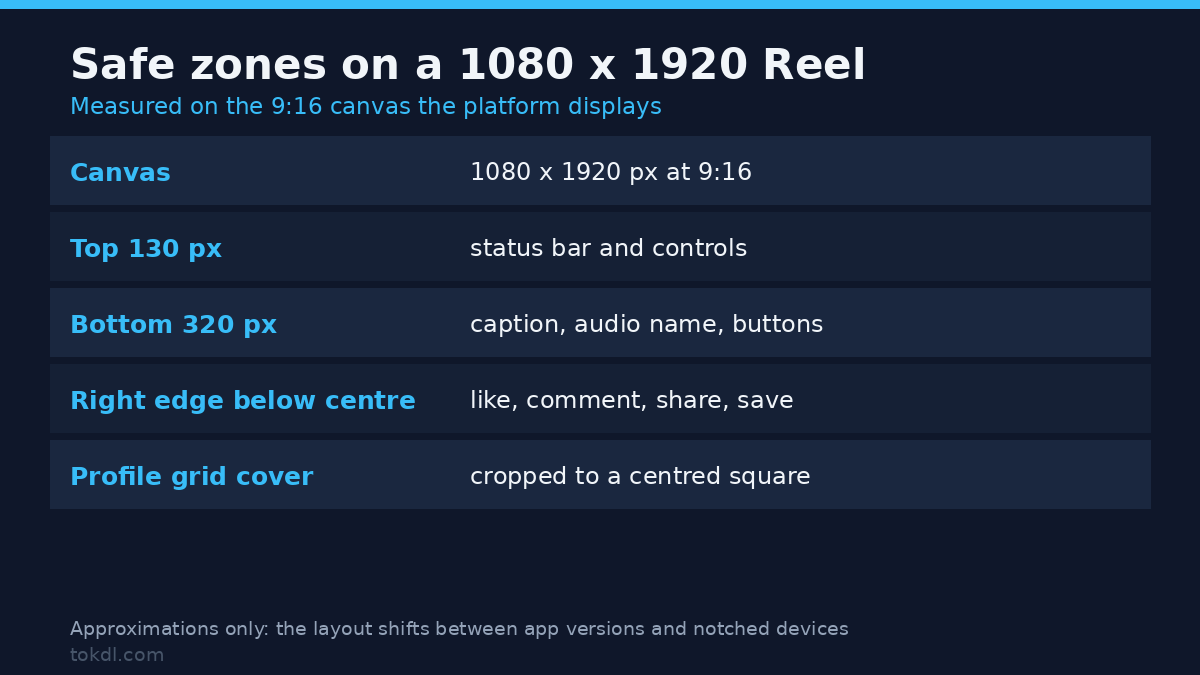
Reels aren’t displayed as a clean rectangle. The interface covers parts of the frame, and which parts depends on whether someone is watching in the feed, full screen, or looking at the grid.
On a 1080 × 1920 canvas, which is the Instagram Reels size, the top roughly 130 pixels sit under the status bar and controls. The bottom roughly 320 pixels carry the caption, audio name and action buttons. The right edge below centre holds the like, comment, share and save column.
Treat those as approximations. Instagram shifts the layout between app versions and between devices with and without a notch, so measure against the app’s preview rather than a template from two years ago. A title placed by the rule of thirds will often land under the caption.
For the profile grid, the cover is cropped to a centered square. Anything important in the top or bottom third vanishes where most people first see it. The placement rules for titles that survive that crop are in this guide to adding text overlays.
What happens to your file after you upload
Instagram transcodes. Your MP4 is decoded, scaled to 1080 wide, re-encoded at a bitrate the platform picks per viewer, and served from a content network. A strong connection gets a larger rendition; a weak one gets a smaller one again.
That explains the file that looks perfect on your phone and soft to a viewer on a train. The platform’s bitrate is tuned for streaming, not for keeps. The practical lesson: exporting at 720p to save upload time costs you twice, because the detail is gone before Instagram ever sees it.
Export once at the quality you intend to keep and upload that file. Getting the Instagram Reels size right at this stage is cheaper than repairing it after the platform has already made its own copy.
Rights and responsible use
A Reel belongs to whoever made it: the footage, the edit, and often the audio. Saving a copy for personal reference, or pulling your own post down from your own account, is a different act from reposting it, cutting it into your video, or shipping it in anything commercial. None of those later uses become permitted because the file was easy to reach.
Audio is the trap most creators hit. A track offered inside the Reels library is licensed for use inside Instagram, for as long as the platform and the rights holder allow. The same clip exported into a YouTube upload, an ad or a client deliverable is a separate licence you probably don’t hold. Reels that go silent months later were usually using commercial music.
If you want your own archive, use the platform’s own export instead of a scraper. The Instagram Help Center documents the Download Your Information request, which returns the posts, Reels and captions tied to your account, and it keeps working after the next login change.
Troubleshooting: six uploads that go wrong
Each of these has one cause, and none is fixed by uploading the same file again.
The Reel looks soft or blocky. The source was already compressed, or the bitrate sat under 5 Mbps for the Instagram Reels size. Re-export from the original project at 10–12 Mbps rather than re-saving the compressed copy.
Heads are cropped at the forehead. Center crop ran on a shot where the subject wasn’t centered. Use the blur-pad chain or reframe that shot by hand.
Black bars above and below. A 16:9 frame was padded instead of filled to the Instagram Reels size. That’s the pad command doing exactly what it was told, so switch to crop or blur.
Audio drifts out of sync after a minute. The source is variable frame rate, which is standard for phone and screen recordings. Convert to constant frame rate first, as described in the variable frame rate fix.
The upload fails or the spinner never finishes. Usually a file over 4 GB, or a MOV carrying ProRes or HEVC that the app can’t decode on that device. Re-encode to H.264 MP4 at the Instagram Reels size, 1080 × 1920.
The cover looks right in the player and wrong in the grid. The grid crops to a centered square. When you pick the cover, put the subject in the middle of the frame rather than near the top.
Frequently asked questions
What is the best Instagram Reels size for a phone recording?
The Instagram Reels size is 1080 × 1920 at 30 fps. A modern phone records vertical video in exactly that shape, so nothing needs scaling; just confirm the camera isn’t set to a 4K mode you don’t need.
Does uploading at 4K make a Reel sharper?
No. Instagram scales every upload down to the Instagram Reels size, so the extra resolution is discarded before anyone sees it. Bitrate is what survives, which is why a clean 1080p export beats a mediocre 4K one.
Why is my Reel cropped when I upload a horizontal video?
Because 16:9 can’t fill the Instagram Reels size without cutting something. The app fits the width and takes the sides. Reframe, blur-pad or crop the file before uploading if those edges matter.
What’s the maximum length of a Reel?
Three minutes for a newly uploaded Reel at the time of writing. The ceiling has moved several times, so check the counter in the upload screen rather than a fixed number in a guide.
Can I use any music in a Reel?
Only audio the platform licenses for that use. Tracks from the in-app library are cleared inside Instagram and nowhere else, so an exported file carrying that audio raises a separate licensing question.
Do I need a third-party app to resize a video for Reels?
No. Your editor, FFmpeg and the Instagram crop screen all handle it, and the first two give you control the app doesn’t.
Why does my Reel show bars on some phones?
The file isn’t at the Instagram Reels size. A padded landscape export keeps its shape inside a vertical player, so the player adds bars of its own. Export true 1080 × 1920 to remove them.
Which route should you take?
One clip from a phone and no editing plans: record vertical at the Instagram Reels size and upload straight from the app. Nothing else is needed, and the crop step never appears.
A horizontal clip that has to go out as a Reel: run the blur-pad command. It keeps every part of the frame and looks deliberate, which center crop can’t promise when the subject moves.
Anything with titles, a client, or a run of posts in a series: export from the editor at the Instagram Reels size and place text inside the safe bands. Ten extra minutes removes a compression pass and a re-upload.
If the real question was how Reels compares with other vertical formats, the difference is mostly shape. The video aspect ratio guide covers the ratios themselves, while LinkedIn video size shows how differently a professional network treats a similar file.