
How to Add Text to a Video: Titles and Overlays (2026 Guide)
The text looks perfect in the preview. You upload the clip, a viewer opens it on a phone, and your caption is gone, buried under the app’s own buttons.
Placing text is easy. Placing text that survives the player, the platform, and the viewer’s screen is the real work. This guide shows how to add text to a video without wrecking the file, which tools handle it well, and where the process quietly breaks.
Every method below assumes the clip is yours to publish, or that you hold the rights to it.
How to Add Text to a Video the Fast Way
If you’re posting a short clip to one app, use that app’s own text tool. It’s the quickest route to add text, it never touches your original file, and it looks correct inside the player your audience is already using.
Reach for something heavier only when you need the same text in the same place across many clips, or when you must add text that lives inside the exported file. A desktop editor or a single FFmpeg command gives you that control, and it survives export.
One thing first. If the words on screen are what someone is saying, you likely don’t want burned-in text at all. A separate subtitle track does that job better, and captions stay editable.
What You Need Before You Start
You need the clip, a font you’ve got the right to use, and a target resolution. Resolution matters because text is measured in pixels: a title sized for a 1080p frame will look small if you later scale the project up to 4K. Land on the final video aspect ratio before you type. Knowing how to add text to a video starts with knowing the frame it’ll sit in.
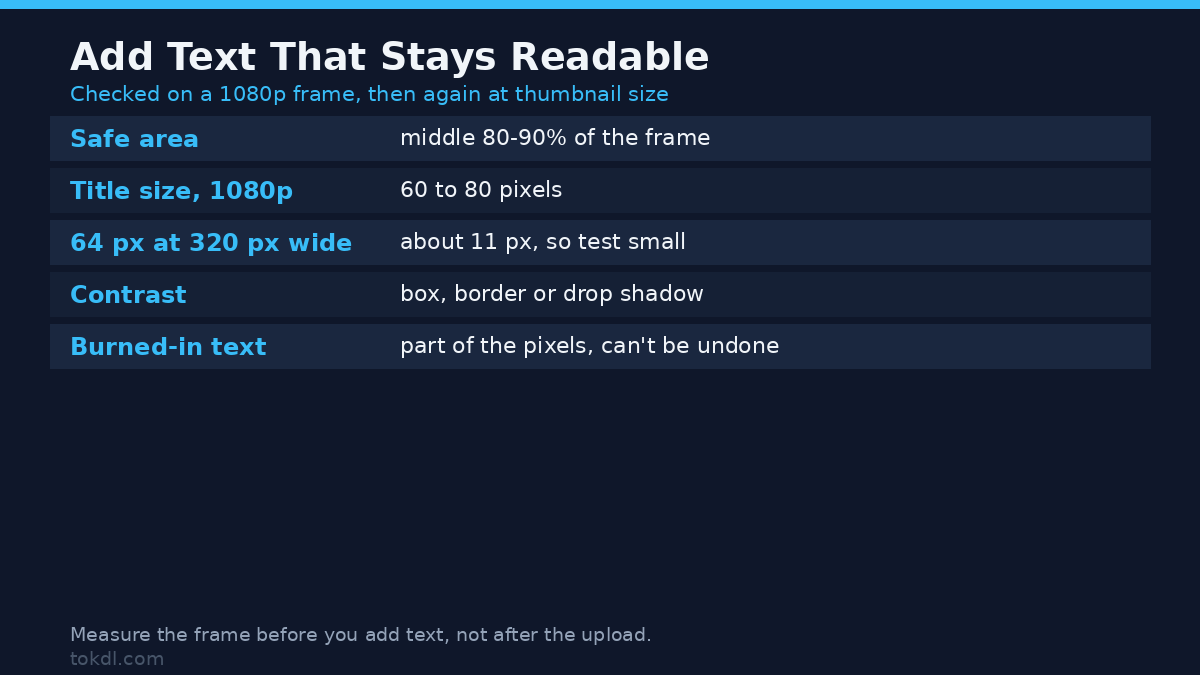
- Safe area: keep text inside the middle 80-90% of the frame. TVs and phone interfaces crop the outer edges, which is exactly where captions disappear.
- Contrast: white text over bright footage vanishes. Decide on a box, a border, or a shadow before you type anything.
- Permanence: burned-in text becomes part of the picture. It can’t be removed later without re-encoding or cropping.
If you plan to reframe the same clip for a square or vertical feed, smaller text is the first casualty. Plan the placement around the aspect ratios you’ll export.
A quick check before you commit: shrink the frame in your editor to thumbnail size, about 320 pixels wide, and look at it. If the words are hard to read there, most viewers won’t read them in a feed either, because a scroll is closer to a thumbnail than to a full-screen preview. A 64-pixel title on a 1080p frame lands near 11 pixels at that scale, which is why the same size can feel fine on a monitor and disappear on a phone.
Method 1: Add Text With FFmpeg
FFmpeg’s drawtext filter draws text straight onto the frames. It’s free, scriptable, and the only practical way to add text to hundreds of files without opening each one.
A minimal command looks like this:
ffmpeg -i input.mp4 -vf "drawtext=fontfile=/path/to/font.ttf:text='Your Title':fontsize=64:fontcolor=white:box=1:boxcolor=black@0.5:boxborderw=20:x=(w-text_w)/2:y=h-th-80" -c:a copy output.mp4The pieces that matter: fontfile points at a real font on your machine, x and y place the text, and -c:a copy copies the audio without re-encoding it, which saves time and spares the sound from a generation loss.
To show the text during only part of the clip, add a time window:
:enable='between(t,0,5)'That keeps the title on screen from zero to five seconds. Two things trip people up. Apostrophes and colons inside the text break the command unless they’re escaped, and on Windows the font path needs its own careful quoting. The full drawtext filter reference lists every option.
Method 2: Add Text With a Free Video Editor
A timeline editor is the comfortable choice when you want to see the result while you build it. DaVinci Resolve, Shotcut, Kdenlive, and CapCut all ship a text or title tool, so you can add text without paying for anything.
The workflow is nearly identical across them:
- Drop the clip onto the timeline.
- Add a text clip on a track above the video.
- Type the words, then set the font, size, and color.
- Drag the text into the safe area and give it a shadow or a background box.
- Set where it starts and ends, then export.
This route costs a few minutes per title, but it gives you the one thing a command line can’t: your eyes on the result. If the text lands on top of a busy logo, you can blur the busy area first so the words stay legible.
Titles are just text with movement. Fade one in, slide it across, hold it still for three seconds; whatever motion you give a word, you place it the same way you would add a watermark to your own clips.
Method 3: Let the Platform Do It
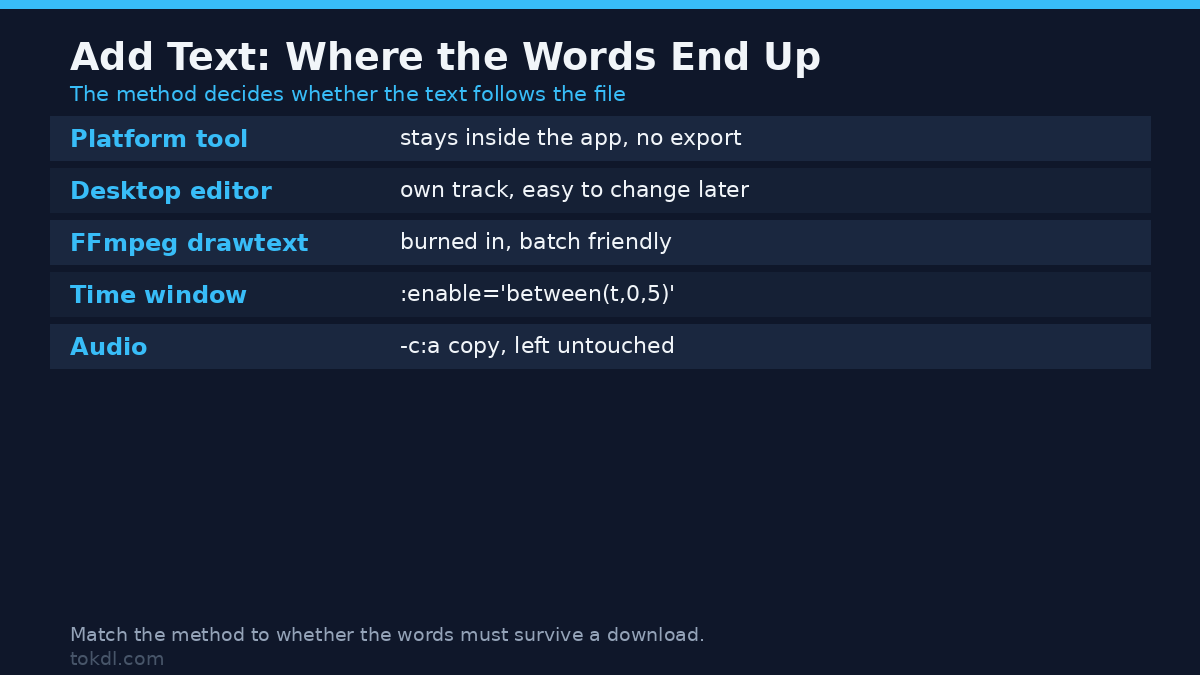
YouTube, TikTok, and Instagram each include a built-in text tool. On YouTube you can add text in the YouTube app and adjust its position and timing without re-uploading the video.
The catch is where that text lives. Platform text stays inside the platform. Download your own clip or post it somewhere else, and the words don’t travel with it. It also can’t be batch-applied across a whole library.
For a single post, that trade-off is usually worth it. For an archive you intend to reuse, keep the text in the file.
What Video Text Tools Do Well, and Where They Stop
Every tool in this space does one thing: it places glyphs onto frames at coordinates you choose. What none of them do is rescue a poor choice. A thin, low-contrast font sitting at the edge of the frame is unreadable in every editor.
Built-in font lists are also narrower than they appear. When you need a specific typeface, you supply the file, and that file arrives with its own license. Some free fonts forbid commercial video use, so read the terms before you publish.
No tool here can reach footage it has no right to touch, either. Private, login-walled, or expired content isn’t something text software has any power over.
Rights and Responsible Use
The clip belongs to whoever made it. Adding your own title to your own footage is straightforward, but overlaying text on someone else’s video transfers no rights to you, and it never makes the result yours to redistribute.
Personal reference is one thing; reposting or using a clip commercially is another. Permission has to come from the creator, not from the fact that a file was reachable. Fonts and music carry separate licenses of their own, so a free font isn’t automatically a free commercial font.
When you use a platform’s own text tool, you also agree to that platform’s rules. YouTube’s Terms of Service spell out what you may upload and how it can be used.
Troubleshooting: When Your Text Goes Wrong
These are the failures that come up again and again when you add text, along with what causes them.
| Symptom | What to do |
|---|---|
| The text is sharp in the editor but soft after upload | The platform re-encodes your file at its own settings. Keep text large, bold, and high-contrast so it survives compression. |
| The text is cut off on a TV or a phone | It sits outside the safe area. Pull it toward the center and keep it inside the middle 90% of the frame. |
| Boxes or blank gaps appear instead of letters | The font path is wrong, or the font lacks that character. Point fontfile at a real .ttf or .otf and test the exact symbol. |
| The FFmpeg command fails, or the text never shows | An unescaped colon or apostrophe broke the filter. Wrap the text in single quotes and escape inner punctuation. |
| The text flashes for a single frame | There’s no time window. Add :enable=’between(t,start,end)’ so the words stay on screen. |
| The text is unreadable over bright or busy footage | No contrast aid. Add a background box, a border, or a drop shadow behind the words. |
Frequently Asked Questions
How do I add text to a video for free?
Use a free tool, and there are several. Learning how to add text to a video for free is easy: FFmpeg handles batch work, while Shotcut, Kdenlive, and DaVinci Resolve offer free timeline editing. The app you’re already posting to can add text as well.
Can I add text to a video on my phone?
Yes. Most phones and social apps include a built-in text tool that places words without a computer. The trade-off is limited fonts and less precise timing than a desktop editor.
Does adding text reduce video quality?
Not by itself. Re-encoding is what costs quality, not the text. Keep the audio stream untouched with -c:a copy and export at the source resolution to limit the loss. You can add text without touching the audio at all when you copy the stream.
Can I remove text after I’ve added it?
Only if it’s a separate layer. Text drawn in a non-destructive editor can be deleted; burned-in text becomes part of the pixels and can’t be removed cleanly.
What font size should video text be?
Large enough to read on a phone. As a starting point, a title around 60 to 80 pixels on a 1080p frame reads comfortably, then adjust by eye on a small screen.
Should I burn text into the video or use captions?
Use captions for spoken words, because they stay editable and searchable. Burn in only titles, labels, and calls to action that must always be visible.
Can I add text to a video without re-encoding it?
No, not fully. Text is made of pixels, so it has to be mixed into the picture, and that means encoding the video stream. You can still copy the audio to save time.
Which Method Should You Use?
For a one-off post with a couple of words, use the platform’s own tool and skip the desktop entirely. It’s fast, and for a single clip the missing file-layer text rarely matters.
When the same overlay has to appear across many files, or when the text must be part of the exported file, FFmpeg is the efficient answer and a desktop editor is the comfortable one. Choose FFmpeg for repeatable, scriptable work when you need to add text the same way across many files, and an editor when you would rather see every placement before you commit.
Once you know how to add text to a video, the harder question is usually restraint: fewer words, bigger type, and a safe position beat a busy frame every time.
If you’re still unsure which route to take, the test is simple. If the words have to survive a download, add text to the file with FFmpeg or a desktop editor. If they only have to survive the feed, let the platform carry them and skip the export.