
Ken Burns Effect: How to Pan and Zoom Without the Stutter (2026)
A client sends twelve photos and one instruction: make them move. You add a slow drift, export, and the result has a nervous twitch. The image sits still for three frames, hops sideways, sits still again. Nobody watching can name the problem, but everyone sees it. The Ken Burns effect is the simplest camera move there is, and the one most likely to look cheap, because a slow move exposes every rounding error in the tool that draws it.
I measured what FFmpeg’s zoompan filter does with a slow pan, reading pixel positions out of the delivered file. The numbers explain the judder, and they point at a fix that costs one extra pass. Below you’ll find the working Ken Burns command, the before-and-after, and four traps in the usual recipe.
One spelling note. Ken Burns, the lowercase form, and “the Ken Burns effect” all mean the same slow pan or zoom across a still. The name comes from the filmmaker Ken Burns, who used the move on photographs in Brooklyn Bridge and The Civil War.
What the Ken Burns effect is doing, mechanically
There’s no camera. The tool reads a rectangle out of your still, scales it to the output size, and slides it a fraction of a pixel per frame. A zoom is the rectangle getting smaller. A pan is the rectangle moving sideways. That’s the whole trick, and it explains why the result depends on the source more than the settings.
The rectangle gets read at whole-pixel offsets, at least in the implementation I tested. That one constraint causes every stutter in this article. Ask a Ken Burns move for a third of a pixel per frame and the tool can’t obey. It holds still until the accumulated movement reaches a full source pixel, then jumps. Your eye sees the jump.
The three numbers behind a smooth Ken Burns move
Zoom amount, pan distance, duration. Pick any two and the third is arithmetic, which is why a bad move usually has a mismatch between distance and time. A zoom of 1.12 over seven seconds reads as a gentle push. The same 12 percent over two seconds reads as a lurch.
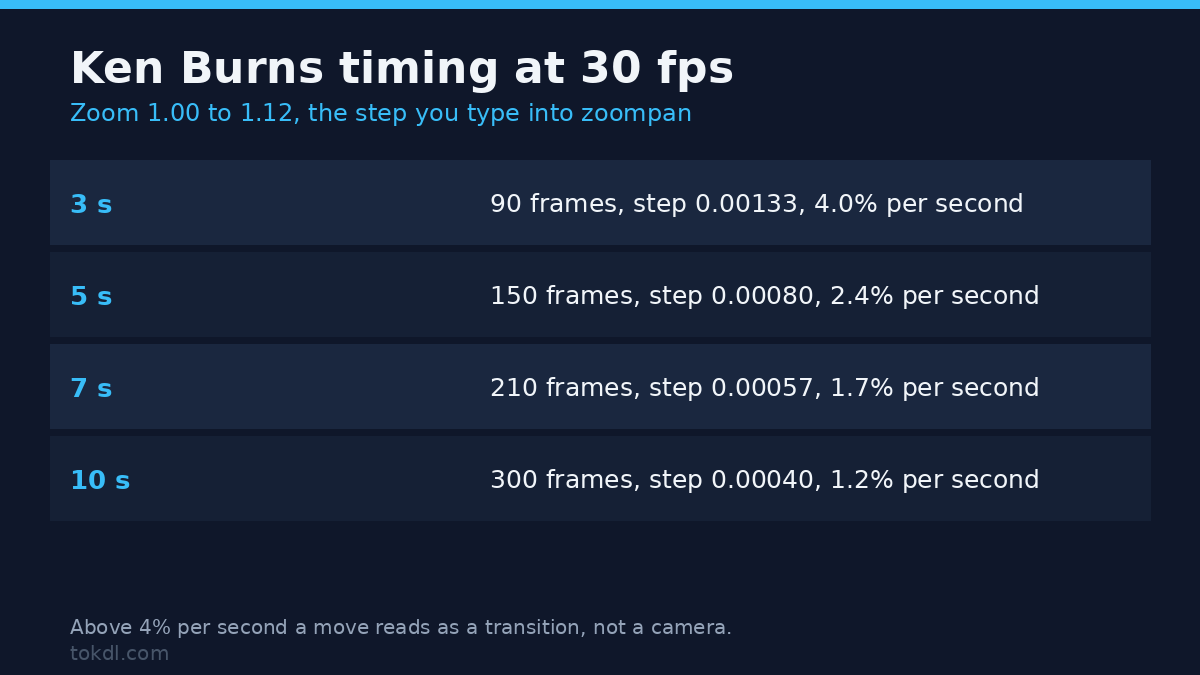
The per-frame zoom step is what you type into the filter. At 30 fps, moving from 1.00 to 1.12 over seven seconds needs 0.12 divided by 210 frames, which is 0.00057. Here’s that Ken Burns move at four durations:
| Duration | Frames at 30 fps | Zoom step per frame | Zoom speed |
|---|---|---|---|
| 3 s | 90 | 0.00133 | 4.0% per second |
| 5 s | 150 | 0.00080 | 2.4% per second |
| 7 s | 210 | 0.00057 | 1.7% per second |
| 10 s | 300 | 0.00040 | 1.2% per second |
Keep a Ken Burns zoom between 1 and 4 percent per second for photographs. Faster reads as a transition rather than a camera. Slower than about 1 percent, and the frame barely changes, so the effect earns nothing.
The command that produces a real move
This takes one photo and returns a seven-second 1080p clip at 30 fps, panning right while pushing in about 12 percent. I ran it exactly as printed and probed the output: 210 frames, 7.000 seconds, 1920 by 1080, 30 fps, and 15.9 seconds of render time on a container with a 2 CPU quota at load average 57. The options are documented in FFmpeg’s zoompan reference.
ffmpeg -loop 1 -i photo.jpg -vf "scale=7680:-2:flags=lanczos,zoompan=z='1+0.00057*on':x='(iw-iw/zoom)/2+1.33*on':y='(ih-ih/zoom)/2':d=1:s=1920x1080:fps=30" -t 7 -c:v libx264 -crf 18 -pix_fmt yuv420p photo_move.mp4Four parts matter. scale=7680:-2 enlarges the source four times before any movement, and the -2 keeps the height even. 1+0.00057*on computes zoom from the output frame number, so it advances even when the input is one still. s=1920x1080 and fps=30 aren’t optional. 1.33*on is the pan speed in pixels of the enlarged image.
Why the slow pan stutters, measured frame by frame
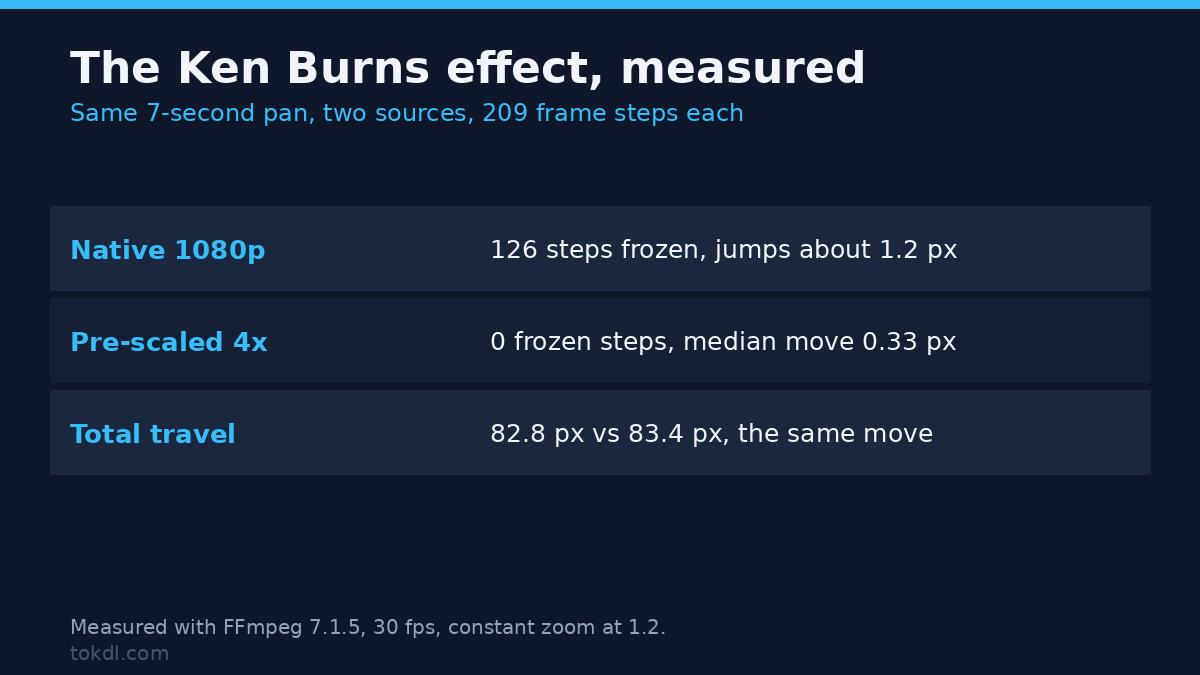
I rendered the same lateral drift from two sources: the photo at native 1920 by 1080, and the same photo enlarged four times. Constant zoom at 1.2, a drift of 0.333 source pixels per frame, seven seconds at 30 fps. Then I tracked the horizontal position of a high-contrast edge in every frame of the encoded file.
| Measured on the delivered file | Native 1920 source | 4x pre-scaled source |
|---|---|---|
| Frame-to-frame steps examined | 209 | 209 |
| Steps where nothing moved | 126 (60%) | 0 |
| Steps with movement | 83 | 209 |
| Size of a typical jump | about 1.2 px | 0.19 to 0.72 px, median 0.33 |
| Total travel | 82.8 px | 83.4 px |
The native pattern, in the first twelve steps, runs 0, 0, 0, -1.24, 0, 0, -1.24, 0, 0, -1.13, 0, 0. Two frames frozen, one frame hopping a pixel. At 30 fps that’s about twenty visible jerks per second of a move meant to be a glide.
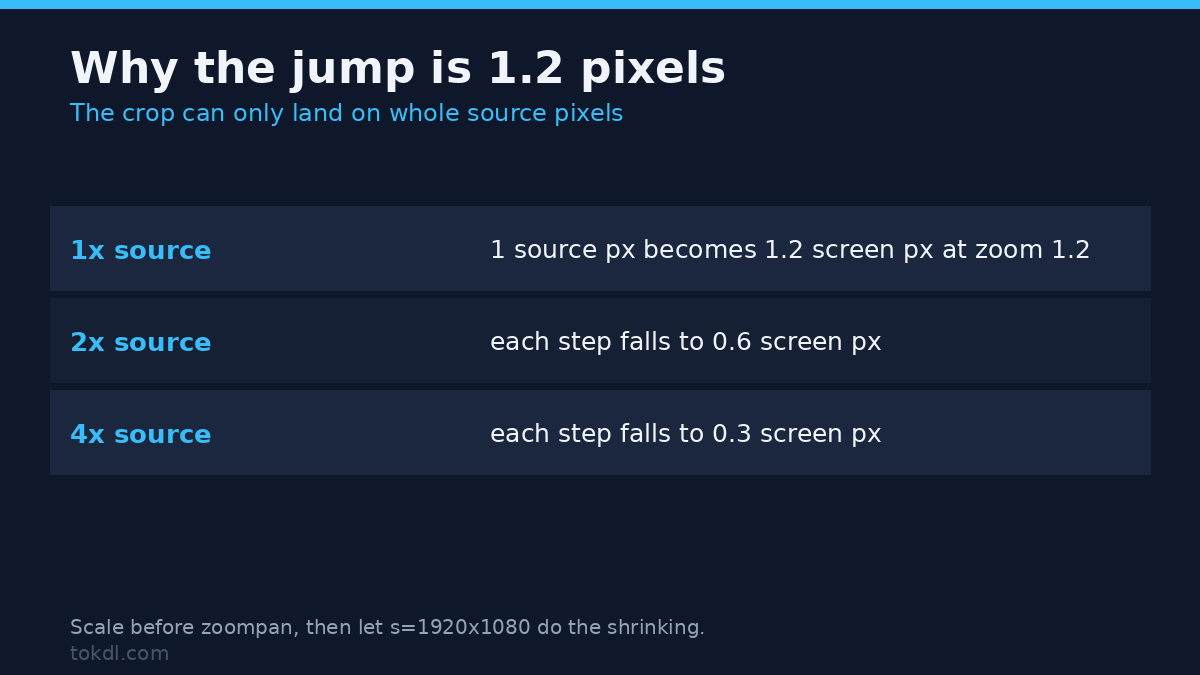
The jump is always about one source pixel scaled by the zoom. At 1.2 zoom one source pixel becomes 1.2 screen pixels, which is why the hops land between 1.13 and 1.30. Double the source and the drift steps by about 0.6 screen pixels. Quadruple it and the steps fall to about 0.3. The move hasn’t changed, only the smallest possible step.
The fix: scale first, move, then let the output shrink it
Enlarge the still before the filter reads its rectangle, and the rectangle has four times as many pixels to land on. Each step is a quarter of its old size, so the Ken Burns drift becomes continuous at normal viewing distance. The output stays 1080p because s=1920x1080 sets it, and the extra resolution gets thrown away at the end instead of kept in the file.
Do the enlargement as its own pass. Folding it into the same -vf chain, I measured 64 frozen steps out of 209 even when the scale was a no-op resize of an already enlarged still, and format=yuv444p between the two filters brought the count back to zero. The frame format the chain negotiates matters, not just the arithmetic.
ffmpeg -y -i photo.jpg -vf "scale=7680:-2:flags=lanczos" -frames:v 1 photo_4x.png
ffmpeg -loop 1 -i photo_4x.png -vf "zoompan=z=1.2:x='(iw-iw/zoom)/2+1.333*on':y='(ih-ih/zoom)/2':d=1:s=1920x1080:fps=30" -t 7 -c:v libx264 -crf 18 -pix_fmt yuv420p photo_pan.mp4
That’s the identical move from the table above, and run as two passes it produced zero frozen steps out of 209, with a median step of 0.33 pixels. A two-times enlargement gets part of the way, with steps around 0.6 pixels. Four times is where a slow Ken Burns drift stops showing any rhythm. The cost is render time and memory, not quality.
A 12-megapixel phone photo is already about 4000 pixels wide, so scale=7680:-2 invents detail it doesn’t have. That’s fine, because the enlargement only exists to give the rectangle more landing spots. From a 4K frame grab, pre-scale by two instead. My guide to upscaling video to 4K covers when more pixels help.
Four traps in the usual Ken Burns recipe
1. The defaults quietly drop you to 720p at 25 fps
Leave out s= and zoompan writes 1280 by 720, whatever your source was. Leave out fps= and it writes 25 frames per second. A 1920 by 1080 photo with neither flag came back as 1280 by 720 at 25 fps, which adds a cadence mismatch to the judder.
2. zoom+0.0015 only advances when d is bigger than one
The most-copied Ken Burns command online uses z='min(zoom+0.0015,1.5)'. It works, but only because the same line usually carries d=125, which turns one input frame into 125 output frames and lets the internal zoom variable climb. Change d to 1, as you must when the input is already video, and the zoom freezes. Measured at frames 0, 59 and 119: 1.003, 1.003, 1.003. The same expression with d=125 climbed 1.003, 1.174, 1.427. Writing it as 1+0.003*on gave 1.000, 1.172, 1.427, and that form survives a change of d.
3. d on a looped still never ends
d is the number of output frames per input frame. A single still with d=125 gives 125 frames, or 5.000 seconds at 25 fps. A 25-frame video with d=4 gives 100 frames, 4.000 seconds. But add -loop 1 and the still repeats forever, so d=125 keeps producing frames until you stop it. I killed a test after four minutes. Cap it with -t.
4. You can’t zoom out below the frame with z
Values under 1 don’t pull back. They’re treated as 1. Measured on a test card: z=0.5 and z=0.8 produced output identical to z=1.0, with the same feature sizes and corner pixels. A zoom-out has to start near 1.5 and descend to 1.001, which runs from an enlarged crop back to the full frame.
If you’d rather use an editor
The same Ken Burns move takes about a minute in Premiere Pro, CapCut or DaVinci Resolve, and none show the whole-pixel problem, because their transform is a float position on a GPU. Set a scale keyframe at the start, another at the end, change the second to 110 percent, and let the app interpolate the Ken Burns move.
Turn on easing so the move doesn’t start and stop at full speed, and keep the photo on an oversized canvas so edges never come inside the frame. If you’re cropping into another shape, get the aspect ratio right first.
A twelve-photo Ken Burns slideshow, planned out
The math for a whole sequence repeats those three numbers. Twelve photos at seven seconds each is 84 seconds, or 2,520 frames at 30 fps. Alternate the direction so the eye doesn’t learn the pattern, and give every Ken Burns move the same travel.
| Setting | Value | Why |
|---|---|---|
| Photos | 12 | one per slide, no repeats |
| Hold per photo | 7 s | 210 frames at 30 fps |
| Total runtime | 84 s | 2,520 frames |
| Zoom per photo | 1.00 to 1.12 | 0.00057 per frame |
| Pan direction | alternating | left, right, left, right |
| Pre-scale | 4x, then down to 1080p | removes the whole-pixel jump |
Render each photo as its own clip and join them rather than building one giant filter graph, so a mistake on photo nine costs one clip. My slideshow guide covers the assembly.
At 15.9 seconds of render for one seven-second move from a four-times enlarged still on this 2 CPU container, twelve photos is about three minutes. Try one before you queue the batch.
Making the move look intentional
The move should have a reason. A slow push toward the face in a portrait reads as attention. The same push on a landscape reads as drift. I set the rectangle so the movement ends on the subject, then work backward to the start. Doing it the other way gives you a Ken Burns move that stops somewhere arbitrary.
Watch the edges. A photo cropped tight to the subject has nowhere to pan, so a pan drags the border into view. Keep a few percent of margin, or crop the still first so the Ken Burns move has room.
FAQ
How long should a Ken Burns move be?
Five to eight seconds for a photo shown on its own, with 1 to 4 percent zoom per second inside that. Shorter than four seconds reads as a transition. Longer than ten and viewers wait for the next image.
Why does my pan judder even at 60 fps?
Frame rate doesn’t fix it. The stutter comes from the rectangle moving in whole source pixels, so a higher frame rate just gives you more identical frames between the jumps. Pre-scale the source, then re-render.
Can I do a Ken Burns effect on video instead of a still?
Yes, with one change: keep d=1 so each input frame produces one output frame, and drive the zoom with on rather than zoom. Pre-scaling matters more here, because a video Ken Burns zoom runs out of spare resolution faster than a photo does.
Does the effect hurt image quality?
Only at the end, where the crop is smallest. A 12 percent Ken Burns zoom means the last frame is upscaled 12 percent against the first. Starting from a larger still works. Exporting at 1080p and then zooming 30 percent doesn’t.
The short version
A Ken Burns move is a rectangle sliding across a still, and what makes it look expensive is whether that slide happens smoothly. On a native-resolution source, FFmpeg moves the rectangle in whole pixels, so a slow drift arrives as one-pixel hops with frozen frames between. Enlarging the still first gives the rectangle smaller landing spots, and the same move turns continuous. Set s=, set fps=, drive the zoom with on, and cap the run with -t. Then the effect stops being a slideshow trick and starts being a camera.