
How to Make a Video Slideshow From Photos (With Music) (2026 Guide)
You’ve got two hundred photos from a trip, a song you want underneath them, and no obvious place to start. The hard part isn’t editing. It’s deciding how long each photo stays on screen before the whole thing drags.
A video slideshow from photos is mostly timing, resolution and music length. Get those three right and a free tool produces something people watch to the end. Get them wrong and an expensive editor won’t rescue it.
Below are the two routes that cover almost every case: the feature already on your phone for speed, and a free editor for control. Neither one needs a paid tool, and the first is already sitting on your home screen.
The fastest way to build a video slideshow from photos
Use the video slideshow feature built into your phone. Apple Photos makes a Memory, Google Photos makes a movie, and both assemble a folder into a finished clip without you choosing transitions or timing.
The output is usually 1080p and ready to send in a couple of minutes. That’s the right answer for sharing with family or a group chat.
If you need to control the pacing, the crop or the exact music edit, skip to a free editor instead. The phone route trades that control for speed, and it’s a fair trade only when speed is what you want.
What you need before you start
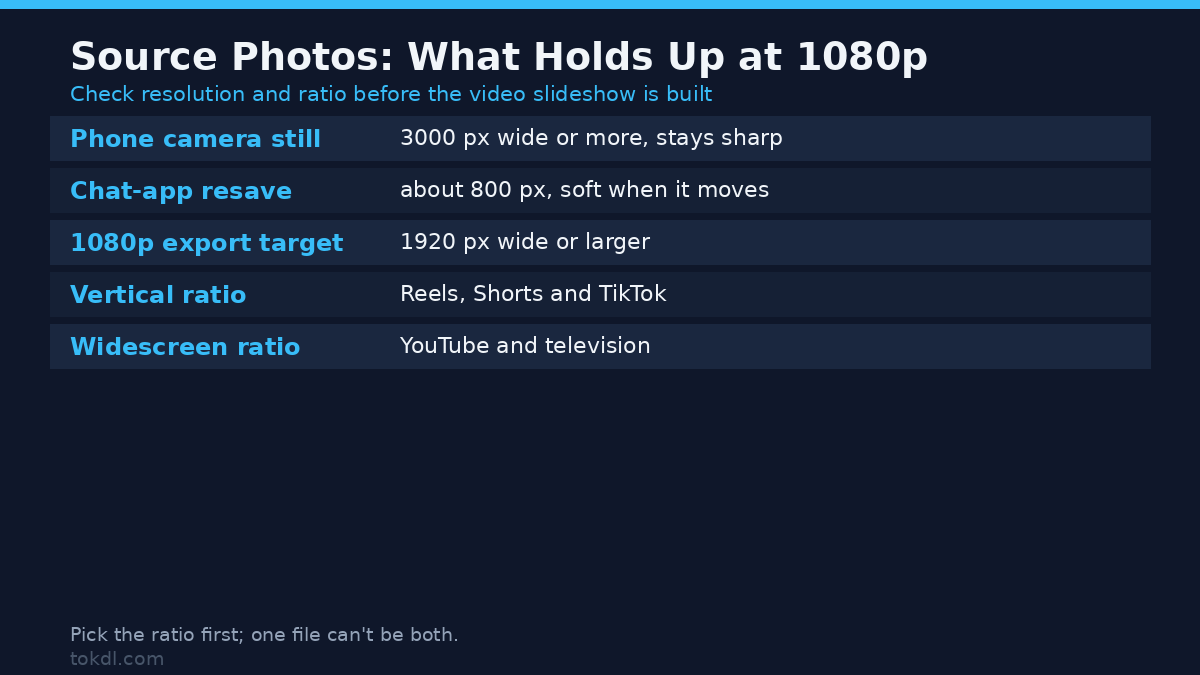
Check the resolution of the source photos first. A still straight from a phone camera is 3000 pixels wide or more, which is more than enough for 1080p. A screenshot or a photo saved out of a chat app might be 800 pixels wide, and any movement will soften it further.
Decide the aspect ratio next. Vertical for Reels, Shorts and TikTok; widescreen for YouTube and television. One file can’t be both, so pick before you build.
Choose the music before the layout, not after. The length of the track sets the pace for the whole edit.
Cut first, arrange second. Pull out the blurry frames and the near-duplicates before you start, and fix the orientation of any photo the camera saved sideways. A 120-photo recap usually plays better at 60, because the pacing is set by the track and not by the size of the album. A shorter, tighter video slideshow holds attention where a full album loses it. Sort the keepers into the order you want before you import and the edit itself takes minutes.
Set a target length as well. A clip for social feeds is usually strongest between 30 and 90 seconds, while a personal recap can run two to four minutes. Past that, the music stops being a backdrop and becomes the thing holding attention.
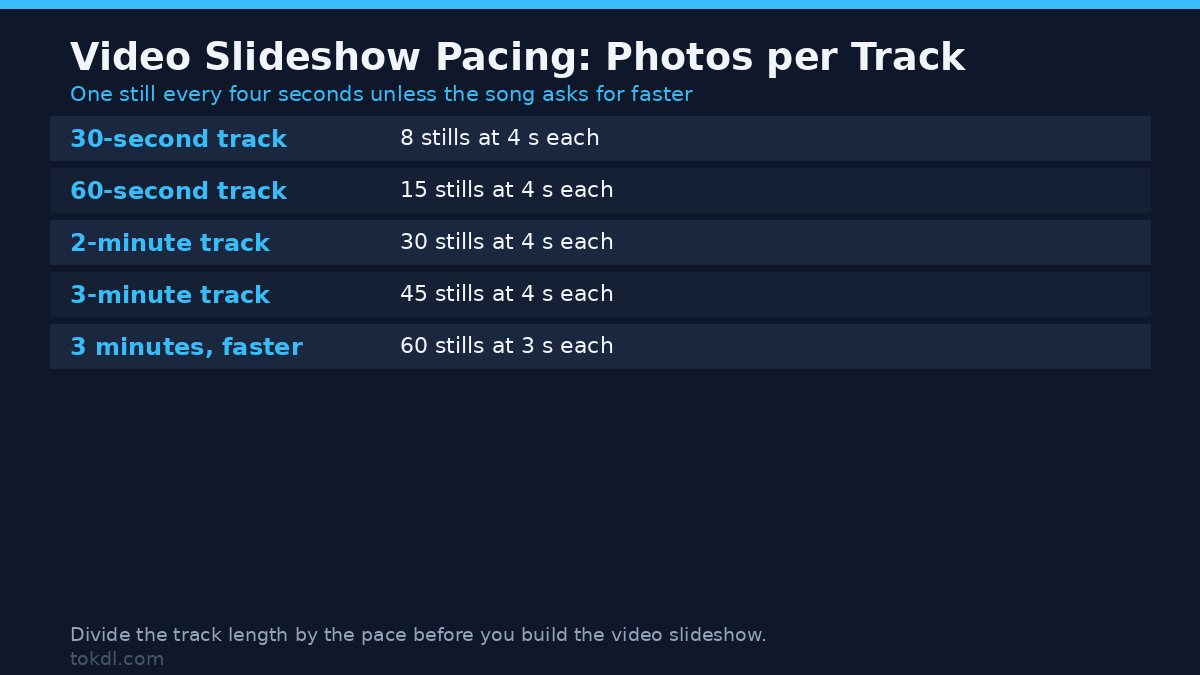
If you would rather work backwards, divide the track by the pace: a three-minute song holds about 45 stills at four seconds each, or 60 if you tighten to three seconds. That sum decides how many photos you need before you open an editor.
Method 1: Build it in a free editor
Almost any editor that imports still images will do this job, from free desktop tools to the slideshow module inside a phone app. The steps are the same everywhere.
- Start a project at your target resolution and at 30 frames per second. Stills gain nothing from 60 fps.
- Import the photos in the order you want and drop them on the timeline.
- Set a duration for each still. Three to five seconds suits a fast cut; six to eight suits a calm one.
- Pick a single transition and apply it everywhere. Mixed transitions look like a template, not a choice.
- Add the music on its own track, then fade it in at the start and out at the end so it never cuts off mid-note.
- Export at 1080p and pick a sensible bitrate rather than the maximum; stills carry far less detail than live footage.
One habit separates a decent video slideshow from a flat one: cut on the beat. Instead of trusting even spacing, place a photo change where the track lands a strong beat, and let the quieter sections breathe with a slightly longer still.
Export settings matter less than most people expect for stills. A photo holds no motion, so a moderate 1080p bitrate reproduces it cleanly; pushing the slider to the maximum mostly inflates the file and can trip an upload limit.
If you would rather script it, FFmpeg can turn a numbered folder into a slideshow with one command, using the zoompan filter for slow movement. It repeats reliably and is awkward to fine-tune by hand; the official FFmpeg documentation lists the exact flags.
Method 2: Let Google Photos or Apple Photos do it
Google Photos has a movie feature that assembles selected photos, adds music and transitions, and saves the finished clip to your library. Apple Photos does the same through Memories on iPhone, iPad and Mac.
Open the app, select the photos or the album, choose the movie or slideshow option, then adjust the theme, the music and the clip length before saving. You can usually share or save the result to your device without leaving the app.
The trade-off is control. These tools choose the pacing and the crop for you, and the output is often capped at 1080p. For a quick share that’s exactly what you want. The Google Photos help centre explains the movie controls if you can’t find them.
What video slideshow tools do well, and where they fall short
Most video slideshow makers fall into two groups. Template tools give you preset themes, transitions and text so a beginner can finish in minutes. AI tools pick the music and the pacing for you from a single tap.
Both groups share the same ceiling. They can’t improve a low-resolution photo, they can’t licence music on your behalf, and they rarely offer frame-accurate control over where a cut lands against a beat. A free tier often limits exports to 720p or adds its own branding to the corner.
None of that makes them bad. It means a video slideshow from photos depends on the material you bring, not the tool you pick.
One feature is worth seeking out: captioning. A video slideshow with short on-screen titles or subtitles stays watchable with the sound off, and that’s how most people scroll a feed.
Rights and responsible use
The photos are the easy part. Anything you shot yourself is yours to arrange, but a picture from a friend’s feed, an unlicensed stock image, or a chart from a news site is someone else’s work, and a video slideshow doesn’t change that. Saving or arranging a file grants no rights over it.
Music is where most people slip. A track you bought or stream from a streaming service is licensed for listening, not for sitting under a video you publish. Watching a slideshow at home with family is one thing; uploading it, monetising it, or posting it publicly is another.
For anything public, use music you created, music released under a permissive licence, or the library the platform itself provides. If you publish to YouTube, its own Terms of Service set out what uploads are allowed.
Troubleshooting: when the video slideshow looks wrong
Most problems trace back to the source files or the project settings, not the export. Here are the common ones and their causes.
| Symptom | Cause | Fix |
|---|---|---|
| Photos look soft | Low-resolution sources, or a zoom that crops into them | Use the originals; turn off the pan-and-zoom effect on small files |
| Black bars at the sides | Mixed orientations, or vertical photos in a widescreen project | Set the project ratio first, then match the aspect ratio of every still |
| Photos appear sideways | The editor ignored the orientation tag stored in the file | Rotate and re-save the image before importing it |
| Music ends abruptly | The track is shorter than the slideshow | Trim the photos to the track, or loop the music with a crossfade |
| File is too big to send | Bitrate set high for footage that’s mostly stills | Export at 1080p with a moderate bitrate to fit the upload limit |
| Slides change too fast | The default duration is too short for the song | Raise each still to five seconds or more and recut to the beat |
Frequently asked questions
How do I make a video slideshow from photos for free?
Use the video slideshow feature already on your phone. Apple Photos and Google Photos both build one at no cost and save it to your library in minutes. If you want more control, a free desktop editor does the same job with no subscription, as long as you supply your own music.
What resolution should the photos be?
Use the original camera files, not resized copies. Anything 1920 pixels wide or larger holds up at 1080p; smaller images are fine on a phone screen but soften on a television.
How long should each photo stay on screen?
Three to five seconds is the usual pace, and six to eight suits a slower, calmer edit. If a photo carries text or a face, give it a moment longer.
Can I use a chart song in a slideshow?
For a private family viewing, the practical risk is low. For anything you publish or monetise, use music you made, music under a permissive licence, or the platform’s own library.
Can I make a video slideshow without installing anything?
Yes. Google Photos and Apple Photos both build one in the browser or the app, and both are already available on most phones.
What format should I export the video slideshow in?
MP4 with H.264 video and AAC audio is the safe choice. Most platforms and phones accept it, and it plays without extra software.
How many photos should a video slideshow have?
About one photo for every four seconds of music. A three-minute track therefore holds roughly forty-five stills at four seconds each, which is a comfortable length for most edits.
Which method should you use?
If the video slideshow is going to a group chat and you want it done in five minutes, use the phone. There’s no reason to open an editor for that.
If you’re publishing it, plan to add titles, or need the cuts to land on the beat, build it in a free editor and export at 1080p and 30 fps. Add one transition, one music track, and stop.
The tool matters far less than the two things you control before it: sharp original photos and a track that’s roughly the right length. Fix those and a video slideshow from photos almost makes itself. The format and the tool are the easy part; the pacing is the craft.