
How to Loop a Video: Smooth Repeats (2026 Guide)
A twelve-second clip on a museum kiosk plays for nine hours straight. Nobody touches it. The file is nothing special; it just starts again the instant it ends.
People searching for how to loop a video usually want one of two different things. One is a file that repeats on its own, ready to hand to a screen, a TV stick, or a post. The other is wanting the same clip to keep playing without reaching for the mouse.
Only the first of those needs editing. This guide covers both: the one-line FFmpeg command, the timeline method, and the point where you should stop and use the button the player already has.
The Direct Answer: Loop a Video in One Command
To repeat a clip four extra times, run one command in a terminal. Nothing is re-encoded, so it finishes in seconds.
ffmpeg -stream_loop 4 -i input.mp4 -c copy output.mp4That writes five plays into one file: the original plus four repeats, which is the whole of how to loop a video into a file. Swap the 4 for -1 and it repeats without end, which is what a kiosk loop usually needs. The full option is documented in FFmpeg’s own manual.
The -c copy flag is the part that matters. It duplicates the already-compressed frames instead of decoding and re-encoding them, so the command finishes in seconds and the picture loses no quality.
Before You Start: What the Loop Needs
The command is trivial; the seam isn’t. A loop feeds its last frame straight back into its first, so if those two frames don’t look like one continuous moment, viewers see a jolt at every restart.
Before you loop a video, scrub to the start and the end of your clip and watch them back to back. If the framing matches and the motion carries through, you’re ready. Note the clip length, and any beat or movement the loop should land on.
You also need FFmpeg on the machine. It’s a single program with no account, on macOS, Windows or Linux. If you’d rather not open a terminal, skip to the timeline method below, which needs nothing but an editor.
Method 1: Loop a Video Into One File With FFmpeg
To loop a video with FFmpeg, open a terminal in the folder that holds your clip. On most systems you can drag the file into the window to paste its full path.
Choose how many plays you want, then run the command from the direct answer with that number. To confirm what you got, ask FFmpeg to report the duration:
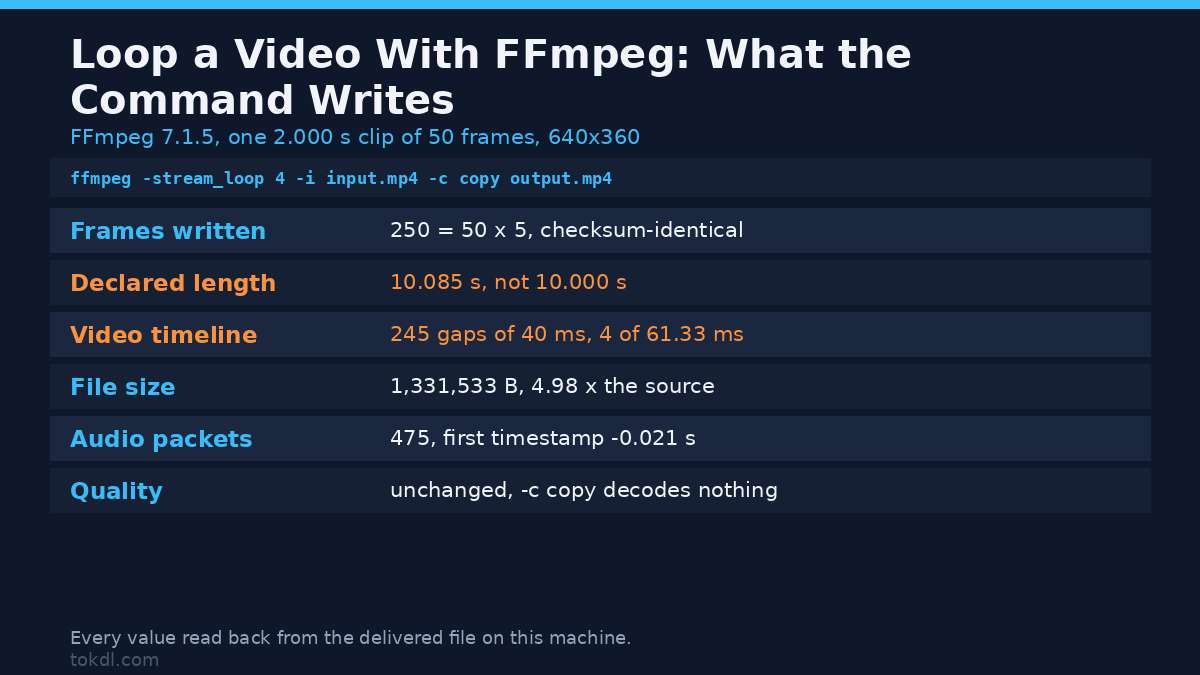
ffprobe -v error -show_entries format=duration -of default=nw=1:nk=1 output.mp4The frame count should be an exact multiple of the source; the reported length is looser. Five plays of our 2.000-second clip declared 10.085 seconds rather than 10.000. Loop a video and count frames first; treat a few tens of milliseconds of extra length as normal.
A boomerang plays the clip forward and then backward, which hides the seam that way. Concatenate the clip with a reversed copy in a single pass:
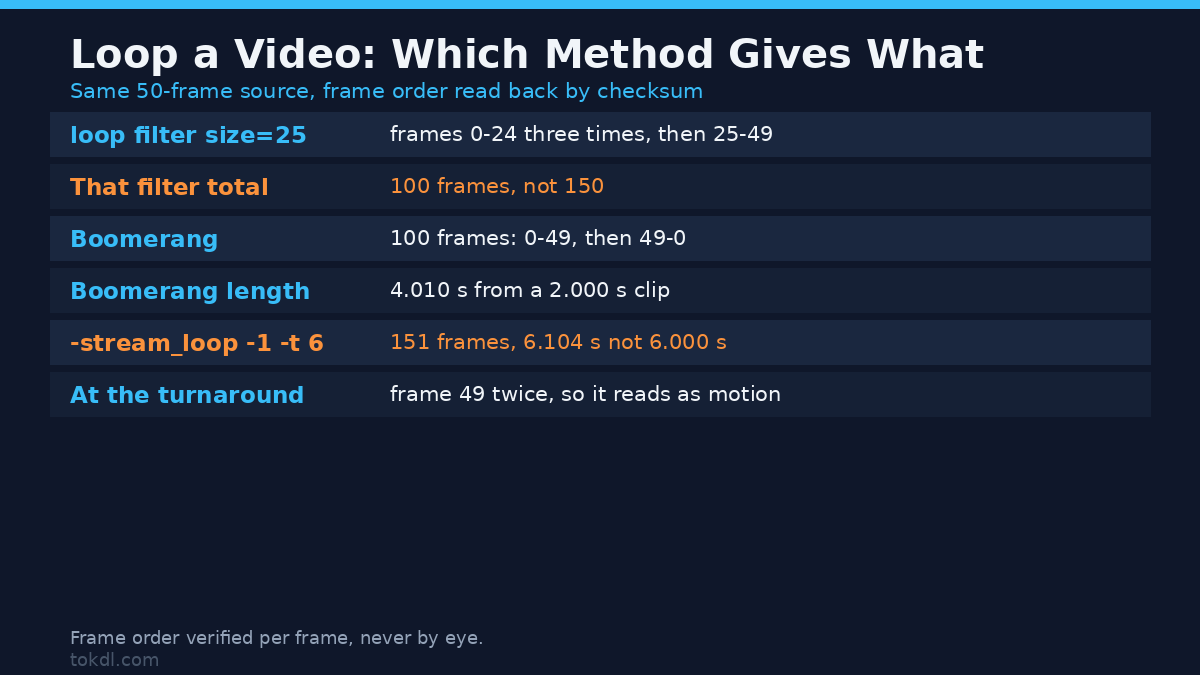
ffmpeg -i input.mp4 -filter_complex "[0:v]reverse[r];[0:v][r]concat=n=2:v=1:a=0[v];[0:a]areverse[ra];[0:a][ra]concat=n=2:v=0:a=1[a]" -map "[v]" -map "[a]" -c:v libx264 -pix_fmt yuv420p -c:a aac output.mp4Because the tail of the reversed half is the same frame as the head of the forward half, the join reads as motion rather than a cut: our 50-frame clip came back as 100 frames, running 0 to 49 and then 49 back down to 0. The loop measures 4.010 seconds, so each repeat costs one clip length. There’s also a dedicated loop filter for repeating a fixed segment inside a longer filter chain.
What It Costs to Loop a Video: the Numbers Behind the Command
On a 2.000-second clip of 50 frames, the headline command wrote 250 frames, 1,331,533 bytes, and a declared 10.085 seconds. Two of those three are multiples you can predict. The length is the one that moves, because each repeat carries the audio stream’s 21.33 ms overhang with it.
The loop filter behaves the other way. Size 25 with loop 2 gave 100 frames from 50, and exactly 4.000 seconds, because that test carried no audio track to overhang. So when you loop a video, read the frame count as the contract and the duration as a hint.
Method 2: Repeat a Clip on an Editing Timeline
Most editors loop a video without typing a command. Drop the clip on the timeline, then copy it and paste it end to end as many times as the loop needs. Export the timeline and the repeats are baked into the file.
Copy-paste carries the same seam problem as the command. To soften it, overlap the end of one copy with the start of the next by a handful of frames and add a short crossfade. A few frames of dissolve you won’t notice, while a longer one turns the repeat into a transition you’re meant to see.
If the loop carries music, cut the clip so its length matches a whole number of bars, or the restart won’t land on the beat. A loop that restarts a fraction of a beat early sounds wrong even when the picture is calm.
If You Only Want to Watch It Again: the Player’s Own Loop
Many people want to loop a video on their screen, not save a new file. For that, no tool is needed at all.
YouTube’s player has a Loop control in its right-click menu, and a playlist can be set to repeat. Both keep the same video cycling without downloading or re-uploading anything. If the goal was to leave a video running in the background, that’s the whole answer.
Short-form feeds behave the same way on their own. A clip under a minute on Instagram Reels or TikTok typically replays for a viewer, so there’s no loop to build into the upload.
What Loop Tools Actually Do, and Where They Fail
When you loop a video with a tool, it does one of two jobs. It either duplicates existing frames into a longer file, or it moves the playback point so a player restarts without a visible break. Anything that promises more, such as true motion blur across the join, is usually just adding a crossfade.
The real limit on how cleanly you can loop a video is content, not software. A loop can only be as clean as its endpoints allow. If the camera panned across the scene, or a person shifted position between the first frame and the last, no filter can invent the missing frames. The fix lives at the source: reshoot, cut to a matched instant, or hide the join with a boomerang or a dissolve.
File-level loops also behave differently from player loops. A file with repeated frames is just a longer file, and a player will still run it once unless the player itself is told to repeat. Expecting a saved file to loop a video for someone else is a common and avoidable mistake.
Rights and Responsible Use
A clip belongs to whoever made it. Setting it to repeat doesn’t change that, and copying it grants you no rights.
To loop a video you shot yourself, a product demo, a title card, or a background pattern you created are all yours to repeat and publish. Looping someone else’s clip is a different act. Personal viewing is one thing, but you can’t re-upload a stranger’s video as a looping post, or put it into anything commercial: that’s redistribution.
When a clip comes from a platform, its terms still govern how it may be used, whoever looped it, so repeat what you own and treat the rest as off-limits. YouTube’s terms of service are a reasonable place to read the baseline.
Troubleshooting: When a Loop Won’t Play Right
The repeat jumps at the restart
The first and last frames don’t match. If you loop a video that ends mid-motion, the restart will always show it, so cut at a frame where the motion carries across the join, add a short crossfade, or switch to a boomerang that reverses the clip.
The file loops in the command but plays once on screen
You built a longer file, not a repeating player, so set the player itself to repeat.
Playback stutters or freezes after the first pass
Duplicate timestamps are the usual suspect, and we counted none across 250 video packets. What a stream copy leaves is a gap at each join, where the frame before a repeat holds 61.33 ms instead of 40. Re-encoding the output instead of using -c copy rewrites the timeline onto the frame grid and turns those four holds into three of 80 ms, so try it when the hitch shows, but expect the artifact to move rather than vanish.
The audio clicks at the seam
A cut rarely lands on a zero crossing, and our test tone’s endpoints missed each other by 4,088 out of 32,768. The delivered loop stayed quiet anyway: the 256 samples of padding an AAC stream carries ride along with every copy, so the sample step across the join measured 8 to 211 against 3,662 inside the tone. Cut the audio yourself and the seam is real again. Overlap the tail and the head by a few milliseconds with an audio crossfade, or cut the picture on a musical bar so the edit lands where the ear expects it.
The output file is far larger than expected
Every repeat adds frames: a clip played five times won’t be far off five times the size when stream-copied. Loop a shorter source, or lower the bitrate if the file must stay small.
The loop filter repeats the wrong part
The loop filter repeats the segment starting at start for size frames, then plays the rest of the input. On our 50-frame clip, size 25 with loop 2 gave 100 frames: the first 25 frames three times, then the remaining 25 once. Set size to the number of frames you want repeated, or use -stream_loop for a whole-file repeat.
Frequently Asked Questions
How do I loop a video for free?
Use FFmpeg with -stream_loop, or copy-paste the clip in any editor. Both cost nothing, and the FFmpeg route skips re-encoding when you add -c copy.
Can I loop a video without re-encoding it?
Yes. -stream_loop with -c copy duplicates the compressed frames, so the command runs in seconds and the quality is unchanged.
How do I hide the join between repeats?
Match the first and last frames, then cut where the motion carries across. To loop a video cleanly, the endpoints matter more than the tool. Where that’s impossible, a boomerang or a few-frame crossfade covers the seam.
Does looping a YouTube video keep it playing?
The player’s Loop control repeats the video on your screen, and no file is produced.
What is a boomerang video?
It plays forward, then backward, then forward again, which hides the seam for you.
Can I loop only part of a video?
Yes. Trim the section you want first, then loop that shorter clip. Looping the whole file and cutting afterward wastes time and frames.
Why does my loop stutter when it restarts?
Usually a frame mismatch or a join the container stretches. Fix the endpoints for a content problem, or re-encode for a timing one.
Do short-form apps need a looped file?
No. Instagram Reels and TikTok replay short clips for viewers on their own, so building a loop into the upload is unnecessary.
Which Method Should You Use?
If you need to loop a video for a screen, a kiosk, or a post, use Method 1. The FFmpeg command is the fastest route to a repeat, and the boomerang variant handles the seam for you.
If you would rather not touch a terminal, use Method 2. Copy the clip along the timeline instead, which also suits a loop that has to sit inside a longer edit.
If you only want to loop a video while you work, use the player’s loop control and stop there. That’s the case where the honest answer is also the shortest one.