
How to Send Large Video Files: Links, Email Limits and Compression (2026)
Gmail stops at 25 MB per message. A phone recording 1080p at 8 Mbps writes about one megabyte every second, so that ceiling is twenty-five seconds of footage. Anything longer has to travel as a link, which is why large video files end up in a drive.
Three routes work when you need to send large video files: a cloud link, the mail app’s own big-file feature, and compression for the cases where links are refused. Each one fails differently, and most failed sends I have seen were the wrong route rather than a broken tool.
The short answer: send a link, not a file
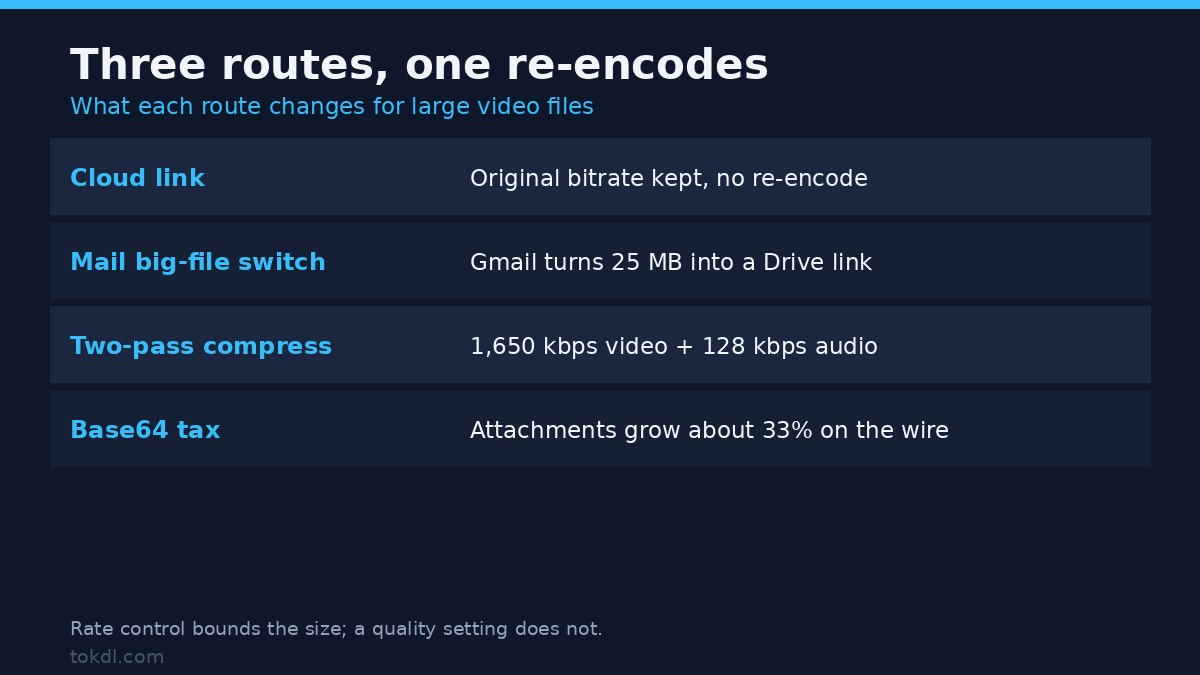
Upload the large video files once and share a link. That keeps the original bitrate, takes minutes instead of an hour of encoding, and sidesteps every mailbox limit at the same time. The recipient streams it in a browser and downloads a copy only if they want one.
Compression earns its place for large video files in two situations: the recipient needs a file they can keep offline, or the destination blocks links. Otherwise you’re spending picture quality to solve a problem the link already solved.
Check the large video files before you pick a route
Before you decide how to send large video files, know what you’re sending. Two numbers set the size: duration and bitrate. Multiply them and you’ve got your answer.
ffprobe -v error -show_entries format=duration,size,bit_rate -of default=noprint_wrappers=1 input.mp4A three-minute clip at 20 Mbps works out to roughly 450 MB, and that’s where most large video files start. The same clip at 8 Mbps is 180 MB. Zipping it changes almost nothing, because H.264 and HEVC are already compressed.
Then check the codec in those large video files, which matters more than the file size. iPhone footage is often HEVC, and a Windows machine without the HEVC extension will open the file and show nothing at all. A 40 MB HEVC clip can fail where a 400 MB H.264 clip plays fine. If your export is HEVC, convert it to H.264 before sending.
Method 1: send large video files through a cloud link
Any drive you already pay for will do for large video files, and the steps are the same on all of them.
- Rename the file first. Link previews show the filename, and final_v2_ok.mp4 tells the recipient nothing about what they’re opening.
- Upload it, then open the sharing panel. Anyone with the link works for a client who has no account. Restricted plus their email address is the safer default for anything confidential.
- Copy the link and open it in a private window while logged out. That’s the only test that matches what the other person sees.
- Send the link in the body of a short message, and keep the file in place until they confirm they have it.
Drive and its equivalents stream large video files in the browser, so a reviewer can watch without downloading anything. For review work that beats an attachment: no duplicate file, no version confusion, and you can revoke access when the job ends. Google documents the permission options in its sharing guide.
Budget the upload time for large video files before you start. A 6 GB master leaving a connection with 10 Mbps of upstream takes about eighty minutes, and a browser tab won’t survive a laptop lid closing halfway through. Use the desktop client for anything above a couple of gigabytes.
Method 2: use the mail app’s big-file switch
Every major mail service has a built-in answer to its own attachment limit for large video files, and that answer is a link as well. Gmail turns an oversized attachment into a Drive link, and Outlook offers a OneDrive upload.
Apple Mail’s Mail Drop pushes the file to iCloud and leaves a link in the message. For anyone who won’t create an account elsewhere, that’s the easiest way to send large video files.
The catch is ownership. The file stays in the sender’s storage, so clearing space months later breaks a link that people may still need. And the recipient can still hit a corporate filter that strips links, or a mailbox that refuses them.
The ceiling counts the encoding, not the clip, so large video files bounce at 24 MB. Gmail’s attachment help page gives 25 MB for the whole message, which is why a 24 MB file still bounces.
Method 3: compress when a link is not allowed
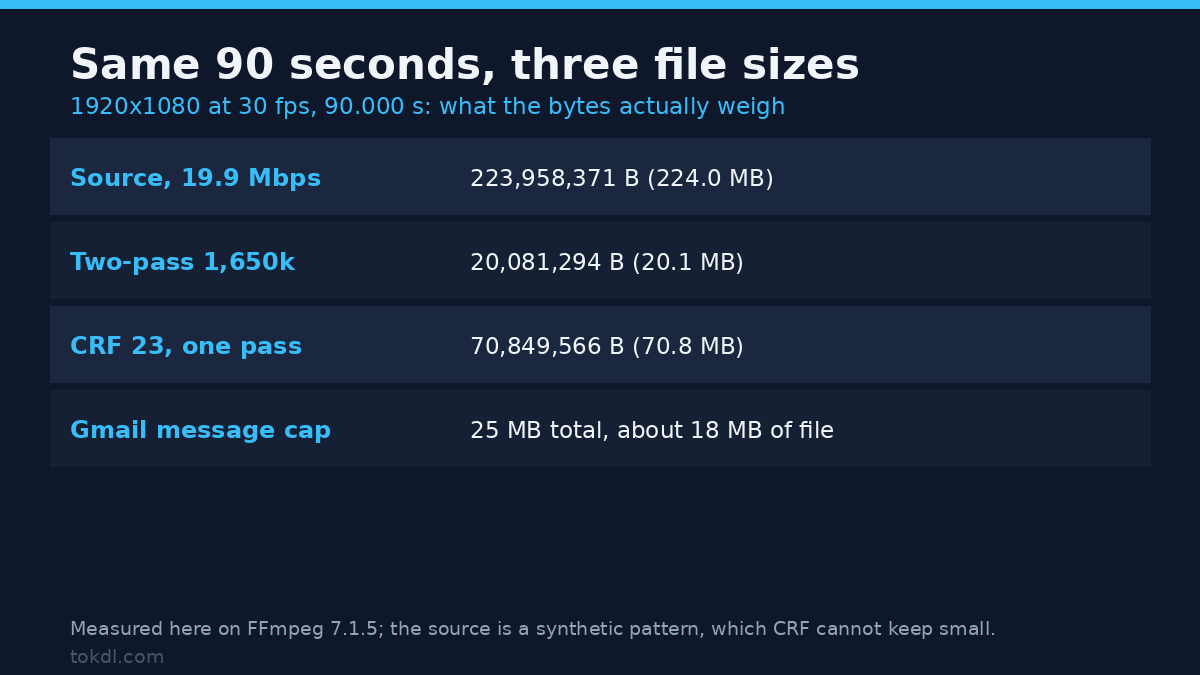
Set a size target for the large video files first, then work backwards to a bitrate. For a 20 MB budget and 90 seconds of video, the total is about 1,780 kbps; subtract 128 kbps for audio and roughly 1,650 kbps are left for the picture.
ffmpeg -i input.mp4 -c:v libx264 -b:v 1650k -pass 1 -an -f null /dev/null
ffmpeg -i input.mp4 -c:v libx264 -b:v 1650k -pass 2 -c:a aac -b:a 128k out.mp4
For large video files, two passes land closer to the target than a quality setting does. Run here on a 90-second 1080p clip at 19.9 Mbps, the command above wrote 20,081,294 bytes at 1,785 kbps: 20.08 MB, a fraction over a strict 20 MB cap because container overhead sits outside the bitrate figure. CRF 23 on the same clip wrote 70,849,566 bytes. If you’d rather hold a constant quality level and accept whatever size comes out, use CRF and skip the passes.
Don’t reach for the filesize cap as a shortcut. It stops encoding the moment the limit is reached, so a long clip arrives truncated with the ending missing, and the person receiving it reads that as a corrupt file.
There’s a quality cost that compounds, too, and large video files pay it twice. Re-encoding an export that was already compressed throws away detail twice. Going back to the camera original and encoding once at the target bitrate looks better at the same size. HandBrake does the same job with a GUI, and its rate control settings are worth understanding before you accept a preset.
If the clip is simply too long to fit, cut it rather than crush it. Splitting it into parts keeps every frame sharp, and two clean files beat one that looks like a video call from 2006.
What the tools in this space actually do, and where they stop
The category splits three ways. Cloud drives store large video files under your account and hand out a permission. Temporary transfer services hold the file briefly and expire the link, which is why they feel disposable. Peer-to-peer tools skip storage entirely and need both people online at once.
None of them raise the recipient’s limits. A 6 GB master is still a 6 GB master whether it sits in a drive or behind a temporary link, and the person on the other end still needs the bandwidth and the disk space to take it.
Read the small print on three things before you hand over large video files: how long a link lives, whether there’s a download quota, and whether the service scans or re-encodes what you upload. Free tiers tend to expire links within days and cap total transfers, which is fine for a one-off and useless for an archive.
Platform limits for the more common destinations are collected in this upload limit breakdown, if the file is heading somewhere public rather than to one person.
Rights and responsible use
The clip belongs to the person who recorded it. Sending a file gives the recipient access to a copy, not permission to publish it, sell it, or upload it somewhere else. A share link is a door, not a licence.
That distinction matters most when the footage isn’t yours. Client work, a collaborator’s B-roll, a friend’s wedding video: ask before it leaves your account, and check whether the contract names a transfer method or a storage location. Some clients insist on their own drive and forbid outside services entirely.
Music and stock clips inside the file carry separate licences that a link doesn’t extend. Personal review sits at one end of that scale and redistribution at the other, and the terms of the service you use sit on top of copyright. For a Drive link, those are Google’s terms.
Troubleshooting: why the send still fails
The message bounces at 25 MB and the file is 24 MB
Attachments travel encoded, and base64 adds about a third to the size on the wire. A 25 MB message ceiling holds roughly 18 MB of actual file, so a 24 MB clip arrives as 32 MB and is rejected. Compress to 17 MB, or send a link.
The recipient opens the link and is asked to request access
The file is still set to restricted. Switch the link permission to anyone with the link, or add their address to the share list. Nothing’s wrong with the upload.
The link worked last week and is dead now
Temporary transfer links expire by design, often within seven days, and free-tier quotas run out. A drive link lasts as long as the file does, which is the argument for using storage you control on long projects.
The file plays but the picture stays black
That’s the codec, not the size. HEVC, 10-bit, or an unusual profile can be unreadable on a machine with no decoder installed. Re-export as 8-bit H.264 and the same clip opens.
The compressed copy is bigger than the original
The source was already efficient and the encoder was told to spend more bits than it needed. Drop the target bitrate, or leave the file alone and send a link instead.
The upload stalls near the end
Large video files and browser tabs are a bad combination. Switch to the desktop client, or split the clip into chunks and share a folder instead of one huge file.
Frequently asked questions
What is the fastest way to send large video files?
A cloud link, every time. It costs one upload and no re-encoding, and the recipient watches in a browser without downloading anything.
How large a video can I email?
About 18 MB of file in Gmail, because the 25 MB limit counts the encoded attachment. Most consumer mailboxes sit in the same range.
Does compressing for email ruin the quality?
It costs something, but one pass at a sensible bitrate is usually invisible on a phone screen. The damage comes from repeated passes, not from a single careful one.
Do cloud links expire?
Drive links don’t, as long as the file exists and sharing stays on. Temporary transfer services expire links in days, by design.
Can I email a 2 GB video?
No. Splitting helps a 60 MB clip squeeze under a 25 MB cap; it doesn’t make a 2 GB file practical to email, because the total bytes never shrink.
Why does the recipient see a black video with sound?
Their device has no decoder for the codec inside the file, most often HEVC or 10-bit H.264. Re-encoding to standard 8-bit H.264 fixes it.
Is a share link safe for confidential footage?
Only with the right settings: anyone-with-the-link turned off, access limited to named addresses, two-factor enabled on the account, and access revoked when the job ends.
Which method should you use?
Sending a finished piece to someone who will keep it: a drive link at original quality. It costs you nothing and the file stays watchable.
A short clip to someone who won’t use a drive, or a form that refuses URLs: compress to under 18 MB with a two-pass encode, then play the result back before you attach it.
Dozens of files for one person: a shared folder rather than forty attachments. And if the goal is archiving your own footage instead of sending it, none of these routes is the right tool. Keep the original on a drive you own.