
720p vs 1080p vs 4K: Which Video Resolution Do You Really Need? (2026)
The 4K label is the easiest quality lie in video. Files get upscaled and sold as 4K, streams get labelled HD at bitrates that make them soft, and most phone screens cannot show the difference anyway. Choosing between 720p vs 1080p vs 4K still matters, just not for the reasons the labels suggest.
People who save videos, edit their own footage, record a screen, or upload to a platform face different trade-offs. The right answer depends on bitrate as much as on pixel count. This guide separates the two so you can stop guessing.
Read the short answer if you want to leave with a decision. Read the rest if you have ever downloaded a video labelled 4K and wondered why it looked like 720p.
720p vs 1080p vs 4K: the short answer
1080p suits almost everything. It balances sharpness, file size, and compatibility, and it matches what most screens and most platforms actually display. Drop to 720p when the file must be small or the audience is on phones with slow connections. Reach for 4K when you export a master of your own footage, because uploading video you shot at 4K in a lower resolution throws detail away permanently.
The rest of this guide explains why that answer holds. It also shows where the 720p vs 1080p vs 4K decision stops being about resolution and becomes a bitrate question, because that shift explains most quality disappointment.
What the resolution numbers mean
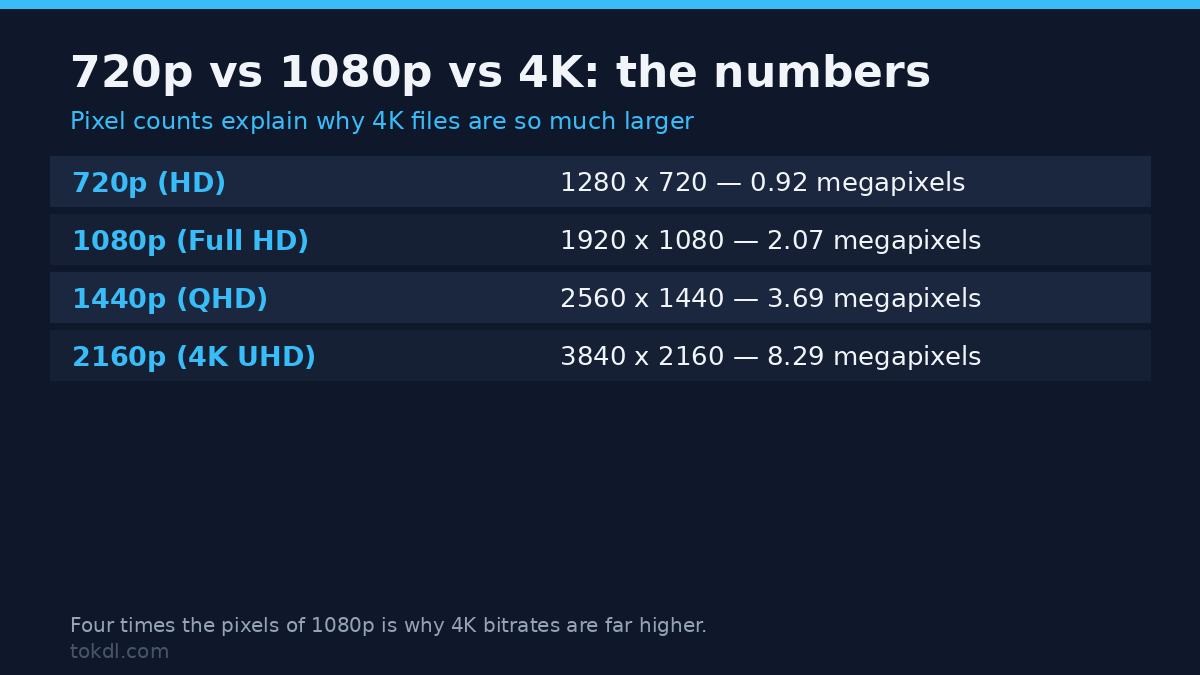
The number before the p is the height of the picture in pixels. 720p is 1280 by 720, 1080p is 1920 by 1080, and 4K is 3840 by 2160, which is four times the pixels of 1080p. Resolution describes potential detail, and nothing else.
Potential is the operative word. A screen can only show its own pixel count, so a 4K file on a 1080p monitor is downscaled, while a 1080p file on a 4K television is stretched. On a phone the eye cannot separate 4K pixels at normal viewing distance, and most laptops sit near 1080p-class sharpness.
Frame rate, codec, and colour sit outside the resolution number. Two 1080p files can look completely different, and one of them can even be sharper than a mediocre 4K file. That is the bitrate effect, covered next.
Bitrate: the quiet half of quality
Bitrate is how much data the video spends per second. A high resolution with a low bitrate turns into blocky motion and smeared detail, while a lower resolution with a healthy bitrate stays clean. Between the two, bitrate explains more of what you actually see.
A rough example makes it concrete. A two-hour 1080p file at 8 megabits per second lands near 7 gigabytes, while the same film at 4 megabits per second lands near 3.5. Same resolution, half the data, visibly softer picture. That is why file size alone never tells you the quality.
Check the bitrate before you blame the resolution. When you must shrink a file for storage, our guide to smaller video files explains the encoder settings that cut data without obvious damage. If you want the full trade-off, HandBrake’s documentation covers encoding options in detail.
Codec generation matters too. A modern codec such as H.265 or AV1 delivers the same quality at a lower bitrate than older H.264, which is why a newer 720p file can beat an older 1080p one. That comparison rarely appears on the label, so check the codec name in the same properties panel.
How to check a video’s real resolution and bitrate
File managers and players show this without any extra software. On Windows, right-click the file, open Properties, and read the Details tab. On macOS, open the file in a player and look for media information; VLC shows it under Tools, Media Information in most builds. Mobile players usually hide it, which is where a command-line check helps.
On any computer with ffmpeg installed, this command prints the real numbers. Run it from a terminal in the folder that holds your file:
ffprobe -v error -select_streams v:0 -show_entries stream=width,height,avg_frame_rate,bit_rate -of default=noprint_wrappers=1 video.mp4Replace video.mp4 with your file path. If bit_rate comes back as N/A, the stream uses variable bitrate, and the player’s media information panel still reports an average. Width and height are the numbers that settle resolution.
On a phone, the same numbers hide behind a details or info screen in most gallery apps, and some download tools print a quality badge instead of the real values. When a tool reports HD or 4K with no width, height, or bitrate, treat the badge as marketing.
Why 4K labels on downloads and recordings lie so often
Download tools can only save what the source serves. If a platform streams a video at 720p to your browser, no tool can pull a true 1080p or 4K copy of it, because those renditions do not exist for you. Some tools get around that by upscaling and relabelling; the result is a bigger file with the same soft detail.
The same logic covers screen recordings. A capture is limited by your display and your capture settings, so recording a 1080p screen at 4K quality gives you an upscaled 1080p, not new detail. If you record often, our guide to recording your screen walks through the settings that decide the outcome.
Platforms add their own layer. YouTube and similar services re-encode every upload into several quality levels, so the rendition you download is whatever the platform built, not the creator’s original file. When you upload your own work, give the platform the highest quality master you have, and let it build the smaller copies; YouTube’s upload encoding guide lists what it recommends per resolution.
Converter tools add a third way to lie. Many offer a convert to 4K option, which upscales the picture and writes more pixels without adding detail. If your real problem is a file that will not play on a device, the fix is a container change, not a resolution change; the guide to converting video to MP4 explains when to rewrap and when to re-encode.
Rights and responsible use
Every video you watch belongs to someone, and choosing a higher resolution does not change that. Downloading a creator’s video at 4K instead of 720p gives you a larger personal copy, not a right to repost it, sell it, or use it in your own content.
Personal reference is different from redistribution, and saving a file grants no rights to it. On YouTube, YouTube’s Terms of Service define what you may do with other people’s content, and most platforms work on the same idea: ask the creator, or use content you made yourself. Your own uploads, your own recordings, and your own exports are the files this guide’s advice applies to without any caveat.
Troubleshooting: resolution problems, decoded
A file that says 1080p looks soft. Low bitrate is the usual cause, not low resolution; check the number with the method above before judging. Nothing in the file can recover detail the encoder already discarded.
A download tool only offers 720p for a video that streams in HD. The platform probably serves different renditions to logged-in browsers or apps, and the tool is limited to what it can reach. Try the official app’s offline or save features when they exist.
Your upload looks worse than your original. The platform re-encoded it, which is normal and not a settings error; upload your best master and compare the highest rendition, not the default one.
A 4K television shows a blurry picture. The TV is upscaling a soft or low-bitrate source, or you are sitting close enough to see limits the panel always had. Distance hides more flaws than resolution adds.
Your screen recording came out far larger or smaller than expected. The capture follows your display resolution and scaling, so a scaled-up interface or a high refresh rate inflates the file; re-record at the resolution you actually need.
The 4K version of a file is barely sharper than the 1080p. The 4K rendition may be upscaled upstream or starved of bitrate; compare bitrates before storing the bigger file.
Frequently asked questions
Is the difference between 720p vs 1080p vs 4K visible on a phone?
Beyond 1080p, most phone screens cannot show the difference. A phone display is small, and the pixels of 4K sit closer than the eye can resolve at normal viewing distance. Choose 1080p for phone-first viewing and spend the saved space on bitrate.
If a downloader offers 4K, will the file be sharper?
Only if the source really is 4K. Download tools cannot exceed the best rendition the platform serves you, and some relabel upscaled video as 4K. Check width, height, and bitrate after saving; the label alone proves nothing.
Why is my 720p file still huge?
Bitrate and duration, not resolution, decide file size. A long 720p video at a high bitrate easily outweighs a short 1080p clip. If size is the problem, lower the bitrate or the length first, not the resolution.
Which resolution should I upload to YouTube?
Upload the highest resolution your original has. YouTube re-encodes uploads into multiple quality levels, so a 4K original gives viewers a 4K option while a 1080p original caps the top quality at 1080p. A 1080p upload suits most channels; keep 4K for footage that genuinely has it.
What bitrate should I use for 1080p video?
Start near the platform’s own recommendation. YouTube’s encoding guide suggests roughly 8 megabits per second for 1080p at 30 frames and 12 for 60 frames in standard dynamic range. For local files, use a quality-based encoder setting and let it choose the bitrate.
Is 720p good enough for social media?
For phone feeds, yes in most cases. Stories, Shorts, and similar vertical formats are watched on small screens where 720p looks acceptable, though 1080p survives the platform’s re-encode better. If the platform offers a higher upload option and your file has it, use it.
Can I make a blurry video sharp by saving it as 4K?
No, upscaling only enlarges the blur. Re-saving a soft video at a higher resolution adds pixels without adding detail, so the file gets bigger and the picture stays soft. The honest fix is a better source or a higher-bitrate original.
Which resolution should you choose? A decision, not a summary
Match the file to the job. For most personal saves, the 720p vs 1080p vs 4K decision answers itself: take the highest real rendition the source offers and stop there. Bigger files only cost you storage when the extra detail is invisible.
For your own footage, keep the master at the resolution the camera recorded. Deliver 1080p for most screens and reserve 4K exports for large displays, re-edits, and archives. For uploads, hand the platform your best master and let it generate the smaller versions.
Resolution labels start arguments. Bitrate settles them. Check the real numbers, pick by job, and you will stop re-downloading the same video twice.
[…] and bitrate are the other half of the look. A separate resolution and bitrate guide covers that side in […]
[…] decides how many pixels the frame holds, and frame rate decides how often it refreshes. The resolution and bitrate guide and the frame rate guide cover those two, and both interact with the shape you choose […]
[…] Choose a variable bitrate mode rather than a fixed one. Two-pass VBR spends data where the picture needs it and saves it on static scenes, which is the best quality per megabyte you can get. For a deeper look at how resolution and bitrate interact, see our comparison of 720p, 1080p, and 4K. […]
[…] you are weighing 1080p against 4K for a project that has a size budget, the resolution comparison is worth a look before you do this math, because quadrupling the pixel count is what makes the […]
[…] says 4K, keep the big file. If you’re still picking a target resolution for a project, the comparison of 720p, 1080p and 4K covers that decision, and this guide assumes the answer is […]
[…] my breakdown of how to downscale 4K to 1080p covers the resolution side of the same pipeline, and 720p vs 1080p vs 4K covers what those targets mean. When the file is ready, choosing a bitrate decides whether it stays […]
[…] than the video does, and upscaling a 720p still to 4K makes it bigger rather than sharper. Our resolution comparison explains what each size really […]