
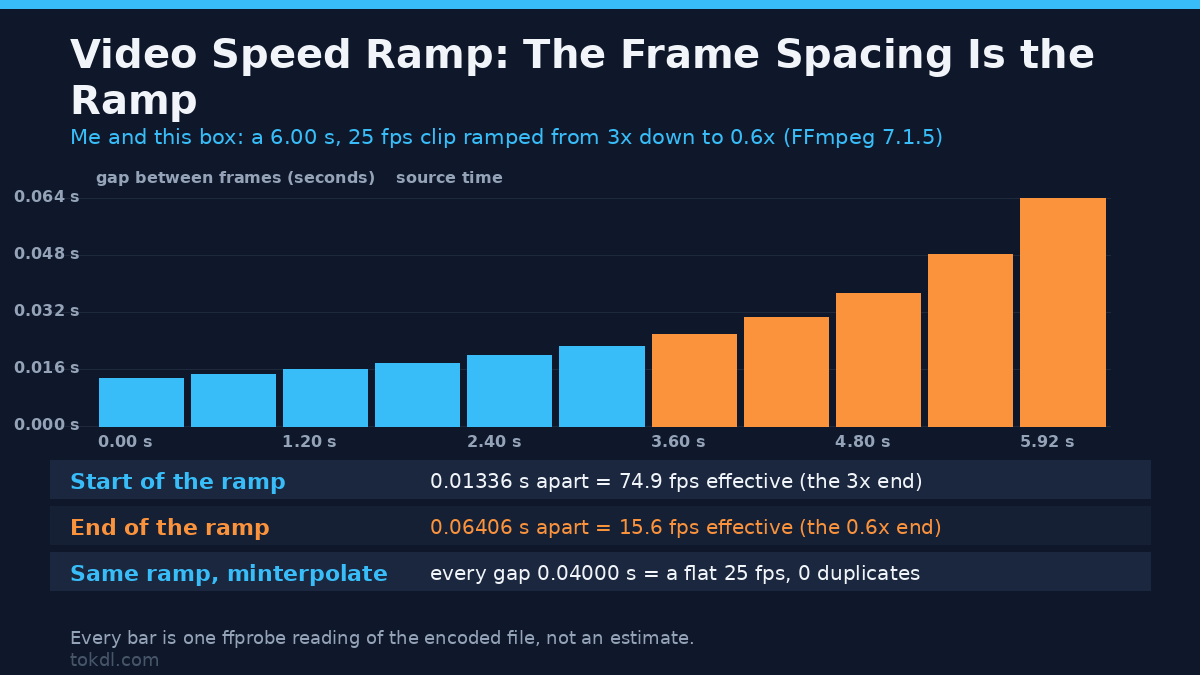
How to Speed Ramp a Video: Smooth Slow Motion in One Clip
Somewhere in the middle of your clip there is a second and a half that deserves to be seen slowly. Retiming the whole file to half speed makes everything else twice as long, and speeding the whole file up throws the moment away. A speed ramp solves both: the clip plays normally, sinks into slow motion for the part you care about, then climbs back out and carries on.
It sounds like one setting. It isn’t. A speed ramp changes the spacing between frames gradually, and the tools that hide it behind a curve can hand you a file that stutters and won’t say a word about it. I built a 6.00 second clip at 25 frames per second and made a speed ramp from it four ways with FFmpeg 7.1.5, reading the frame timestamps out of the encoded results with ffprobe.
One constant change of speed is a different job, and I’ve covered it in how to speed up a video. Inventing frames so slow motion looks smooth is frame interpolation. A speed ramp sits between the two: the speed changes while the clip plays, and the question is what happens to the frames in the slow section.
What a speed ramp is, in one measurement
A 25 fps clip holds a picture every 0.04 seconds, and that spacing is the whole story. Retime the clip with a single factor and every gap changes by the same amount. A speed ramp does it progressively, so the gap grows or shrinks as the clip runs. That’s why a ramp can look wrong while the speed is exactly what you asked for. The picture is fine; the cadence is what your eye reads.
Three things get confused with each other, and only one of them is a speed ramp.
| Name | What changes | What it’s for |
|---|---|---|
| Constant retime | One factor across the whole clip | Fitting a clip into a fixed slot |
| Speed ramp | The factor changes during playback | Emphasis, transitions, music hits |
| Frame interpolation | New frames get drawn in between existing ones | Repairing a cadence that’s too slow |
You can build a speed ramp with no interpolation at all, and often you should. Interpolation repairs one specific problem.
Method 1: a stepped speed ramp from short segments
The most portable speed ramp cuts the clip into segments, gives each a constant speed, and joins them back up. Every editor does this behind a curve; one command keeps control of where the steps land. A 6.00 second clip in three two-second parts:
ffmpeg -i input.mp4 -filter_complex
 "[0:v]trim=0:2,setpts=PTS-STARTPTS[s1];
  [0:v]trim=2:4,setpts=2*(PTS-STARTPTS)[s2];
  [0:v]trim=4:6,setpts=0.5*(PTS-STARTPTS)[s3];
  [s1][s2][s3]concat=n=3:v=1:a=0[out]"
 -map "[out]" -c:v libx264 -crf 20 -preset veryfast -an out.mp4
The result measured 6.98 seconds and 150 frames, against the 7.00 seconds the arithmetic predicts.
| Segment | Source range | setpts factor | Measured length |
|---|---|---|---|
| Normal speed | 0 to 2 s | PTS | 2.00 s, 50 frames |
| Slow motion | 2 to 4 s | 2*(PTS-STARTPTS) | 4.00 s, 50 frames |
| Fast | 4 to 6 s | 0.5*(PTS-STARTPTS) | 1.00 s, 50 frames |
Read the frame counts. The slow segment spreads the same 50 pictures across four seconds, which is 12.5 effective frames per second. The picture didn’t change; the spacing did. That’s the judder people mean when they say slow motion looks like a slideshow.
Audio needs one atempo per segment, in the same order, so the sound follows the picture.
Method 2: a continuous speed ramp from one expression
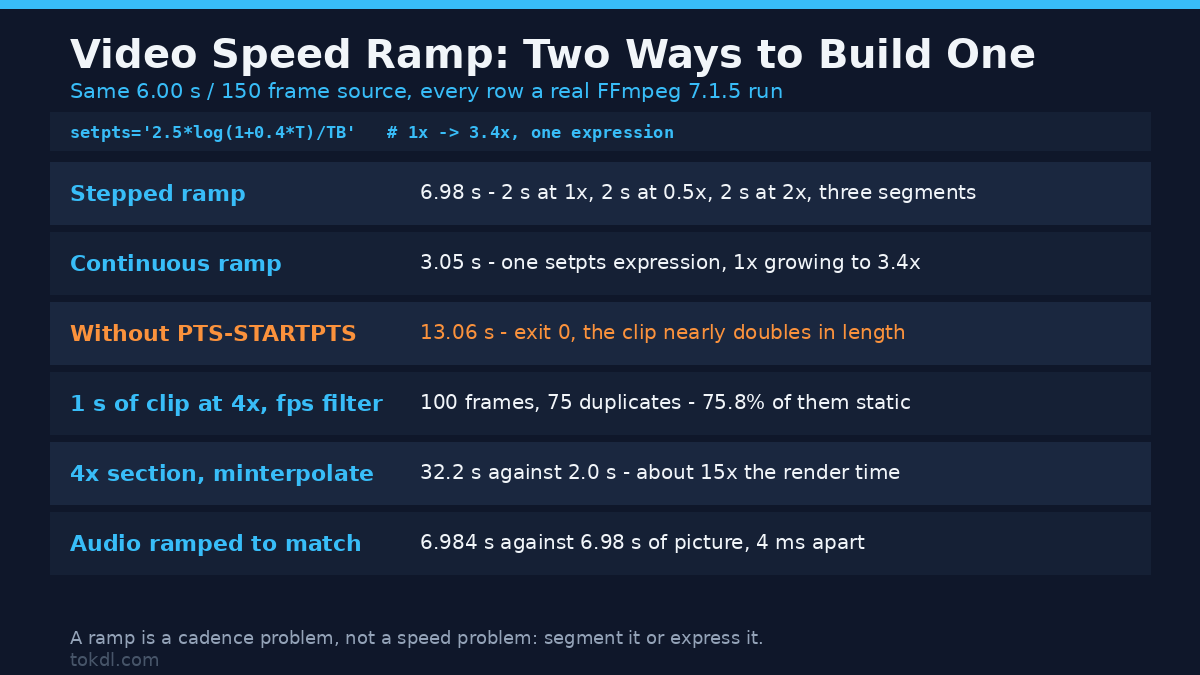
You don’t have to step the speed. setpts evaluates an expression for every frame, so a smooth speed ramp is one formula. If the speed factor grows as 1 + 0.4*t, the output timestamp is the integral of its reciprocal, and the filter takes that directly.
ffmpeg -i input.mp4 -vf "setpts='2.5*log(1+0.4*T)/TB'"
 -c:v libx264 -crf 20 -preset veryfast -an out.mp4
That produced 3.048 seconds against a closed-form prediction of 3.059, an error of 0.4 percent. Frame spacing started at 0.03961 seconds and ended at 0.01180, which is 25 frames per second easing up to about 85.
Flip the formula and you get the ramp editors use most, the fall into slow motion. Speed runs from 3x down to 0.6x, and the frames spread out instead.
ffmpeg -i input.mp4 -vf "setpts='2.5*log(3/(3-0.4*T))/TB'"
 -c:v libx264 -crf 20 -preset veryfast -an ramp.mp4
That file measured 3.858 seconds, with spacing of 0.01336 seconds at the head and 0.06406 at the tail. Read those as frame rates: about 75 at the head, 15.6 at the tail. The slow end of the ramp now sits below the frame rate of the camera that shot it.
Steps approximate a curve better than you’d think
I rebuilt the same acceleration as six one-second segments from 1.2x to 3.2x. The stepped version measured 3.032 seconds, the continuous expression measured 3.048, and the arithmetic sums to 3.045. Three builds of the same speed ramp, 16 milliseconds apart.
Where a speed ramp falls apart: the cadence
A speed ramp doesn’t fail because the speed is wrong. It fails when the slow half gets asked to show more time than there are frames to fill it. Divide one by the gap and you have the frame rate the viewer sees, and below roughly 24 frames per second motion stops reading as motion. My decelerating ramp ends at 15.6, holding each picture for 64 milliseconds. Three fixes, all measured on that file:
| Approach | Measured result | What it costs |
|---|---|---|
| Leave it | 3.858 s, gaps 0.01336 to 0.06406 s, 15.6 fps at the slow end | Free, and the tail judders |
| Resample the cadence | 4.000 s, 100 frames, every gap exactly 0.04000 s | Free, and the slow end freezes |
| Interpolate | 3.920 s, 98 frames, every gap exactly 0.04000 s | 32.2 s of render against 2.0 |
The cheap option forces a flat frame rate with the fps filter or an -r output flag. Both fill the gaps by repeating the frame that’s already on screen. I slowed a one-second section four times over and counted the result: 100 frames, 75 of them duplicates. That’s 75.8 percent of the clip showing a static picture. For a freeze-frame effect that’s fine; for sport or dance it’s exactly the slideshow you were avoiding.
Interpolation is the expensive option. Same one-second section, same four-times slowdown, through minterpolate with motion compensation: zero duplicates, 93 frames, and 32.2 seconds of filter time against 2.0 seconds for the duplicated version, about fifteen times longer. I ran each timing twice on a box whose cgroup quota is 2 CPUs while nproc reports 64, with a load average near 41, so trust the ratio rather than the seconds.
Interpolation estimates where blocks of pixels moved, so it beats fine text on a moving ball and can smear a hard cut. It also dropped the last frames of the section, 98 where the duplicated file had 100.
Ramping the audio without the chipmunk effect
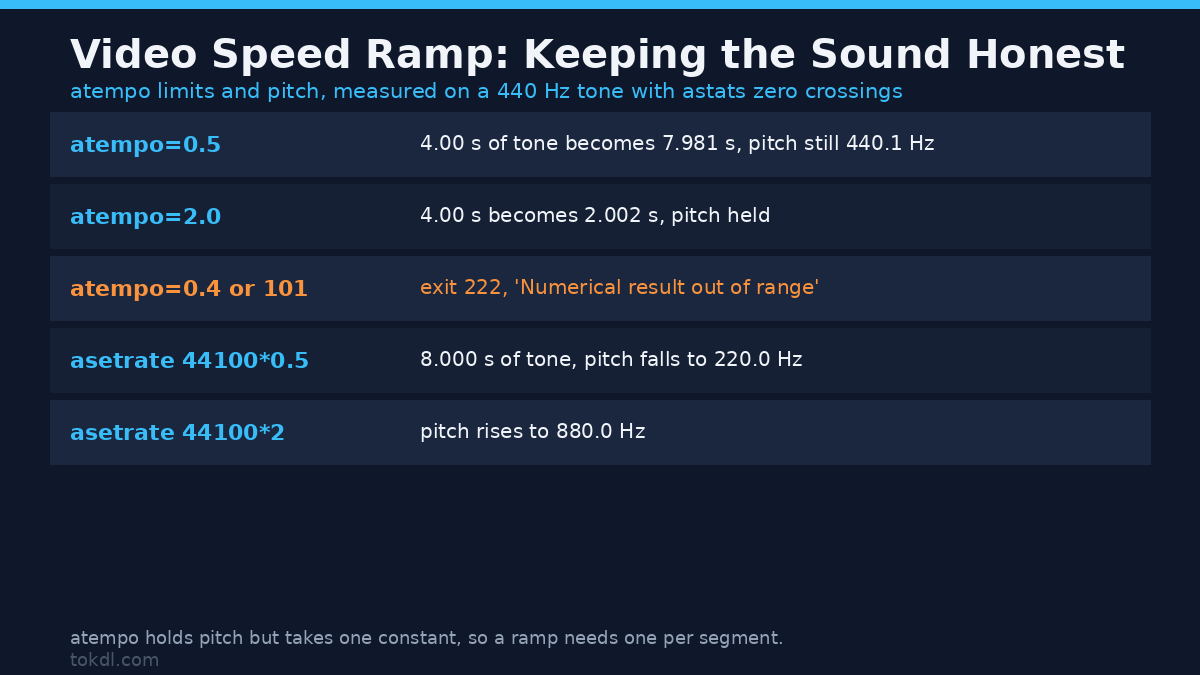
Picture and sound are ramped separately, and the sound is where people give up and mute the clip. The tool to know is atempo, which changes duration and holds pitch. I proved it on a 440 Hz tone by measuring its zero-crossing rate, which halves when the frequency halves.
| Filter | Tone result | Measured pitch |
|---|---|---|
| No filter | 4.00 s | 440.0 Hz |
| atempo=0.5 | 7.981 s | 440.1 Hz |
| atempo=2.0 | 2.002 s | 440.0 Hz |
| asetrate=44100*0.5 + aresample | 8.000 s | 220.0 Hz |
| asetrate=44100*2 + aresample | 2.000 s | 880.0 Hz |
Read the last rows carefully. atempo holds the pitch; asetrate does the opposite, relabelling the sample rate so the tone drops an octave. Forget the aresample that follows it and you’ll hear the wrong speed entirely.
The other limit is the range. atempo accepts 0.5 to 100, and outside that window FFmpeg refuses the file with exit code 222 and the message Numerical result out of range. Both 0.4 and 101 fail that way. To go beyond twice, or below half, chain the filter: atempo=0.5,atempo=0.5 took my four-second tone to 15.942 seconds, four times slower, with each stage inside the legal window.
For a stepped speed ramp, the audio mirrors the picture segment for segment. Three atrim cuts with their own atempo values, concatenated in order, measured 6.984 seconds against 6.98 seconds of video. Four milliseconds across seven seconds is locked. If the audio track comes out shorter than the picture, the segments came from different ranges and it’ll drift.
Which method to use
| Method | Measured output | Use it when |
|---|---|---|
| Stepped segments | 6.98 s from a 6 s source | Hard steps, or an editor’s UI |
| Continuous expression | 3.05 s accel, 3.86 s decel | A smooth ramp from one line |
| Six-step approximation | 3.03 s, within 16 ms of the curve | Smooth, from segment controls alone |
| Plus interpolation | Flat 0.04000 s spacing, 15x render time | The slow end drops under about 24 fps |
My own order of operations is boring. Decide the two speeds and where the change happens, build it, then measure the delivered file before you upload. If the slow section of the speed ramp reads under 24 frames per second and the shot matters, interpolate that section only, not the whole clip.
Common mistakes with a speed ramp
Leaving out PTS-STARTPTS. I rebuilt the three-segment ramp with trim=2:4,setpts=2*PTS instead of setpts=2*(PTS-STARTPTS). The command exited 0 with no warning and produced a 13.06 second file instead of 6.98. Trimmed segments keep their original timestamps, so each one drags its own start offset into the retime and the join stretches to fit. Rebase every segment to zero before you retime it.
Forgetting the frame rate. Drop the fps filter and nothing breaks: my four-times slowdown produced 25 frames across four seconds, a nominal 6.25 frames per second, and whether that plays correctly depends on your player rather than on you.
One atempo for a whole ramp. The filter takes a constant, so a ramp needs one per segment even when the picture uses a continuous expression. If the sound sits offset rather than stretching, that’s an audio sync problem with a different fix.
Expecting a ramp to add detail. Speeding a section up discards frames, and slowing it down can’t recover what the camera never recorded. That 75.8 percent figure is what slow motion looks like when the source cadence runs out.
Trusting the export without reading it. One ffprobe line tells you whether the speed ramp landed.
ffprobe -v error -select_streams v:0
 -show_entries frame=best_effort_timestamp_time -of csv=p=0 ramp.mp4
Difference the timestamps for the spacing and invert it for the frame rate. Sort the list first, because the encoder writes frames in decode order and B-frames make a raw dump look scrambled. That’s how I caught a negative frame gap in my own first pass and re-ran it.
Frequently asked questions
Does a speed ramp reduce video quality?
Retiming doesn’t destroy detail by itself, but a four-times slowdown of 25 fps footage leaves a quarter of the unique frames. The loss is temporal, not pixel-level.
Can I build a speed ramp in CapCut or Premiere?
Yes, as a speed curve or time remapping. The rules don’t change: the slow end still runs out of frames, and the exported file still tells the truth.
Do I need interpolation for every speed ramp?
No. If the slowest point stays at or above the source frame rate, the ramp is clean with none. My accelerating ramp never dropped below 25 fps; the decelerating one ended at 15.6.
What’s the smoothest ramp without an expression?
Short segments. Six one-second steps tracked a continuous curve to within 16 milliseconds, and most editors give you that control.
The short version
A speed ramp changes the spacing between frames gradually, so the job is deciding what the slow section looks like. Cut the clip into segments or integrate a curve with setpts; six short steps come within 16 milliseconds of the same curve. Then measure the frame timestamps, invert the gaps, and if the slow end sits under about 24 frames per second, interpolate that section or accept the stutter on purpose. Most ramps start with cutting the clip apart, so splitting a video and trimming it cleanly decide whether the ramp lands where you aimed.